Important: this article is intended for Endalia HR users with an Administrator profile.
Data management is one of the pillars on which any company is based, so payroll reports are no exception. We explain their access and handling in these lines.
In this article:
Reports
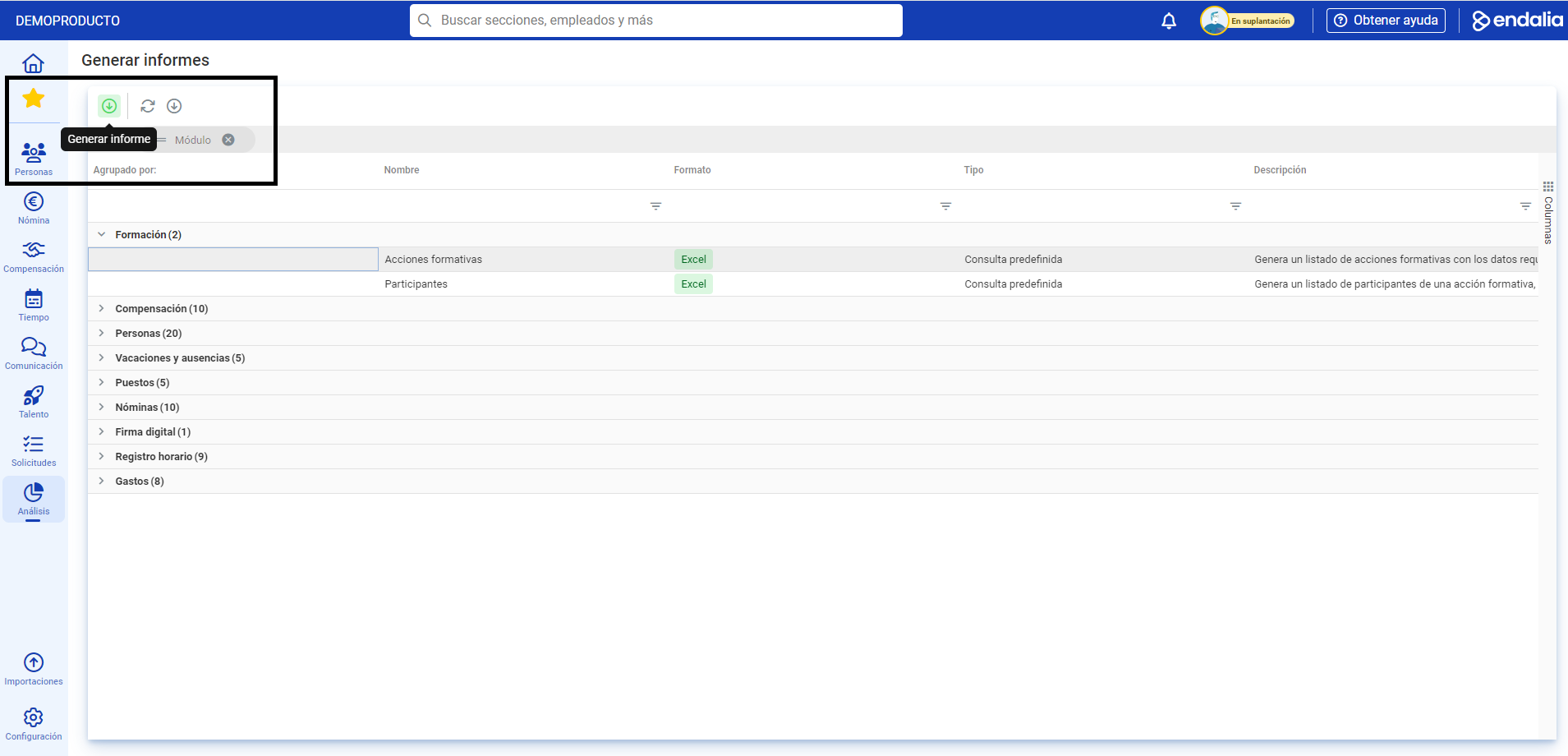
Within the hub Analysis, click on Reports and Analytics > Generate Reports
- In the table presented to you below, there is a complete list of all reports from different modules. To access the specific payroll ones, click on the cell immediately below the column Name, and filter by "Payroll". You now have the list of them.
- To enter a specific report, click on a particular row and then click on Generate Report, a button you'll find on the toolbar.
- Now, within the report sheet, you can modify certain parameters, such as the applicable dates, the data and the people to include, etc. Configure them to your liking and finally click on Generate Report, a button you'll find in the upper left area of the screen.
- This step takes you to the Recent Reports window, where you can View and Download the one you just created, in addition to various actions you will find, as always, in the toolbar:
Note: If the report is too large, you may not be able to preview it, only download it.
Process Video
We show you this functionality in just a few seconds:
Still have doubts? Take a look at the following related articles:
Additionally, you can view our glossary, available at this link.
Was this article helpful?
That’s Great!
Thank you for your feedback
Sorry! We couldn't be helpful
Thank you for your feedback
Feedback sent
We appreciate your effort and will try to fix the article