Important: this article is intended for Endalia HR users with the Administrator profile.
Manage your employees' enrollments in Cobee or Payflow using reports from the Compensation module.
In this article:
Employee Enrollment Reports (flexible compensation)
- Within the Analysis hub, click on Reports & Analytics > Reports > Reports Catalog
- Enter the Compensation section, where you can see various reports on Cobee or Payflow, which will help you manage enrollments in these providers. There are two types:
- "Initial load" reports, in Cobee or Payflow format.
- "Monthly enrollment" reports, in Cobee or Payflow format.
These reports generate a list of employees with flexible compensation activated in their current salaries. Additionally, employees will only be exported in the report if the Flexible Compensation section of the Options in the Compensation module is enabled.
The difference lies in the exported employees:
- The "initial load" reports export all system-loaded employees meeting the previous condition.
- The "monthly enrollment" reports, however, have a month and year filter: they only extract employees whose start date of the last active contract variation matches the filter's year and month, provided there is no contract variation the previous month; if this criterion is not met, the employee is not exported, even if they have flexible compensation activated in their current salary.
Finally, click on Generate report in a report to access the next screen and download it. Next, the system will switch to the report tab, where you can configure the report with its filters and fields.
Select the date filter, and click on the Download report button: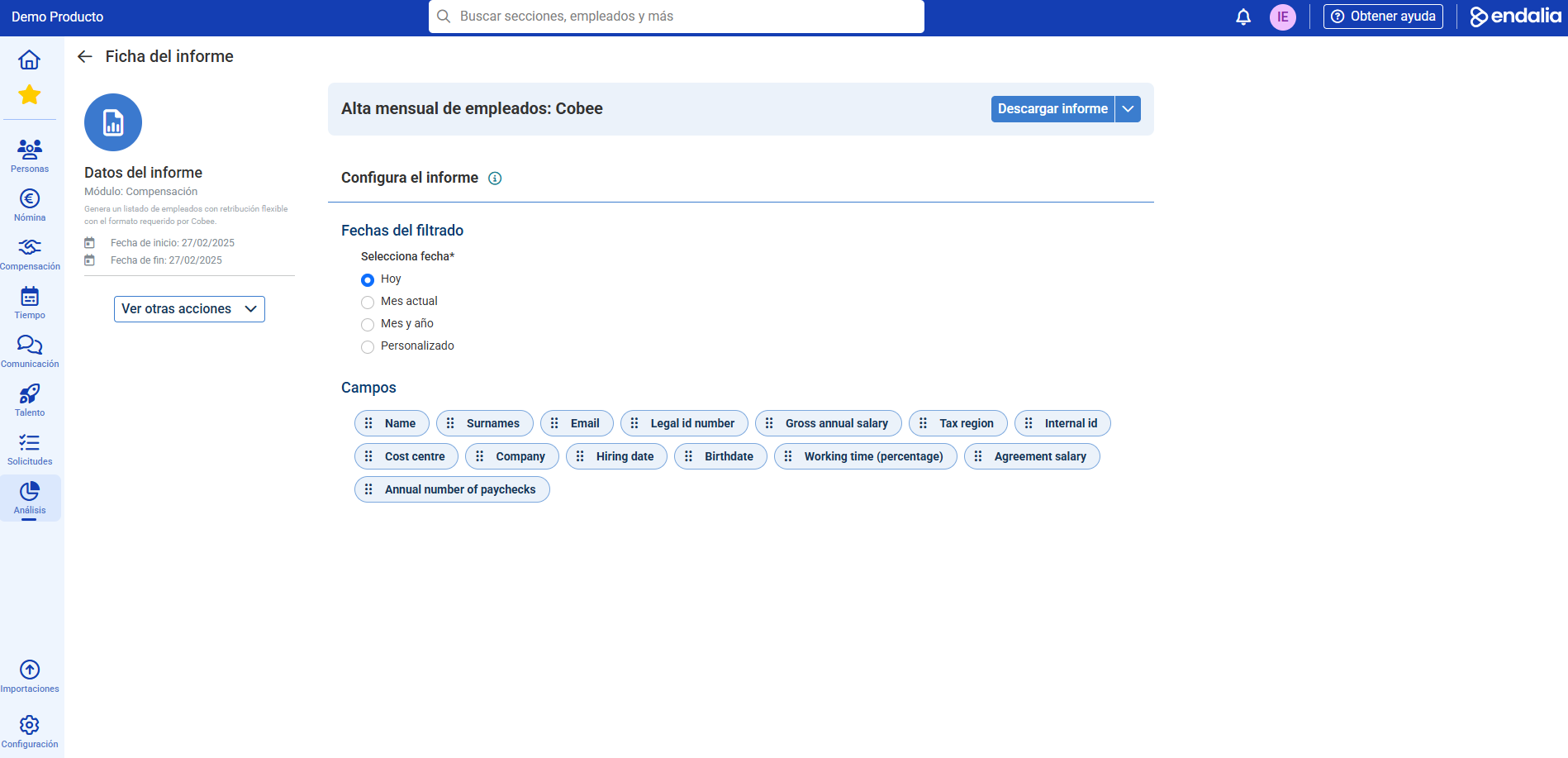 If you have doubts about the terms, check our glossary at this link.
Was this article helpful?
That’s Great!
Thank you for your feedback
Sorry! We couldn't be helpful
Thank you for your feedback
Feedback sent
We appreciate your effort and will try to fix the article