Important: this article is intended for Endalia users with internal authentication. It does not apply to users with delegated authentication (Microsoft, Google, etc.

If ypou're looking for information about MFA settings, refer to this article: Multi-factor Authentication (MFA). Administrator user.
Improve the security of your data with a second authentication factor
What is multi-factor authentication (MFA)?
Multi-factor authentication (MFA) is a login process that requires more information than just a password. In addition to your regular password, you'll need to provide a second verification element, such as:
- A code sent to your email or mobile phone
- A code generated by an authentication application
- Biometric data (fingerprint, facial recognition)
This second authentication factor helps prevent unauthorized access, even if your password has been compromised.
Access the system with MFA
When you have two-factor authentication enabled, when accessing ENDALIA you will be asked to choose a second authentication method.
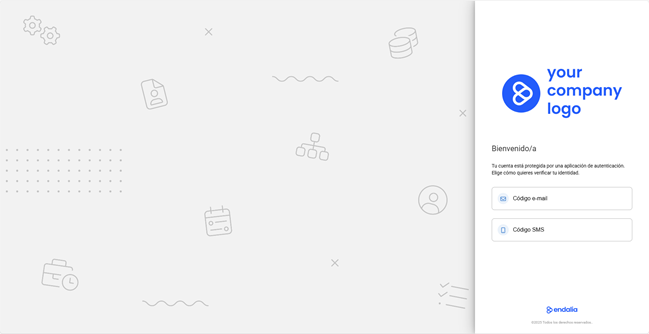
Note: The available methods will depend on your organization's configuration.
Method 1: Authentication by email or SMS
By selecting this option, you will receive a 6-digit code in your email or mobile phone that you must enter in the box.
Tip: Check the email or mobile number registered with Endalia by going to People > My employee profile > My details > Contact
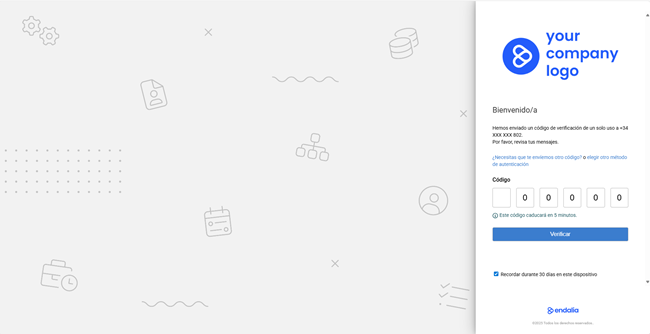
✅ You can select "Remember for 30 days on this device" so you don't have to enter the code every time you log in from the same device.
Method 2: Authentication Application (Recommended)
Step-by-step setup
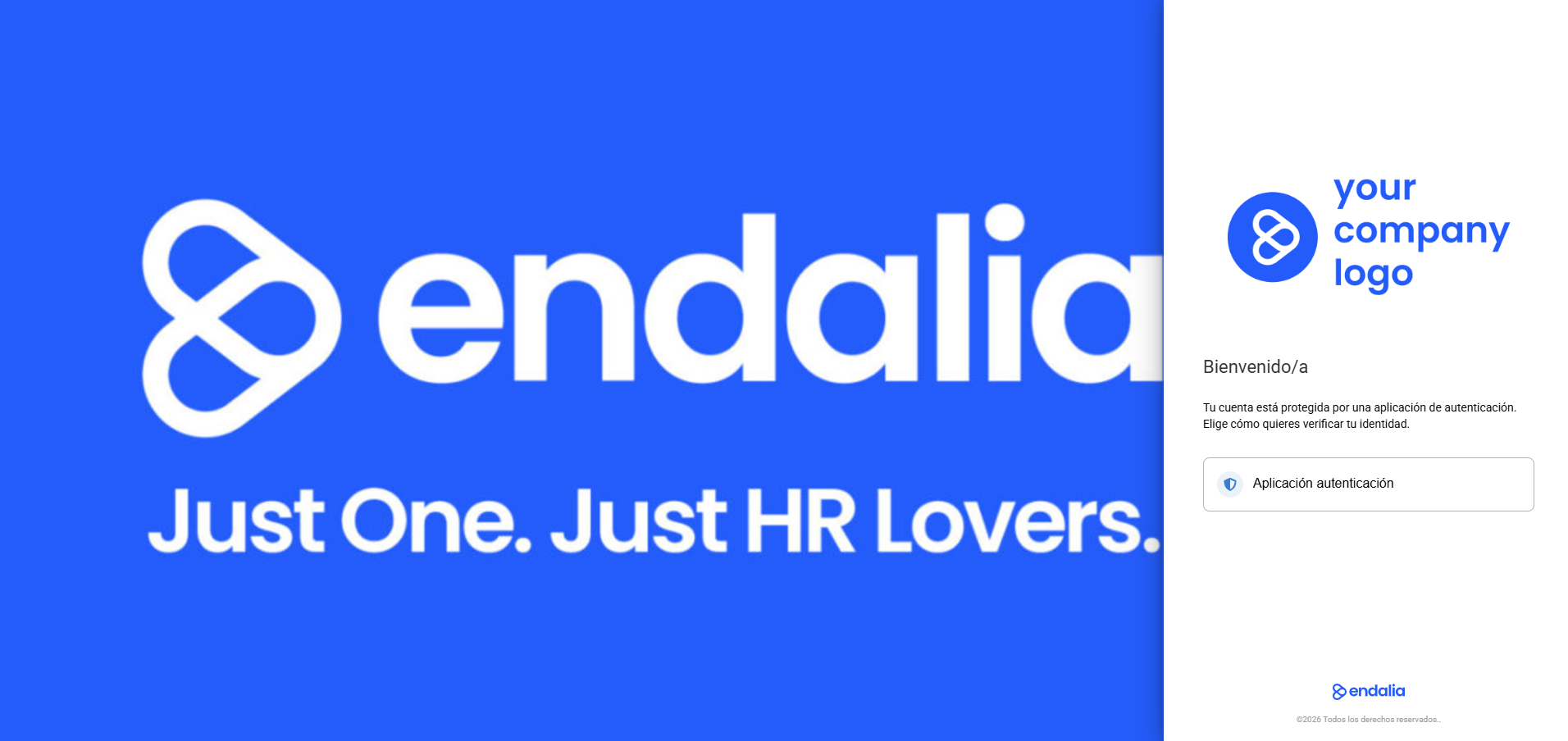
Step 1: Select "Authentication Application"
On the ENDALIA MFA options screen, click the "Authentication Application" button.
Step 2: Download and install the application
If you don't already have the authentication app installed on your mobile device:
Step 3: View the QR code in ENDALIA
ENDALIA will show you a QR code and an alternative manual code to configure your application.
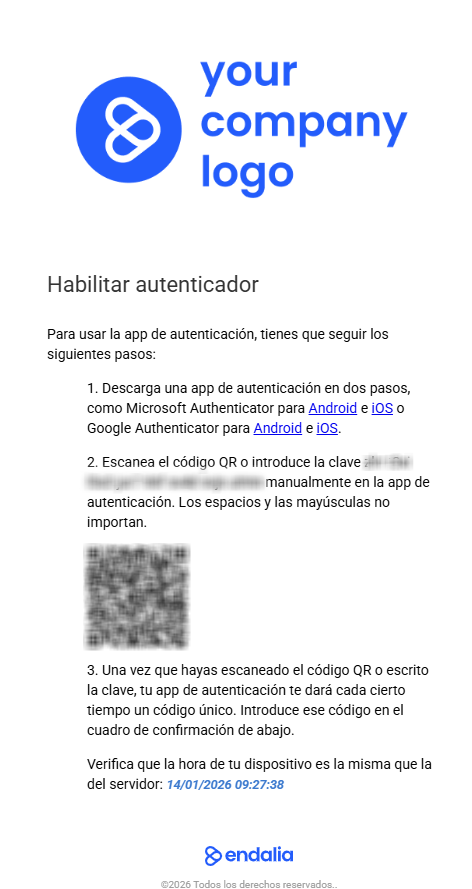
Note: We have censored the example codes; you must use the codes you see on your Endalia screen.
Step 4: Open Microsoft Authenticator on your mobile device
When you open the application for the first time or to add a new account, you will see the main screen and select the "QR Code" option.
Step 5: Scan the QR code
Option A: Scan QR code (Recommended)
Point your mobile phone's camera at the QR code displayed on the ENDALIA screen
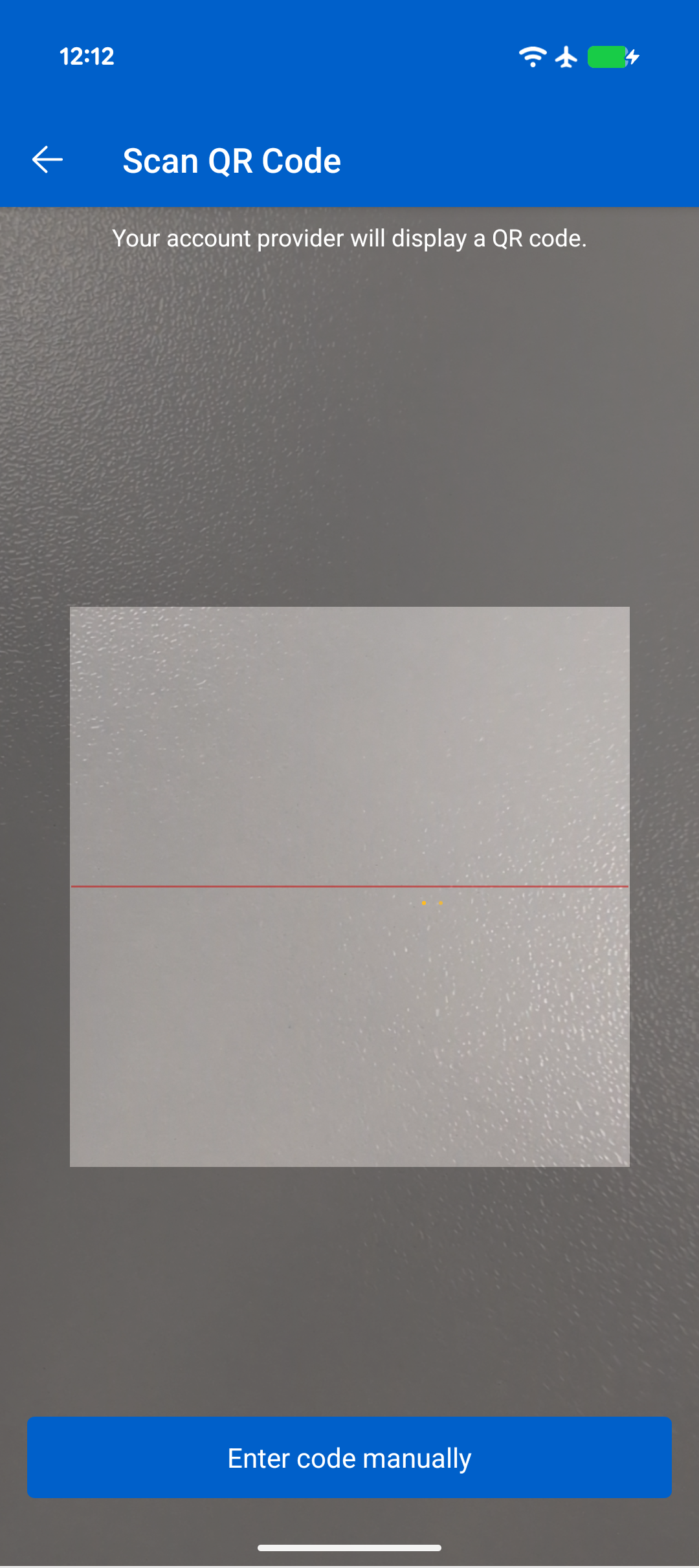
The application will automatically detect the code by framing it within the screen square and will add the account.
Option B: Enter code manually
If you prefer not to use the camera or are having trouble scanning:
- In Microsoft Authenticator, tap "Enter code manually"
- Select "Another account"
- Enter the following information:
- Account name: ENDALIA (or the name you prefer to identify it)
- Key/Code: Copy the alphanumeric code shown in ENDALIA

- In your authenticator app there may be another option similar to "Account Type": In that case, we would put "Time-based" here.
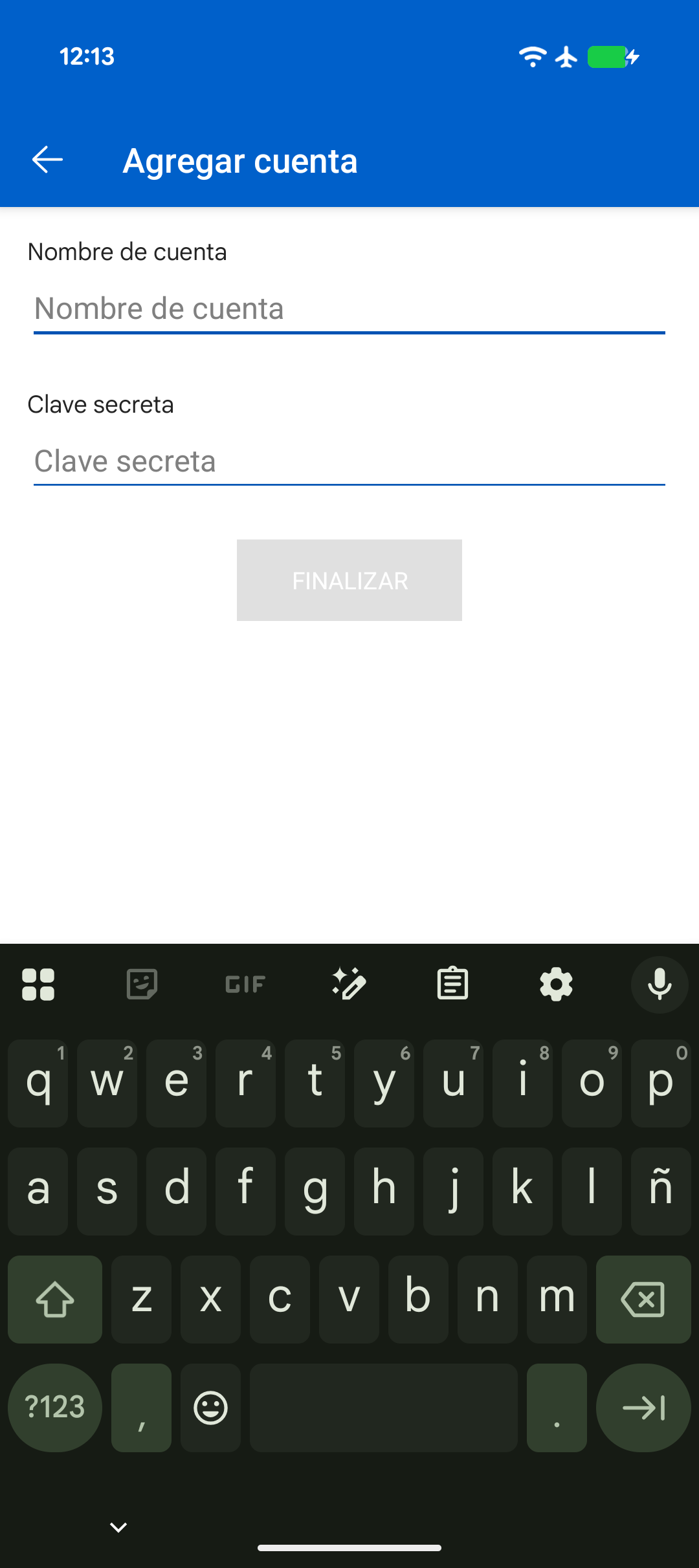
Step 6: Account configured in Microsoft Authenticator
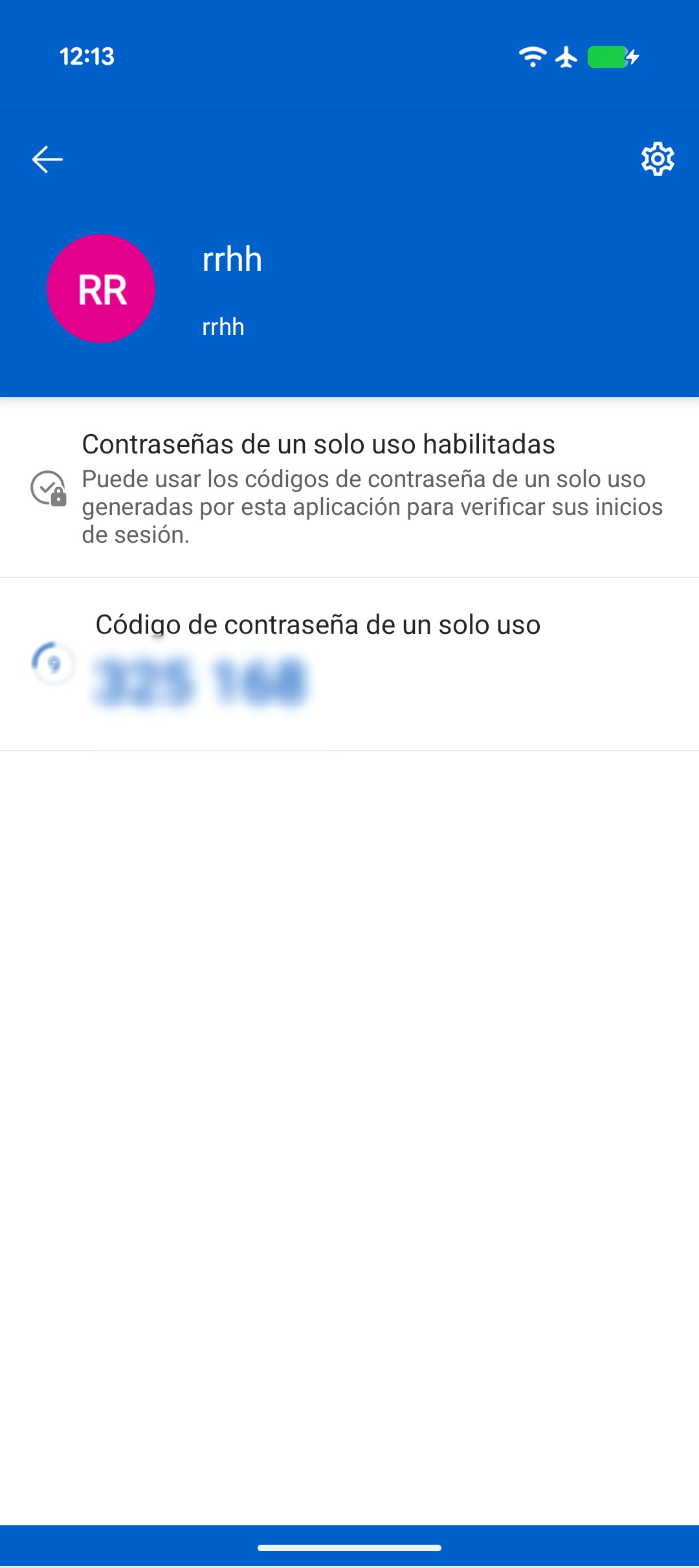
Once the code has been scanned or entered manually, you will see your ENDALIA account in the authenticator app list. Selecting it will display a screen with a 6-digit code that updates every 30 seconds.
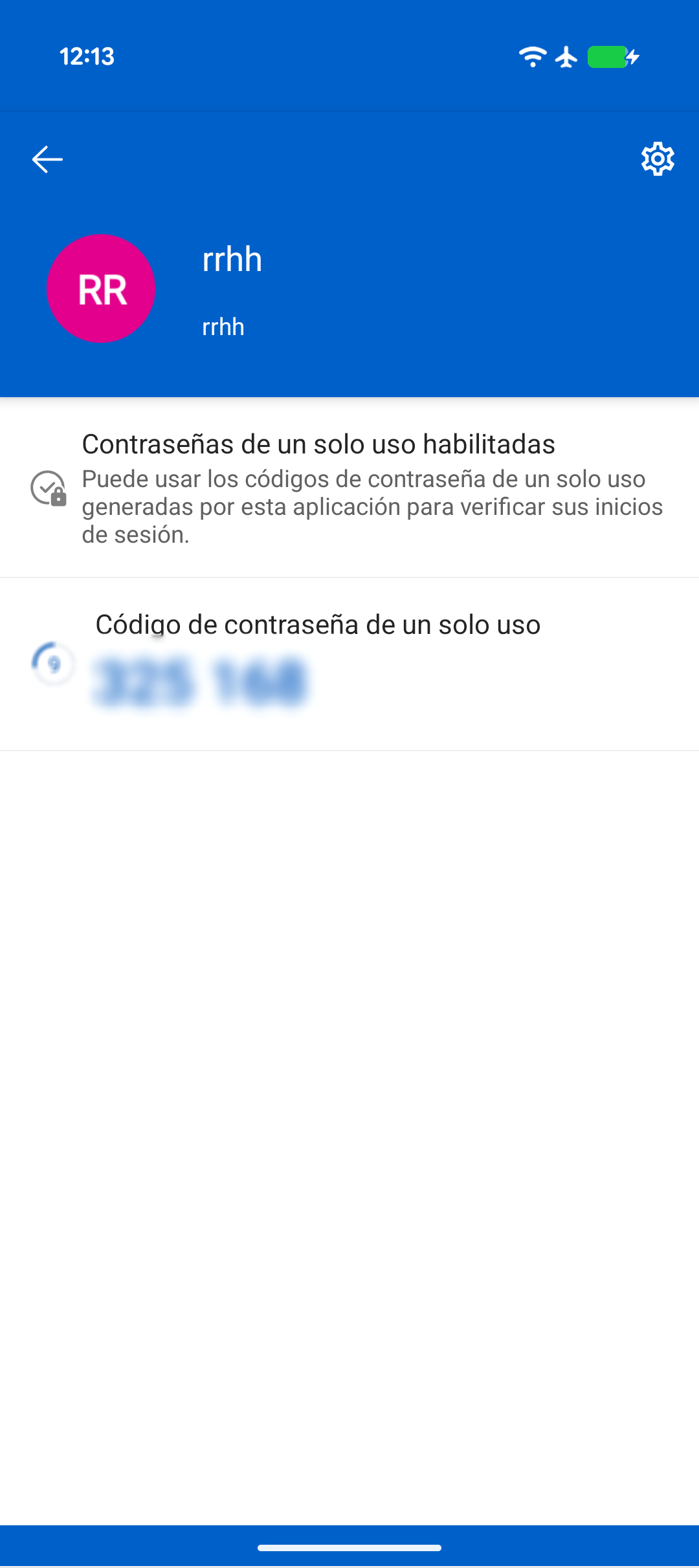
Key features:
- The 6-digit code expires and is automatically renewed every 30 seconds.
- You can tap the code to copy it to the clipboard
- The colored circle indicates the time remaining before the code changes.
Step 7: Verify the configuration in ENDALIA
Return to the ENDALIA screen and enter the 6-digit code currently displayed in Microsoft Authenticator.
.
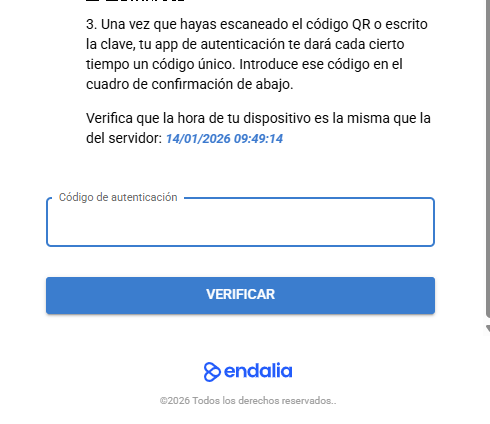
⚠️ Important: The code expires every 30 seconds. If it expires before you enter it, use the new code that appears.
Step 8: Save the recovery codes
⚠️ THIS IS THE MOST IMPORTANT STEP FOR YOUR SAFETY
ENDALIA will provide you with a series of backup codes. SAVE THEM IMMEDIATELY!
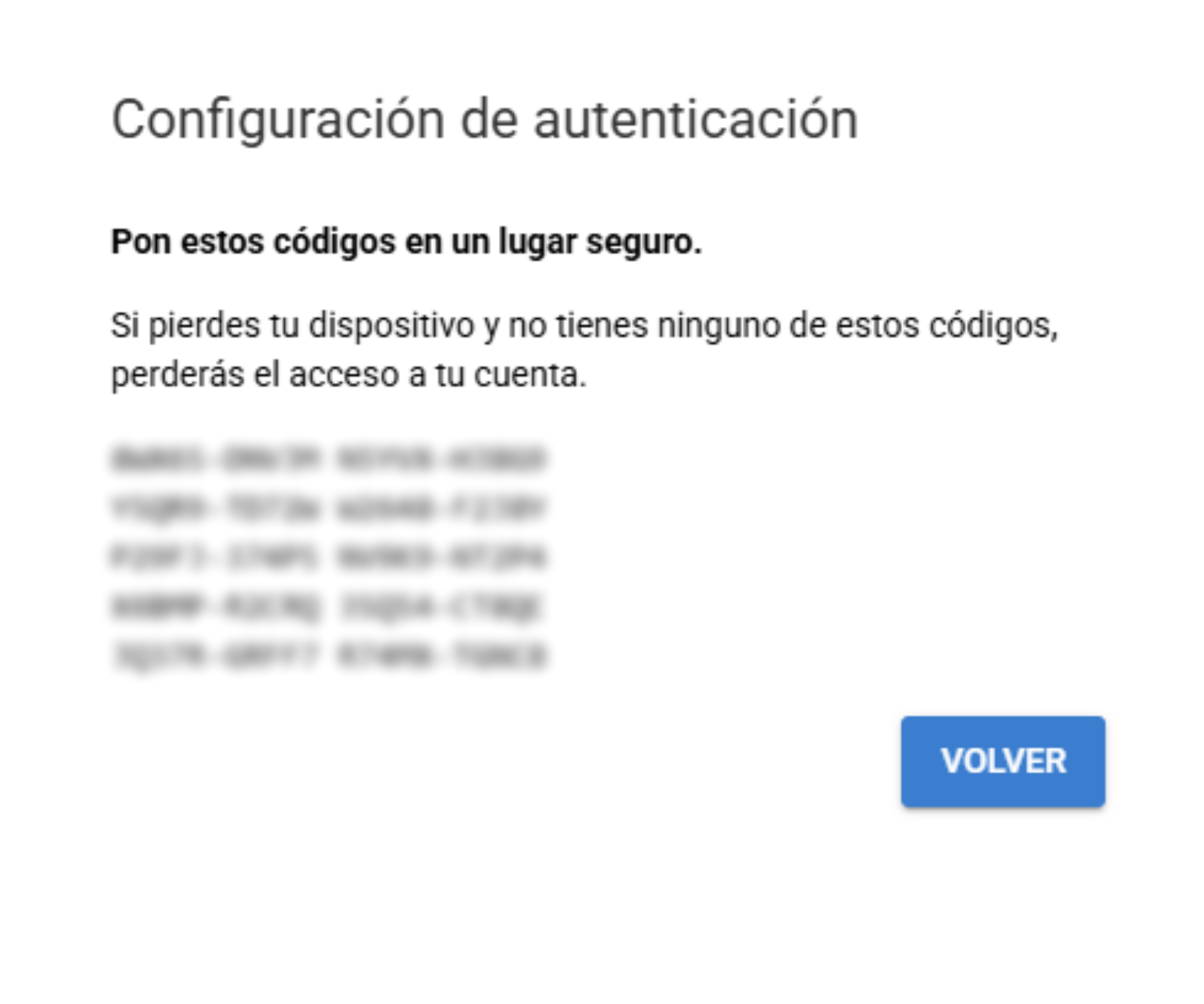
Why are these codes important?
- You'll need them if you lose your mobile phone.
- You'll need them if you uninstall the app by mistake.
- You'll need them if you switch mobile devices.
- Each code can only be used once.
Where to store them?
- ✅ In a password manager (1Password, Bitwarden, LastPass, etc.)
- ✅ Printed on paper and stored in a secure and private physical location
- ✅ In an encrypted document on your computer
- ❌ NEVER in an unencrypted screenshot
- ❌ NEVER in an unencrypted email
- ❌ NEVER share with other people
Configuration complete
✅ Congratulations! You have successfully set up two-factor authentication on ENDALIA.
From now on, every time you log in you will need:
- Your username and password
- The 6-digit Microsoft Authenticator code
Log in with MFA configured
Once the MFA is configured, the login process will be as follows:
Step 1: Enter your username and password
Log in to ENDALIA as you normally do.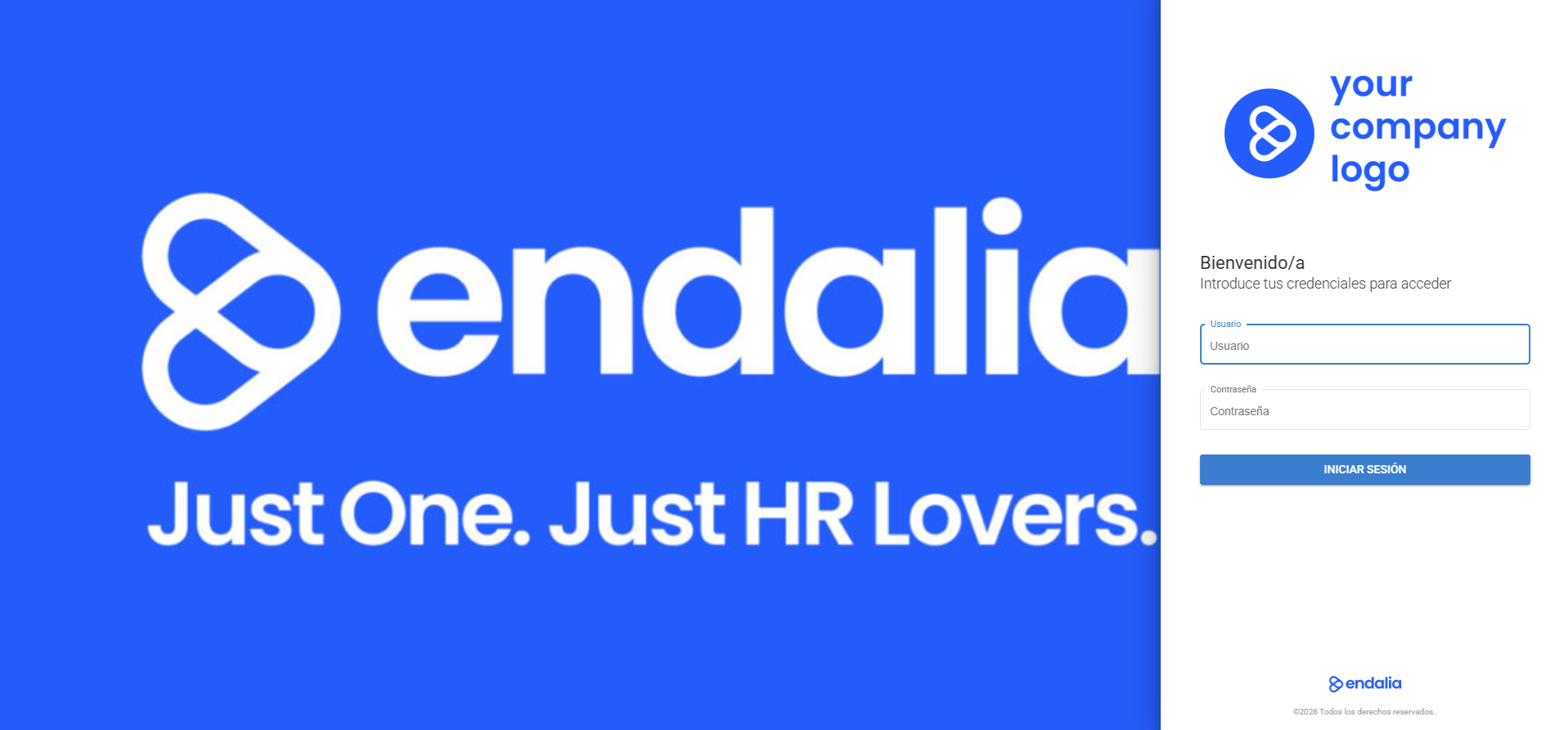
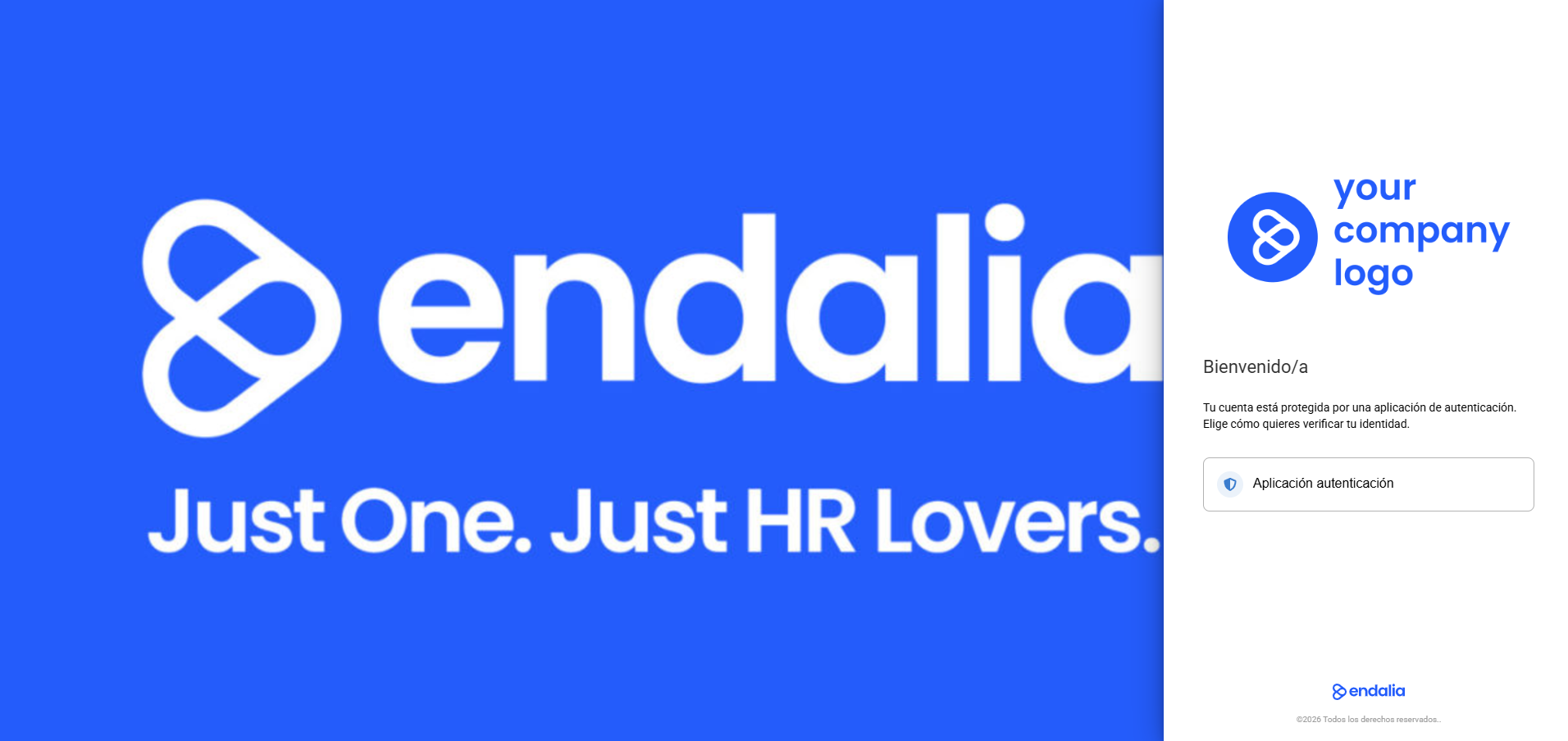
Step 2: Select your authentication method
If you have multiple methods set up, choose "Authentication app".
Step 3: Open Microsoft Authenticator
Open the app on your mobile and find your ENDALIA account.
Step 4: Enter the 6-digit code
Enter the code that appears in Microsoft Authenticator on the ENDALIA screen.
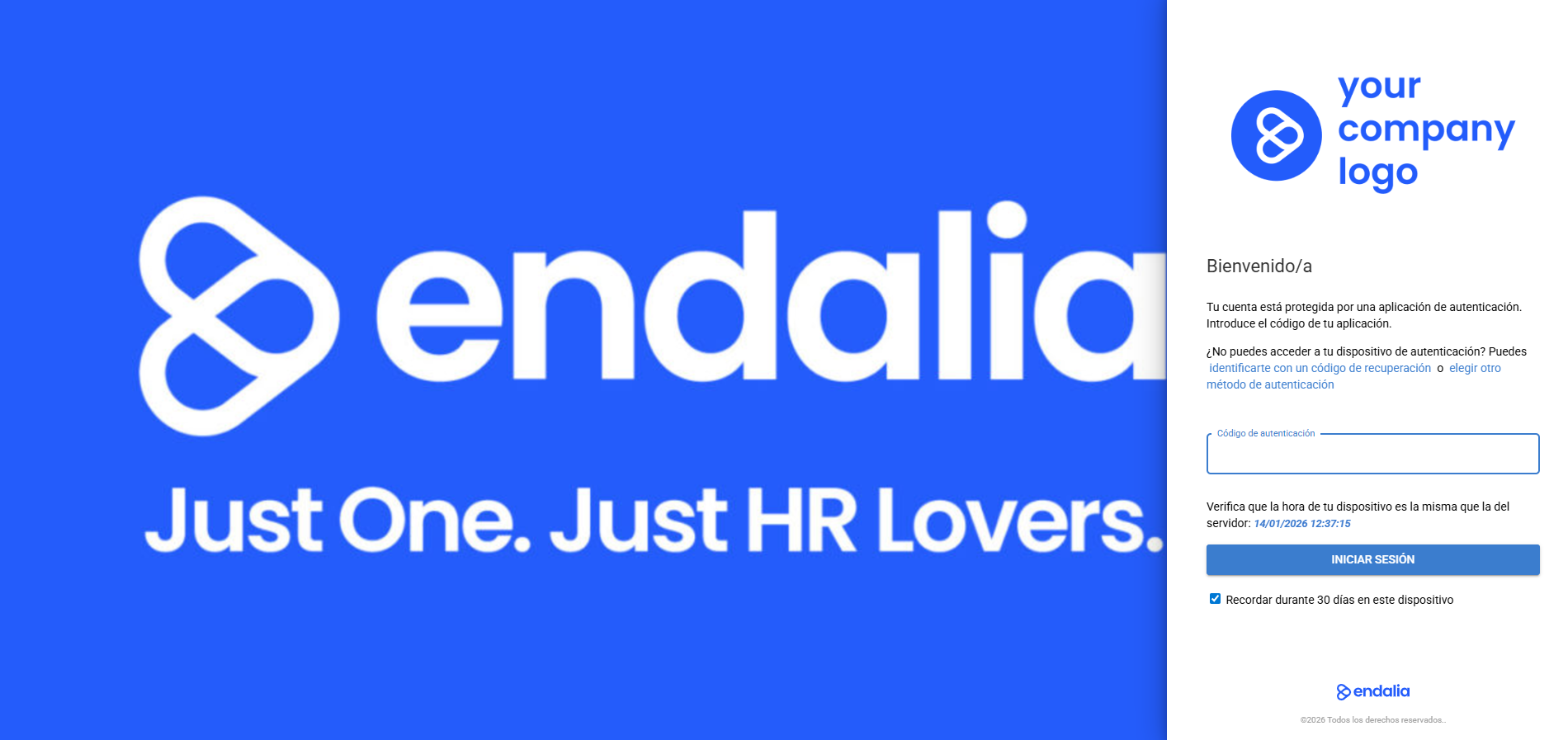
- ✅ Check "Remember this device for 30 days" if it's your personal and trusted computer
- ⚠️ DO NOT select this option if you are on a shared or public computer
Step 5: Access granted
✅ Done! You have securely logged into ENDALIA.
If you selected "Remember for 30 days", you will not need to enter the verification code during that period on this specific device.
Frequently Asked Questions
❓ What do I do if I lose my phone?
- Use one of the recovery codes you saved during setup.
- If you do not have the recovery codes, contact your system administrator immediately.
- Once you regain access, configure MFA on your new device
❓ Can I use the same app for multiple accounts?
Yes, you can add multiple accounts in Microsoft Authenticator:
- Your ENDALIA account
- Gmail, Outlook, Facebook
- GitHub, Dropbox, Amazon
- And many others that support two-factor authentication
They will all appear in the list with their corresponding codes.
❓ What does "Remember for 30 days" mean?
- By selecting this option, you will not have to enter the verification code for 30 days on that specific device.
- If you log in from another device (work computer, laptop, tablet), you will need the code again.
- It is safe to select this option on your personal computer.
- It is NOT recommended to select this option on shared or public computers.
❓ Is it safe to use authenticator apps?
Yes, it is one of the safest methods because:
- The codes are generated locally on your device
- You don't need an internet connection to get the code
- The codes change every 30 seconds
- Even if someone sees a code, they will not be able to use it after 30 seconds.
- It is safer than receiving codes via SMS (which can be intercepted)
❓ What do I do if I change my phone?
Before changing your phone:
- Install Microsoft Authenticator on your new phone
- Log in to ENDALIA with your old phone number.
- Go to security settings and add the new device by scanning a new QR code
- Verify that it works on the new device.
- You can now delete the account from the old phone.
If you already changed your phone without preparing it:
- Use a recovery code to enter ENDALIA
- Go to security settings and reconfigure MFA with your new phone
❓ Can I use Google Authenticator instead of Microsoft Authenticator?
Yes, the process is very similar:
- Download Google Authenticator from your app store
- Tap the "+" button to add an account
- Scan the ENDALIA QR code
- Use the 6-digit Google Authenticator codes to log in
Both applications work exactly the same for ENDALIA.
❓ What do I do if the code says it's incorrect?
Possible causes and solutions:
- The code has expired: Codes change every 30 seconds. Wait for the next code to appear and enter it.
- Incorrect time on your mobile:
- The codes depend on the time being accurate.
- Go to your phone's settings and turn on "Automatic date and time"
- You entered the code incorrectly:
- Make sure you write all 6 digits correctly
- Some codes have similar numbers (0 and O, 1 and 1)
- Duplicate account in the app:
- Verify that you only have one ENDALIA account in Microsoft Authenticator
- If there are duplicates, delete the old ones.
Troubleshooting
❓ I can't scan the QR code
Solutions:
- Make sure Microsoft Authenticator has permission to use the camera
- Increase your screen brightness
- Move your phone closer to or further away from the QR code.
- Use the option to enter code manually
❓ I lost the recovery codes
- Sign in to ENDALIA with your Microsoft Authenticator code
- Go to Settings → Security → Two-factor authentication
- Look for the option to "Generate new recovery codes"
- Store them immediately in a safe place
❓ I uninstalled Microsoft Authenticator by mistake
- Use a recovery code to access ENDALIA
- Reinstall Microsoft Authenticator
- Reconfigure MFA by scanning a new QR code from ENDALIA
❓ My company switched from Microsoft Authenticator to another application
- Install the new required application
- Log in to ENDALIA using your current method.
- Configure the new authentication method
- Verify that it works
- You can uninstall Microsoft Authenticator if you no longer need it.
Additional safety tips
✅ Good practices:
- Keep the Microsoft Authenticator app up to date
- Enable PIN or fingerprint lock in Microsoft Authenticator
- Back up your recovery codes regularly
- Do not share your screen when viewing authentication codes
- Configure MFA on all important accounts that allow it
❌ Avoid these mistakes:
- Do not take screenshots of the 6-digit codes (they expire quickly)
- Do not share recovery codes with anyone, not even technical support.
- Do not use "Remember for 30 days" on public or shared computers.
- Don't skip the step of saving the recovery codes
Was this article helpful?
That’s Great!
Thank you for your feedback
Sorry! We couldn't be helpful
Thank you for your feedback
Feedback sent
We appreciate your effort and will try to fix the article