Important: This article is intended for Endalia administrator users. If you are looking for information on using MFA, please refer to this article: Multi-Factor Authentication (MFA) - Final User
Improve the security of your data by including a second authentication factor
Definition of multi-factor authentication
Multi-factor authentication (MFA) is a multi-step registration process that requires users to enter more information than just a password. For example, along with a password, users may need to enter a code sent to their email address, answer a security question, or scan a fingerprint. This second form of authentication can help prevent unauthorized access to an account if the system password has been compromised.
Configuration: Module options
Two-factor authentication must be activated from Settings > General > Module Options.
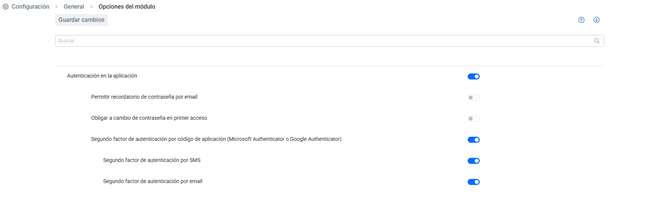
Activating the second authentication factor via SMS or email is always linked to activation via application code. In other words, the following combinations can be activated::
- Second authentication factor via application code
- Second authentication factor via app code and SMS
- Second authentication factor by application code and email
Once this setting is activated, new options will be available in the user profile:
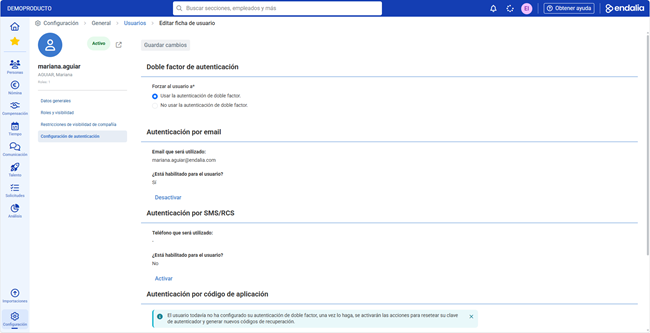
At the top, we'll have the option to force the user to use two-factor authentication. By default, new users will have two-factor authentication enabled in their user profiles.
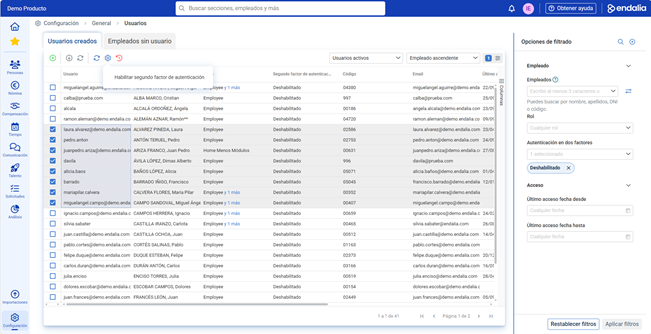
Note: For the users previously loaded in he system, the double authentication No willbe activated by flaw. For it willbe necessary forcethem he double factor of authentication.
This action can be performed by going to Settings > General > Users. Then, filter for those who have the second factor disabled and finally use the "Enable two-factor authentication" option in the toolbar.
Settings: User profile
From the user's profile (in the new section called Authentication Settings, which will only be displayed if MFA authentication is enabled) you can perform the following actions:
Two-factor authentication | It allows you to force or not the use of two-factor authentication. |
Email authentication | If this mode is active, it will display the email that will be used to receive the authentication code. This option will be active if the user has a professional email address. If they do not have one, it will not be activated. If it is active, it can be deactivated. |
SMS/RCS Authentication | If this mode is active, it will display the phone that will be used to receive the authentication code. This option will be active if the user has a professional email address. If they do not have one, it will not be activated. If it is active, it can be deactivated. |
Application code authentication | This allows you to perform actions on the authentication application, in case the user is locked out and cannot access their account and execute commands. It allows you to both reset the authenticator's password and generate new recovery codes. From the user panel, it also allows you to reset the authenticator keys (multiple times) as well as generate new recovery codes (one at a time). |
Two-factor authentication devices. | Generates a list of the last device where the user has authenticated and the activation date of the same. |
Was this article helpful?
That’s Great!
Thank you for your feedback
Sorry! We couldn't be helpful
Thank you for your feedback
Feedback sent
We appreciate your effort and will try to fix the article