Important: this article is aimed at Endalia HR users with a Manager profile.
Basic functionality for team managers with the authority to control objectives, advance phases, select periods, etc. Do not miss out on details to know everything about this important part of the software.
In this article:
Objective Assessments
- In the hub Performance and Talent,, go to Objectives > Corporate Objectives > Objective Assessments
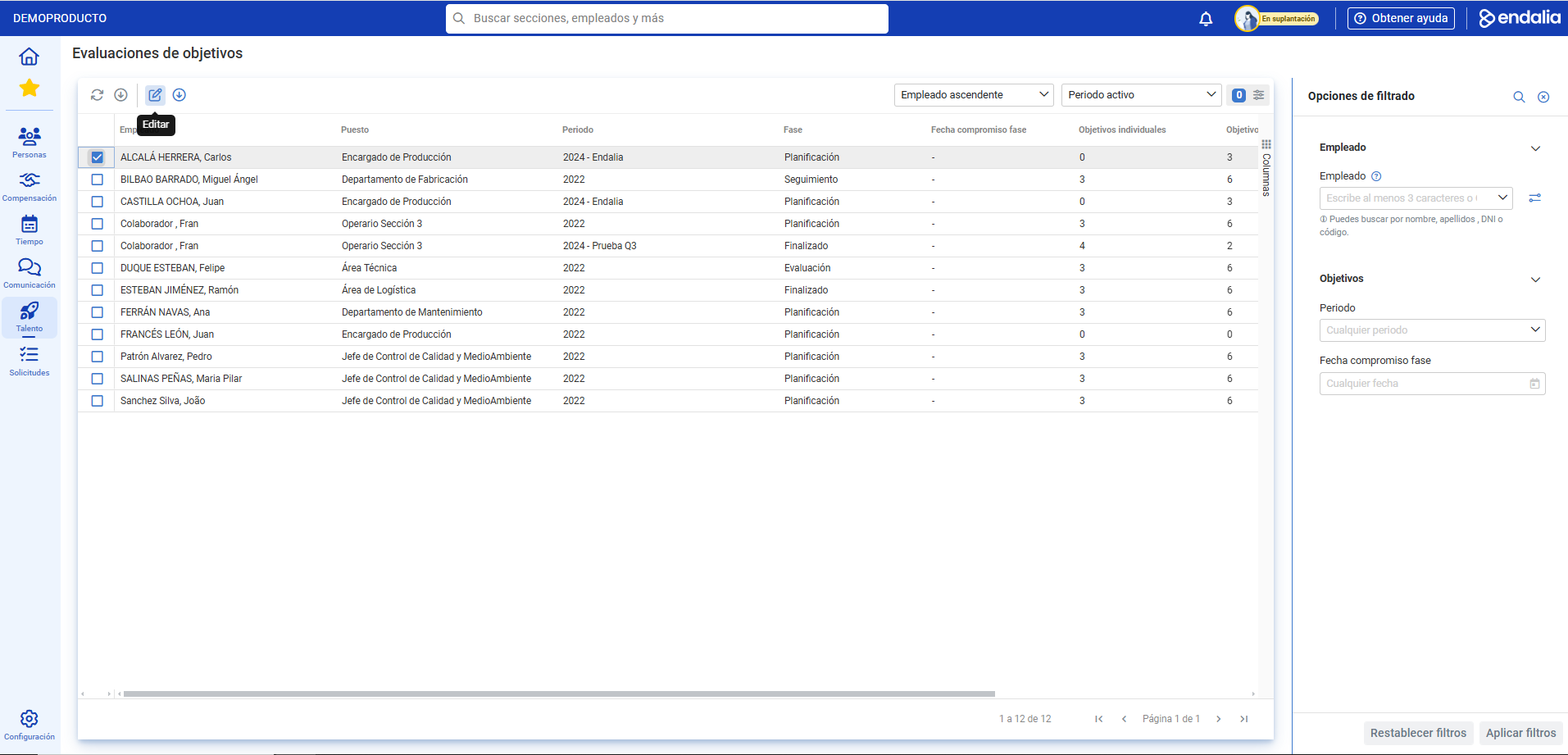
- On the new screen presented to you, you have the list of all the objective assessments conducted or in process. Select a specific objective and click on Download objective report to obtain data about it.
- To edit an objective, click on the Edit button, which is also found in the toolbar:
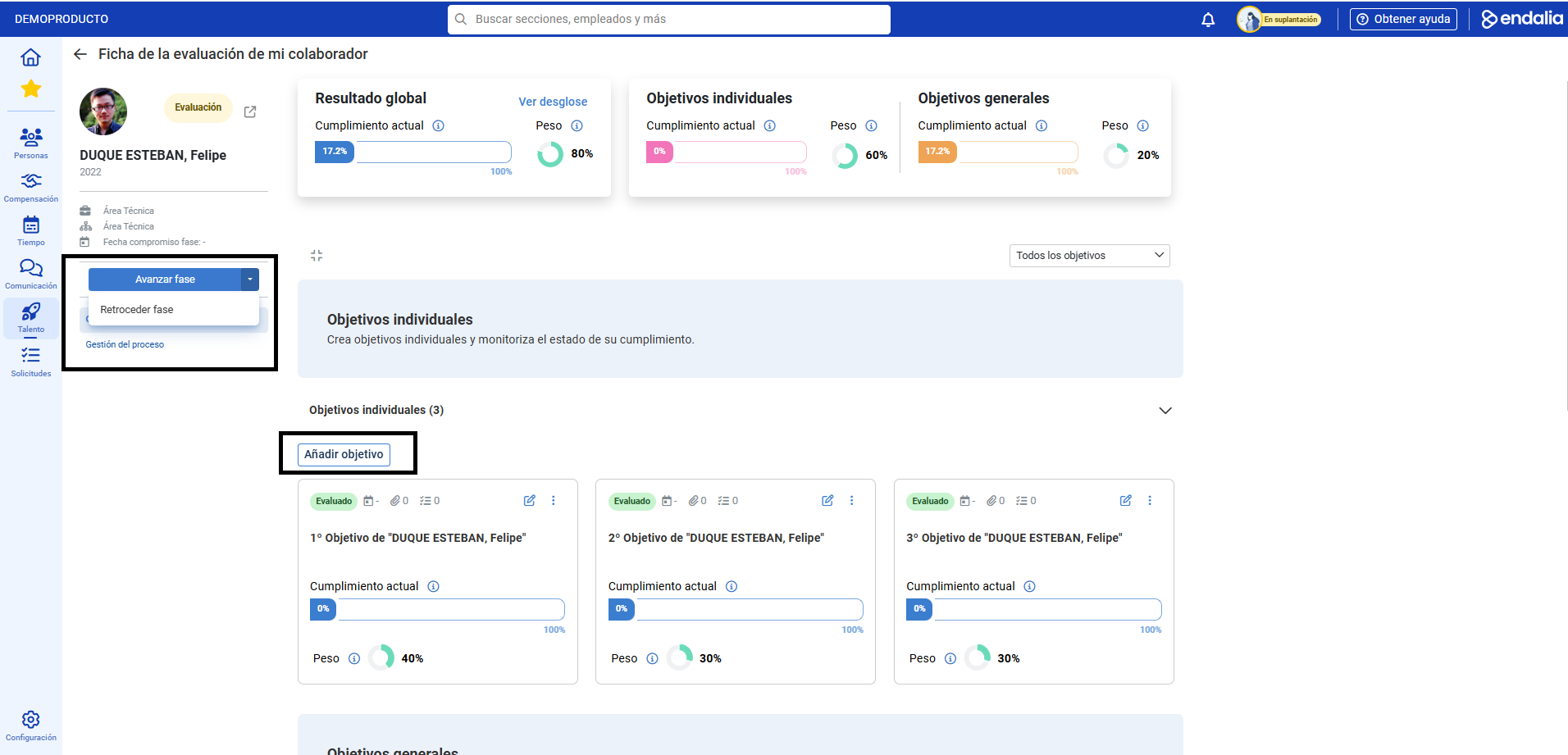
- The following scenario will allow you to consult, through graphs, your global result, as well as individual and general objectives. Within this menu item, Objectives, you can view the list and sort it with the filter on the right. You can, at any time, edit objectives using the buttons found on the right side of the screen or, alternatively, Add an objective using the enabled button. If you choose to Advance phase, as the team manager, the processes on the list will move to the next stage. Finally, the other tab of the sheet, Process Management, will allow you to consult the phases and states of the project, step by step:
Process Video
We'll show you quickly:
If you have doubts with the terms, take a look at our glossary at this link.
Was this article helpful?
That’s Great!
Thank you for your feedback
Sorry! We couldn't be helpful
Thank you for your feedback
Feedback sent
We appreciate your effort and will try to fix the article