Important: This article is intended for Endalia HR users with a profile of Administrator.
They are shared goals across any line of the organizational structure. While configured generally, every person associated with this structure will inherit this goal and have it as part of their evaluation.
In this article:
General Objectives
Before starting, be aware that you must configure a period and afterwards, sections and phases using the general objectives tab (in the period sheet) to manage those goals: 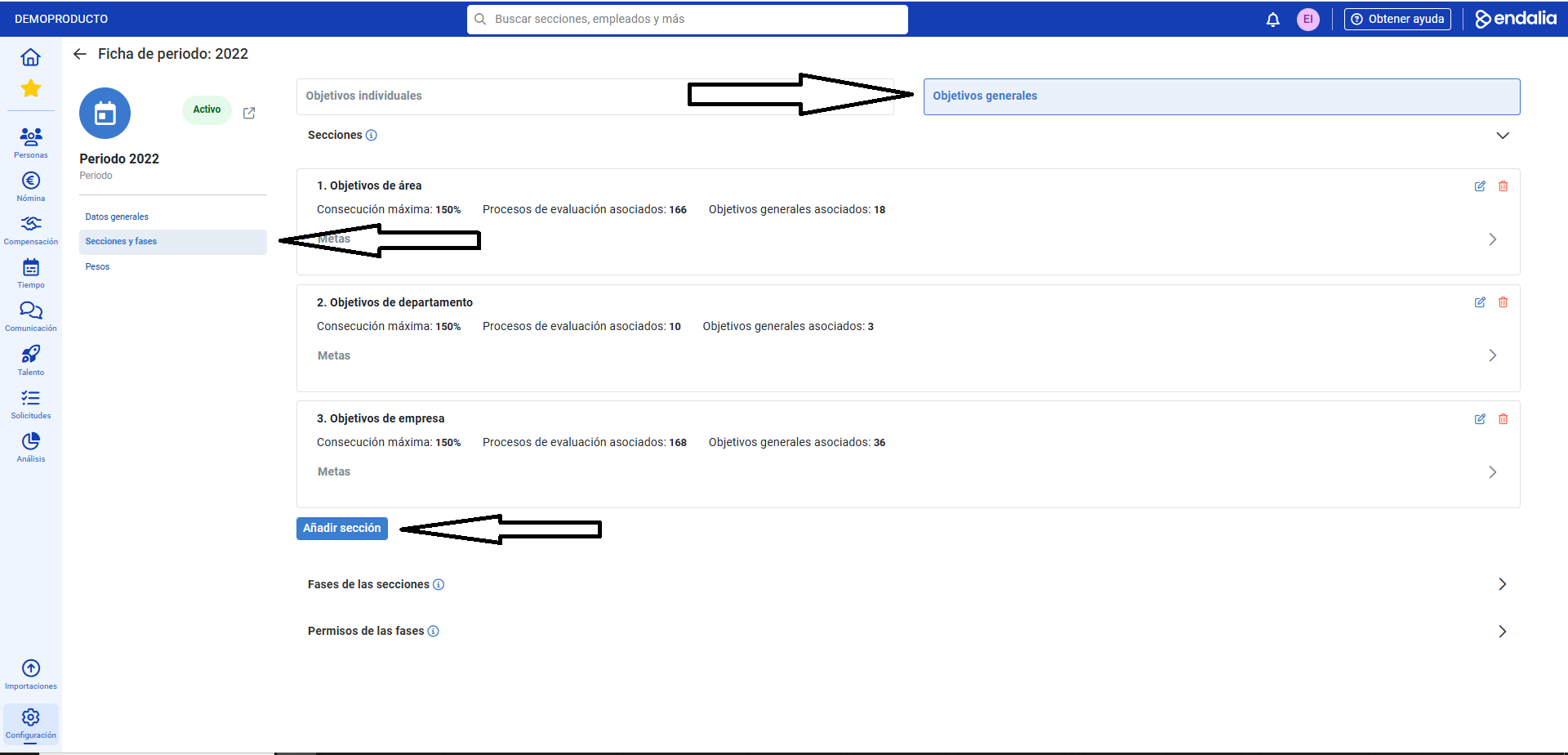
- Within the hub Performance and Talent, click on Objectives > Corporate Objectives> General Objectives
- On this first screen, you must retrieve the previously created period. To do this, go to the filter in the toolbar and select it.
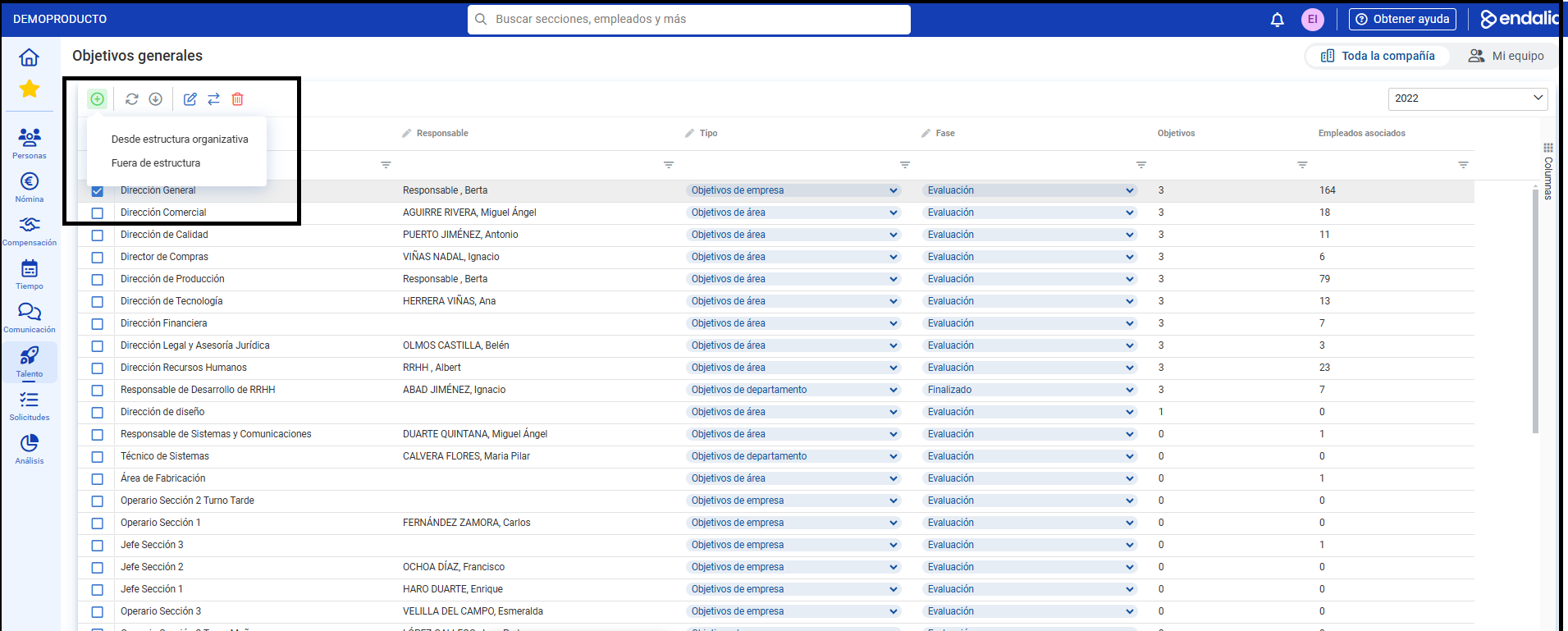
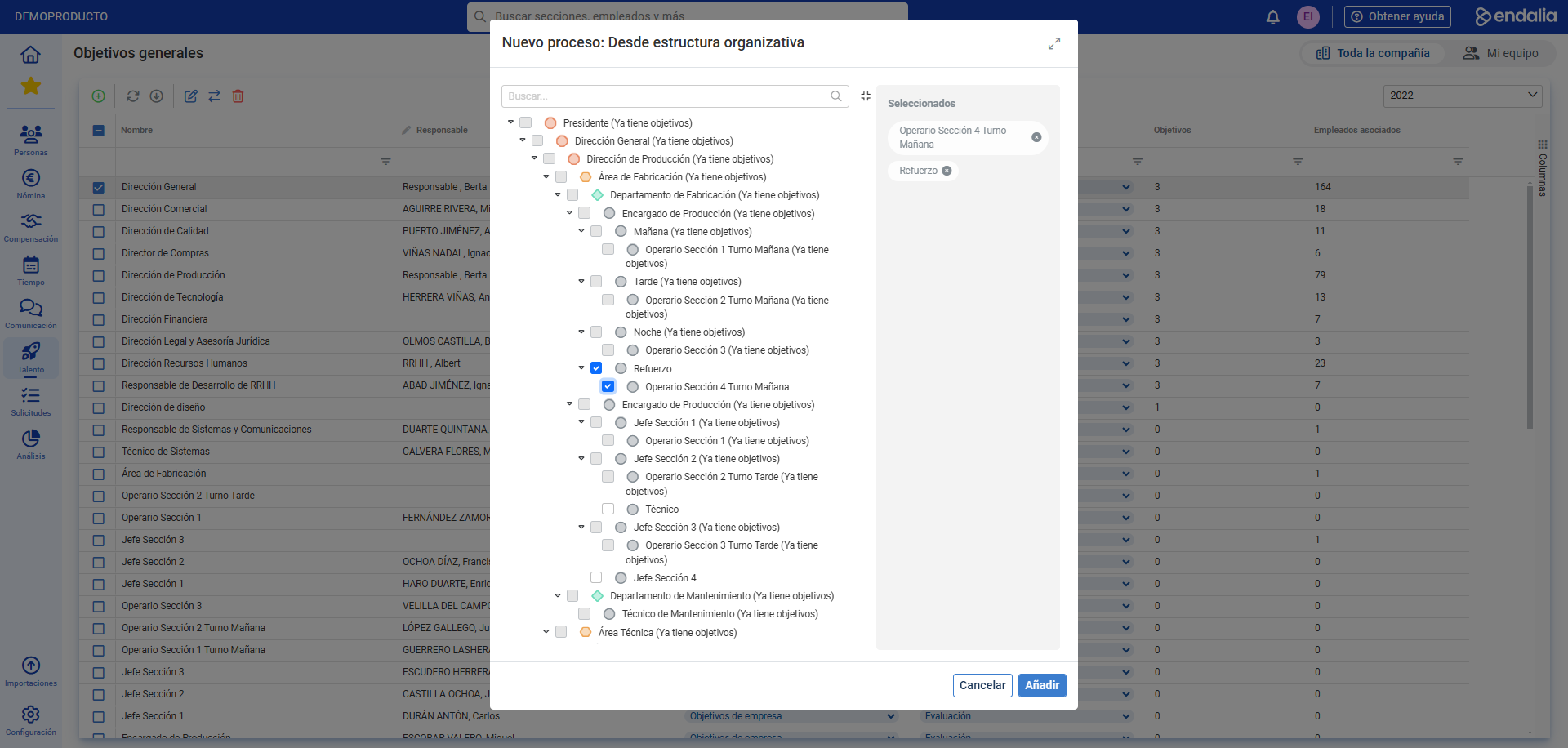
- The next step is to click the button Add > Within Organizational Structure/Outside Organizational Structure, from the toolbar. With the first option, you can select positions/areas/roles within the company's organizational chart and associates; with the second, outside of it. Don't forget to click Add to save your preferences:
- Back on the General Objectives screen, check the corresponding box or double click on your previous selection (step 3), to open the corresponding sheet.
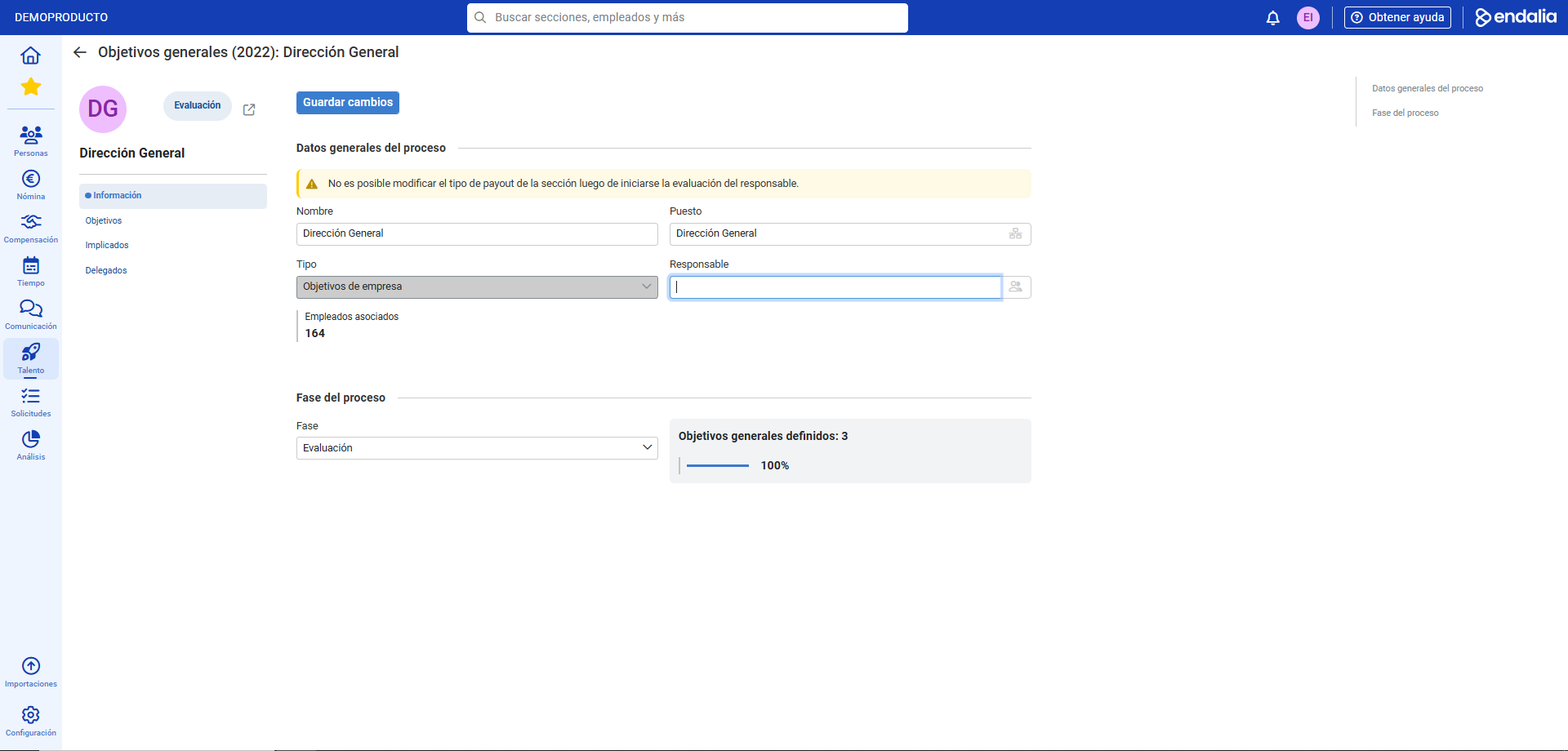
- Within the sheet, you have several menus. The first one is Information, which allows you to modify/add/bind data to the previously selected position. Don't forget to click Save Changes to establish your preferences:
- The second, Objectives, serves to add new objectives within the general objectives. Click on the Add button, which you'll find on the toolbar, to generate them. In the modal window that appears next, Add Objective, you must fill the following fields, within the General Information and Goals sections: Name, Type, Growth, Weight (the specific importance, internally, of the created objective in relation to the general objective) and the commitment date. And the same for the Goals section, with their corresponding minimums and maximums of compliance for these goals. Don't forget to click to make your changes effective:
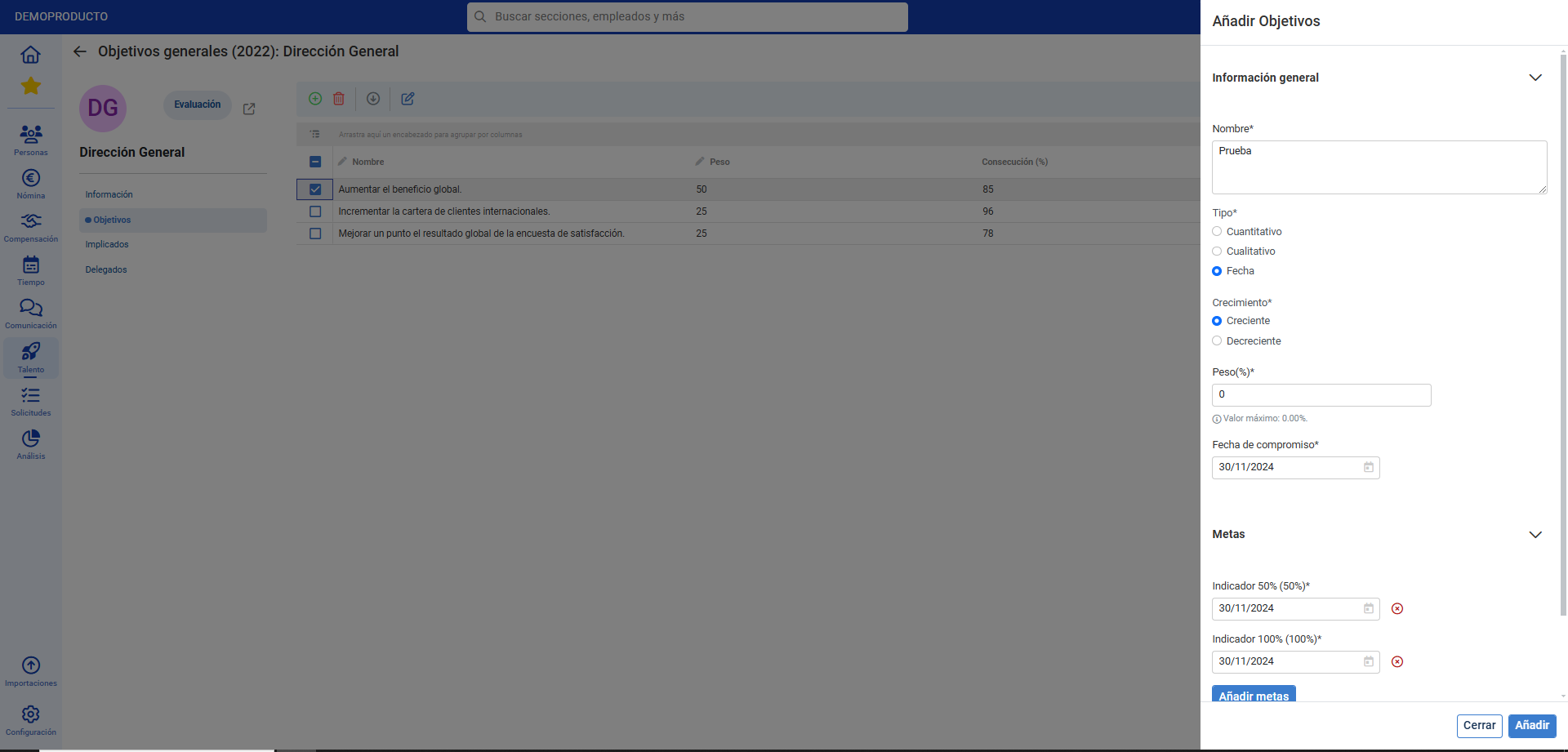
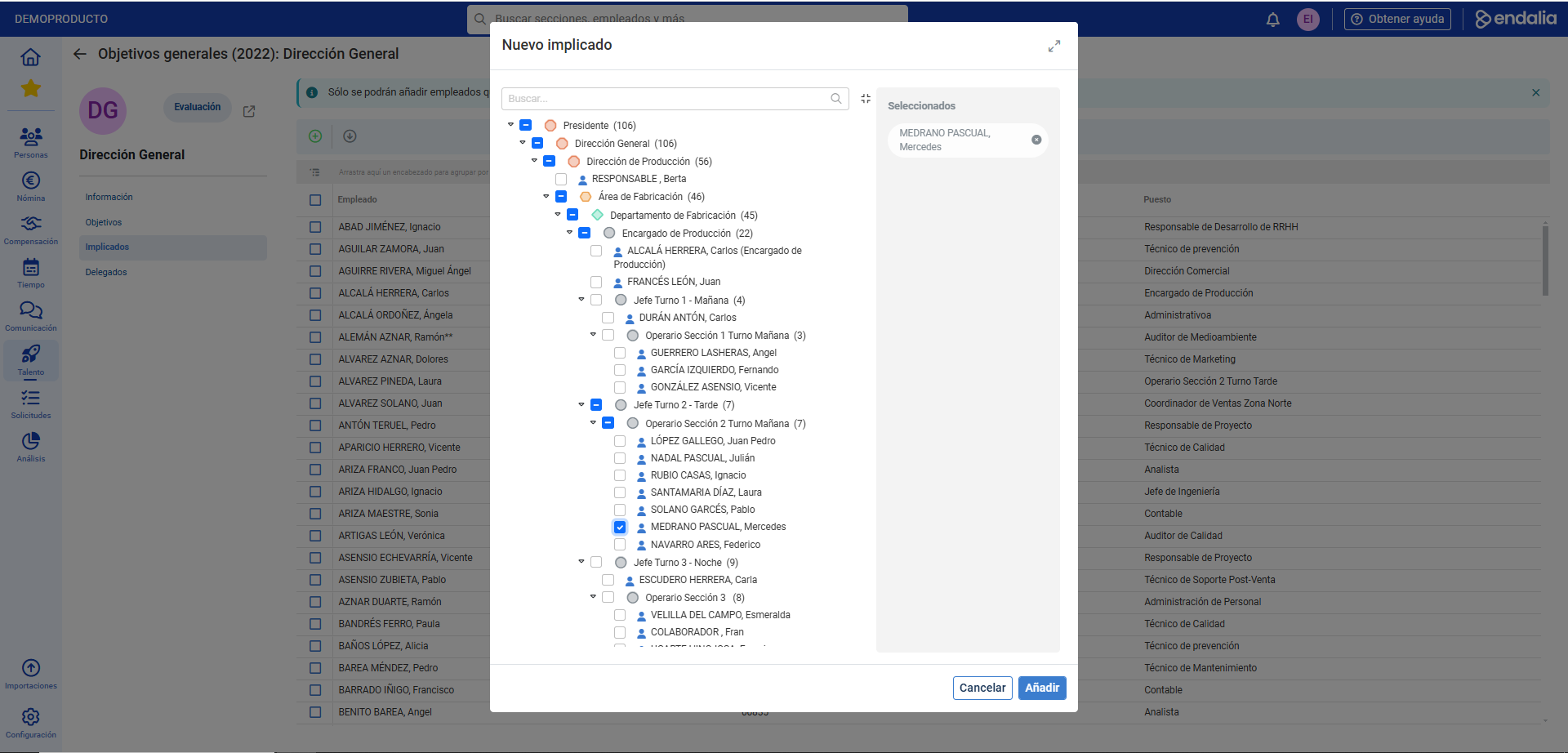
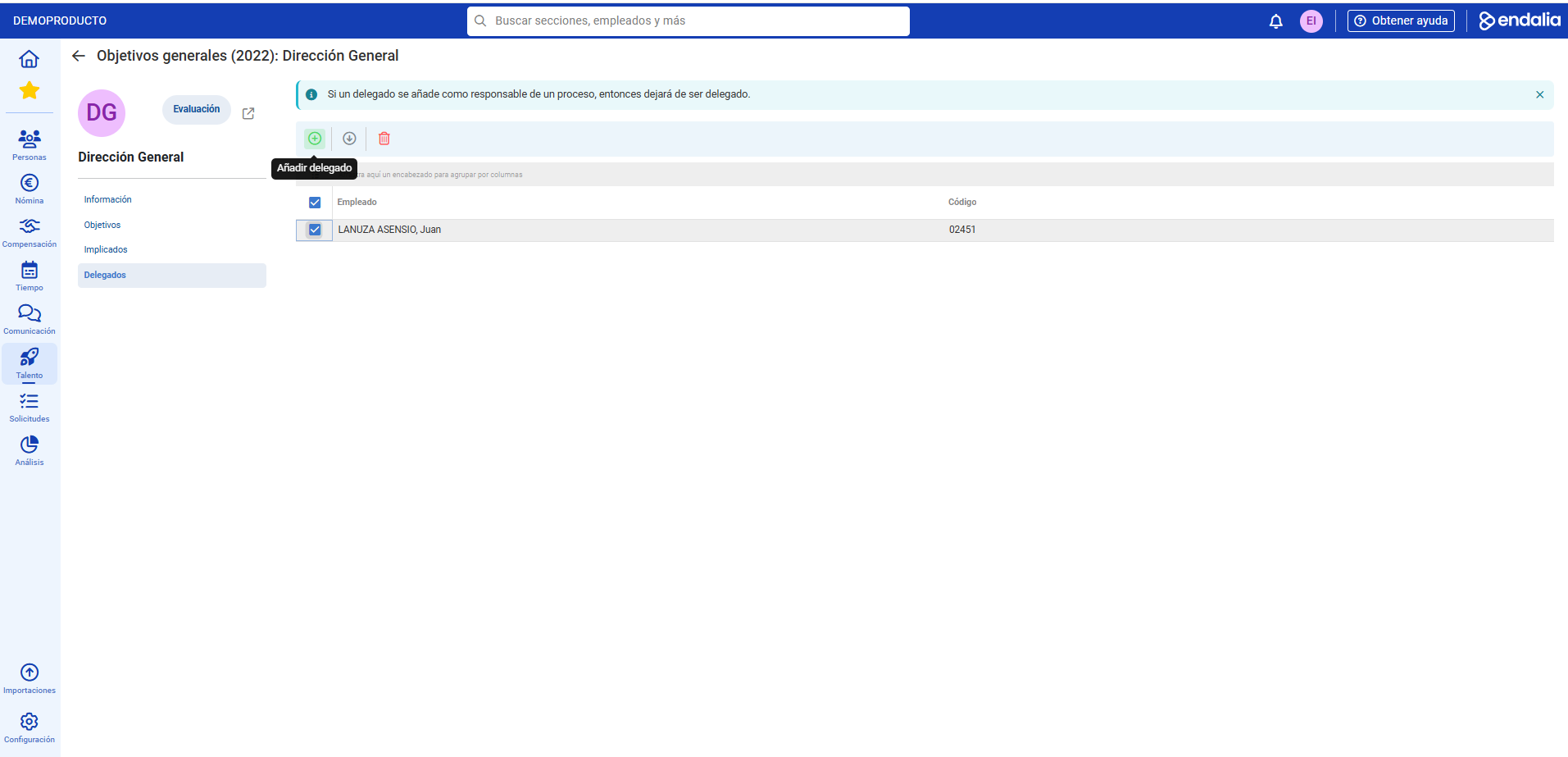
- The rest of the menu options will allow you, in this order, to add people to the objectives (Involved), delegate in the absence of the project manager (Delegates):
Process Video
We show it to you quickly:
If you want to know more, check out the following related articles:
If you have doubts about the terms, take a look at our glossary at this link.
Was this article helpful?
That’s Great!
Thank you for your feedback
Sorry! We couldn't be helpful
Thank you for your feedback
Feedback sent
We appreciate your effort and will try to fix the article