Important: this article is aimed at Endalia users with an administrator profile.
Connect Endalia with Payflow to manage your employees' flexible compensation. This guide explains how to set up the integration and get the most out of it easily.
In this article
Step 1: Initial setup in Endalia
For the connection between Endalia and Payflow to work, you need to initially configure from your admin panel. Simply follow these three steps:
1. Activate Payflow as a provider
First, tell Endalia that Payflow will be your provider to manage flexible compensation.
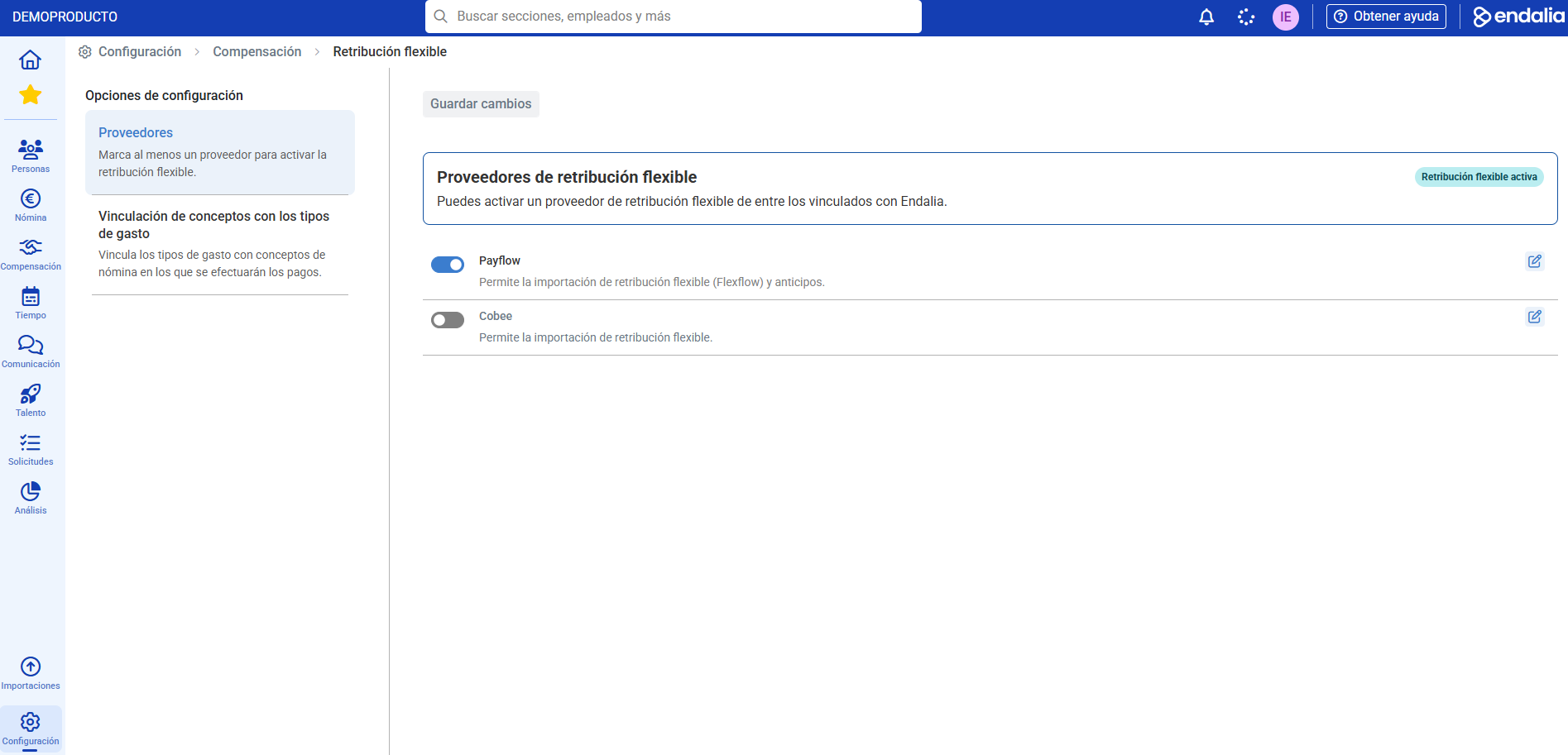
Go to the Settings menu and, within the Compensation and Benefits section, click on Flexible Compensation Settings.
On the "Flexible Compensation Providers" screen, you will see a list of available providers. Simply, activate the switch next to Payflow.
2. Link payroll concepts
Now, tell Endalia how to record different expenses employees make with Payflow in the payroll.
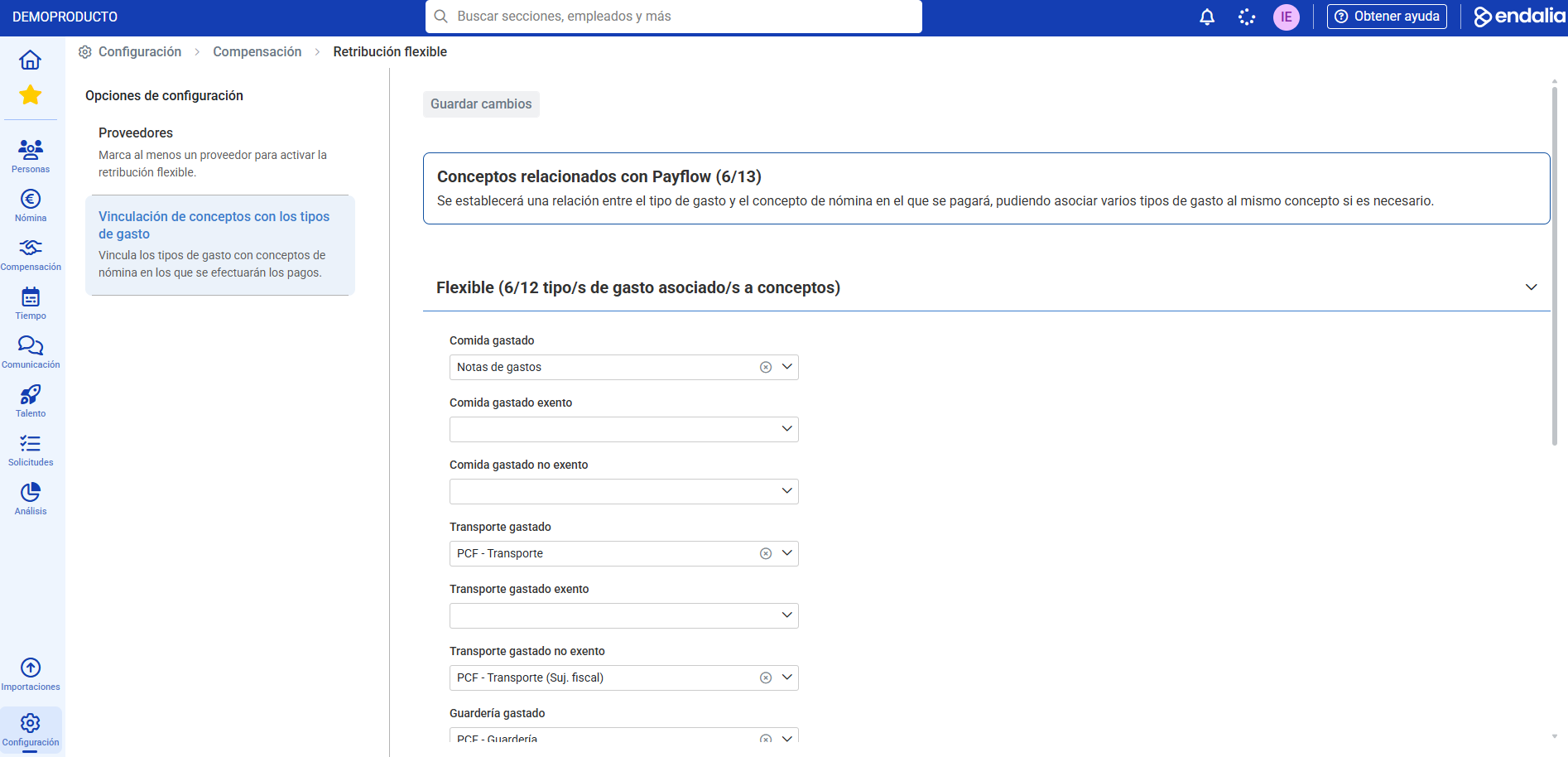
On the same screen, access the "Linking concepts with expense types" option.
Here you can associate each type of Payflow expenditure (such as Restaurant, Transport, or Daycare) with the corresponding payroll concept in your system.
This step is key for expenditures to be correctly reflected in the monthly payroll.
3. Enable the benefit for each employee
Finally, indicate which employees in your staff will enjoy this benefit.
For each employee who will use Payflow, access their salary record.
Find and activate the "Flexible Compensation Settings" option.
Doing this is essential for these employees' data to be sent to Payflow and registered for the service.
Alternatively, activating flexible compensation in employees' salaries can be done using the Salaries Import Center.
Step 2: Send employee data to Payflow
Once you've completed the setup, the next step is to send Payflow the information of employees who will use the service. For this operation, you have 2 options:
- Activate integration with payflow.
- Manually upload data with reports generated from Endalia.
The difference between both methods is that using reports allows excluding individual employees or groups from receiving the flexible compensation benefit. With automatic integration, this management isn't possible.
Step 2.1: Data sending through integration.
The first step is to request integration keys from the Endalia team. Once you have these keys, you can provide them to Payflow, and they can connect to your Endalia application.
This integration allows the employees loaded in Endalia to be integrated into Payflow. Also, Payflow can send advance payments directly to Endalia. Note that flexible compensation processes won't integrate, so step 3 will be necessary for this operation.
Step 2.1: Manual data upload with reports
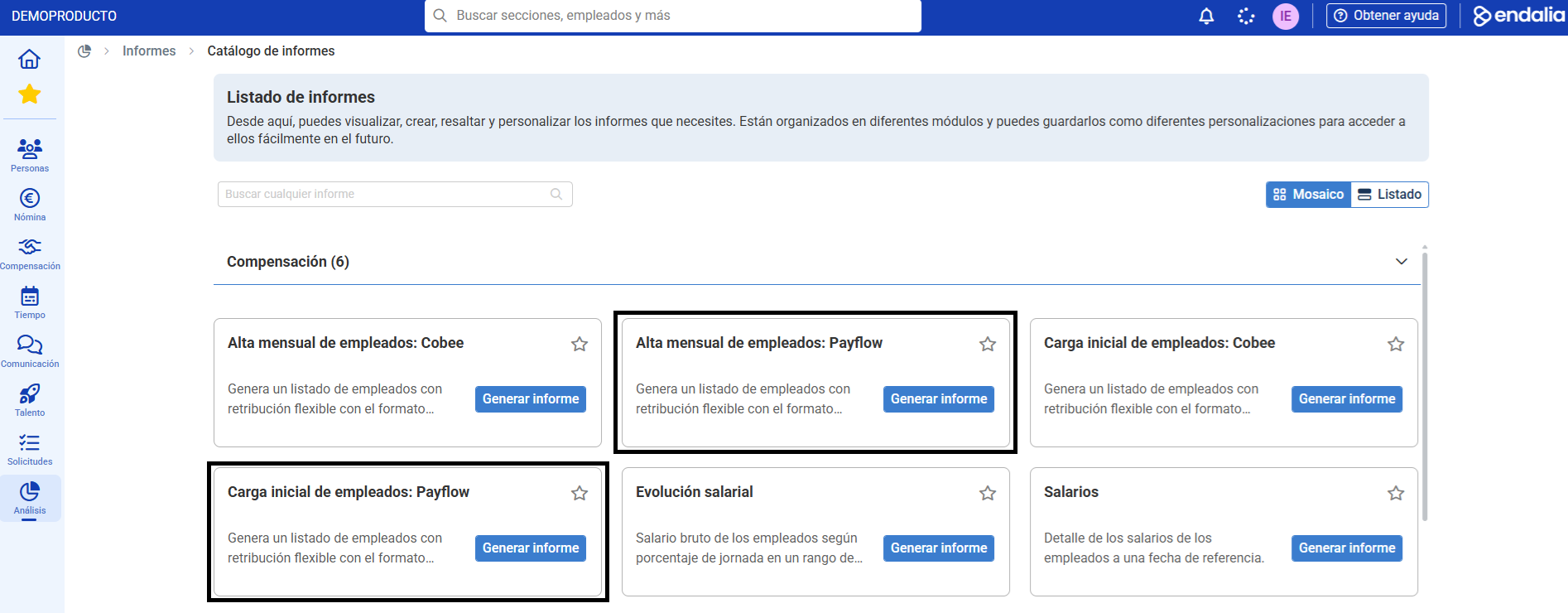
Endalia has prepared two automatic reports that you'll find in the Reports module of Compensation.
A. Initial employee load
This is the first report to use, and you'll usually do it only once.
Objective: Register in Payflow all your current employees who have already activated the flexible compensation benefit.
How it works: Simply execute the report called "Initial employee load: Payflow". The system will generate a complete list with all the necessary information for registration.
B. Monthly employee registration
This is the report you will use recurrently, for example, at the beginning of each month.
Objective: Register in Payflow only the new employees who have joined in a specific month.
How it works: Run the report "Monthly employee registration: Payflow". The system will ask you to specify the month and year you want to consult and will automatically search for new entries for that period.
Step 3: Import consumptions and advances for payroll
The last step of the monthly cycle is to bring back to Endalia the information on expenses and advances managed through Payflow to apply them to the payroll. This process is done through the Import Center.
How does the import process work?
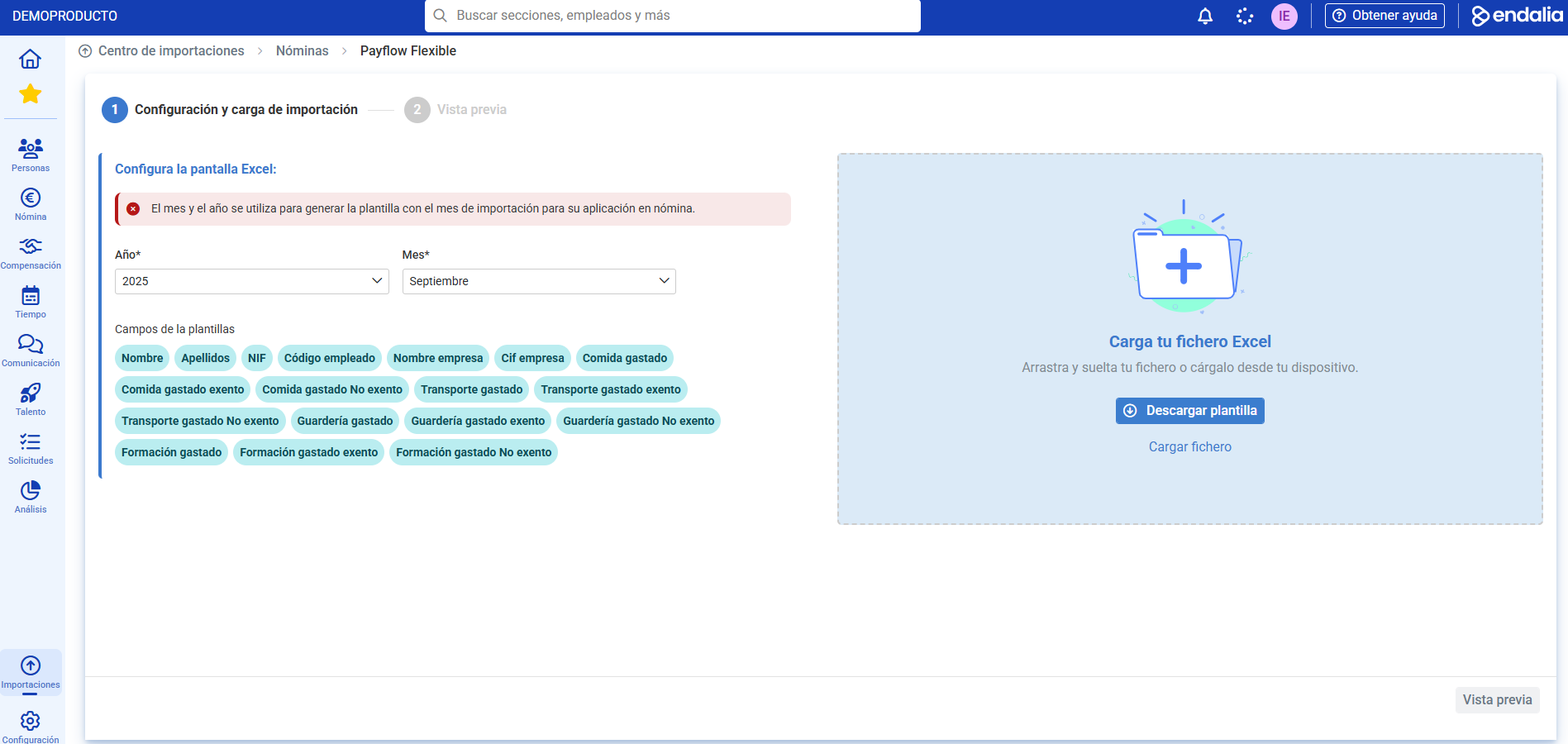
Go to the Import Center > Payrolls section.
Select the importer you need (Flexible Compensation or Advances).
Choose the month and year and download the template.
Complete the template with the amounts provided by Payflow.
Re-upload the complete file to Endalia.
What can you import?
Flexible compensation concepts: To record the monthly consumption of employees on food, transport, daycare, etc. Remember that if the Endalia & Payflow integration is activated, you WILL have to do this step because the integration does not manage these data.
Advance concepts: To record the advance payments requested by employees. Remember that if the Endalia & Payflow integration is activated, you WON'T have to do this step.
Related articles
Want to know more? Check out the following related articles:
If you have questions about the terms, take a look at our glossary at this link.
Was this article helpful?
That’s Great!
Thank you for your feedback
Sorry! We couldn't be helpful
Thank you for your feedback
Feedback sent
We appreciate your effort and will try to fix the article