Important: this article is aimed at Endalia HR users with an Administrator profile.
Data and metrics, regardless of their type, are critically important for the successful operation and growth of any company. Learn to generate reports in minutes with these interesting tips.
In this article:
Generate a report
- Within the hub Analysis, click on Reports > Reports Catalog .
- Once inside the reports catalog, you will see it's organized into different modules. This will allow you to find the report you need according to the area you wish to consult. Additionally, you will have access to a favorites section, where you can save the most used reports for easy access in the future.
- The next step is to select the Generate Report option. This action opens the report configuration interface, where you can customize and adapt the report to your needs.
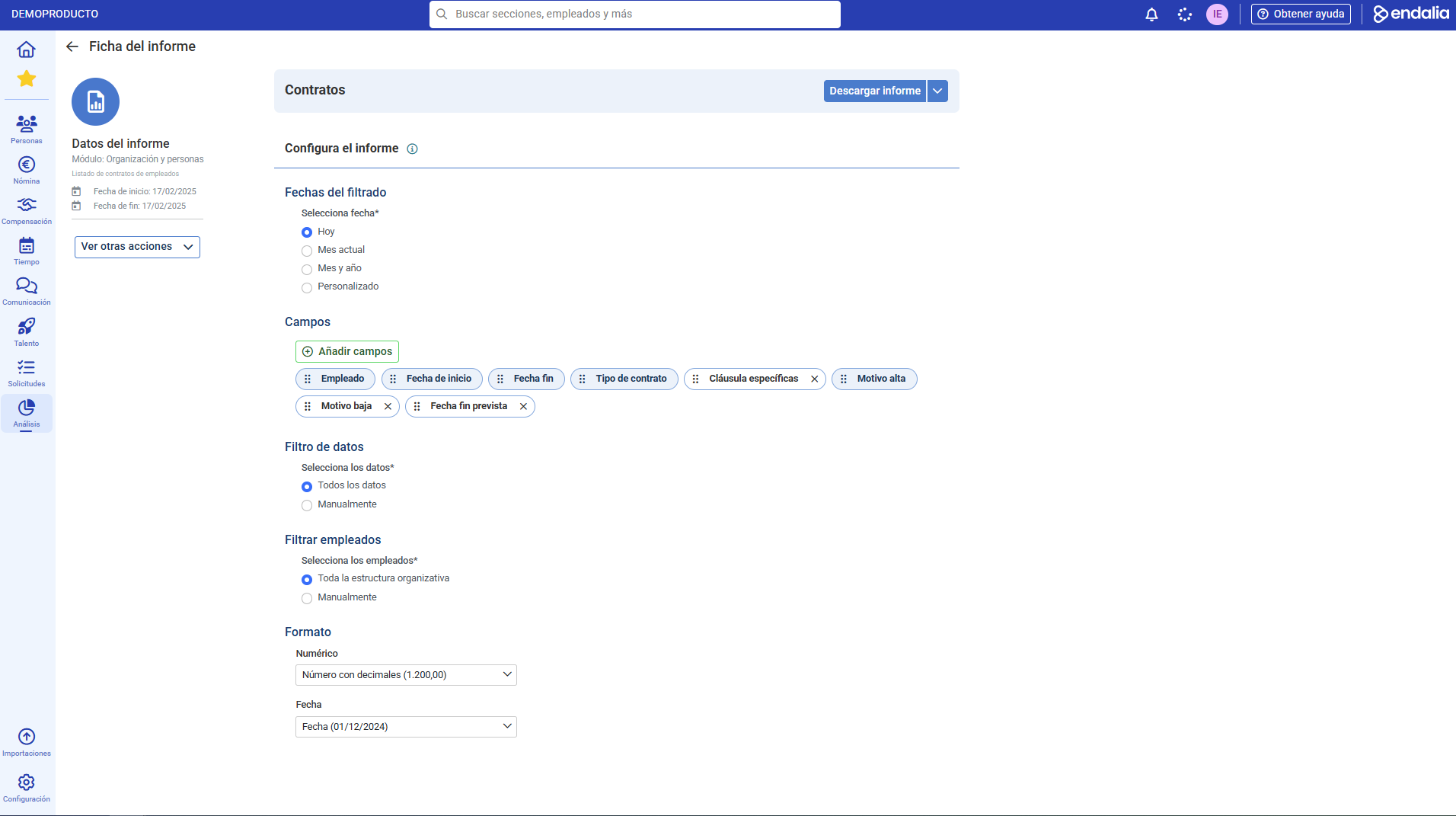
- In the configuration section, you will see a field to set the date range. This date will depend on each report but can be simple, single-date, or multiple, a date range.
- Next in this section, you can choose which columns will appear in the report. Data fields can be moved or removed according to your needs.
- Move columns: Drag and drop the columns in the order you prefer. This will be the order they appear when the report is downloaded.
- Delete columns: Click the delete icon to remove any unnecessary columns.
- Next, you can set filters for the data to be included in the report. Filters help make the report more specific. For example, the employee status filter, where you can choose between active, historical, external, or external historical.
- If the report is related to employees, you can apply an additional filter to select the group of employees you want to include in the report.
- Finally, adjust the format in which the data will be presented in the report. The modifiable formats are numerical and date.
- Once all parameters are configured, click Download report. The system will process the data and generate the report according to your specifications.
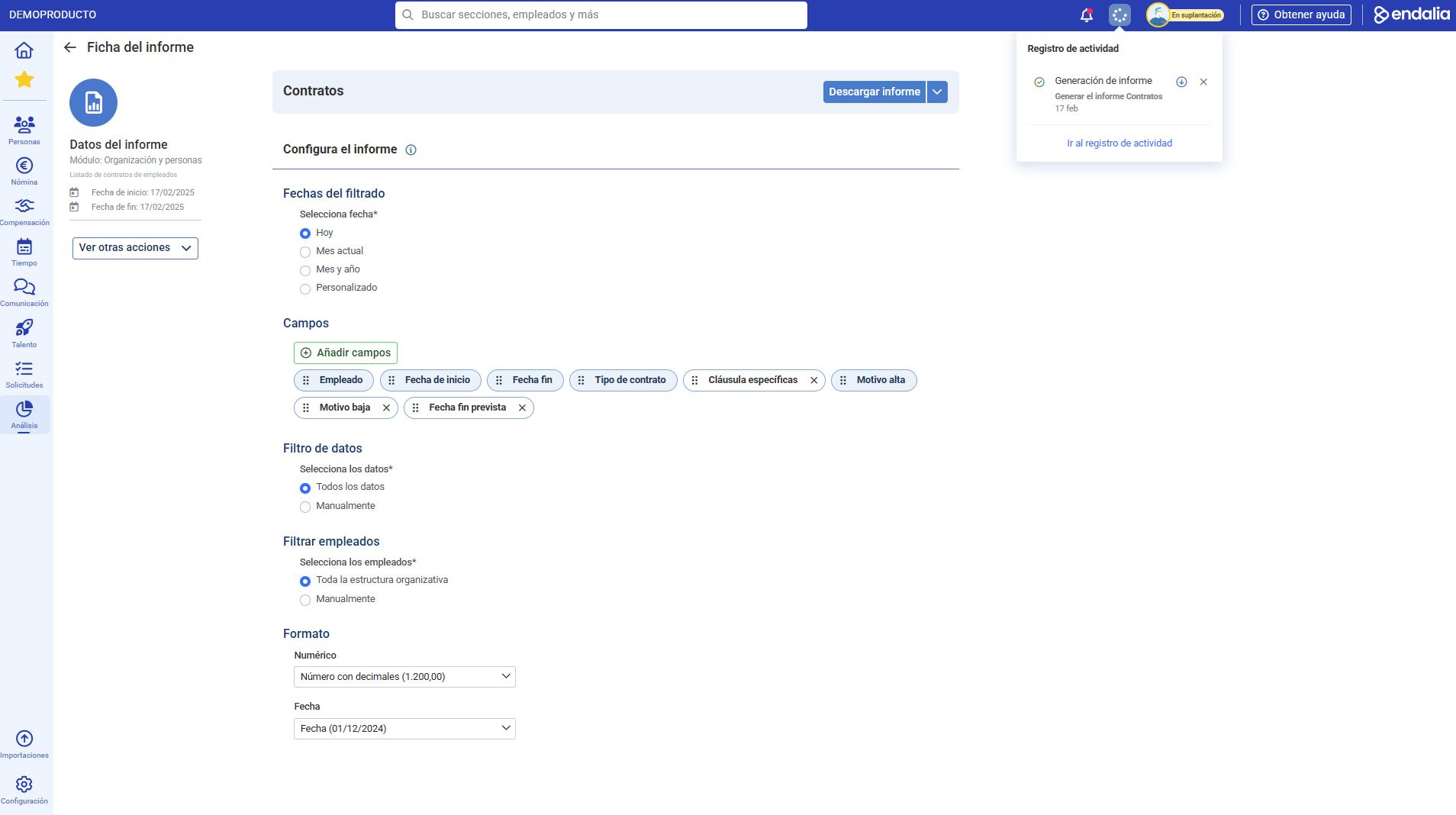
- Next, the download will move to the background in the Activity Log. Once finished, the Activity Log will show the completion and download of the report.
Important:
- Review before generating: Make sure all selected filters and fields are correct to obtain the data you need.
- Save frequent settings: You can save report configurations as customizations. If you frequently generate similar reports, we recommend saving your configuration for future use.
If you have doubts about the terms, check our glossary at this link.
Was this article helpful?
That’s Great!
Thank you for your feedback
Sorry! We couldn't be helpful
Thank you for your feedback
Feedback sent
We appreciate your effort and will try to fix the article