Important: To create and configure sections, you must first generate a period.
This article is targeted at Endalia HR users with an Administrator role.
Sections allow for the establishment and definition of parameters that are used to manage employee objectives. If you want to learn how to create and manage this functionality, keep reading.
In this text you will find:
Important: To create and configure sections, you must first generate a period.
This article is targeted at Endalia HR users with an Administrator role.
Create and configure sections
- Inside the hub Configuration, click on Objectives > Periods
- Create a new period or choose from those present in the list; from the latter, double-click on the row to open the details of your period.
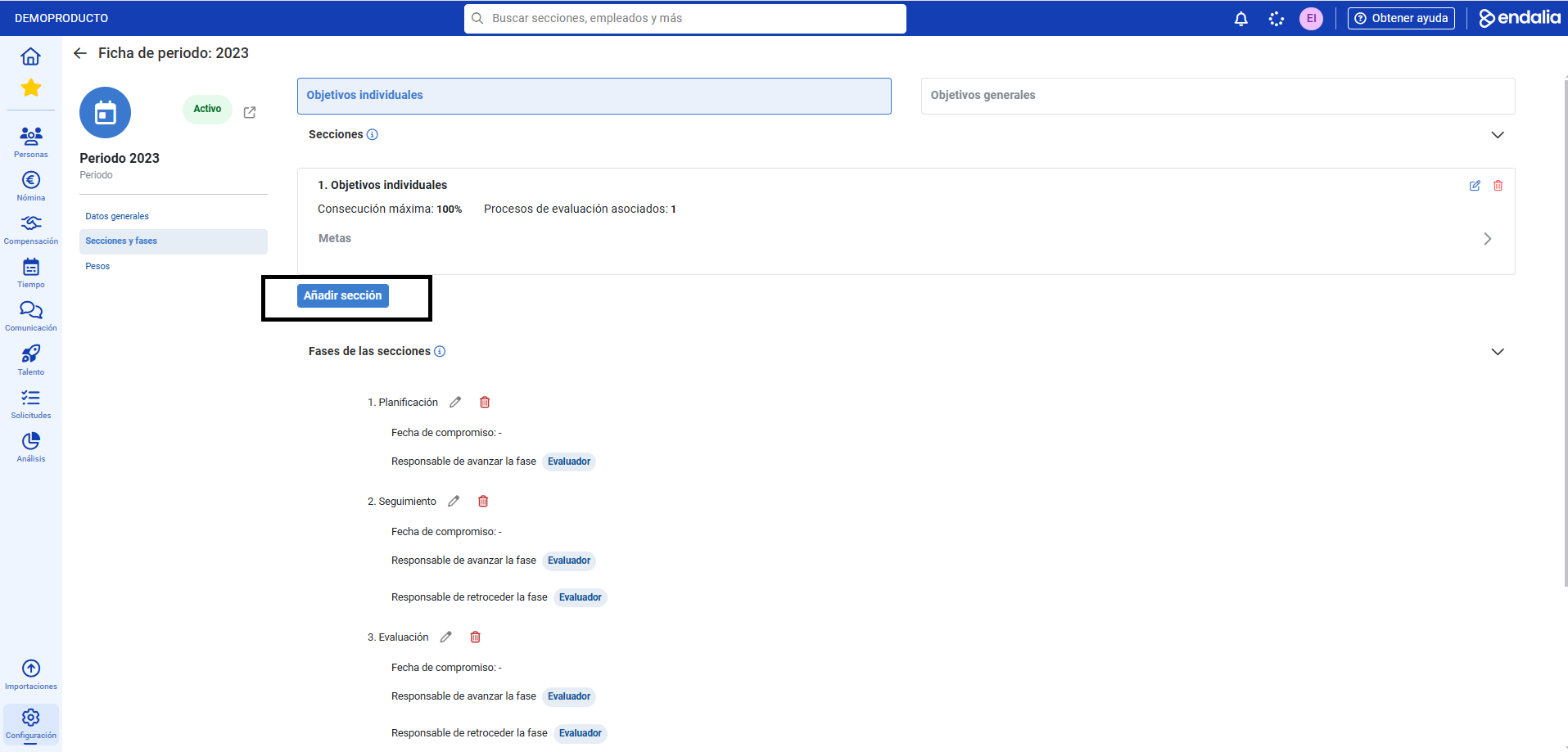
- In the file menu, you must complete, from the Individual Objectives/General Objectives tabs, the parameters for future objectives. By default, the system starts with the first tab. Select Sections and phases > Sections > Add section
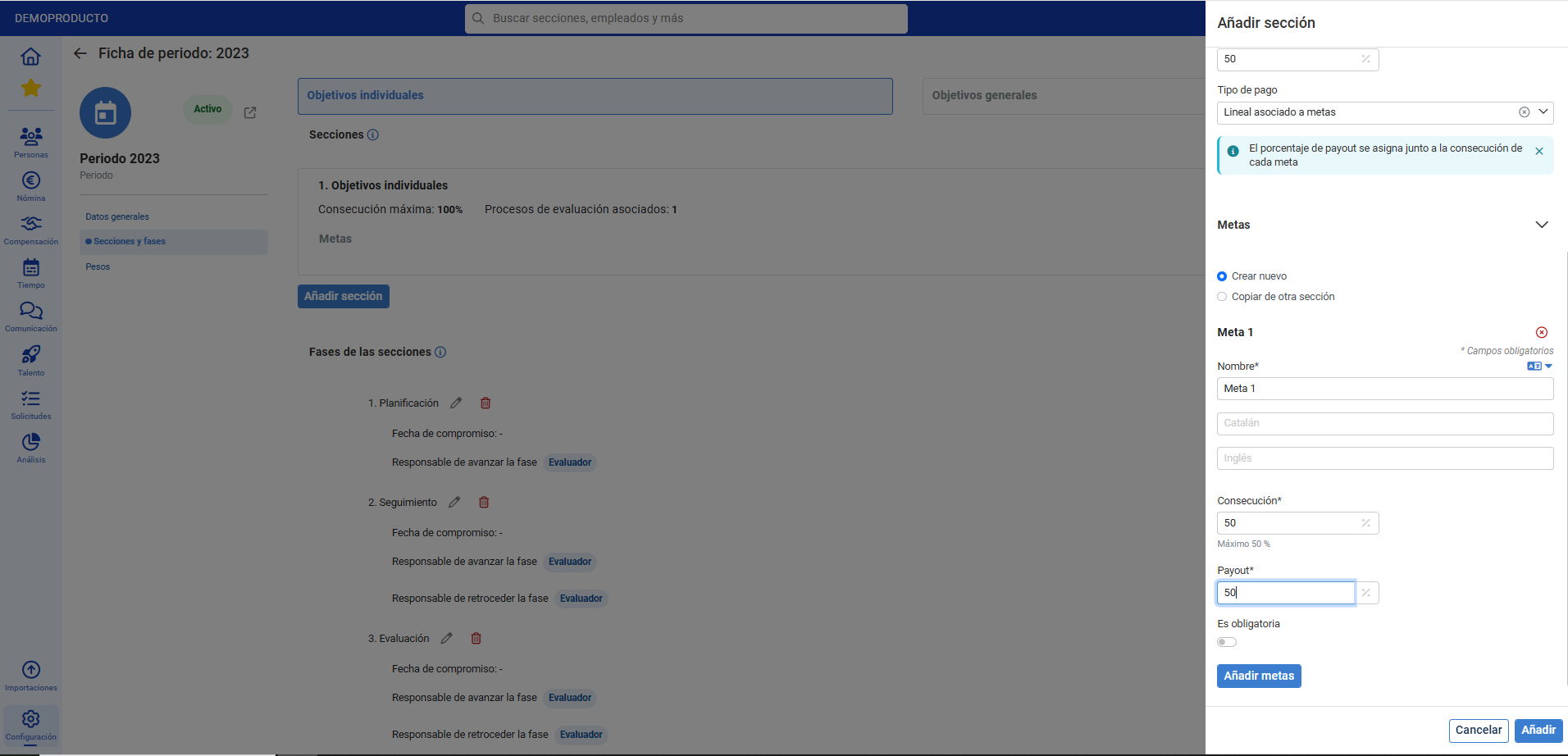
- In the side modal window, you must complete the fields relevant to the sections. In General Information, details such as Name, Order (if multiple sections are created), Maximum Achievement (maximum percentage of objective completion), and in Goals, the Name, Achievement (minimum achievement percentage of an objective), and its optional requirement, besides the payout, are detailed. Finally, click on Add to save the changes:
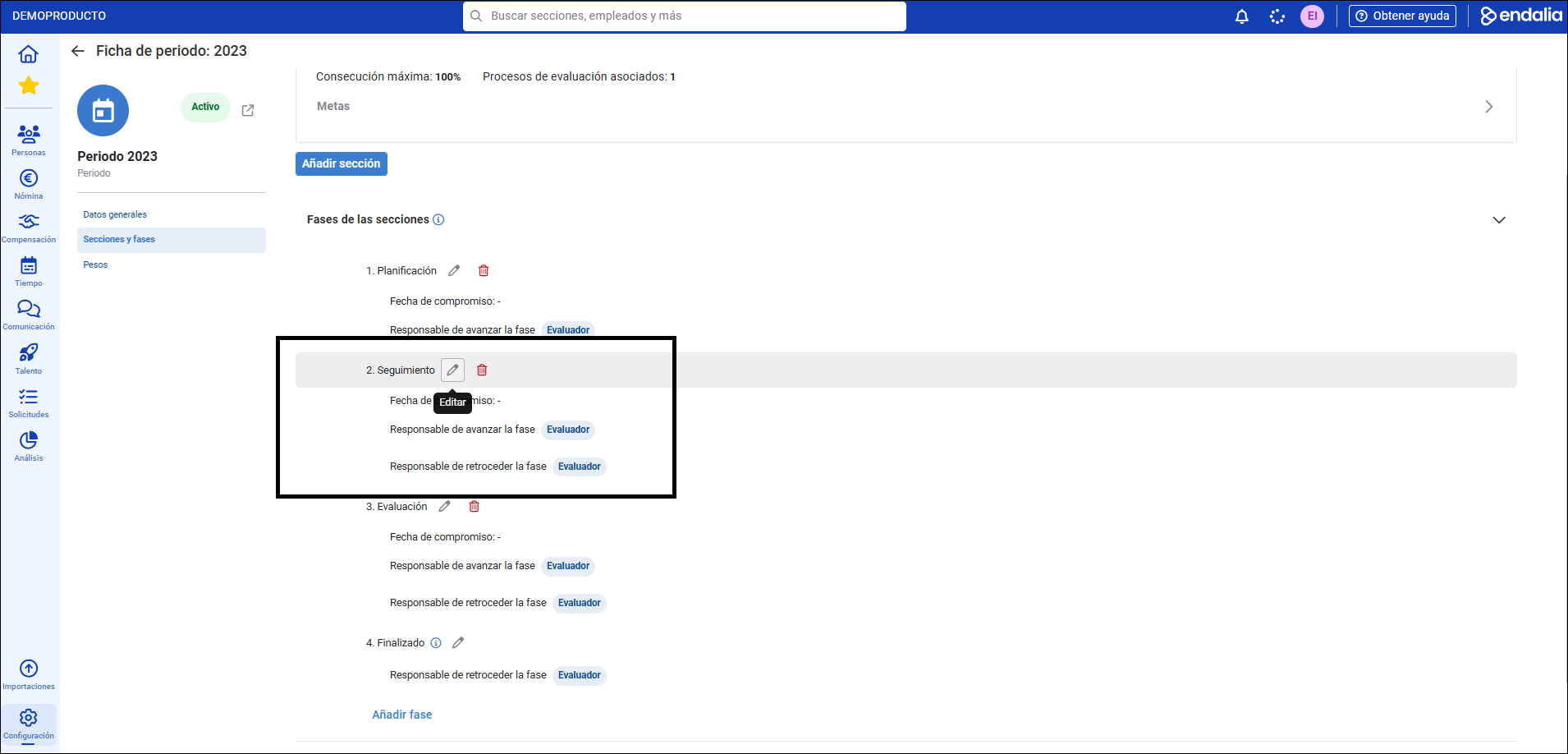
- Returning to the period's file, you can delve deeper into managing the sections. The section Phases is configured by default with 4 stages, fully configurable to set names, dates, persons responsible, and percentages of achievement. Subsequently, the Phase Permissions, linked to the previous section, allows you to discriminate editing permissions by the Evaluator/Evaluatee in each phase.
- Similarly, do not forget to set up these same steps from the General Objectives tab to be able to change/manage other functionalities of the module.
- Lastly, the menu item Weights allows you to use or modify them. To learn more, take a look at the article on Configuring Weights, found in "related", within these same lines we offer you.
Video of the process
We will demonstrate it in a few seconds:
If you want to know more, check out the following related articles:
If you have questions about the terms, take a look at our glossary at this link.
Was this article helpful?
That’s Great!
Thank you for your feedback
Sorry! We couldn't be helpful
Thank you for your feedback
Feedback sent
We appreciate your effort and will try to fix the article