Important: this article is intended for Endalia HR users with a Collaborator profile.
With this option, you can view, edit, and download your digital signatures easily and conveniently, thus having your documents organized.
Here you will find:
My signature requests
Within the hub Management and processes, click the Digital Signature module > My signature requests
- On this first screen, all your signature requests are displayed, divided into tabs, which you can consult and download:
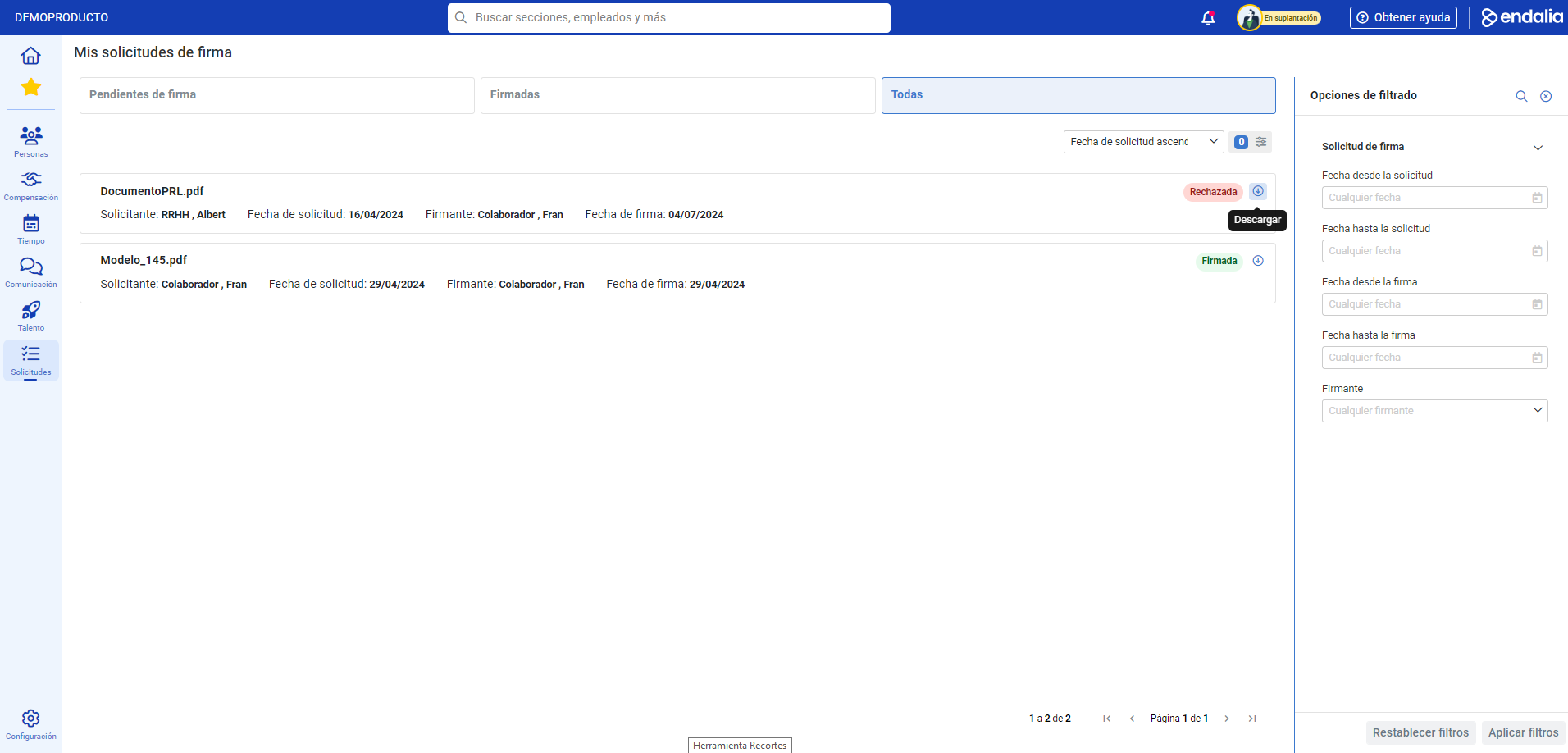
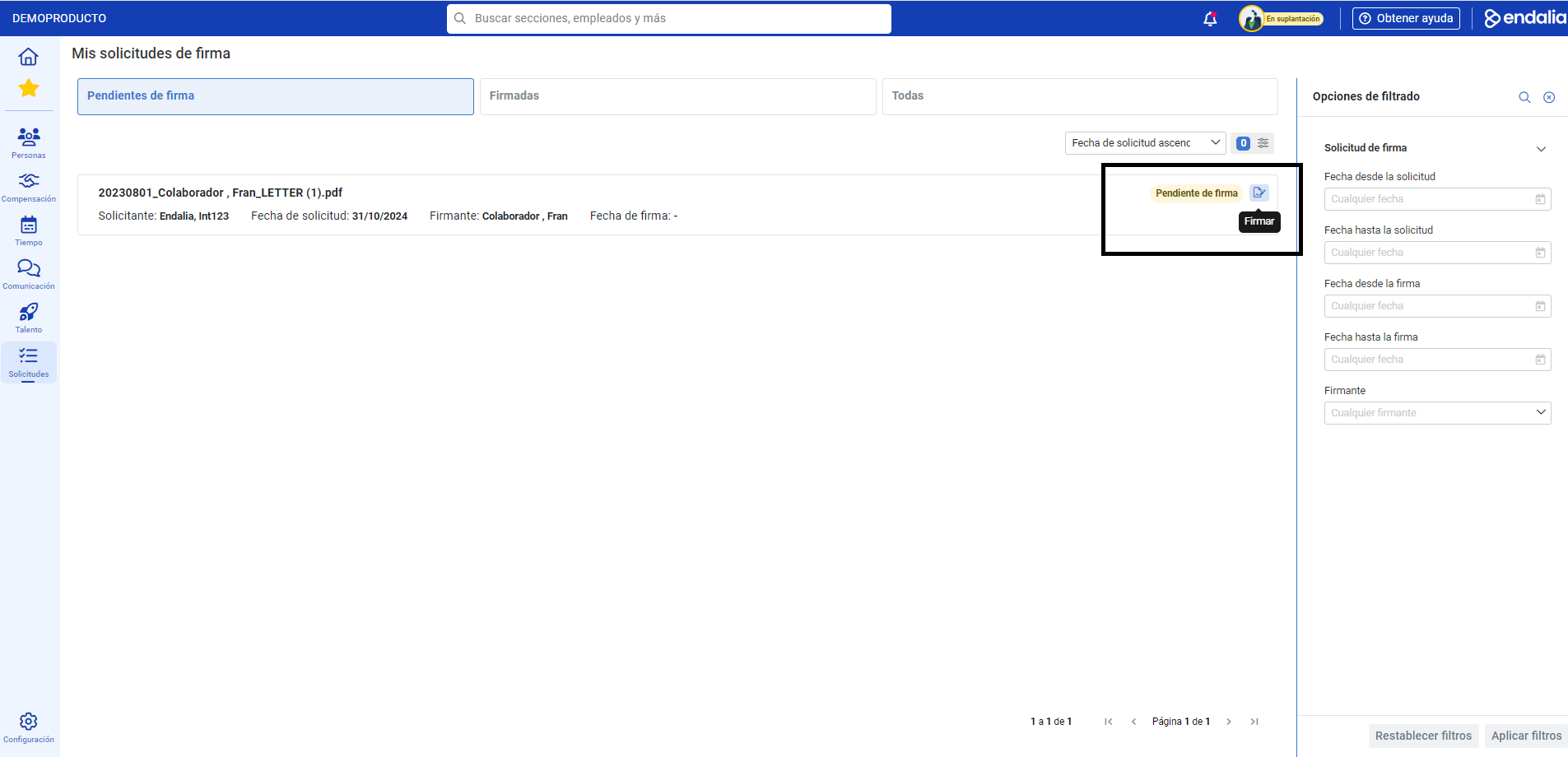
- To sign a document, within the first tab, Pending for signature, click the Sign button, found next to the relevant text section:
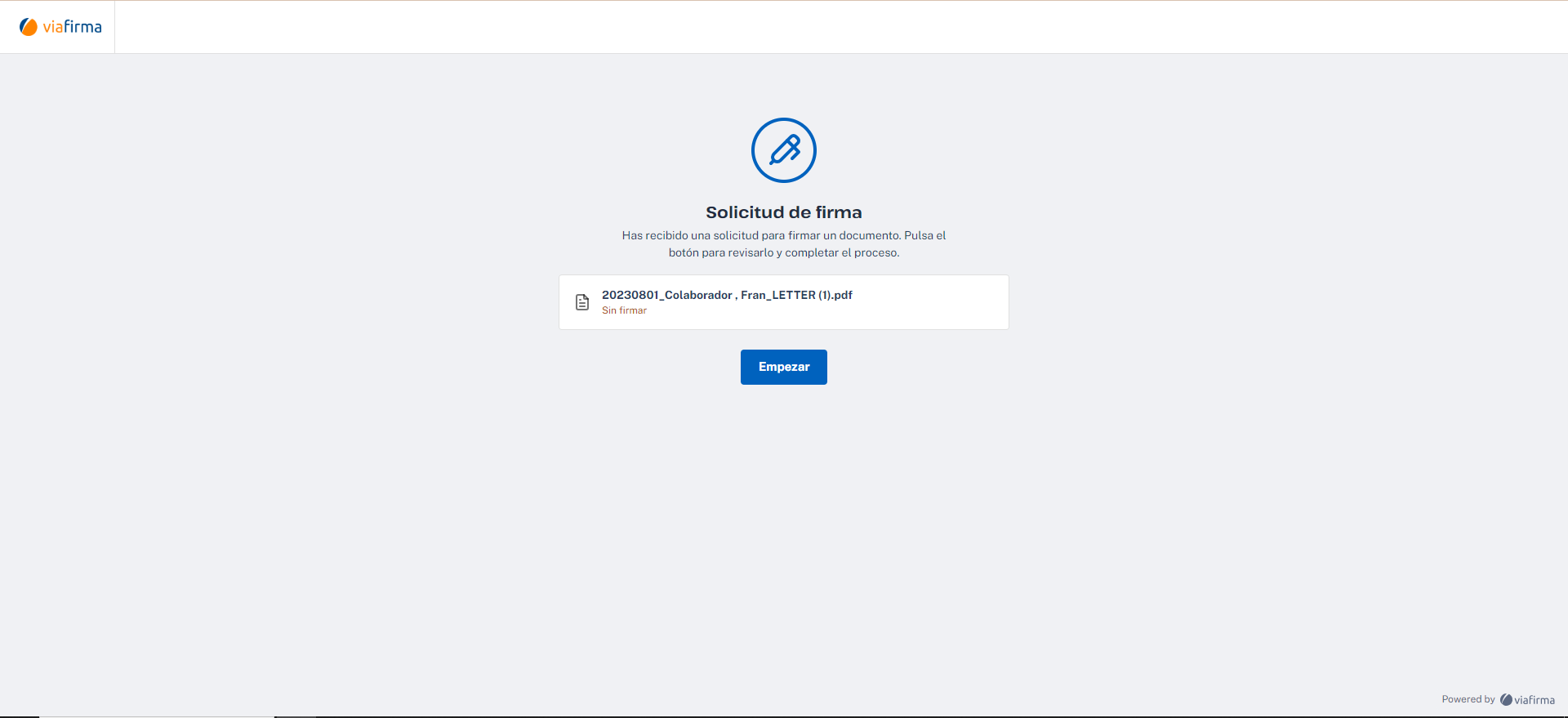
- Automatically, the system redirects you to Viafirma, the application responsible for generating the electronic signature process. Click Start to begin the operation:
- In the window presented to you, there are three steps to follow. In the first, read the text to be signed to ensure it is correct. The second step allows you to perform the signature and/or redo it, as well as authorize biometric data access (click on Next step). Finally, select Send to complete the process and download the document, if necessary. Alternatively, it is available on the initial access screen, now under the Signed: tab.
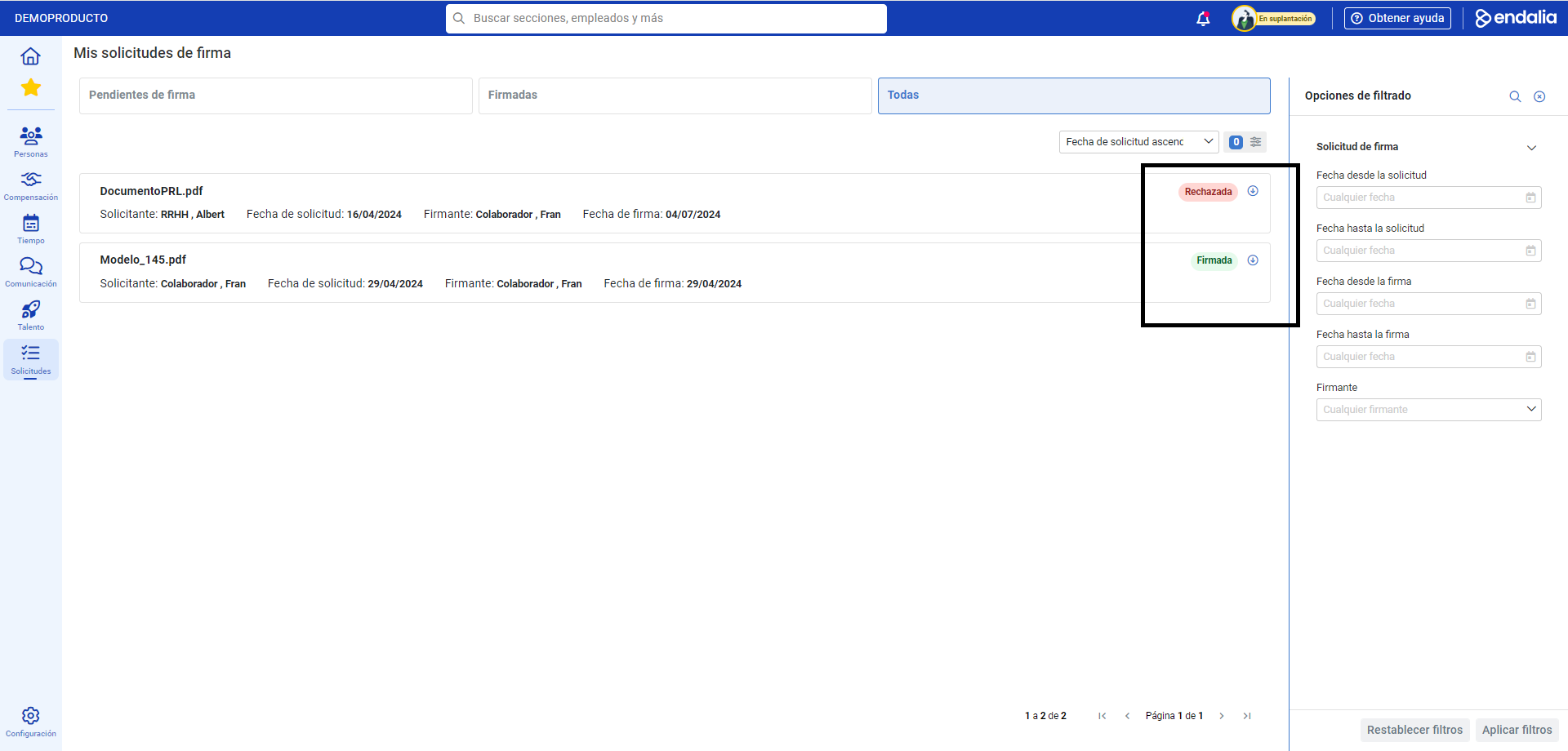
Note: the system also shows you information about the signatures (Requester, signer, date of signature) and their status; e.g. e.g. "Cancelled," "Expired" (when the time for Viafirma signature requests expires), "Rejected," etc., in the three existing tabs:
In addition, you can view our glossary, available at this link.
Was this article helpful?
That’s Great!
Thank you for your feedback
Sorry! We couldn't be helpful
Thank you for your feedback
Feedback sent
We appreciate your effort and will try to fix the article