This folder is not available in Portuguese/Portugal, view it in Spanish
Important: this article is intended for Endalia HR users with an Administrator profile.
For a collaborator to sign a document, the administrator must have prepared it in advance. Follow these tips to learn everything about this module option.
Here you will find:
Launch a signature request
Within the hub Management and processes, go to Digital Signature > Signature Requests
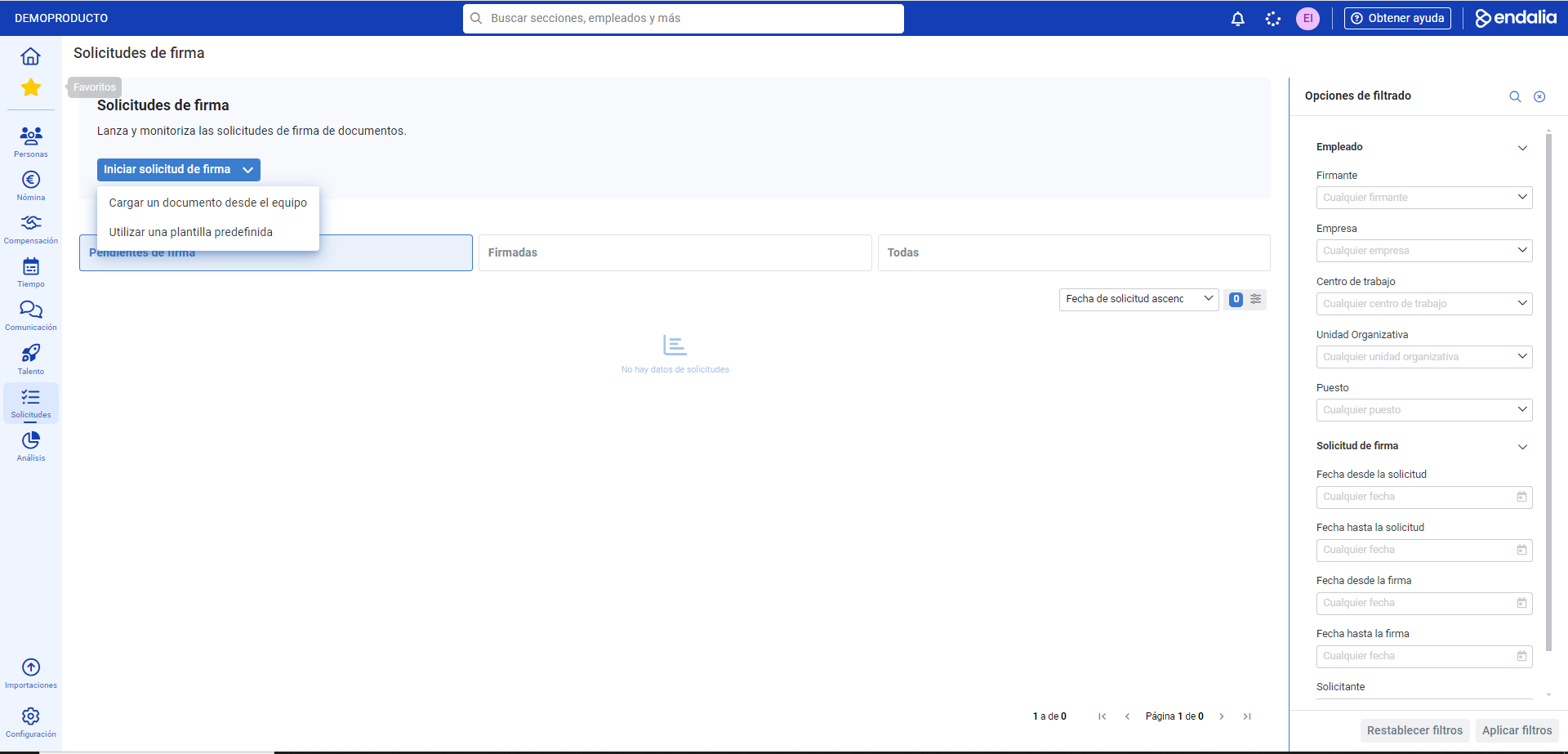
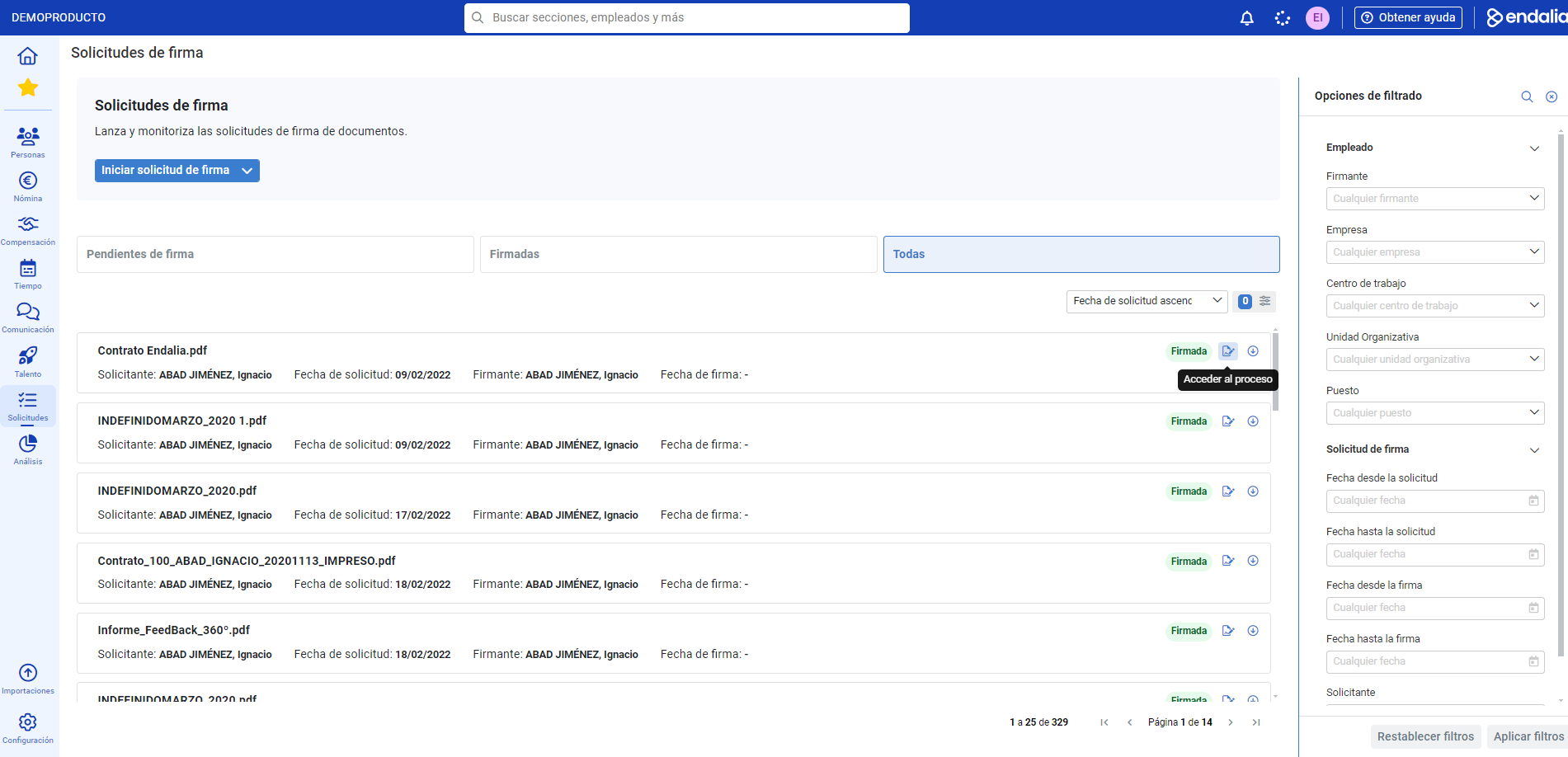
On the screen presented by the software, you have different tabs that inform you of the status of requests (Pending signature, Signed, All, etc.). Remember that you can use the filters in this section or the employee filter to refine your search. To launch the requests, click on the blue button Start signature request, which you will find in the upper left part of the screen. You can upload a document from the device, or use a predefined template:
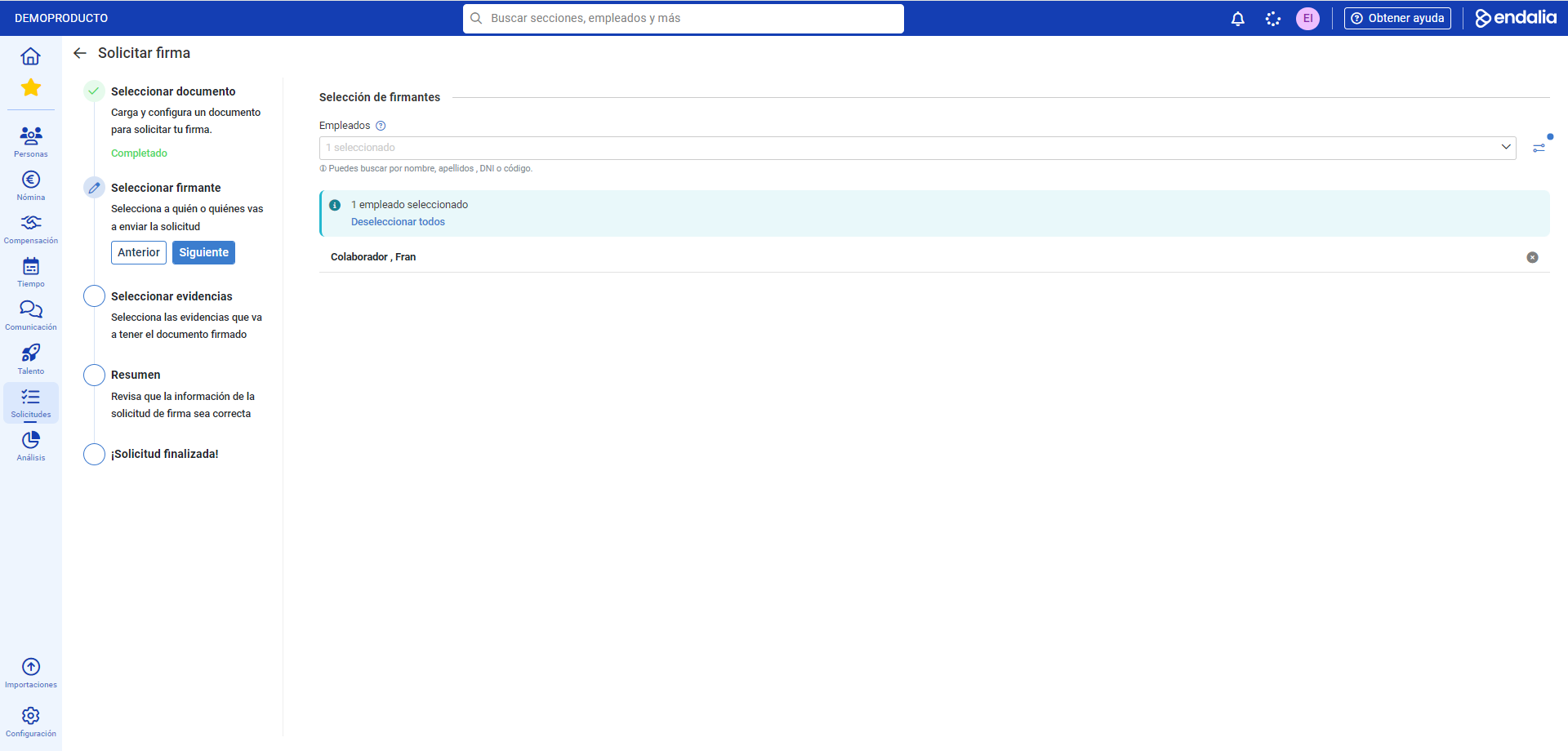
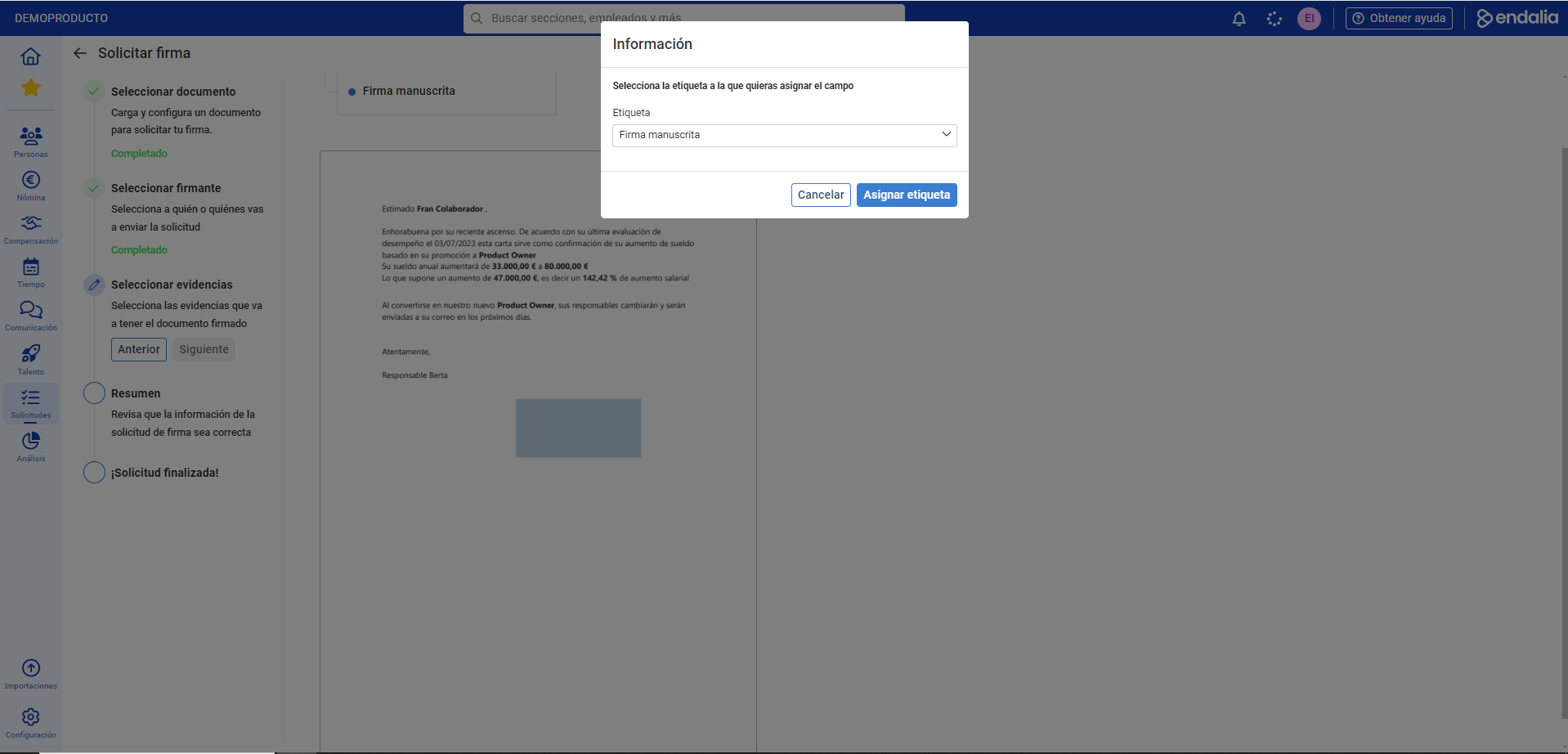
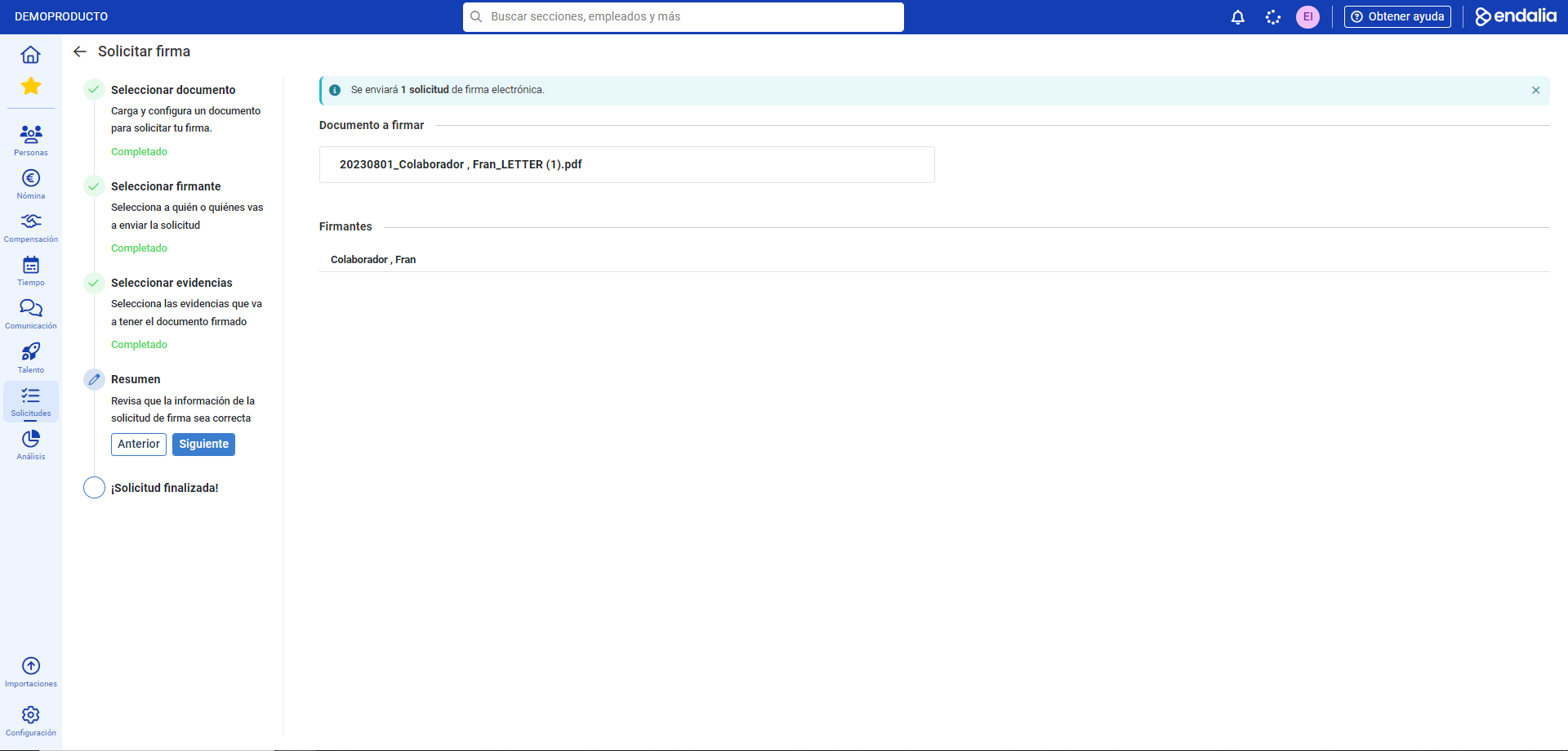
If you choose the first step, you will see a four-part stepper; in the first, select the document to be imported and the part of it where you want to include the signature; in the second, select the person(s) to sign it; the third, Select evidences, indicates that you must first select the quadrant where the signature will be included and then select and assign the tag that the document will carry in the modal window. Finally, the summary will serve you as verification of your selections. Remember that you can move forward or backward in the stepper, at any time, until the last step, in case you modify your preferences:
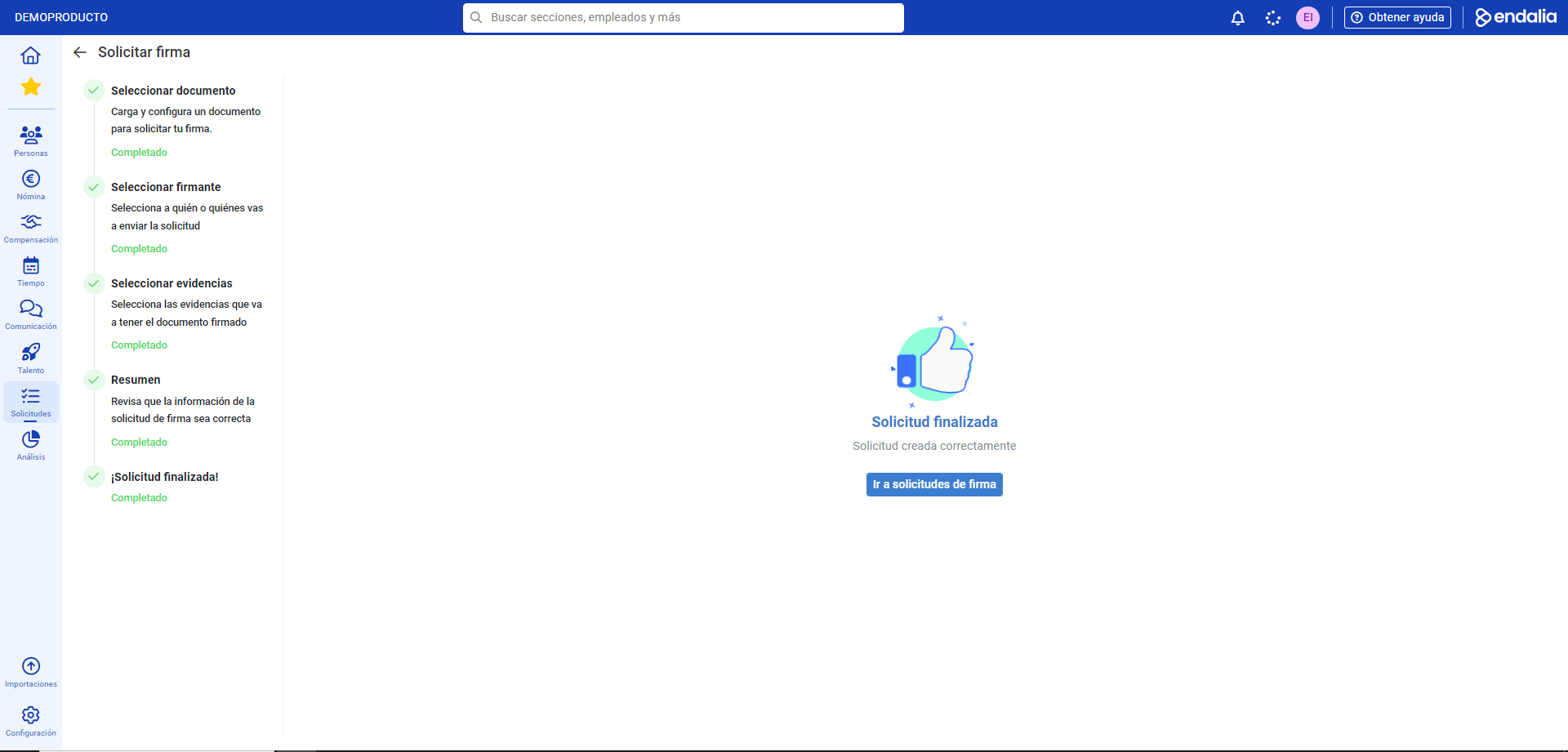
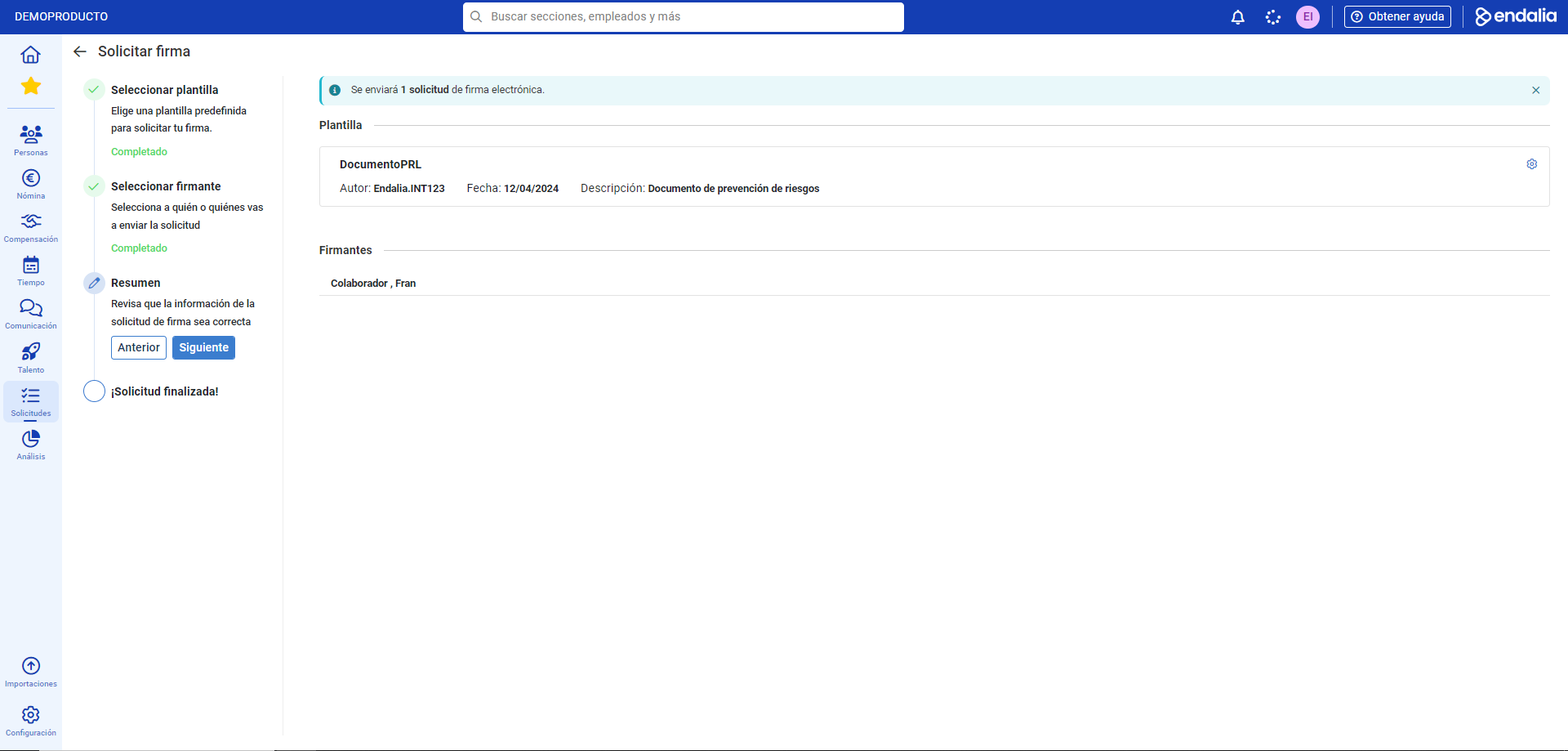
And, if you choose the second option, Use a predefined template, the processed tunneled will be slightly different; first, select the template and then the signatories (you can choose as many as you want); the summary will provide the entered information in a concise way, and the final message, Request completed!, will indicate that the process was completed successfully, returning to the main screen listing: 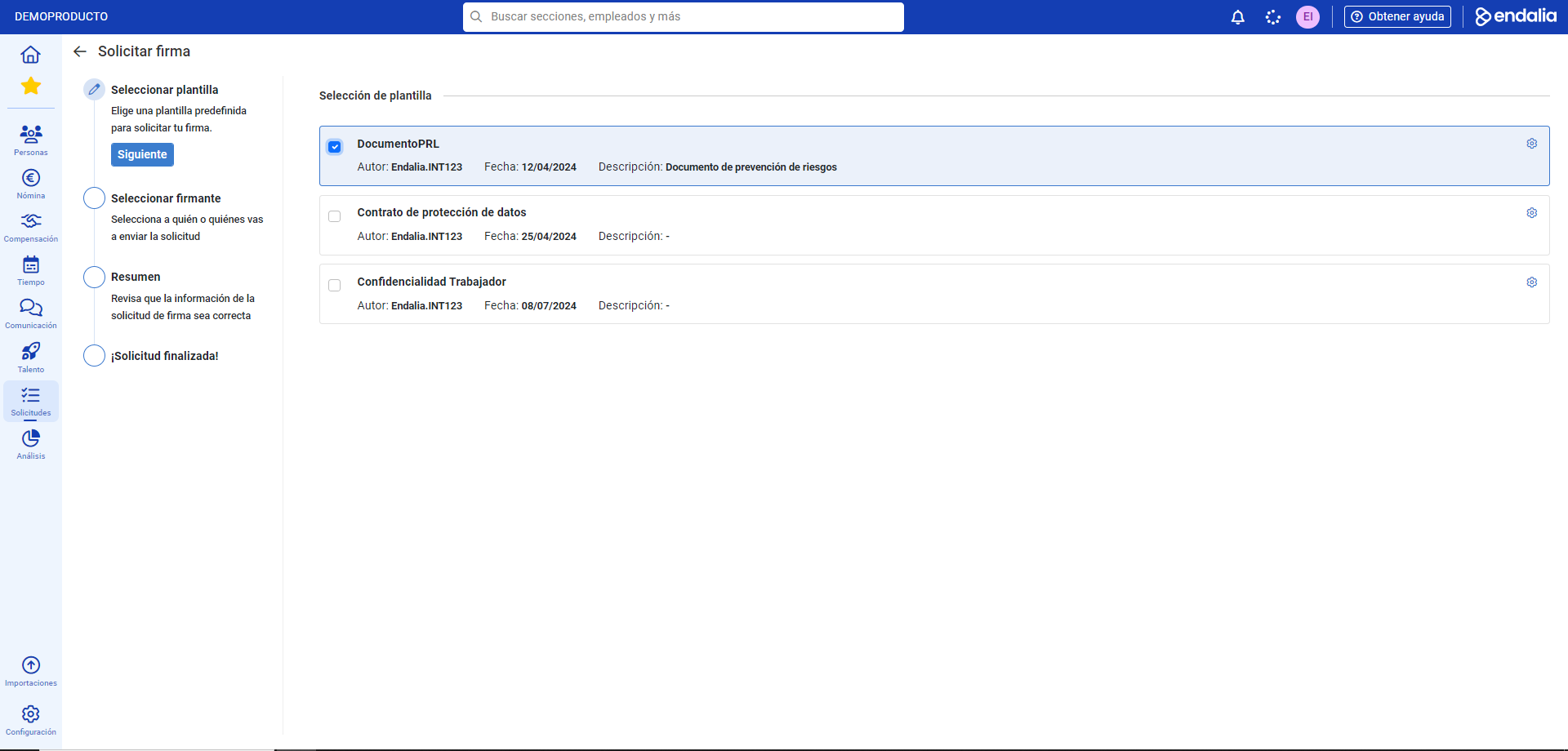
Note: the system also shows you information about the signatures (Requester, signer, signing date) and their status; e.g. "Cancelled", "Expired" (when the time during which signature requests in Viafirma expire elapses), "Rejected", etc. in the three existing tabs: e.g. "Cancelled", "Expired" (when the time during which signature requests in Viafirma expire elapses), "Rejected", etc. in the three existing tabs:
Additionally, you can take a look at the following related articles:
And to our glossary, available at this link.
Was this article helpful?
That’s Great!
Thank you for your feedback
Sorry! We couldn't be helpful
Thank you for your feedback
Feedback sent
We appreciate your effort and will try to fix the article