Important: this article is intended for Endalia HR users with an Administrator profile.
This functionality allows you to calculate employee payrolls and review employees with already paid payrolls for inclusion in calculations, if necessary. Check out this article to learn everything about the topic!
In this article:
Payroll calculations
Within the hub Payroll, click on Payrolls > Payrolls > Calculation
- On this first screen, you have various options, but you should focus on the following: go to the Calculations > Payroll section and click on the Calculate
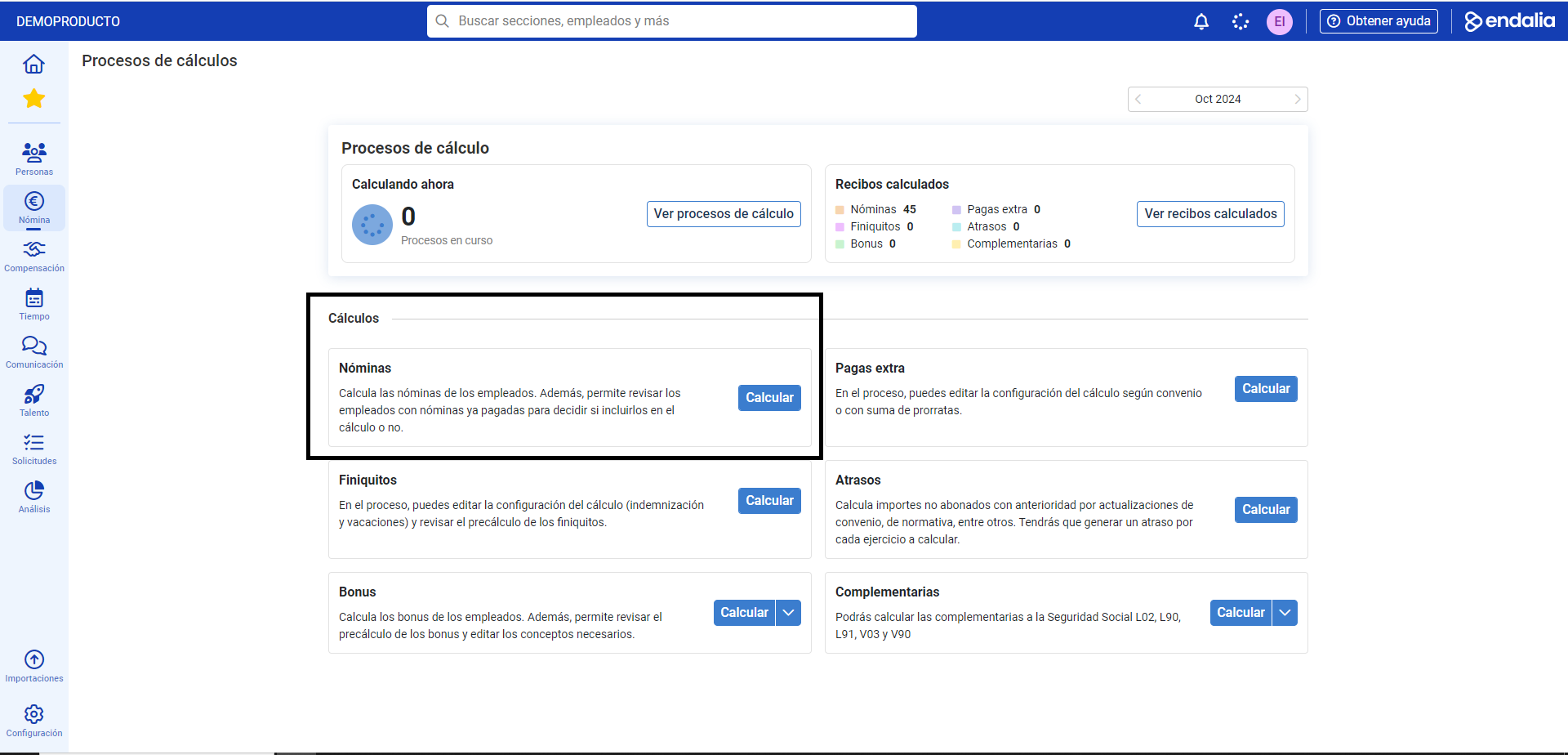 button.
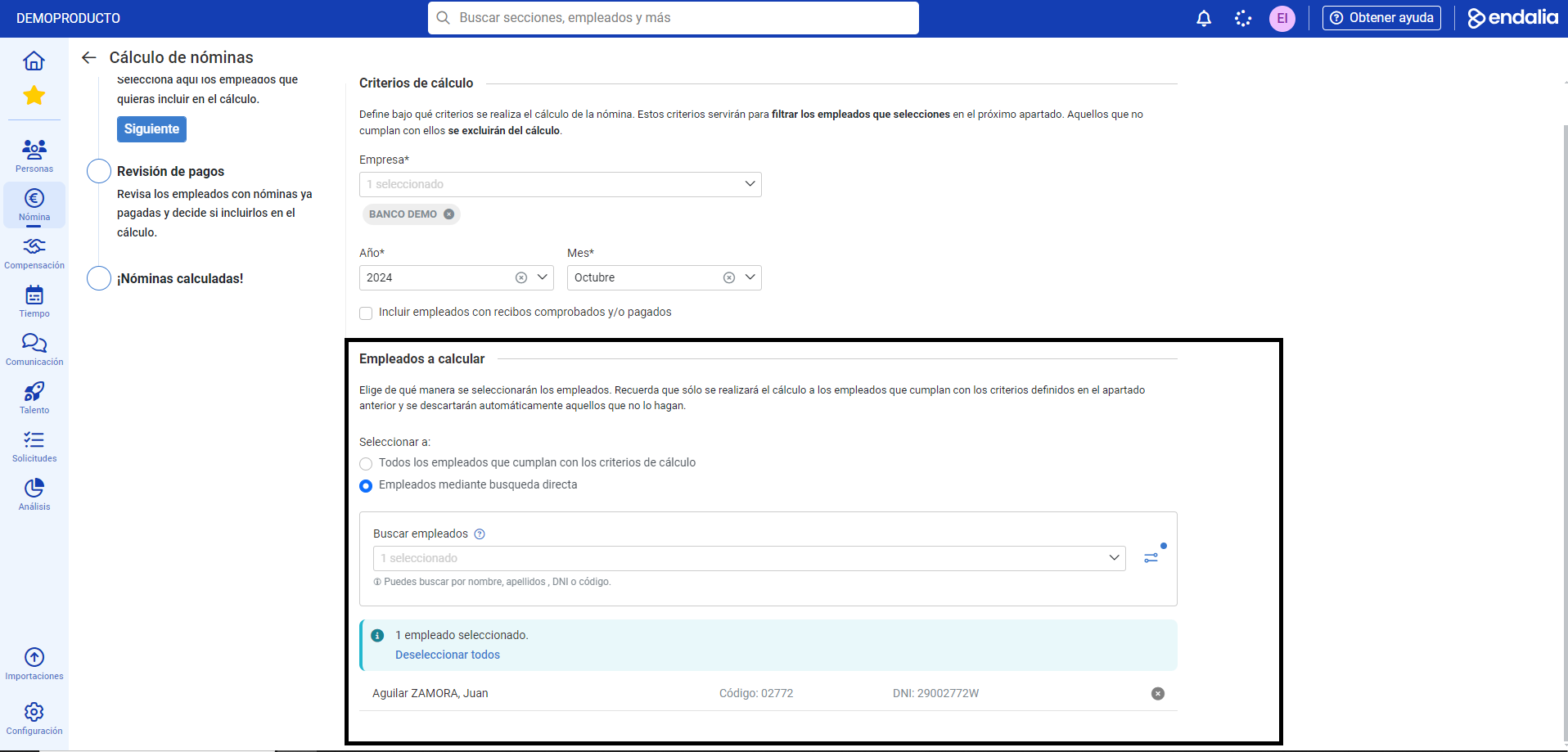
 - Now, you have a calculation assistant divided into four steps. In the first section, Calculation Criteria, fill in the mandatory fields (*), such as Company, Year, and Month (by default, those in progress are shown). Additionally, you have the option to Include verified and/or paid receipts, meaning that if an employee has a receipt in either of these states, the system will calculate a new one. In the next section, Employees to calculate, select them with criteria that suit your needs; remember you can use the advanced employee filter to refine your search further. Lastly, click on Next
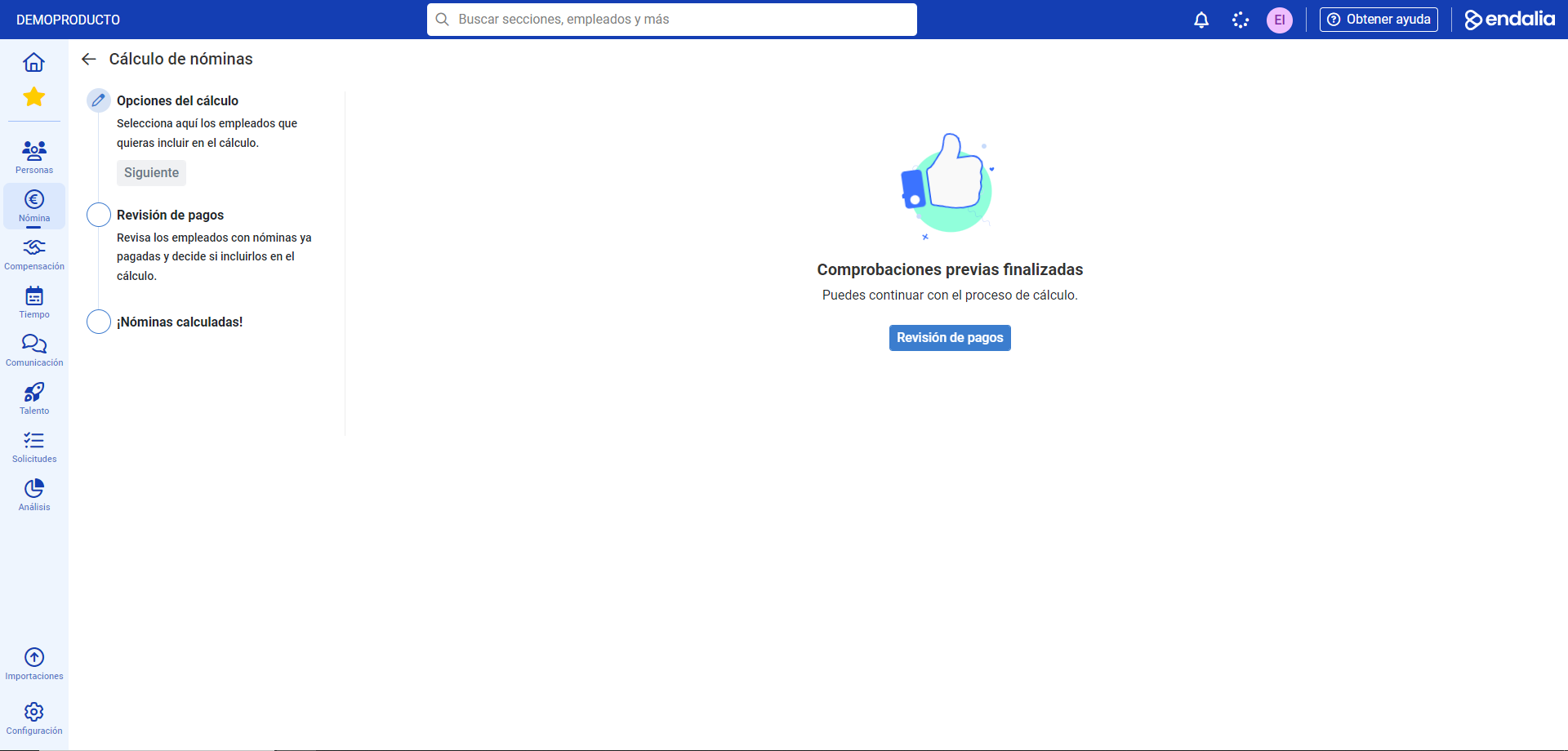
- The system will now perform some preliminary checks before proceeding to the next stage. Click on Payment Review
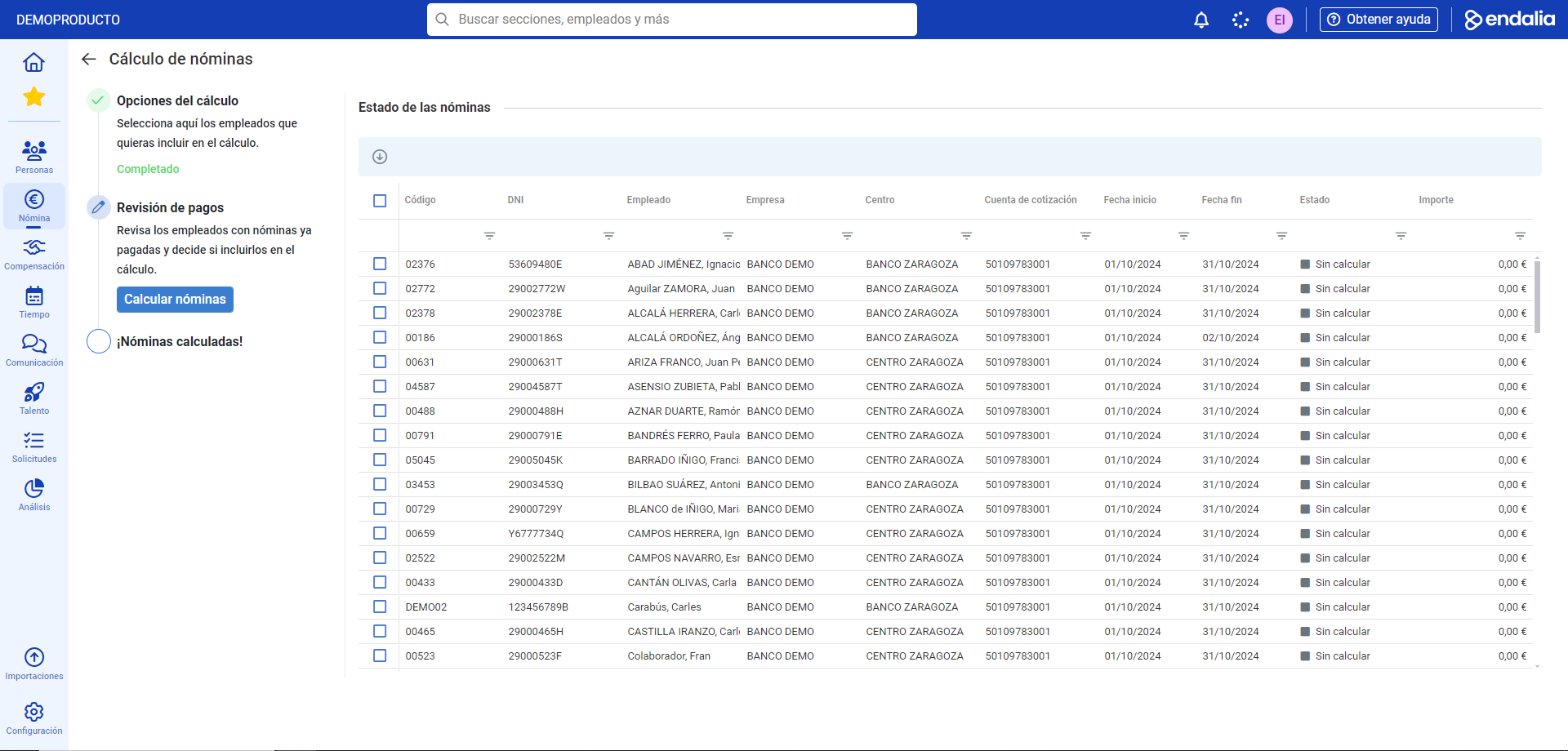
- You can now view the status of payrolls in the list provided by the program. You can select one or several and delete them. Once your preferences are set, click on Calculate payrolls
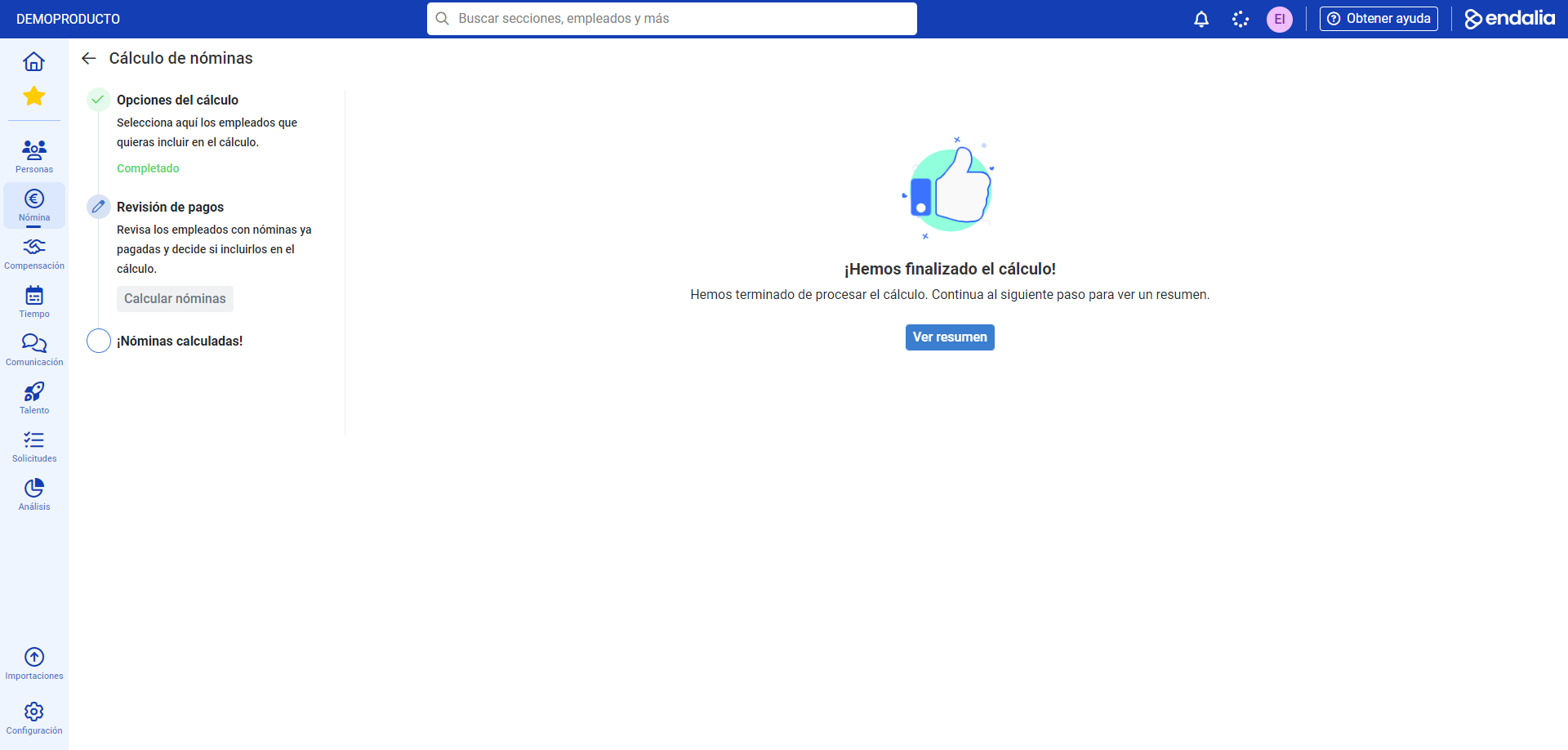
- Next, the system will display the following message: We have completed the calculation!, informing you of the success of the process. Go to View summary
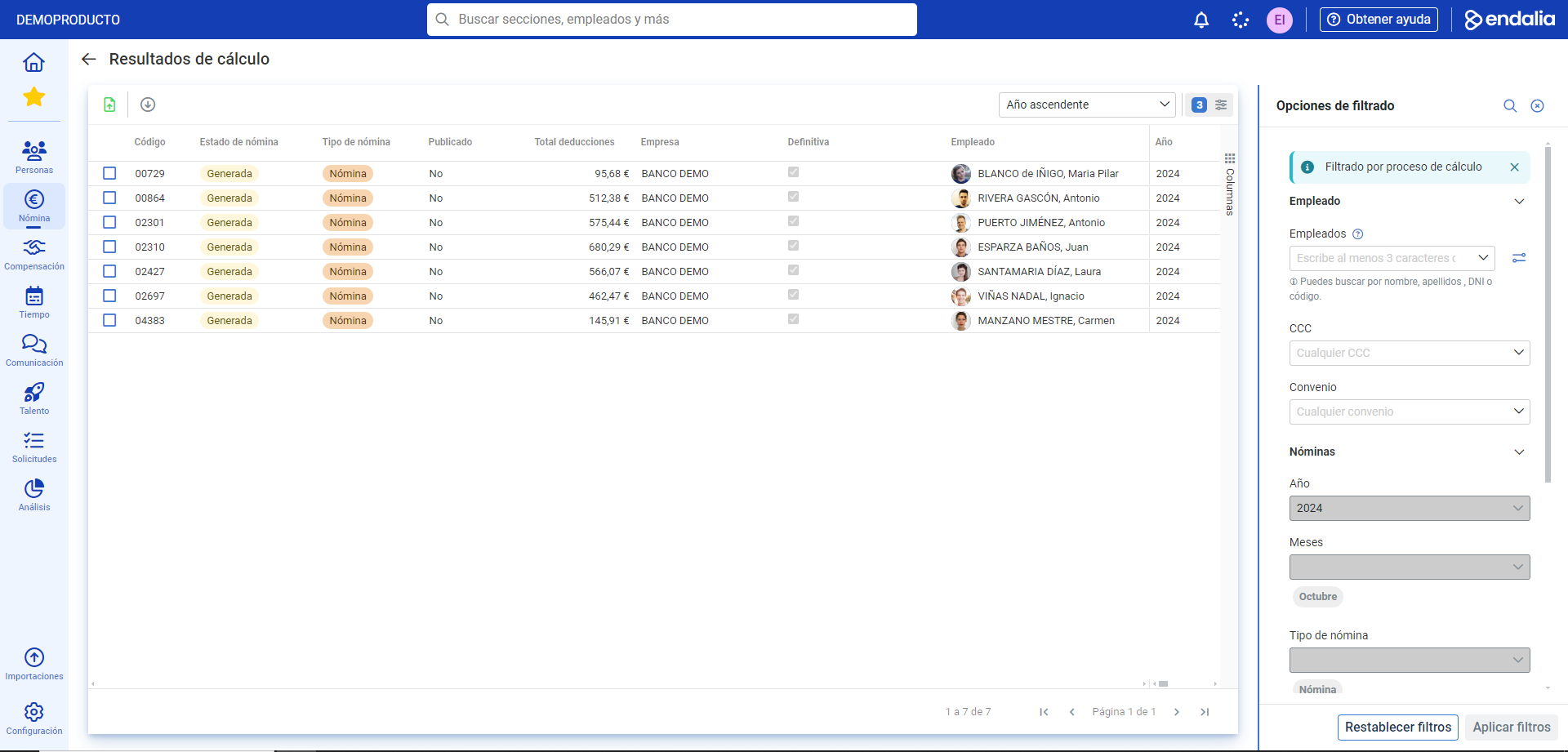
- Now, you can see the result of the employee payroll calculation, with their respective records; the lower tabs will show you, in a summarized and explained way, possible incidents (notices) or uncalculated payrolls (excluded receipts). Click "Go to view payrolls" to proceed to the Calculation Results screen, where you can perform various actions related to receipts (for more information, check out the article Calculation Results):
Note: Alternatively, you can perform payroll calculations from the employee's record, if you have specific administrator permissions. To do this, follow these steps: 1. Enter Organization and people > People > Company > Employees 2. Click on a specific employee's box, and click on Edit employee record in the toolbar. 3. Press the Employee actions button, and choose an option (Calculate payroll, severance or bonus):4. Follow the instructions in the stepper or four-step process that automatically includes the data for the previously selected employee's calculations; in Calculation Options (the first step) you can manually and additionally include more employees for payroll calculation:
Process Video
We demonstrate this feature in just a few seconds:
Still have questions? Check out the following related articles:
Additionally, you can view our glossary, available here.
Was this article helpful?
That’s Great!
Thank you for your feedback
Sorry! We couldn't be helpful
Thank you for your feedback
Feedback sent
We appreciate your effort and will try to fix the article