This folder is not available in Portuguese/Portugal, view it in Spanish
Important: this article is intended for Endalia HR users with an Administrator profile.
It is essential for any company to make the amounts owed available to employees following the termination of the employment relationship. Now, you can learn to generate them quickly and easily.
In this article:
Severance Calculations
Within the hub Payroll, click on Payrolls > Payrolls > Calculation
- On this first screen, you have various options, but focus on the following: go to the Calculations > Severance section and click the Calculate
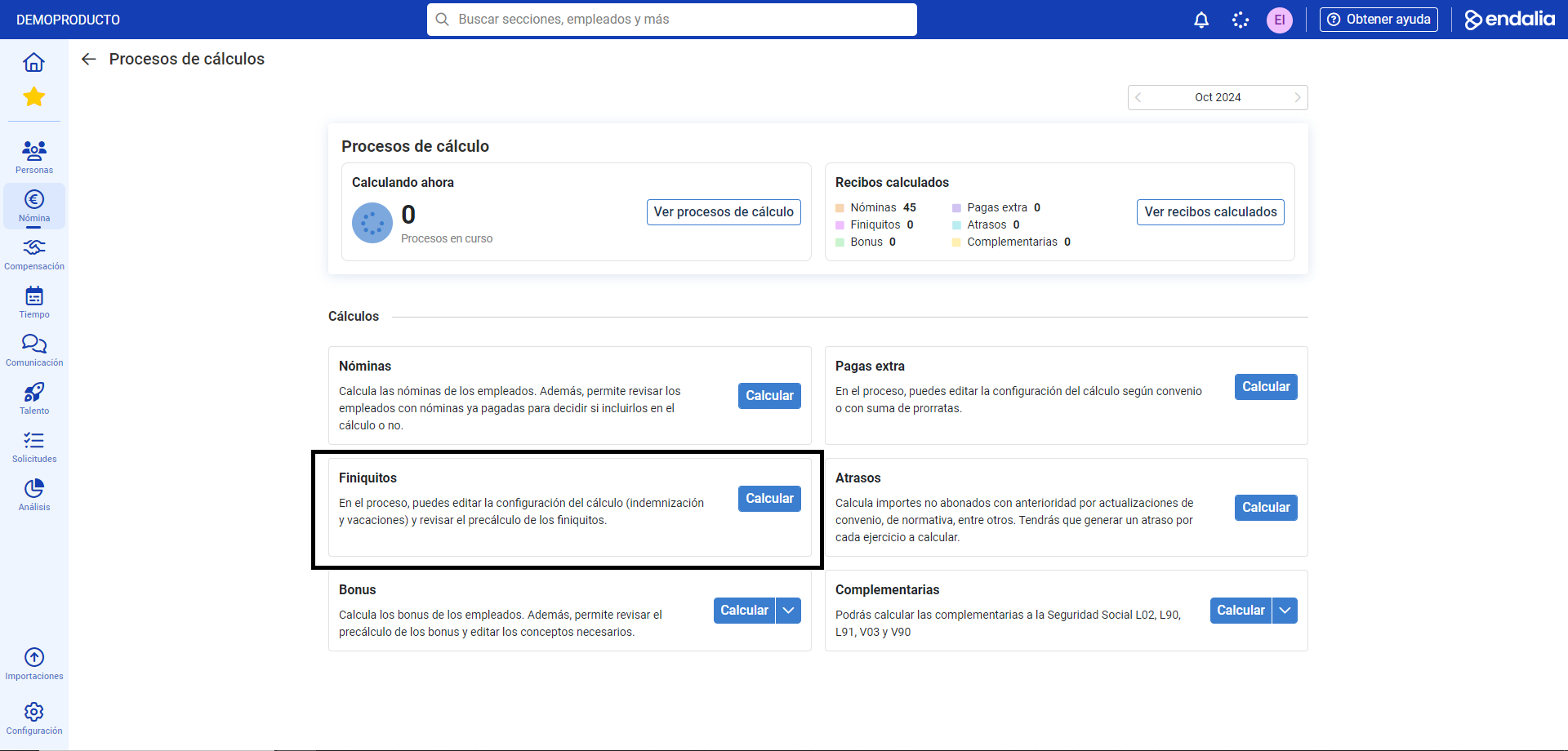 button.
 - Now, you have access to a calculation assistant, divided into four steps. In the first section, Calculation Criteria, fill in the required fields (*), such as Company, Year, and Month (by default, the current ones are shown). Click on Calculation Settings, to configure additional criteria such as indemnity seniority or holidays. Remember to click Save to apply your preferences. Additionally, back on the main screen, you have the option to Include verified and/or paid receipts, meaning if an employee has a receipt in either state, the system will calculate a new one. In the next section, Employees to Calculate, select one or more with the available options. Finally, click Next
- Now, the system will perform preliminary checks before proceeding to the next phase. Click Payment Review
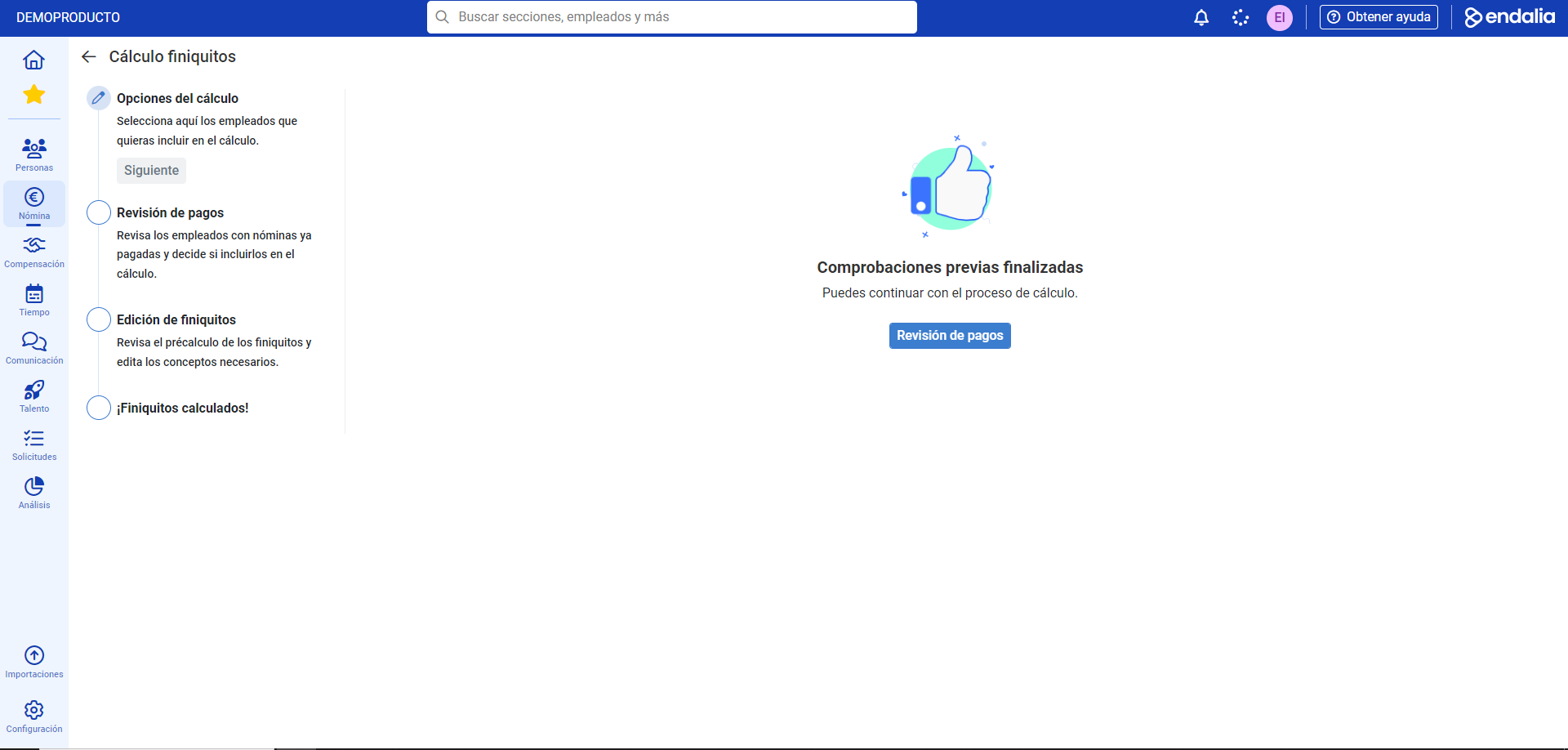
- Now you can check the severance payments in the list offered by the program, select one or more, delete them, etc. Once your preferences are set, click Next
- After a brief automatic check by the system, you can move to the next phase using the corresponding button (Pre-calculation Edit)
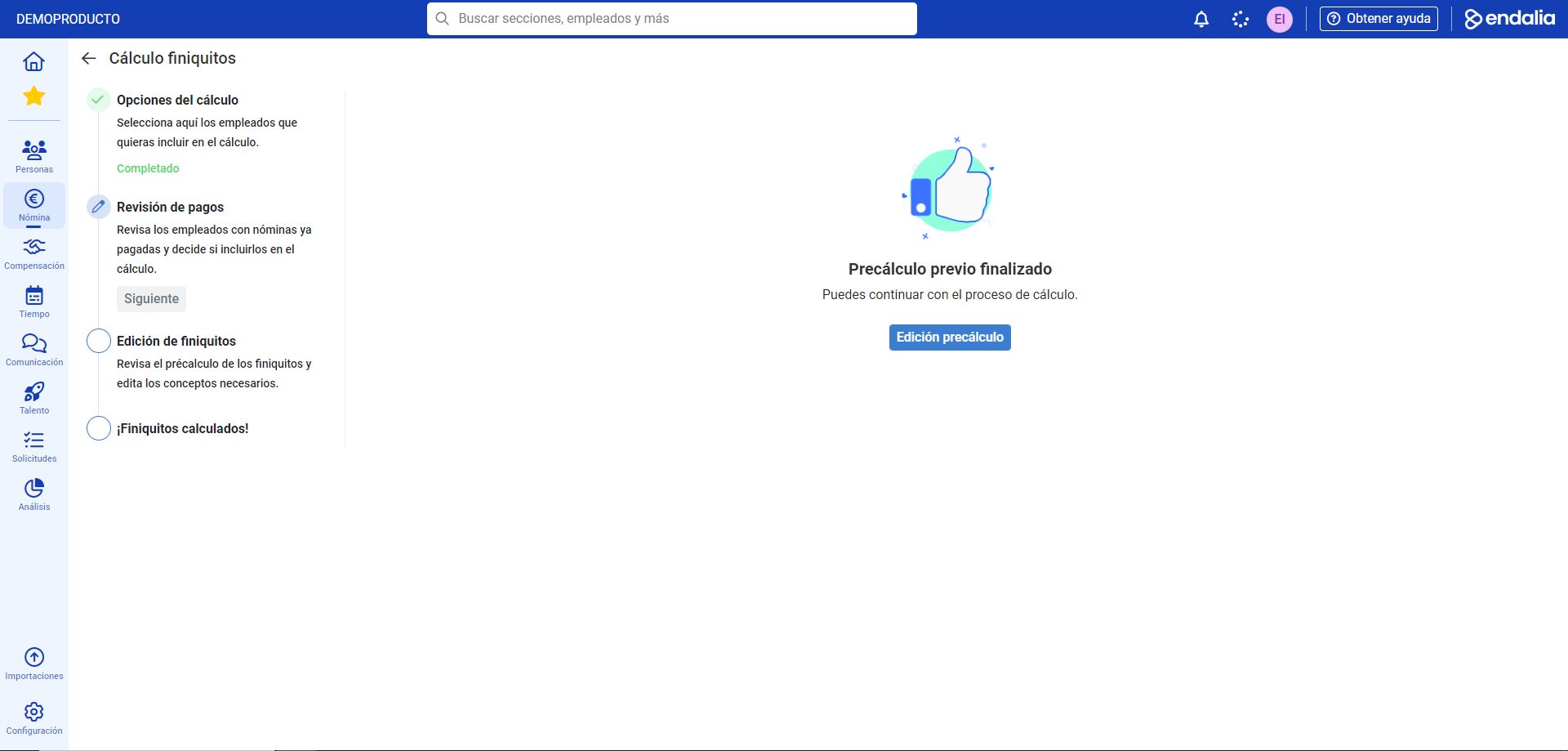
- On the next screen, you have a list of pre-calculated severance pay related to vacations, indemnities, and extra payments, with which you can perform various actions individually (edit, view employee file, delete, etc.). The tabs at the top of the screen will alert you to any incidents related to these calculations. When you have made the necessary modifications, if any, click Calculate Severance. Click View Summary. The final step, Severance Calculated!, with its corresponding button, Go to View Payrolls, will allow you to see the entire process in a table.
Process Video
Here is the process, very summarized, in this small visual nugget:
Still have doubts? Check out the following related articles:
Additionally, you can view our glossary available at this link.
Was this article helpful?
That’s Great!
Thank you for your feedback
Sorry! We couldn't be helpful
Thank you for your feedback
Feedback sent
We appreciate your effort and will try to fix the article