Important: this article is intended for Endalia HR users with an Administrator profile.
To keep all calculations under control, it is necessary to have a main screen that allows you to view as much data as possible in the most concise and condensed manner. And now, it is at your disposal.
In this article:
Calculation Results
Within the hub Payroll, click on Payrolls >Payrolls > Calculation > Calculation Results
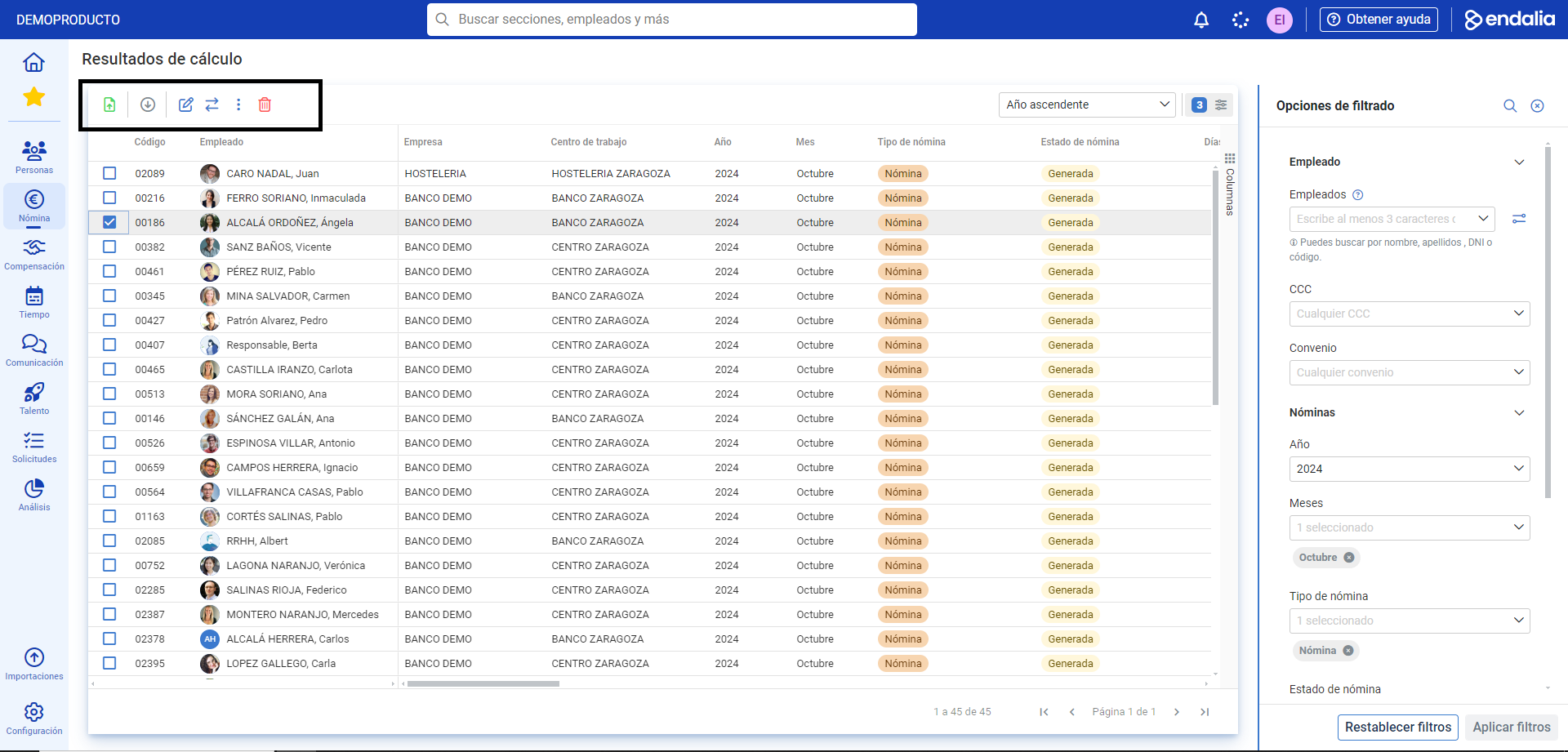
- On this first screen, you have a list of all the data related to employees and the calculations of the different types of payroll. On the right side, you have filtering options, as the system will initially load the current month's data, which you can modify as you see fit (remember that to apply these changes, you must click Apply Filters.)
- To carry out different actions on various types of payrolls, click on the corresponding name/box (you can also select several at once) and use the toolbar buttons, which will guide you through multiple available options, from Mass Publishing, to Edit, Generate Receipt, and finally, Delete, among many others:
Process Video
These are, broadly speaking, the highlights of this article:
Still have questions? Take a look at the following related articles:
Additionally, you can view our glossary, available at this link.
Was this article helpful?
That’s Great!
Thank you for your feedback
Sorry! We couldn't be helpful
Thank you for your feedback
Feedback sent
We appreciate your effort and will try to fix the article