Important: This article is aimed at users of Endalia HR with an Administrator profile.
Employees must have access to payroll receipts to keep track of their earnings and, ultimately, to organize themselves. Thanks to this feature, making them accessible is extremely easy. Take a look!
In this informative piece, you will find:
Publish payrolls
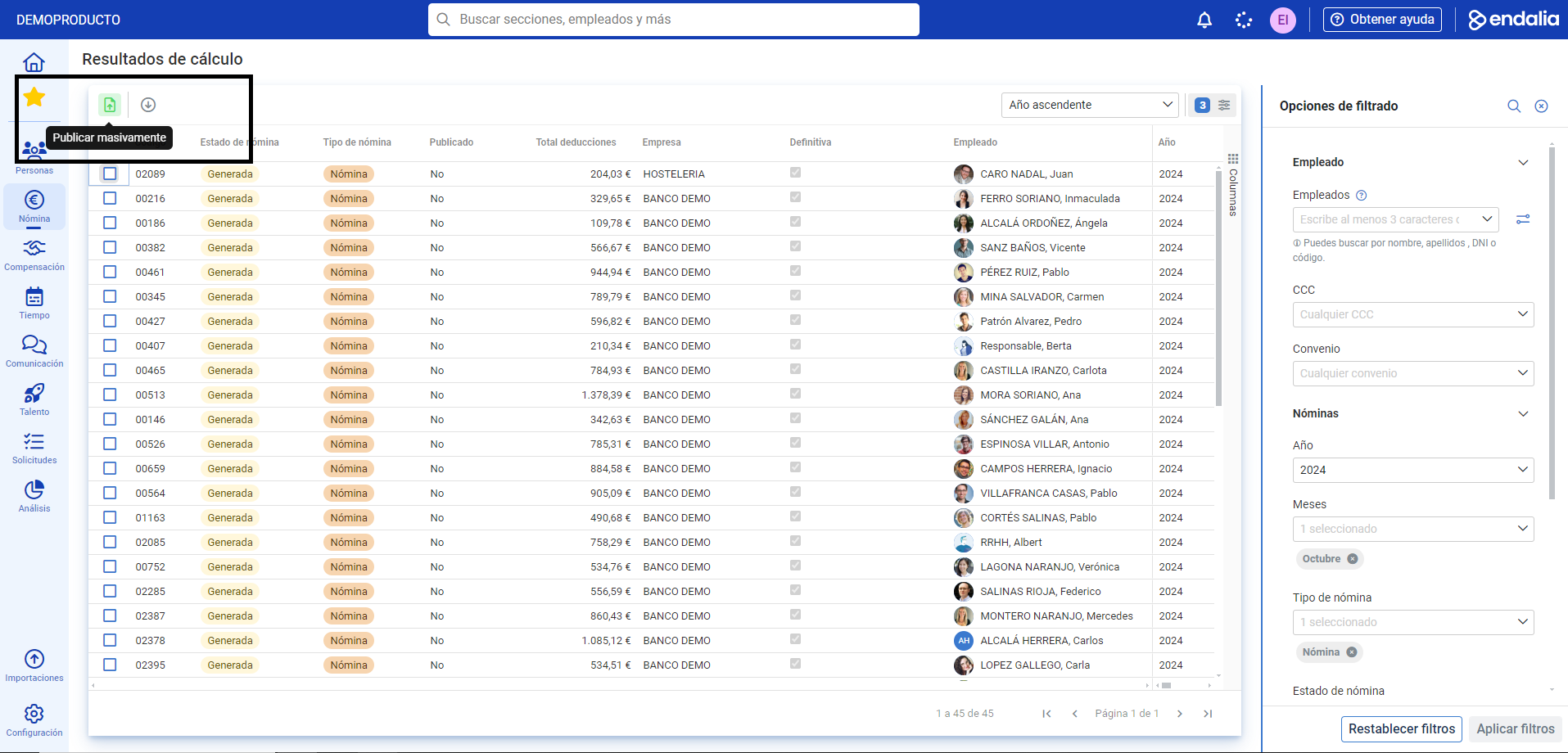
- Within the Payroll hub, click on Payrolls > Calculation > Calculation results
- On this first screen, you have a list of all employee-related data, types of payrolls, their status, etc. To the right, you have filtering options, as the system initially loads the current month's data, which you can modify as desired (remember, to apply these modifications, you must click Apply filters).
- To publish multiple payrolls at once, click on Mass Publish, an action button found in the toolbar as in many other occasions:
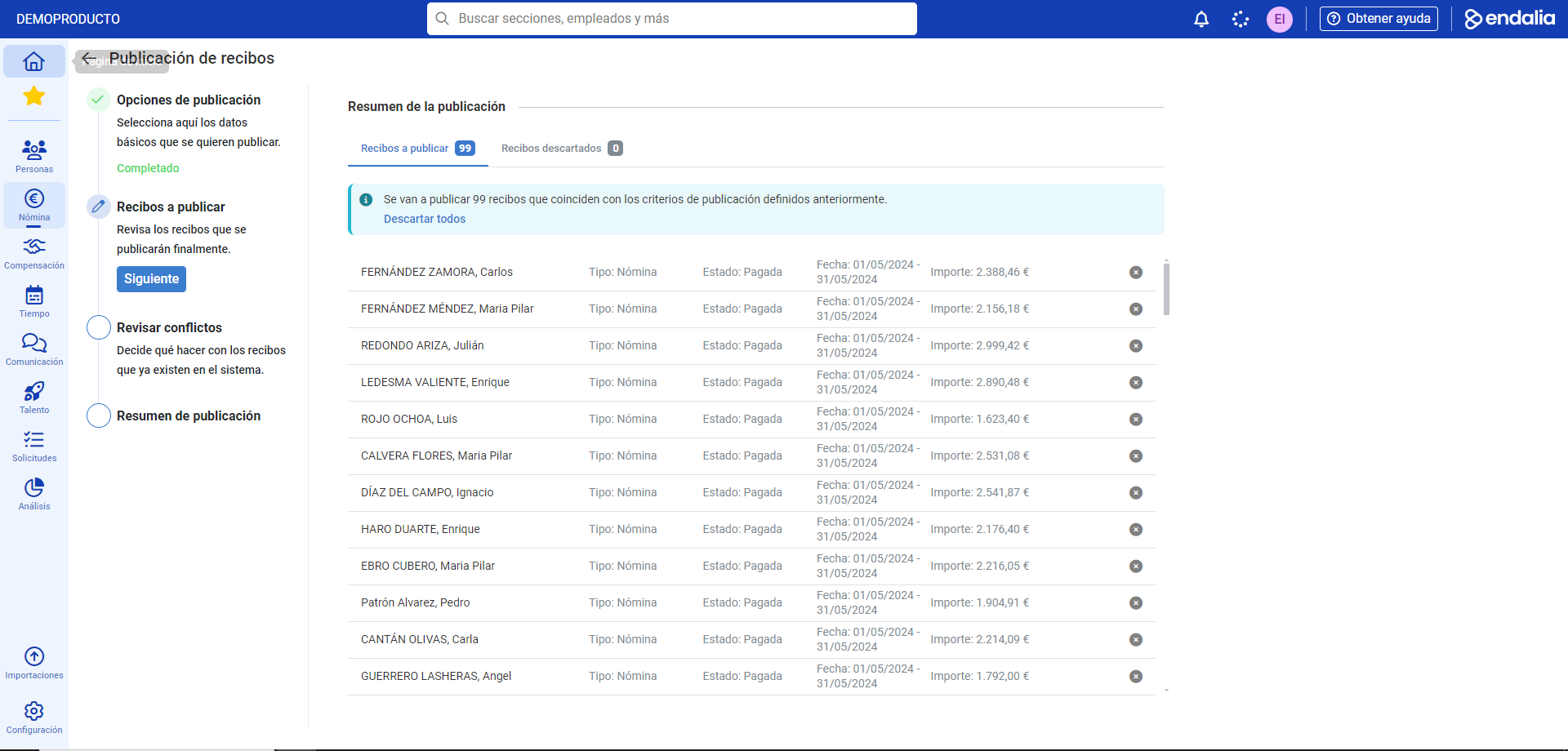
- The next phase is presented in a tunneled process or stepper, in four steps. In the first, Publication Options, you must select various parameters such as companies, year, month, type of payroll, etc. Follow the provided instructions closely and make your selections before clicking Next to continue.
- Next, you will see a summary to visualize which receipts will be published and which will be discarded. You can do this manually and re-add them to the list via the Discarded receipts tab and the Include receipt button. Click Next
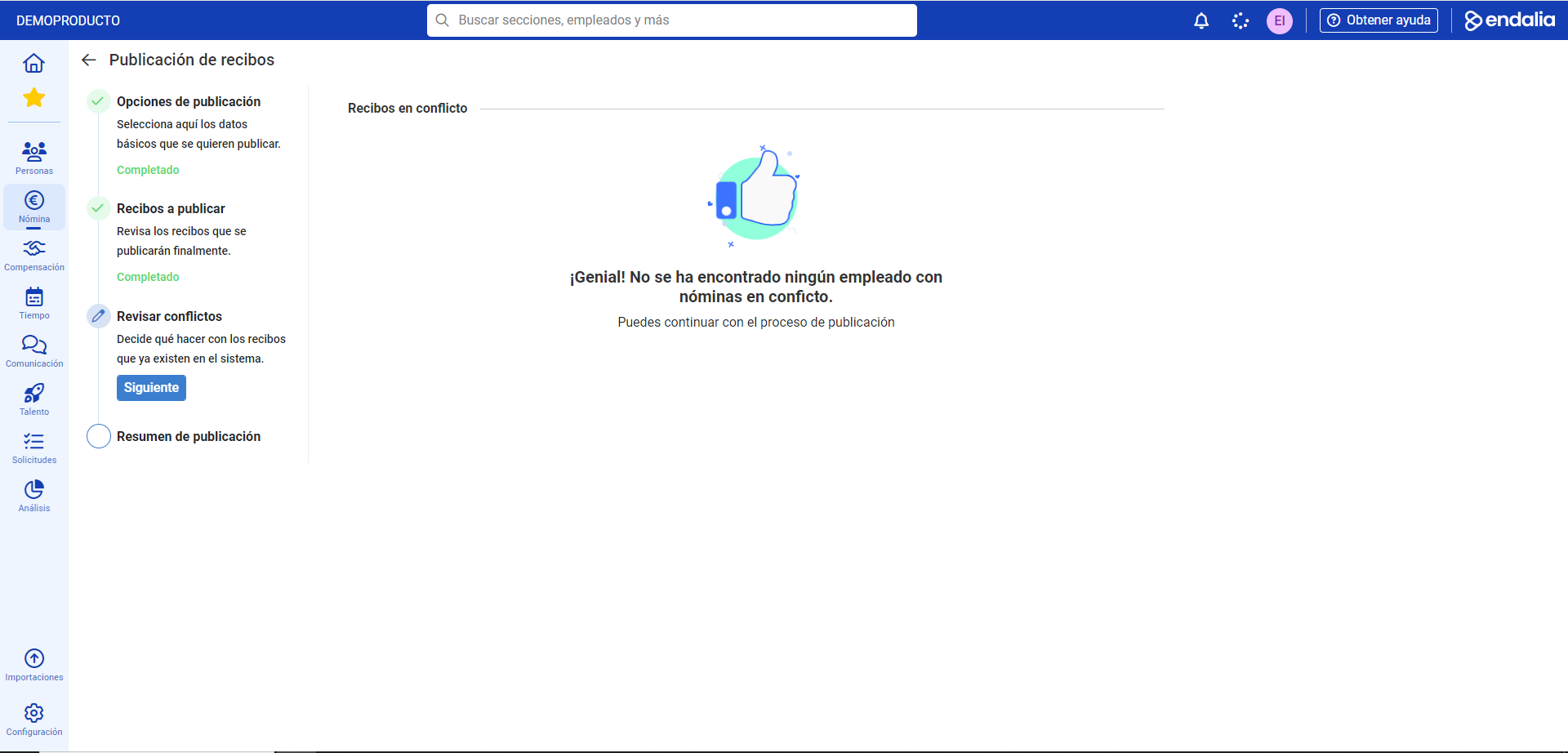
- If there are conflicts (the receipts you are creating already exist), the system will notify you and offer a list to solve the problem. Otherwise, a message will provide you the step to the final phase of the process. Click on Next
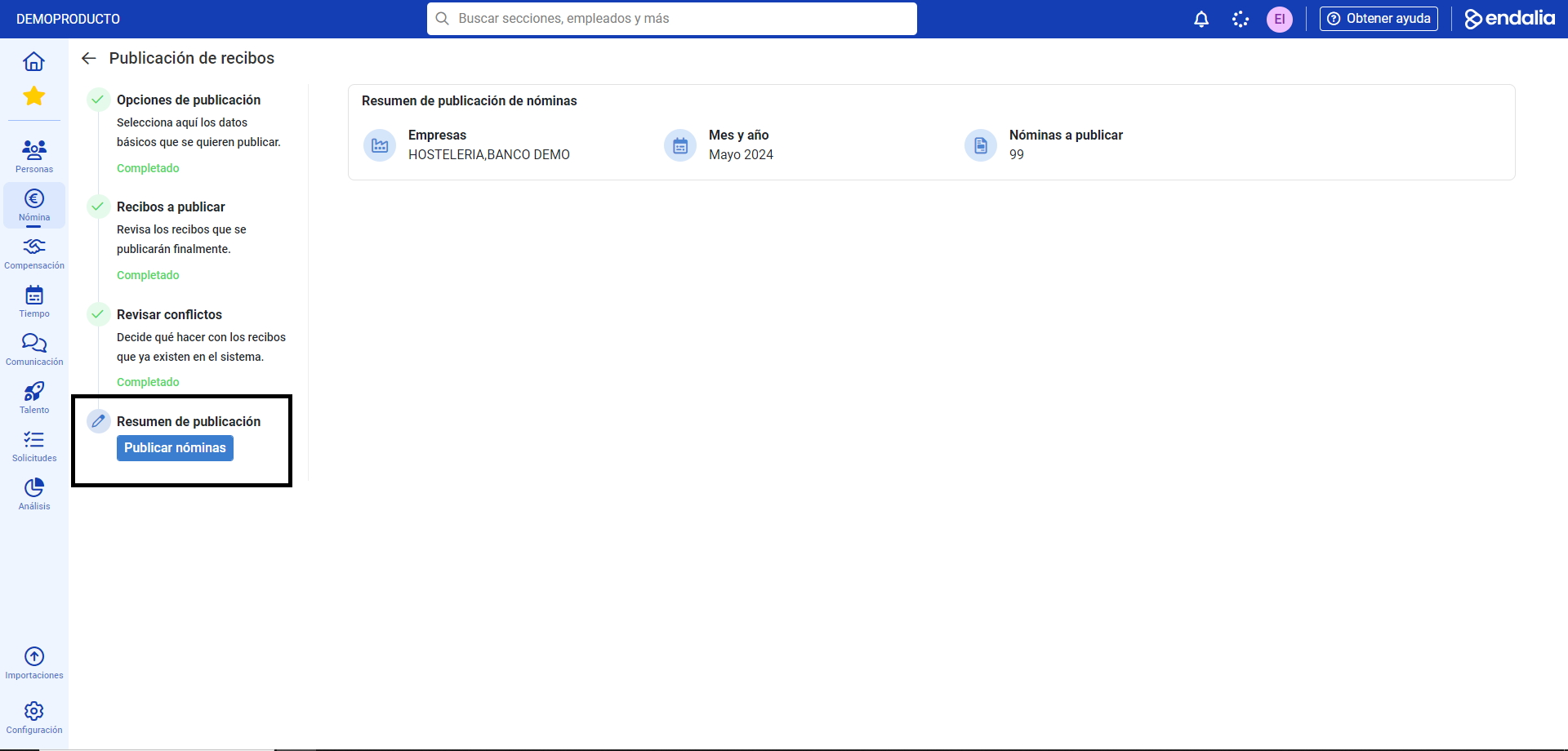
- Now, after checking the payroll publication summary, you can proceed with the action, Publish payrolls
Note: The payrolls you publish will appear in both the employee's profile (Organization and People > People > Company > Employees) and their personal profile (which employees will access via Compensation and Benefits > Compensation > Me > My Pay Receipts).
Process video
Here's the process summed up in one minute:
Still in doubt? Check out the following related articles:
Moreover, you can view our glossary, available at this link.
Was this article helpful?
That’s Great!
Thank you for your feedback
Sorry! We couldn't be helpful
Thank you for your feedback
Feedback sent
We appreciate your effort and will try to fix the article