Important: this article is aimed at Endalia HR users with an Administrator profile.
The ITA files must be downloaded first from Social Security.
The data related to your workers held by Social Security and what you have for your business management must match to ensure comprehensive management. And how do I verify it? We explain it a bit further down.
In this article, you will find:
Check ITA
Within the payroll hub, click on Payroll > Social Security > ITA Check
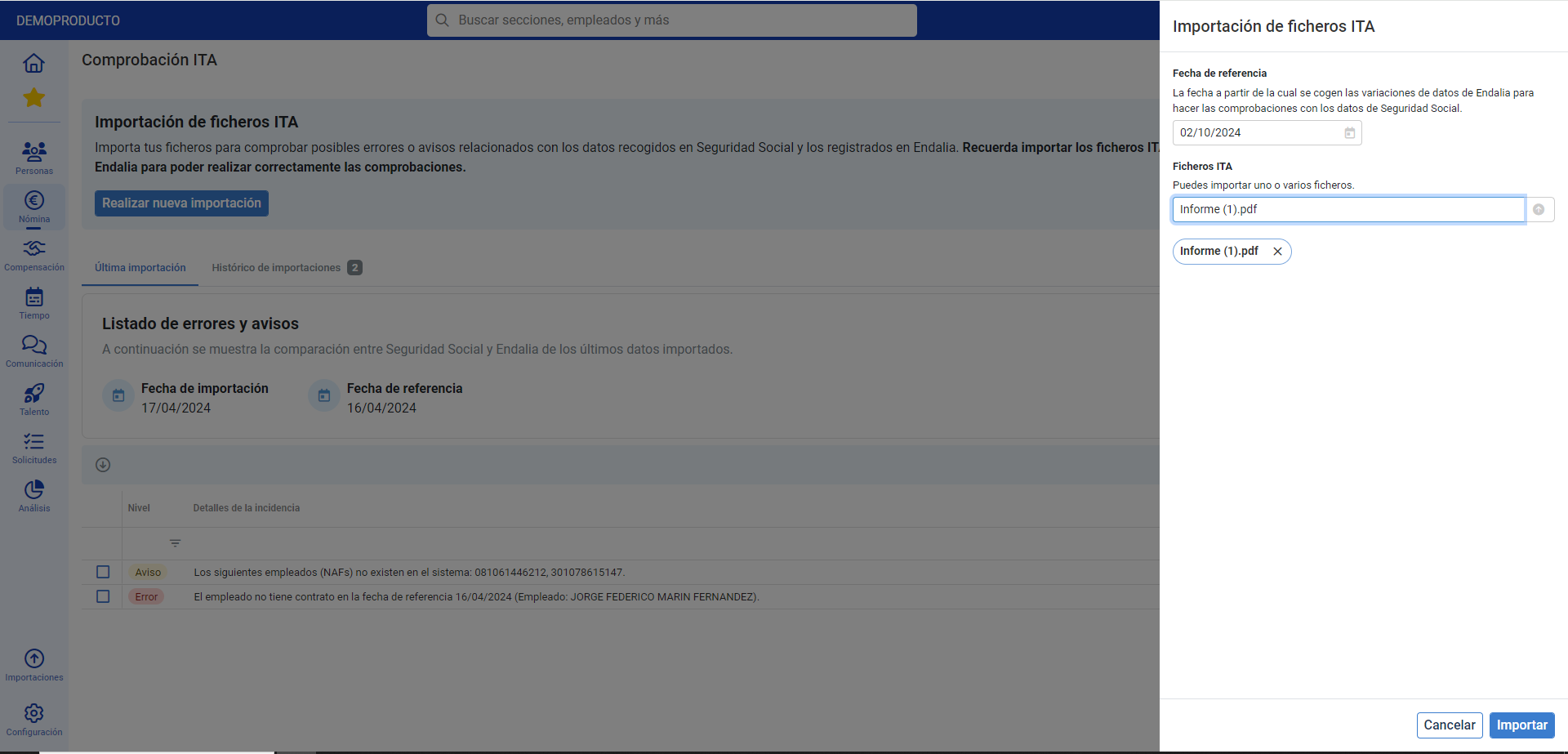
- Now, to start this process, you must click on Perform new import, a button located at the top left of the screen. In the modal window that appears next, include the reference date and the ITA file, which you will have previously downloaded on your device. Finally, press Import:
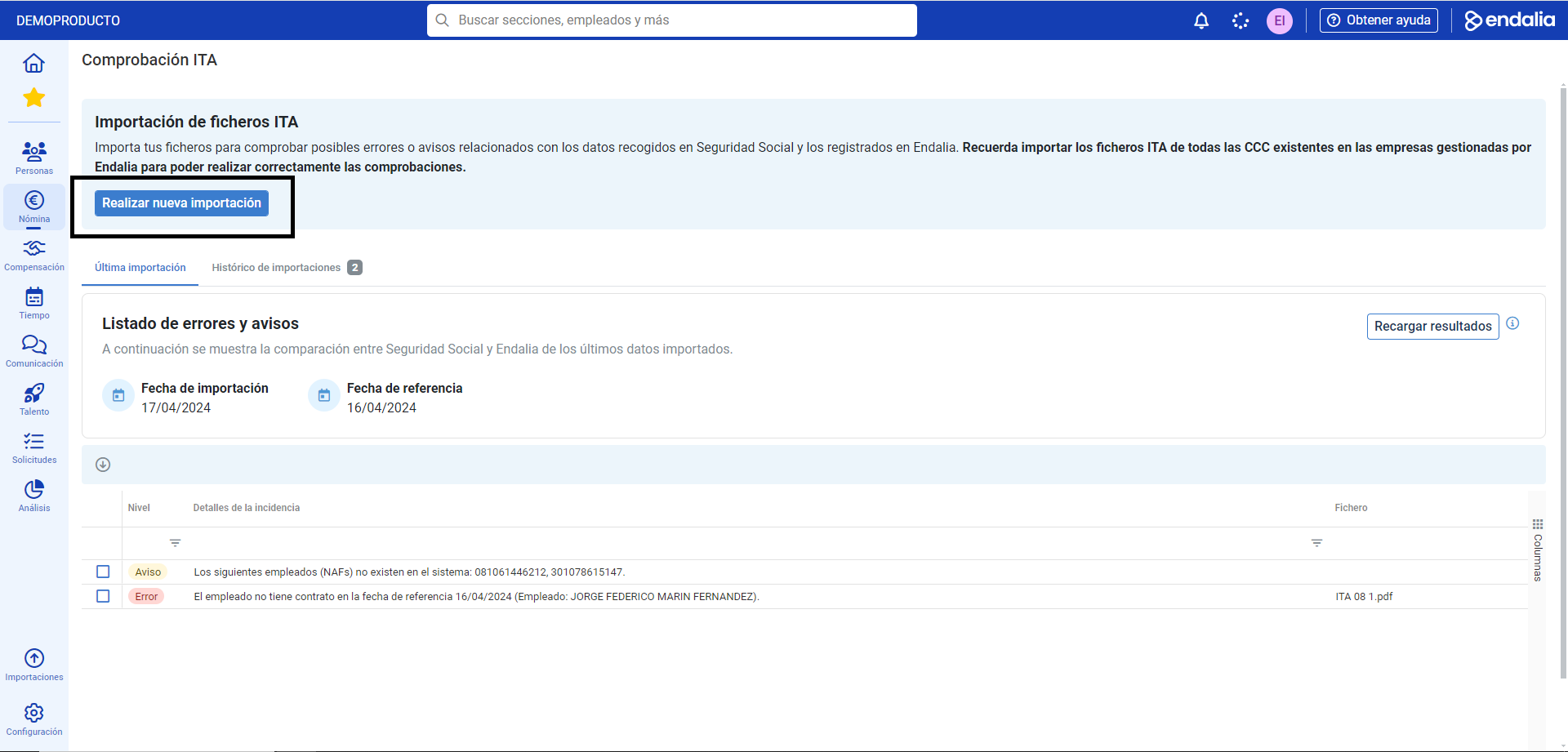
- Back on the main screen, and within the Last import tab, you have a detailed list of errors and warnings, resulting from comparing Social Security data with that in your files. Navigate through the different columns to know errors, warnings, etc., and keep a completely exhaustive comparative control:

Note: once errors in the list have been corrected, you can click on Reload results, to update the list of failures and warnings in the program.
Check out this related article: Verify FIE
If you have doubts, you can take a look at our glossary, available at this link.
Was this article helpful?
That’s Great!
Thank you for your feedback
Sorry! We couldn't be helpful
Thank you for your feedback
Feedback sent
We appreciate your effort and will try to fix the article