Important: this article is aimed at Endalia HR users with an Administrator profile.
The Government defines this concept as "the total amount of monetary or in-kind compensations paid by employers to their employees regardless of their inclusion or not in the contribution base and even if unique bases applicable, classified by retributive concepts". And, our task is that you can manage them.
In this article you will find:
Edit CRA Model (Paid Retributive Concepts)
Within the Payroll Hub, click on Payrolls > Social Security > CRA Model
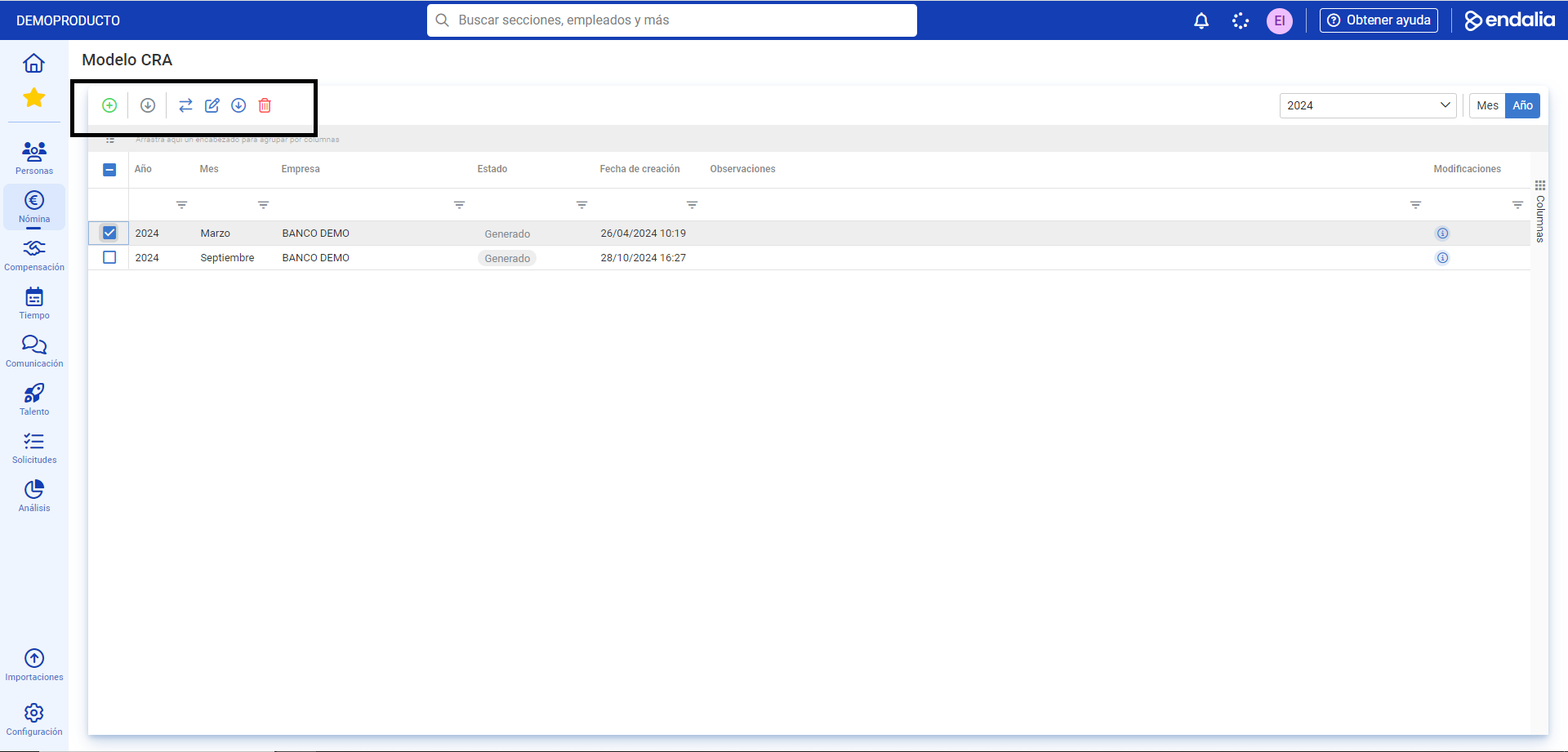
- On this first screen, you have a list of CRA models with their corresponding company, the status, creation dates, etc. Keep in mind that, as in other areas of this module, you have different buttons in the toolbar to perform actions. Select the appropriate checkbox or click the corresponding company to be able to mark as presented, edit, download file or delete
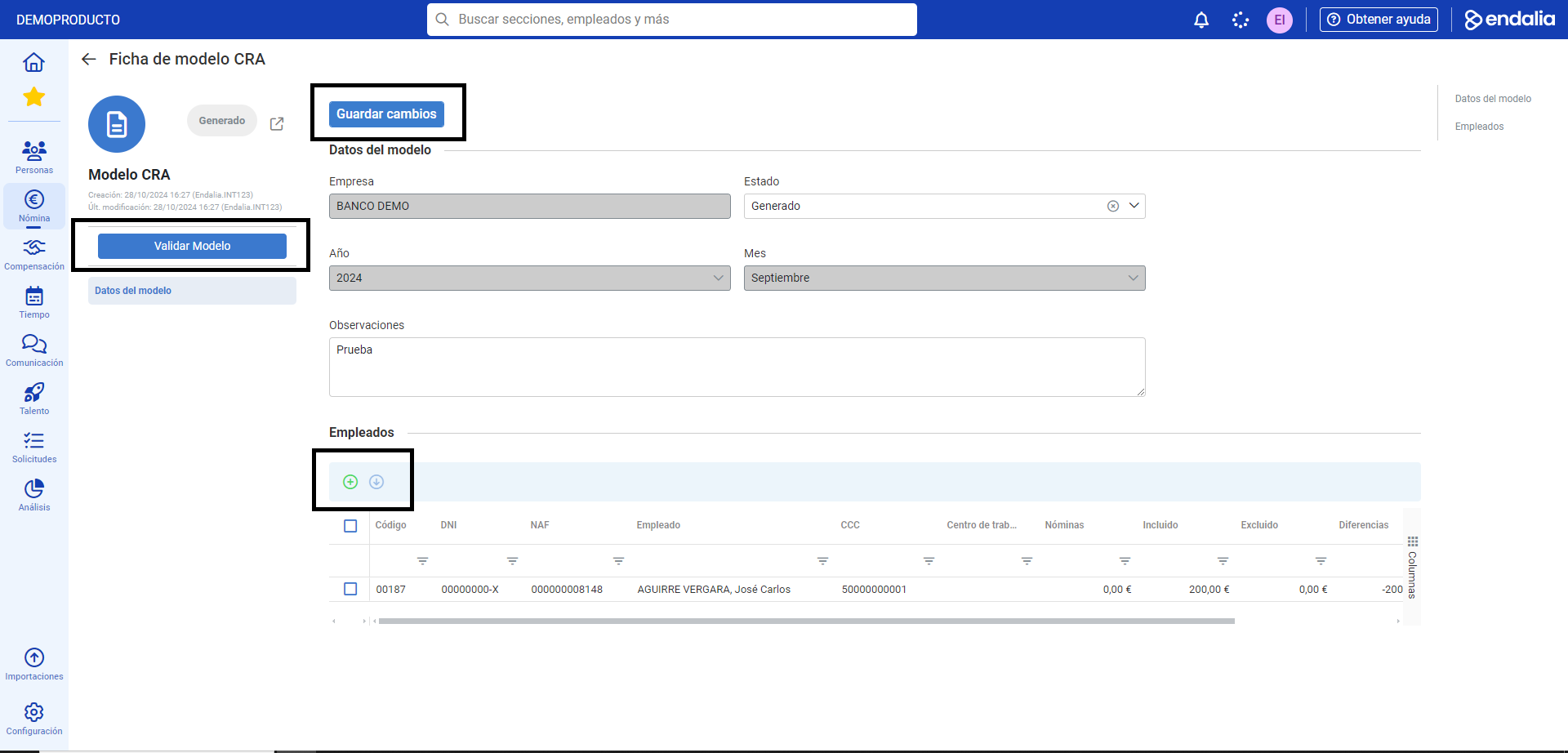
- If you want to edit a new CRA model, click on the dedicated button, also located on the toolbar. On the following screen, you can fill out various fields, such as the model status (generated/presented), observations, etc. (remember to Save changes to ensure the changes take effect) You can also edit/delete employees associated with the CRA, as well as add them. To perform this last action, you just need to click, as always, on the button on the toolbar enabled for this purpose. In the preceding modal window, Add sections, fill in the mandatory fields, at least, to be able to include the employee (you can add one or more sections, using the button enabled for this purpose) and, finally, click on Add to consolidate your preferences. Back on the main screen, use the Validate model button in the upper left area to update/refresh the last changes made:
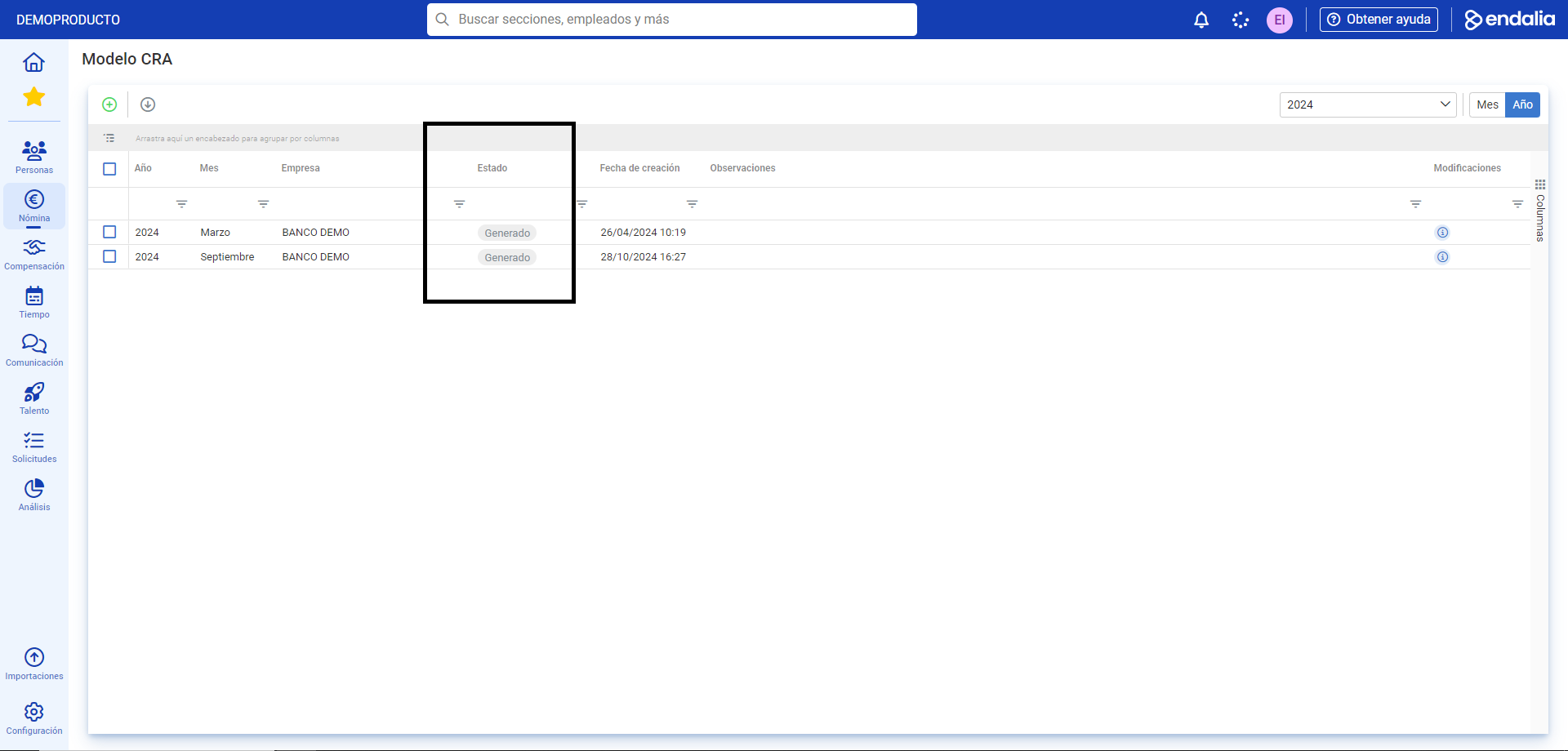
Note: The "generated" status, as its name suggests, refers to the creation of the model. If we refer to the "presented" status, it means the report has been downloaded and has been presented through the appropriate channels, not via this software, to the competent authority in the matter. It is therefore a simple way to control the internal status of the model:
Process Video
We demonstrate this functionality to you in just a few seconds:
Check out this related article: Generate CRA Model
If you have doubts, you can take a look at our glossary, available at this link.
Was this article helpful?
That’s Great!
Thank you for your feedback
Sorry! We couldn't be helpful
Thank you for your feedback
Feedback sent
We appreciate your effort and will try to fix the article