Important: this article is intended for Endalia HR users with an Administrator profile.
Configure flexible compensation in your employees' salaries, then manage enrollments with providers (Cobee or Payflow) and import monthly flexible compensation concepts and advances into your payroll within minutes.
In this article you will find:
Flexible Compensation Configuration
- Activating flexible compensation in the current salary of the employees is a necessary preliminary step before being able to manage enrollments with providers (Cobee or Payflow) through reports; and import monthly flexible compensation concepts and advances into their payrolls. First, within the hub Configuration, go to Compensation > Module options
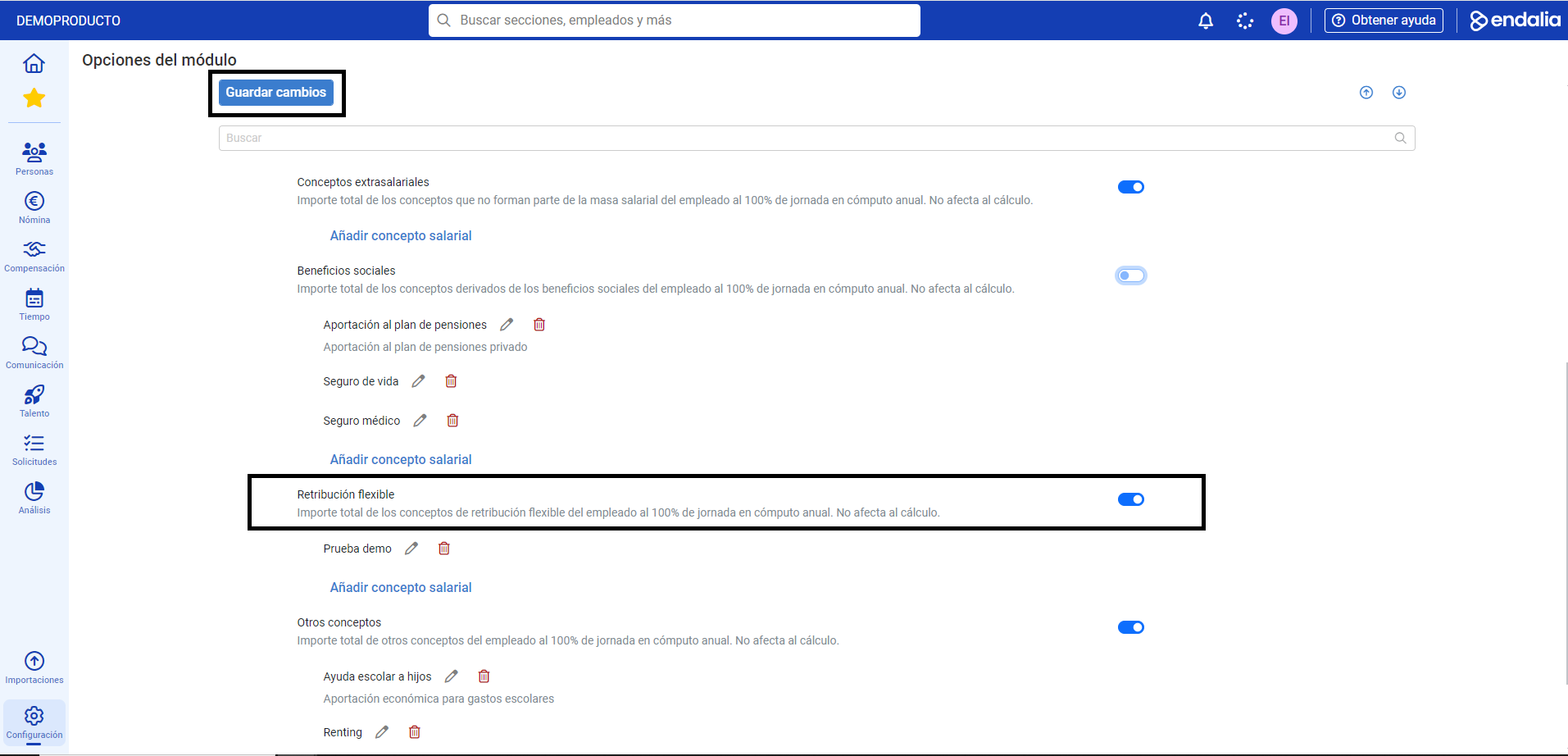
- On the screen presented to you, you have a wide list of options. Go to Flexible compensation and activate this configuration. Click on Save changes at the top of the screen to set this preference:
- Next, in Compensation and benefits, go to Compensation > Salaries
- On this screen, select a worker from the list and click Edit on the toolbar to access their record.
- Finally, on their salary record, go to Flexible compensation and activate the corresponding tab. Don't forget to click Save at the bottom right of the screen to make your preferences effective.
Still have doubts? Take a look at our glossary at this link.
Was this article helpful?
That’s Great!
Thank you for your feedback
Sorry! We couldn't be helpful
Thank you for your feedback
Feedback sent
We appreciate your effort and will try to fix the article