Important: this article is aimed at Endalia HR users with an Administrator profile.
Another way to refer to remuneration, payments. To know how to manage this option correctly, take a look at these simple steps we offer you.
In this article:
Configure payout
Before starting, note that the payout is associated with a period. Therefore, first, you must access the list of them, in the following path: Configuration > Objectives > Periods.
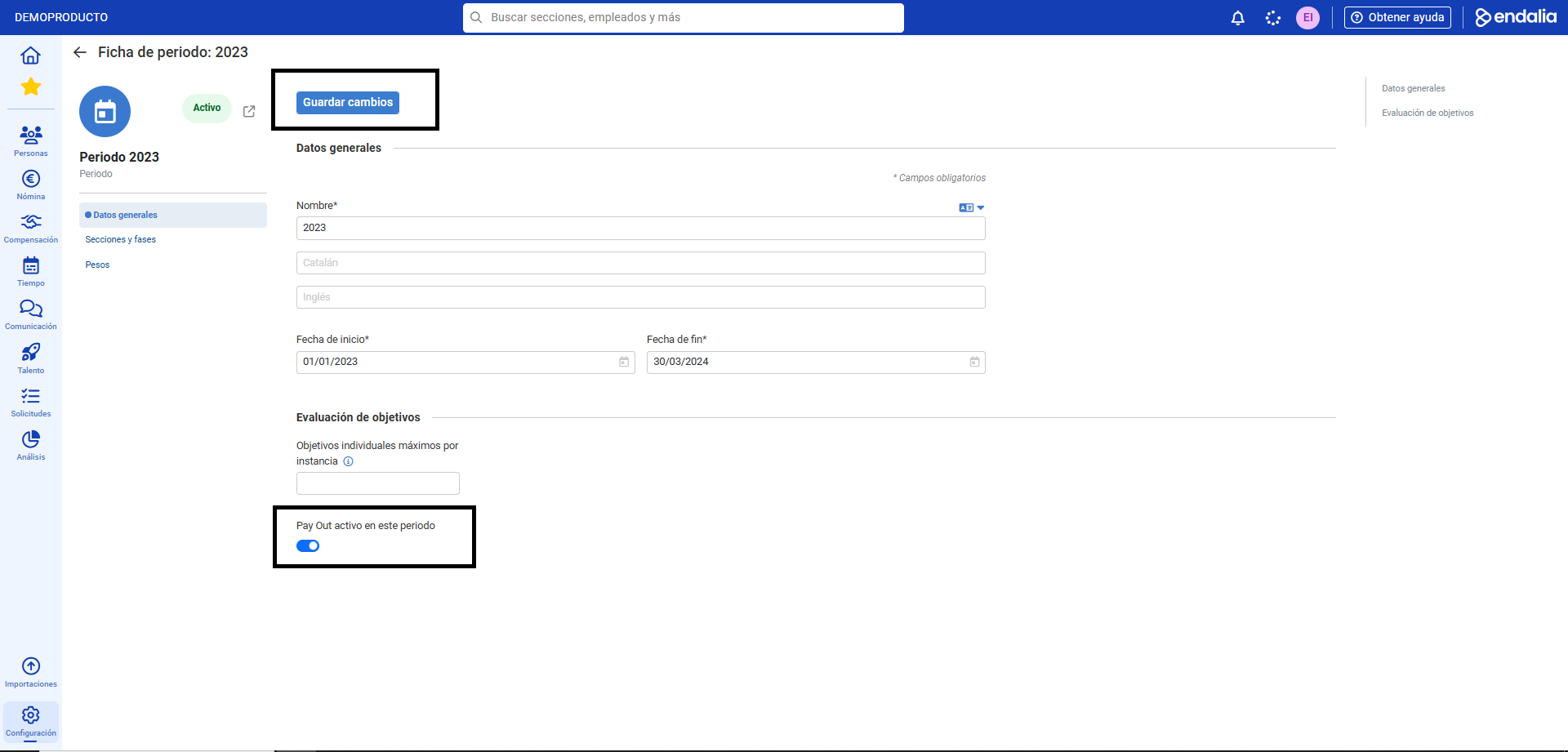
- Select one from the list, and click the Edit button, in the toolbar. Finally, activate the tab Active payout in this period within the Dgeneral data section. And also click on Save changes to make your preferences effective:
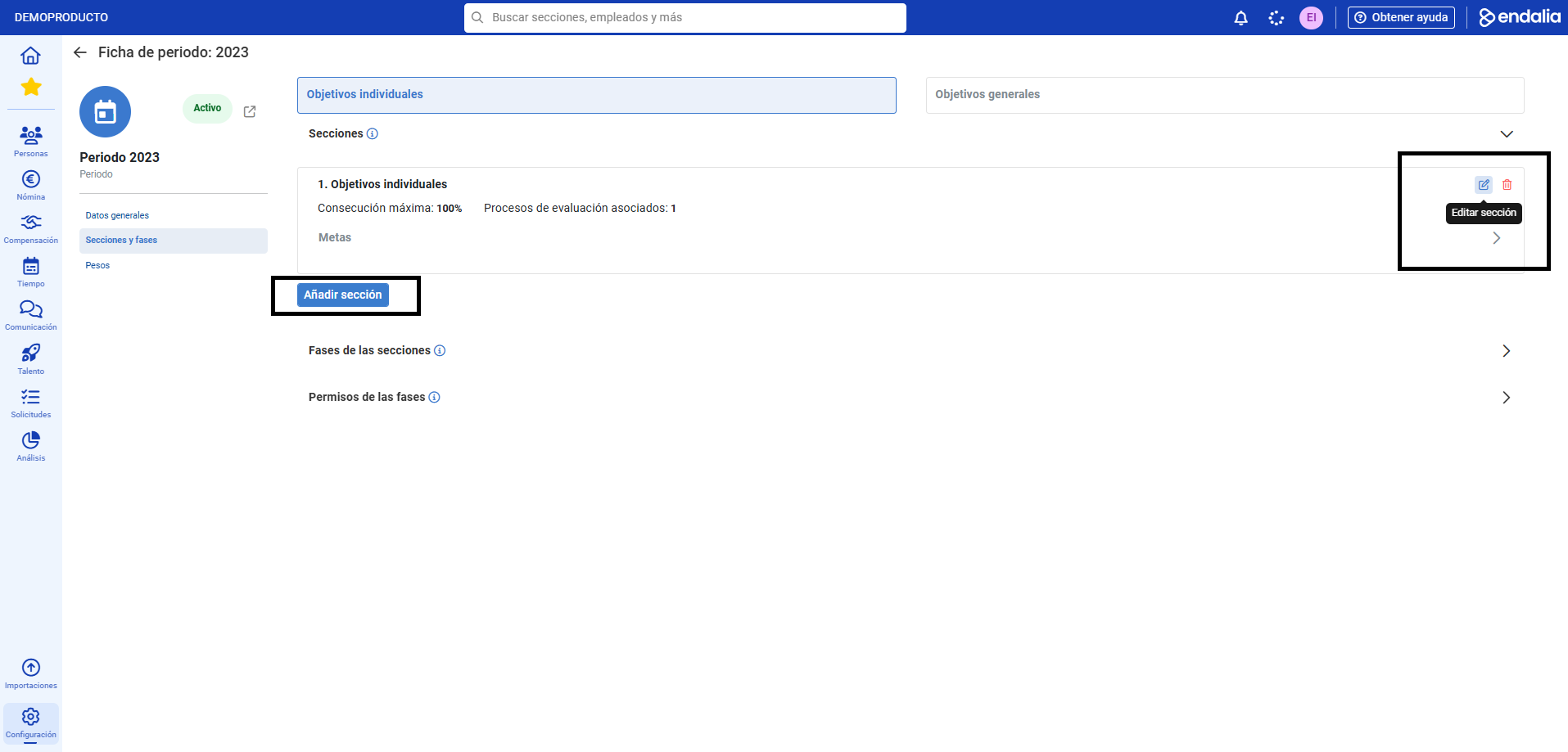
- Now, it's time to configure the sections. In the second menu section, Sections and phases, you can add them using the button provided; similarly, you can edit the existing ones using the action button itself:
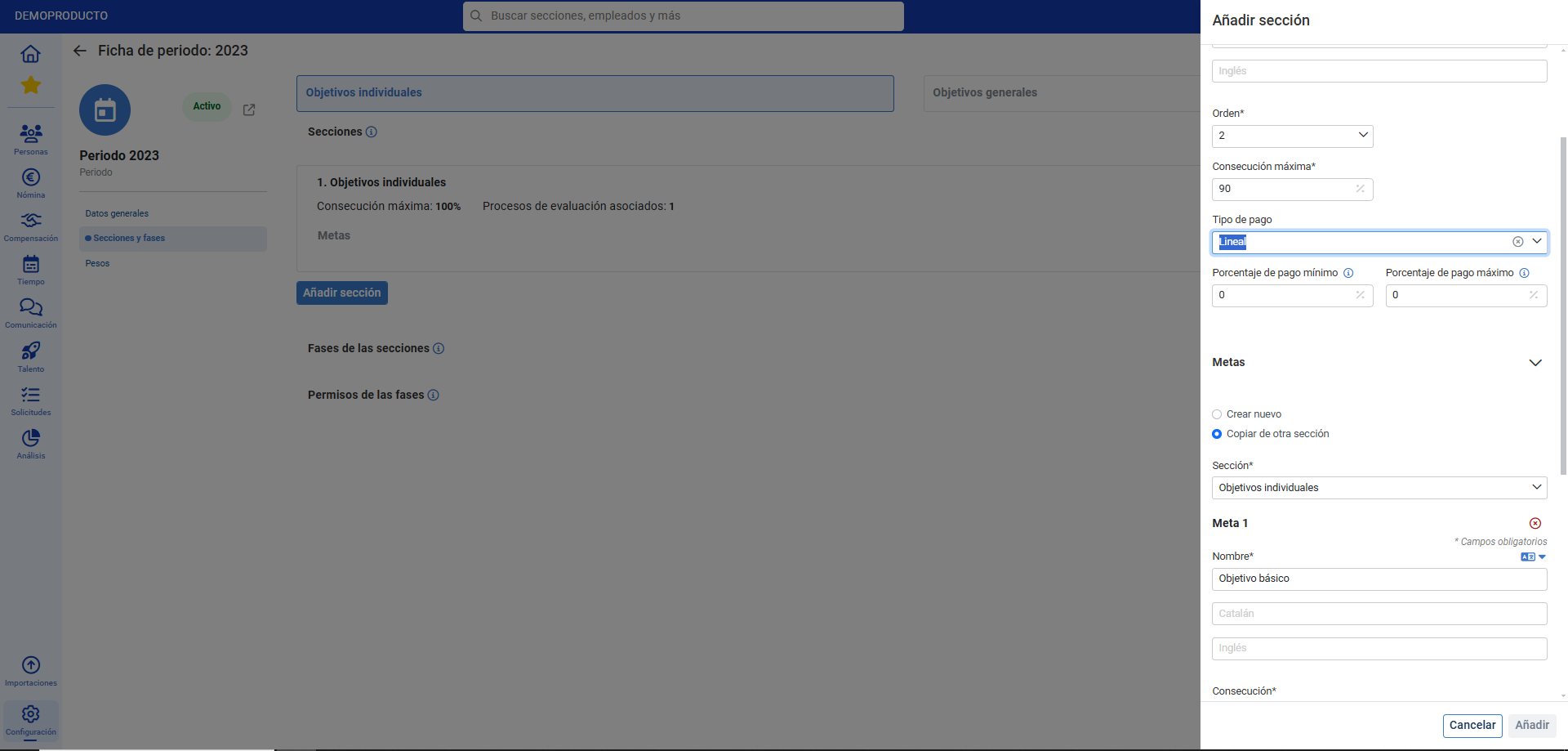
- In each section, you must select the corresponding payment type; the payout is configured by section and is evaluated by objective contained within each section (section is "parent" to objective, in the hierarchy).
Among the payment types we find:
- Linear: set the minimum and maximum values of the payment type.
- Manual: manually enter when evaluating the objectives grouped within this section.
- Fixed tiers: to configure determined values next to each goal
- Linear associated with goals > configure the values next to each goal - Remember to click on Add, wherever pertinent, to make your preferences effective:
If you want to know more, consult the following related articles:
If you have doubts about the terms, take a look at our glossary at this link.
Was this article helpful?
That’s Great!
Thank you for your feedback
Sorry! We couldn't be helpful
Thank you for your feedback
Feedback sent
We appreciate your effort and will try to fix the article