Remember: this article is aimed at Endalia HR users with an Administrator profile.
It is as important to make software changes as to inform the recipients about them. Find out how to manage this feature with this informative guide.
In this article:
Set up notifications
- Within the hub Configuration, click on General > Notifications
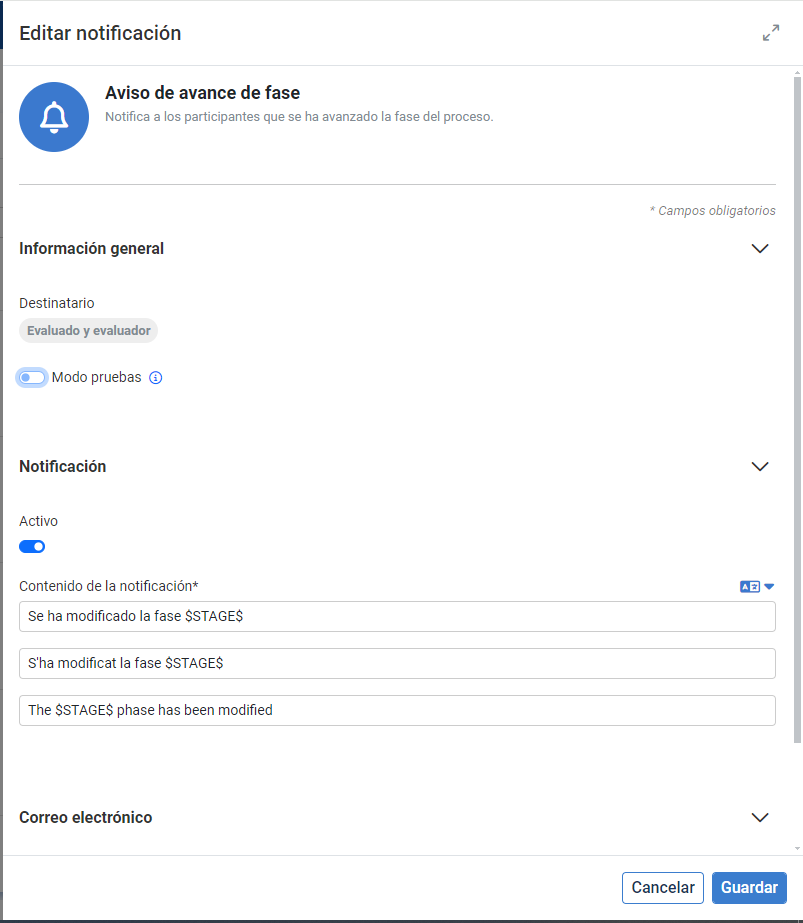
- On the next screen, go to the Objectives section and check the box Enable all module notifications, if you want to have them all active at once, or select them one by one (Send email - Notification). Remember that you can edit these options (Advance/Retreat phase) by clicking on their respective edit button and you must click Save in the side modal edit window presented to you to record your preferences.
- Back in Configuration, go to Objectives > Periods; then, select one from the list by double-clicking on it, and then navigate to the tab Sections and phases > Section phases. Unfold it to see the 4 default phases offered by the software: Planning, Evaluation, Monitoring, and Completion (you can add more with the option Add phase). Use the Edit or Delete buttons (if available) to make necessary changes in each phase, returning to click, as appropriate, the Save button in the emerging modal window.
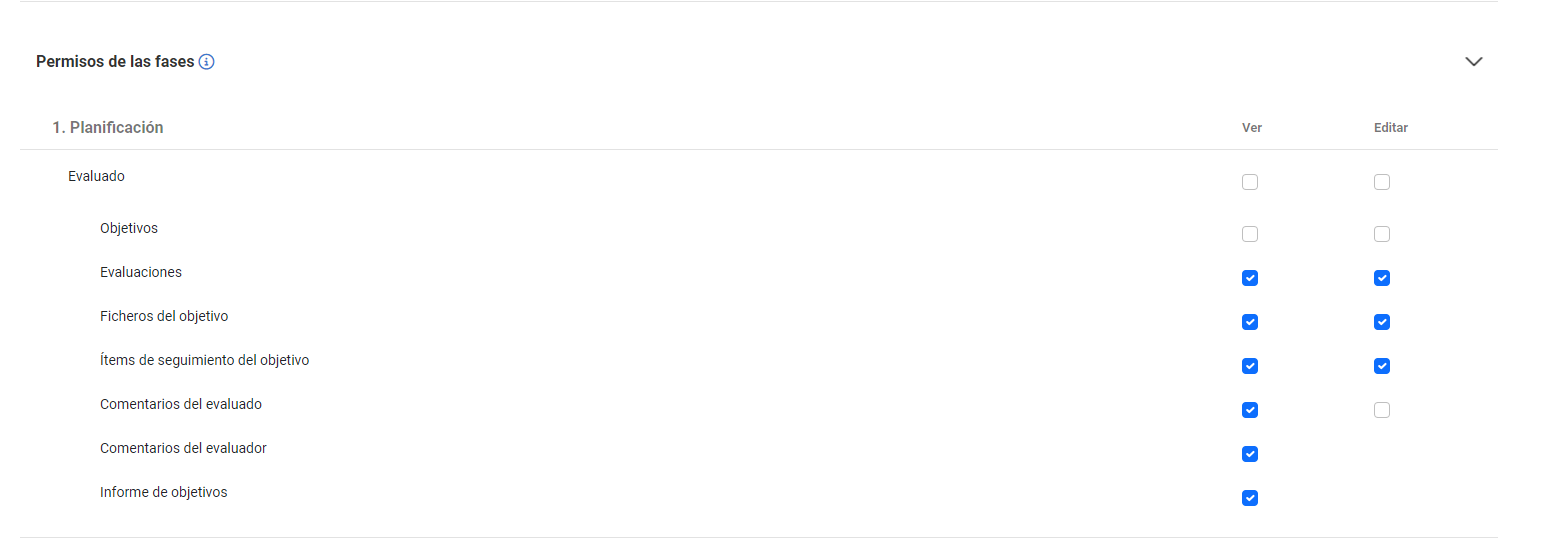
- Similarly, you can configure the Section Permissions, located below the Phases in the last section of this menu window.
Video of the process
We show you quickly:
If you want to know more, check the following related articles:
If you have doubts about the terms, take a look at our glossary at this link.
Was this article helpful?
That’s Great!
Thank you for your feedback
Sorry! We couldn't be helpful
Thank you for your feedback
Feedback sent
We appreciate your effort and will try to fix the article