Important: this article is intended for Endalia HR users with the Collaborator profile.
These two scenarios are part of everyday life in the workplace. Therefore, good planning can make a difference when it comes to managing staff effectively. Follow these tips to make the most of this functionality.
Here you will find:
Request vacations and absences
Within the hub Time Management, go to Vacations and Absences > My Vacations and Absences
On the screen presented to you, you have all the information about vacations and absences. To do this, you have different filters available, allowing you to access the desired data. The rest of the space is occupied by tabs related to your Calendar and your Requests. Note that in the calendar, the days corresponding to your requests are shaded. The different colors used will match their status, visible on the left side of the screen through the related legend:
3. To request vacations or absences, click on the Add Request button. In the side modal window that appears, Add Request, fill in the fields corresponding to your request, and finally, click Send Request to save your preferences.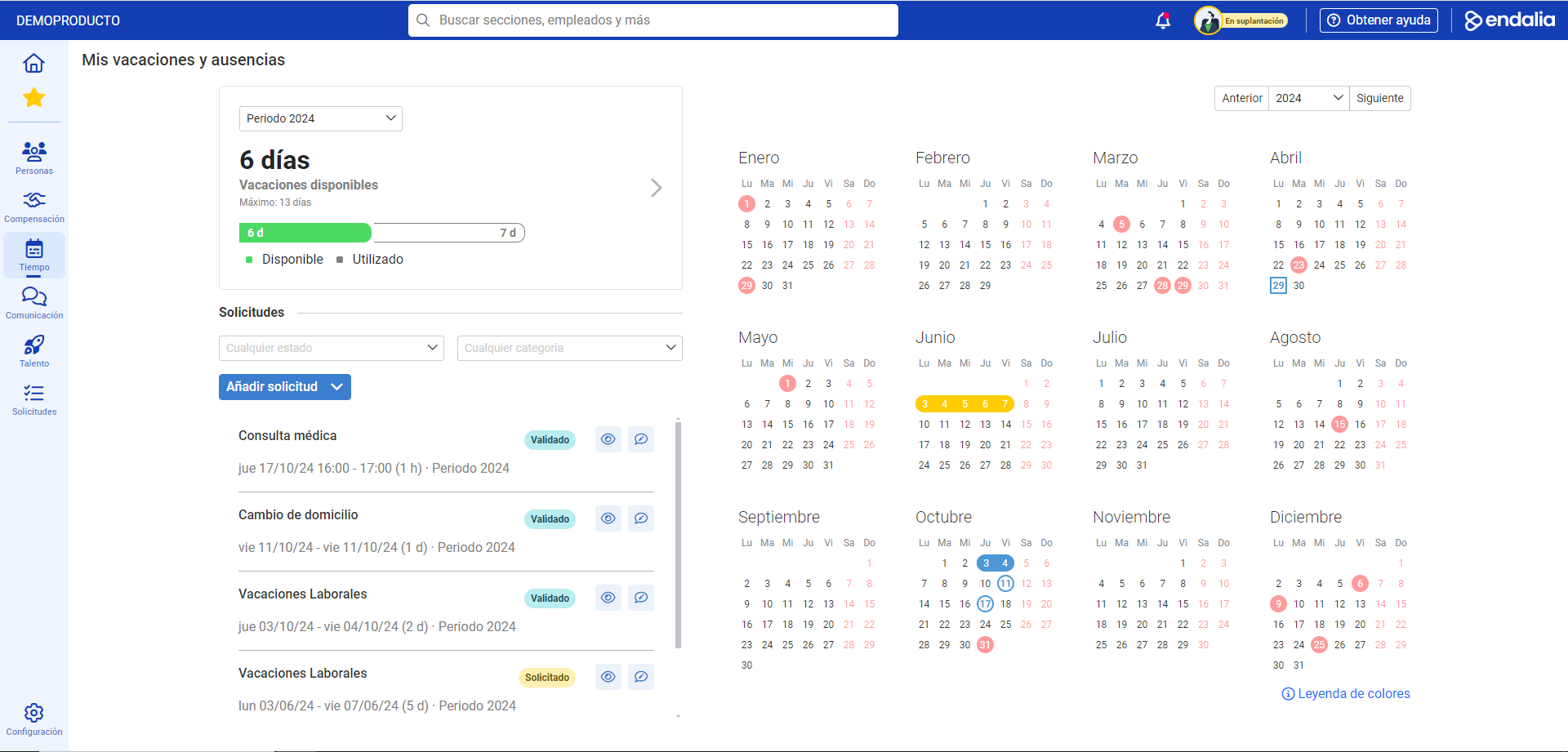
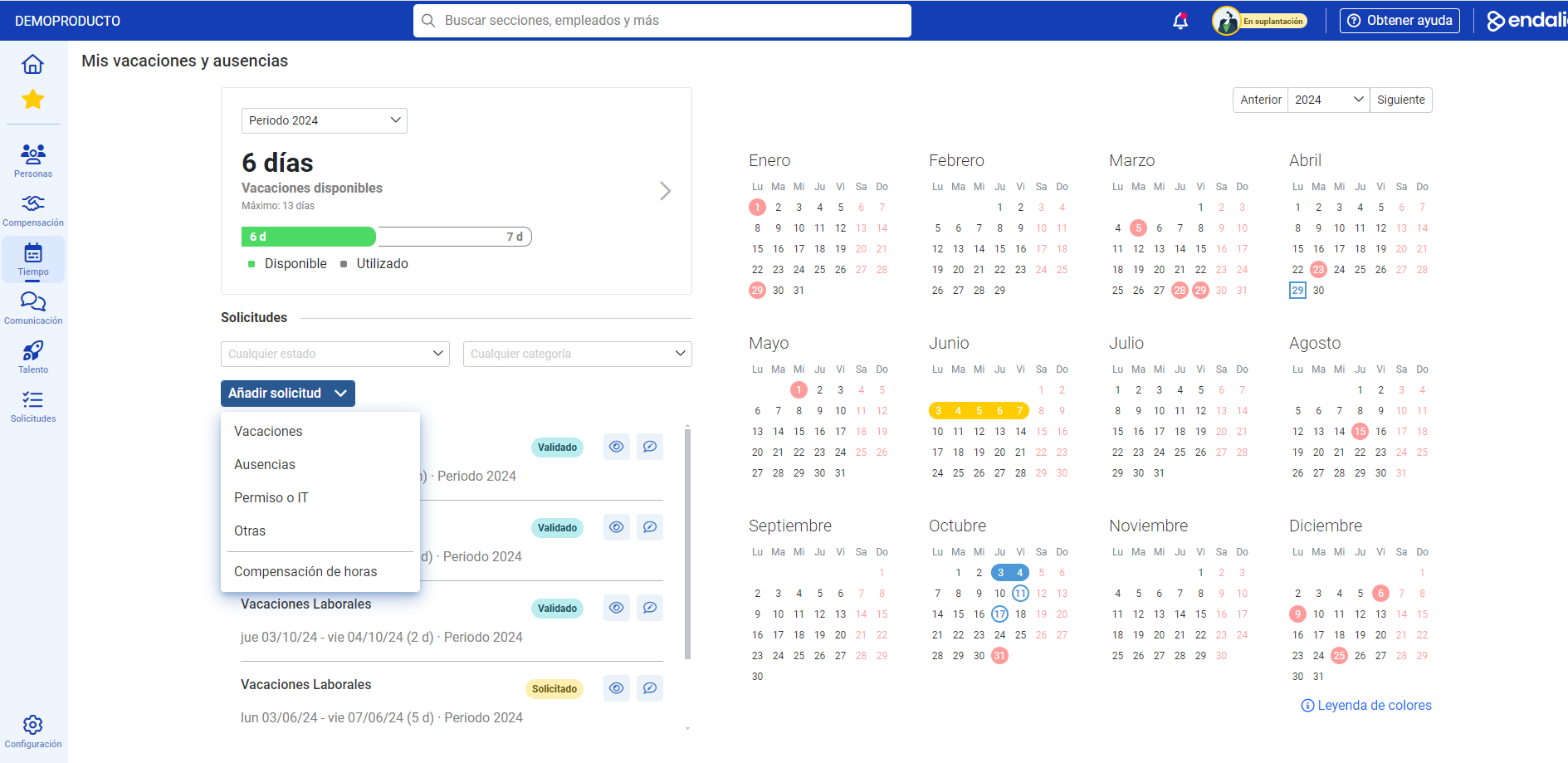

Remember, once your request has been sent, it will appear as Requested. It is your supervisor who must give final approval, so you can enjoy it.
Note: If you have contracted/linked the payroll module (Admin. people and payroll), the screens will vary slightly, and you will be able to request permissions and IT (temporary incapacities) for the calendar year. To do this, go to Time Management > Vacations and Absences > Me > My Vacations and Absences. In Add Request, select Permission or IT and, once selected, click Start Request. Complete the steps in the stepper, filling in the mandatory fields until complete:
Once the steps are completed, the system will launch the workflow to the person in charge, after configuration, to handle your request. Both in the specific calendar and in the Home, it will appear with the number crosshatched in blue or shaded in orange, respectively, and indicate the status when hovered over:


Process video
Take a look at this simple functionality, summarized in just a few seconds:
Moreover, you can take a look at the following related articles:
And to our glossary, available at this link.
Was this article helpful?
That’s Great!
Thank you for your feedback
Sorry! We couldn't be helpful
Thank you for your feedback
Feedback sent
We appreciate your effort and will try to fix the article