Important: this article is intended for Endalia HR users with a Manager profile.
As in any company, detailed records are used to maintain good control over employees' working hours. These informative features can assist you with this task. Keep reading to learn more!
In this article, you will find:
Daily Records
Within the hub Time Management, go to the Schedule Log module > Schedule Monitoring > Daily Records
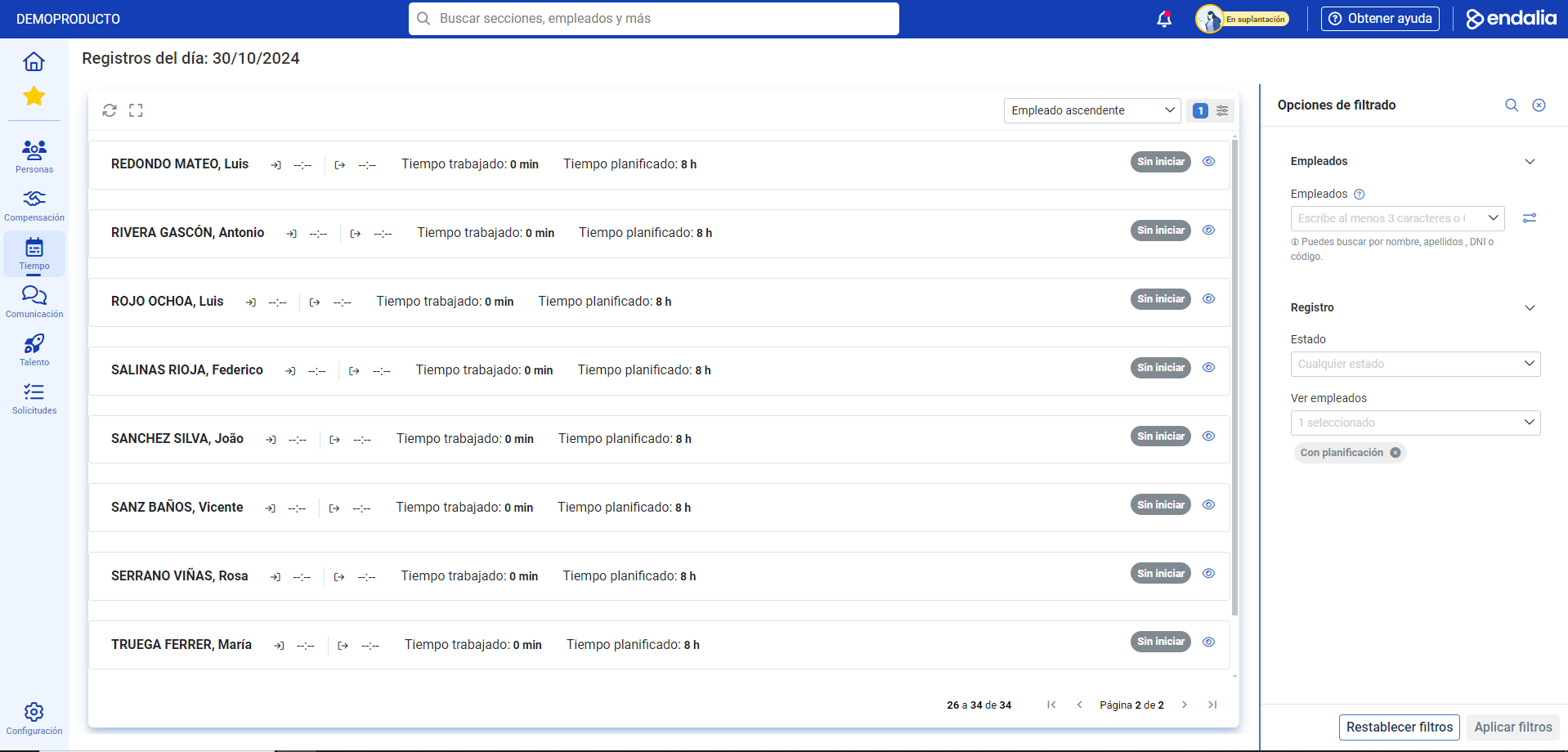
- On this screen, you have a list of employees and their corresponding information. Specifically, the time worked versus the planned time relative to the current workday, whether the workday has ended or not, the segments of the employee during the current day, and their durations, among others. Remember that with the toolbar buttons, you can Update, Export, and Expand detail, and the Filtering Options on the right side of the screen will help you locate employees by criteria:
Time Balance
Within the hub Time Management, go to the module Schedule Log > Schedule Monitoring > Time Balance
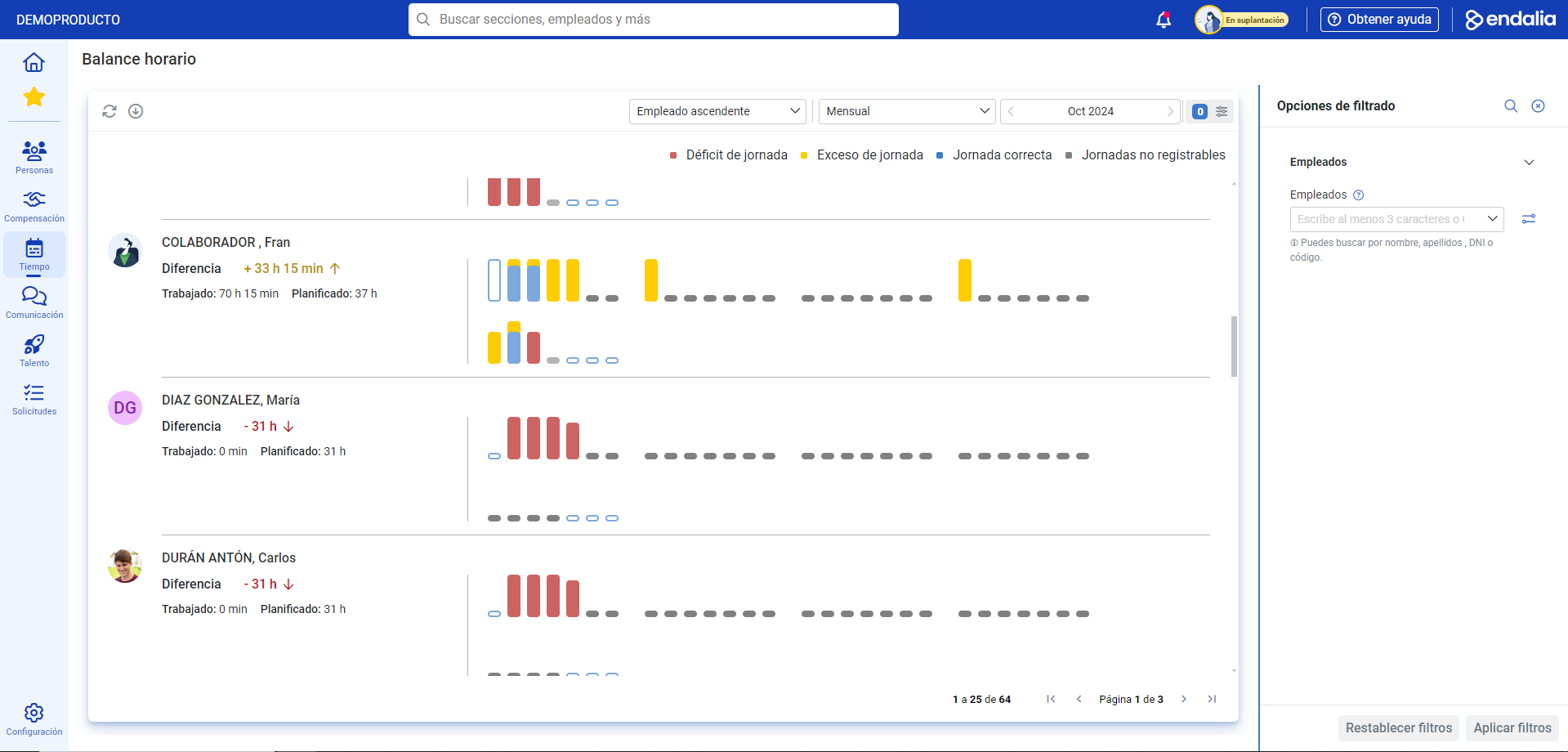
- Following the previous structure, on this screen you have a list of employees and their corresponding information. Specifically, you have data on workday deficit, workday excess, correct workday, and unregistered workdays. With the toolbar buttons, you can Update and Export, while the different filtering options located at the top of the screen will allow you to access the data you need, clearly and precisely:
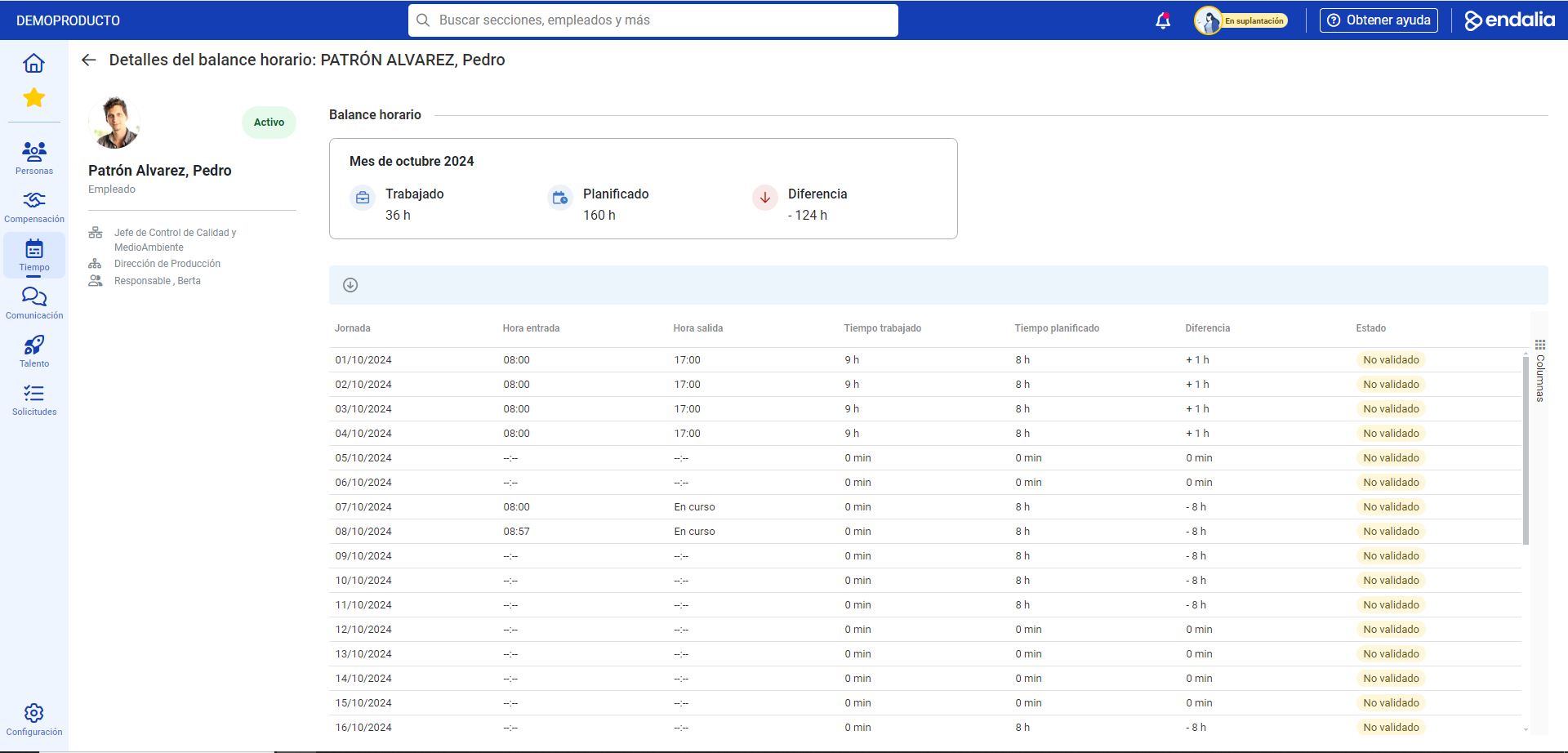
- Finally, to access detailed information about an employee, click on them. Now you can view the time balance in detail and also export the list:
Also, you can check out these related articles:
And, also, view our glossary, available in this link.
Was this article helpful?
That’s Great!
Thank you for your feedback
Sorry! We couldn't be helpful
Thank you for your feedback
Feedback sent
We appreciate your effort and will try to fix the article