Important: this article is aimed at Endalia HR users with a Manager profile.
With this functionality, you can compensate your team's extra time dedicated to the company through various concepts. If you're curious to learn more, you're in the right place.
Content of this article:
Special Compensations
First, it's necessary to set up compensation periods prior to performing this action. To do this, go to: Settings > Planning and Schedule Registration > Special Compensations. In the tab of the same name, open the Settings section. Enable the option first, and then proceed to manage the adjustable period for compensations, which by default, the system offers monthly. Don't forget to click Save changes, in the side modal window, to enforce your preferences: 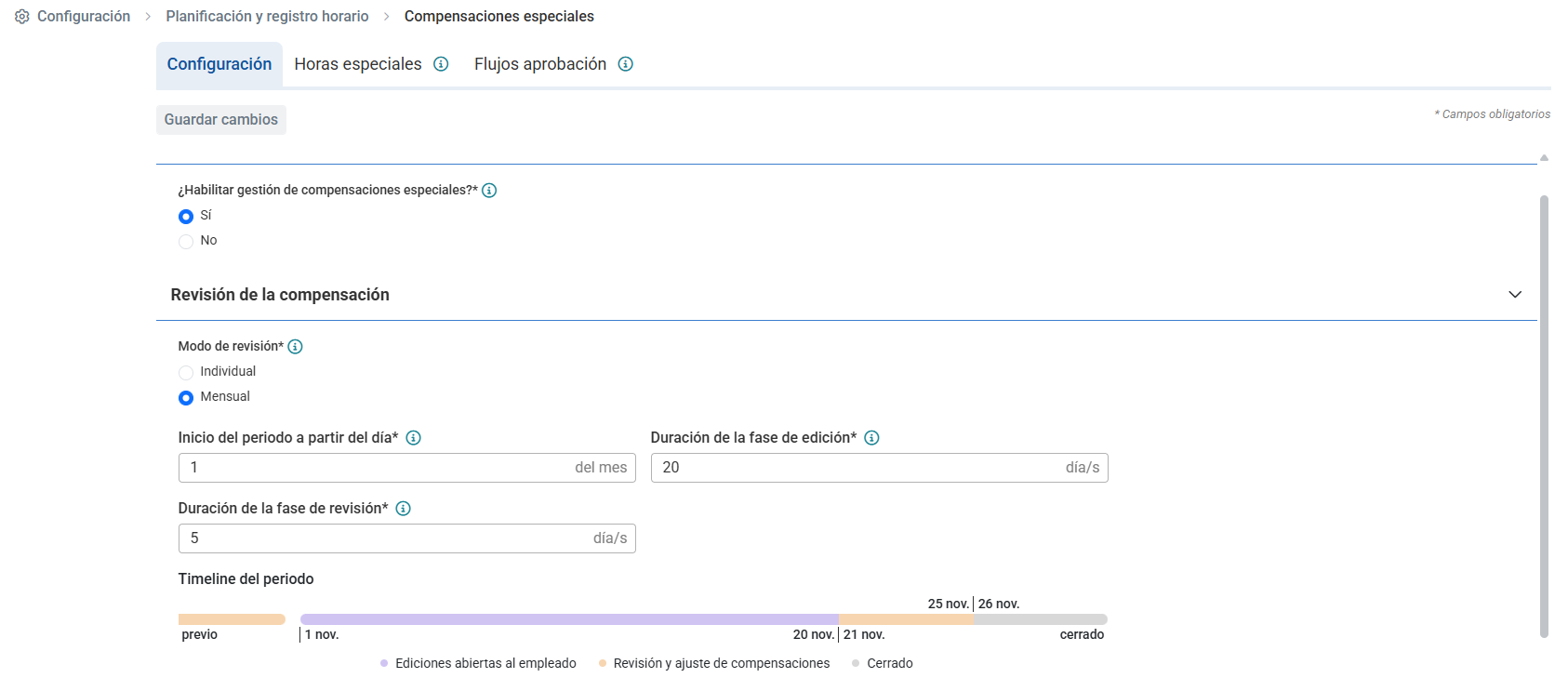
To generate the first period, it will always execute in draft status and can be accessed from Time Control, being created with the following logic:
- If the start date is before the current day, it will be created in the current month ending in the current/subsequent month.
- If the start date is after the current day, it will be created in the previous month ending in the current month.
- Now, proceed to configure by periods. Within the hub Time, click on Time Control > Compensations. On this screen, you have an initial list with periods in active phases, opening, editing or reviewing, and closed periods will be in History:
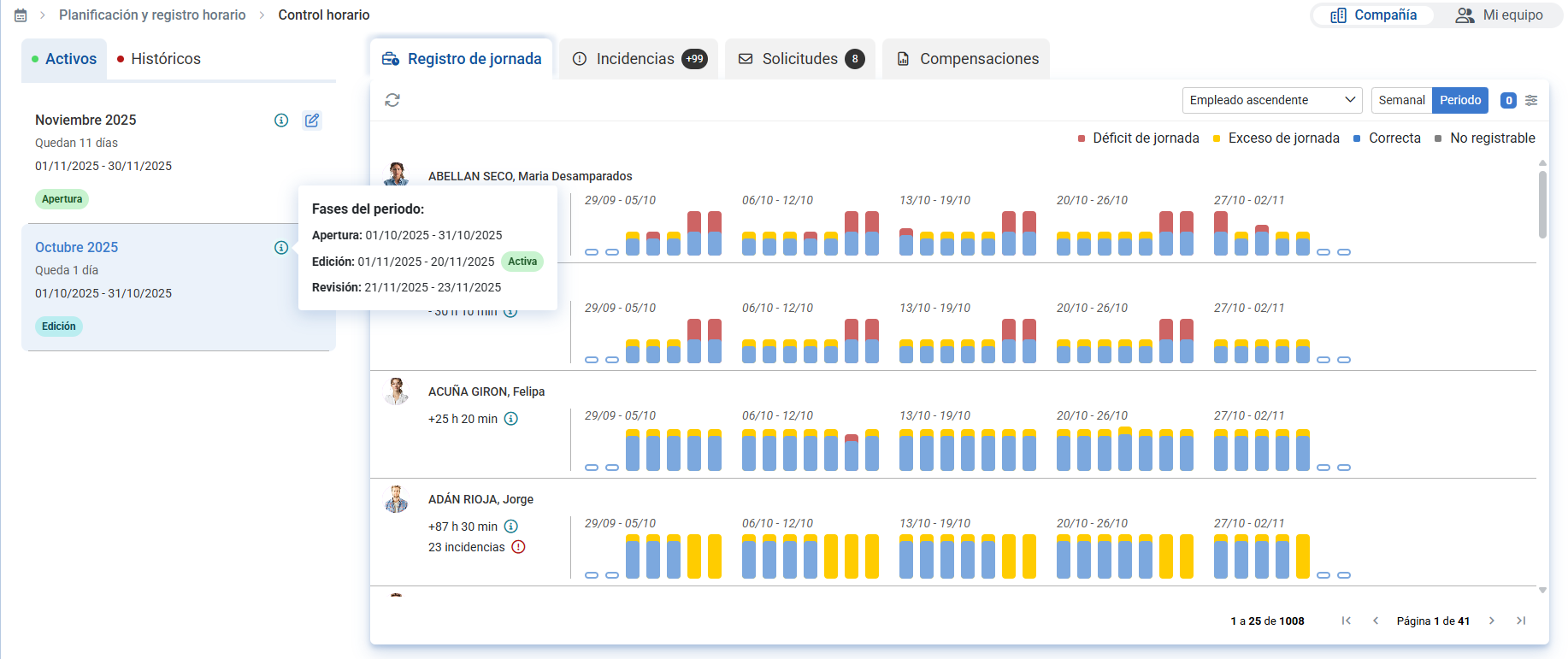
- On the next screen, you can see a list of employees with pending and validated compensations, with various data. To review how an employee's compensation file looks, you can click on them or click edit:
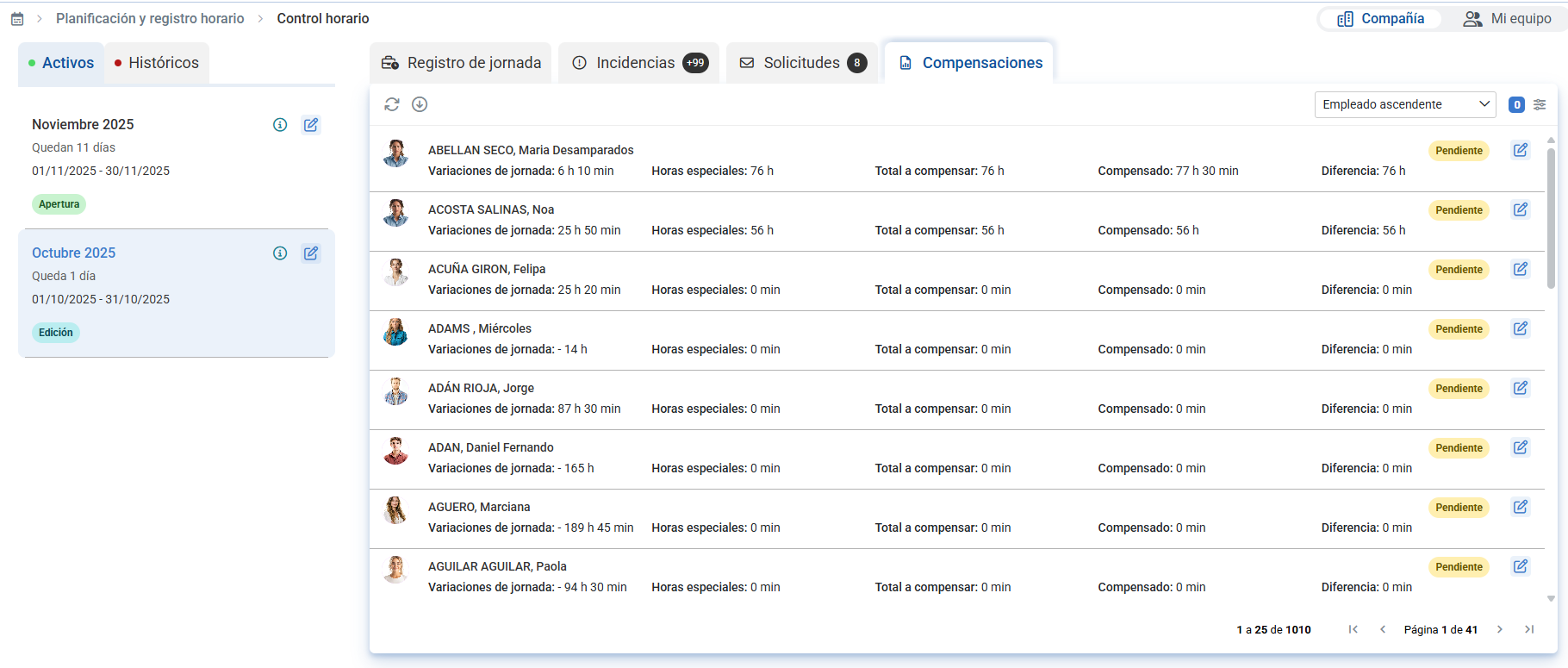
- Now, on the next screen, you can see different data: total time to compensate, compensated, etc. Go to workday variations to start the compensation. In this section, you can see the hours to compensate and the time worked against scheduled. Now you must decide the compensation time: Mixed (a combination of time and salary), in salary only (i.e., compensated in the employee's payroll), or by hours (where the excess time is included in the employee's vacation and absences, for them to use at their discretion):
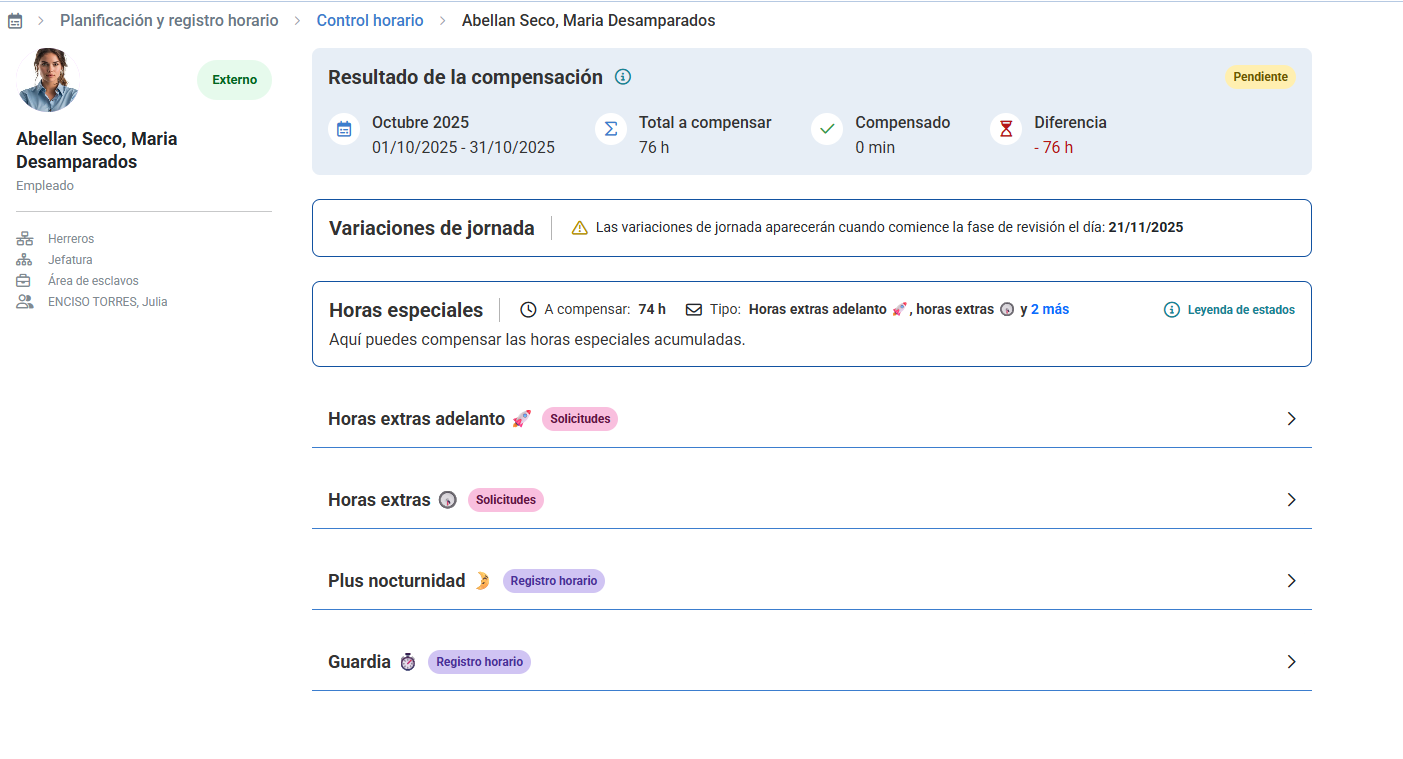
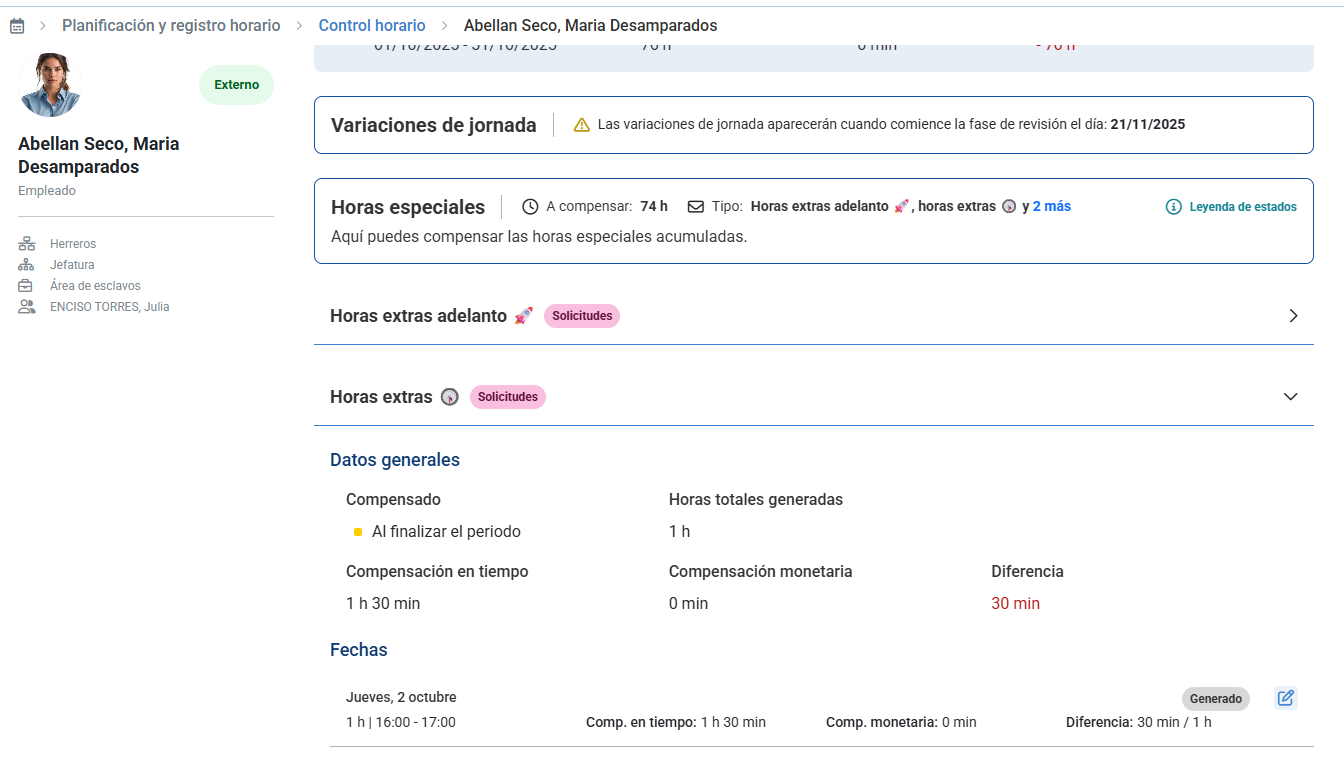
- You can perform the same action with special hours, that is, with those employee requests who asked for extra time to continue working at a specific moment. You can find this functionality just below "Variations," that is, in the next section:
- Once your preferences are set, it's time to Save, or Save or validate, buttons you'll find on the left side of the screen, shaded in blue, just below the employee's name.
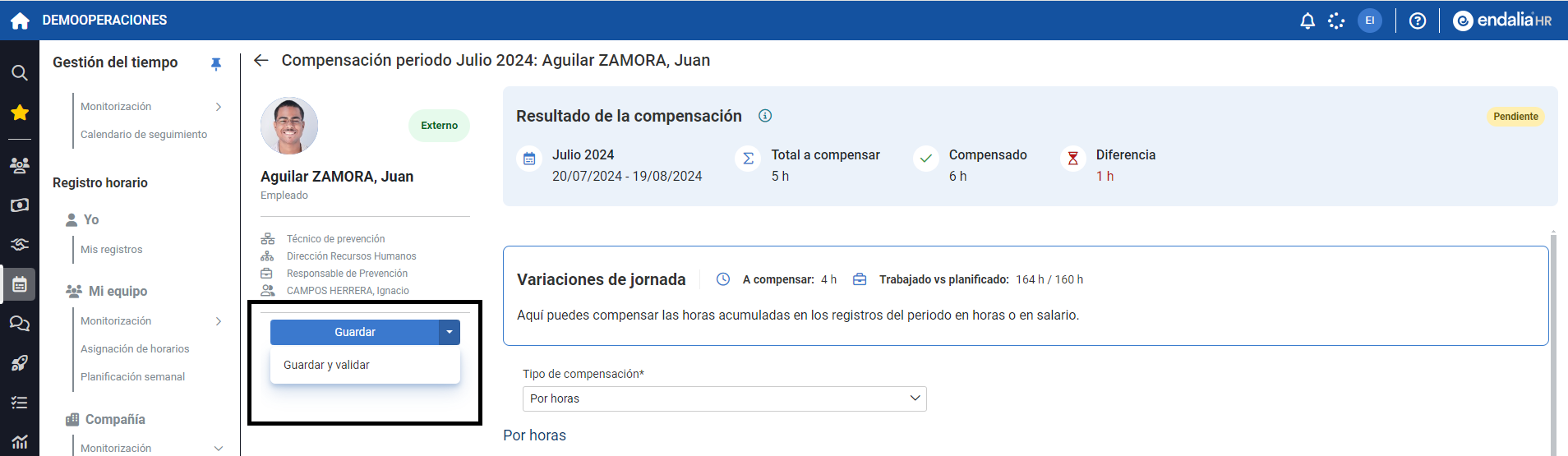 If you choose the first option, compensations remain in Pending status (the first tab on the main screen, mentioned earlier in point 2) and, if you choose the second, they are validated and at the end of the period will be compensated to the employee.
 - At the end of the compensation period (the end date you configured previously, before starting this process), all the data in the Validated records will be incorporated directly into the employee's time management for them to use, in the case of compensated hours. In the case of salary, the process will follow its course through payroll, where a subsequent validation by the responsible parties in that specific module is required.
- You can decide whether to automatically validate all compensations at the compensation end date based on pre-loaded data (positive if there is excess or expansion) or require manual validation action through the manager or responsible with the following option in the configuration, where pre-loaded data is always 0:

You may also be interested in:
Additionally, you can consult our glossary, available at this link.
Was this article helpful?
That’s Great!
Thank you for your feedback
Sorry! We couldn't be helpful
Thank you for your feedback
Feedback sent
We appreciate your effort and will try to fix the article