Important: this article is aimed at users of Endalia HR with a Manager profile.
What if you could quickly check all the information you need at a glance, as the module manager? Now you can do it thanks to this simple functionality we offer you.
In this article, you will find:
Monitoring
Within the hub Time Management, go to the Time Registration module > Time Registration Monitoring
- On this screen, you will have an overview with all the necessary information to manage employees' time, divided into sections:
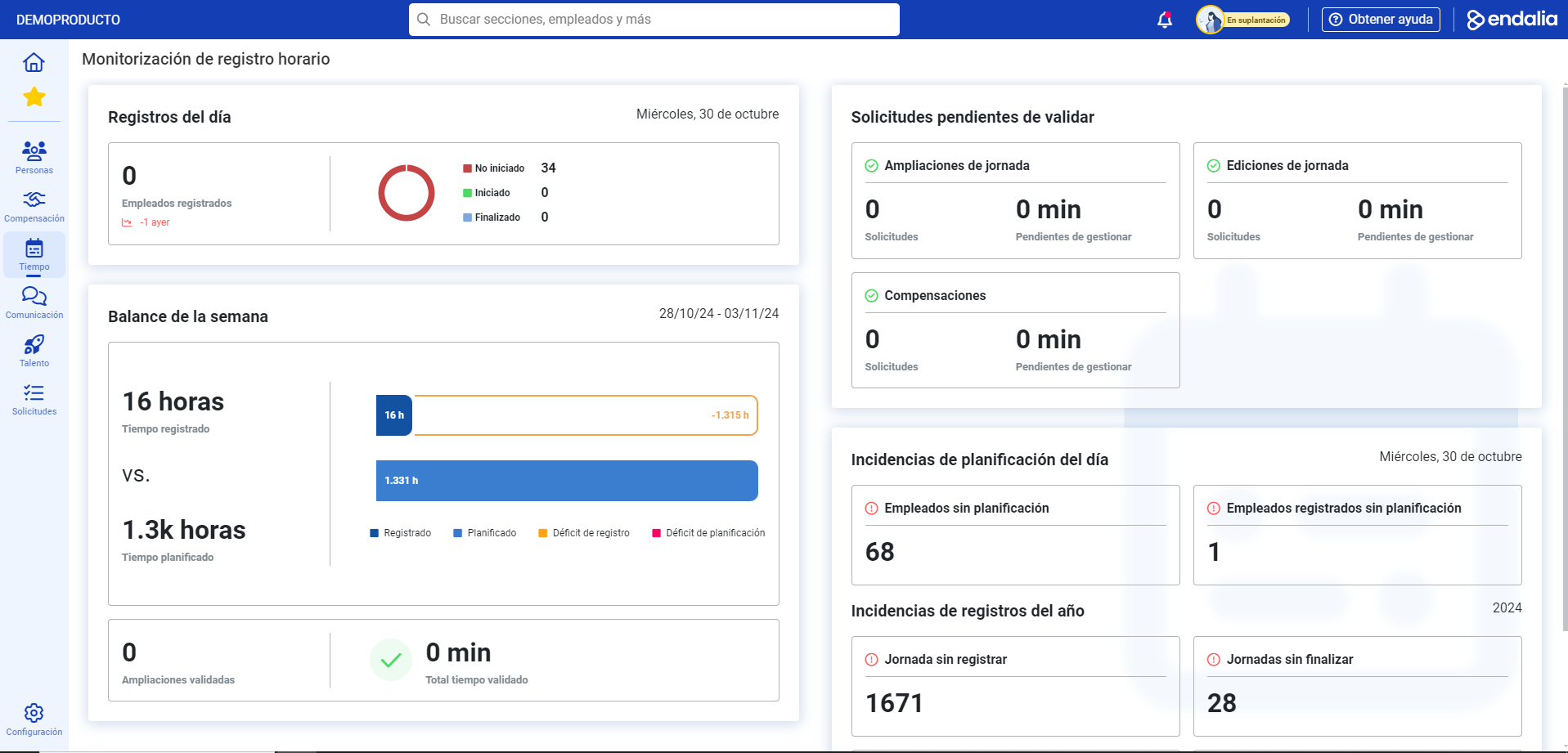
Day Records: includes the registration status of employees for the current day, which can be: Not started: (employees with planning who have not registered on the day); In progress (with planning, having registered fewer hours than planned) and Completed (with a number of hours equal to or greater than planned):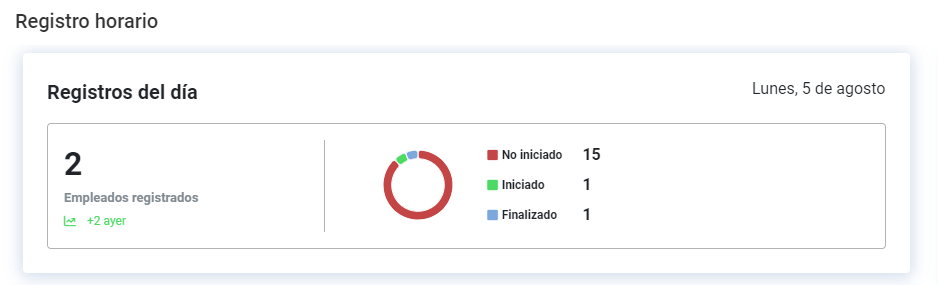
Weekly Balance: this section allows you to see the time registered by employees and compare it with the planned time, i.e., the hours intended to perform assigned tasks, during the work week. This also includes the validated extensions of the week, if there are any, and the total validated time over those 7 days: 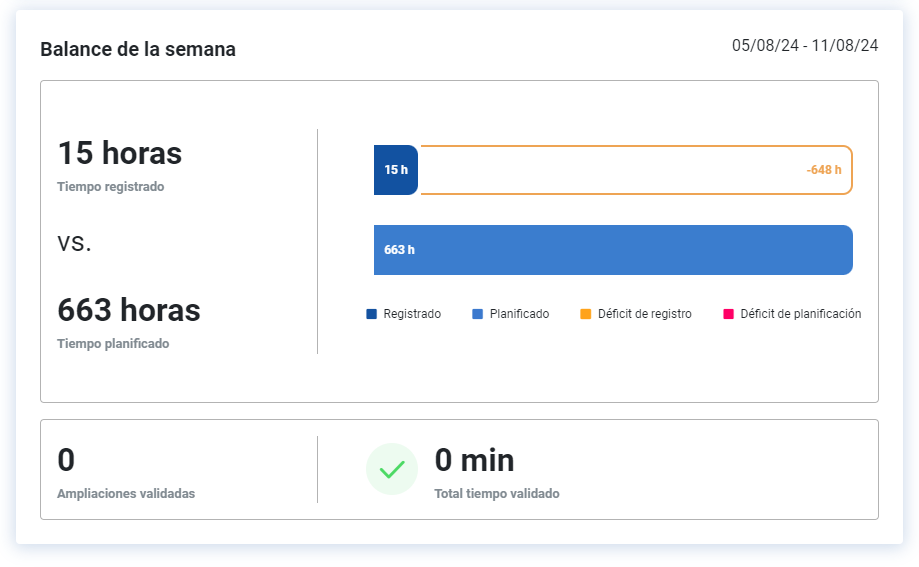
Pending validation requests: this allows you to view, among other features, the extensions of the workday, i.e., employees who have requested more work time, and the editing of them if any data on your employees' registration needs to be modified: 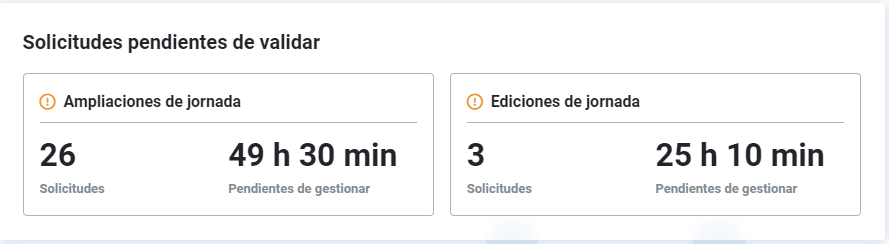
Planning Issues of the Day/Annual Records: to see problems/irregularities recorded during the current day and year, such as the number of employees without schedules, without assigned planning, number of days not registered, days not completed, workers without schedules assigned, unregistered days, etc.: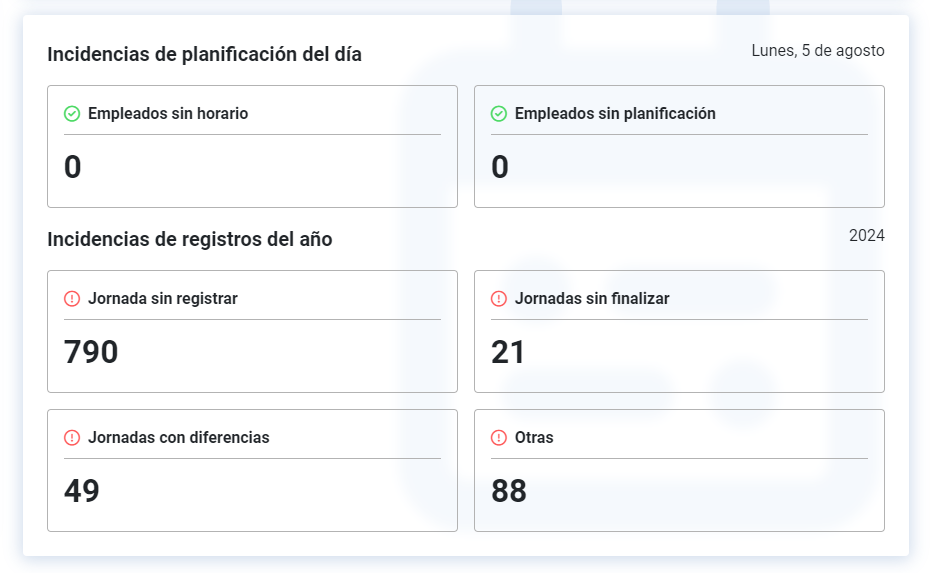
Note: By clicking on each of the numbers located within the sections, you will access relations of collaborators' names with their detailed and specific information, which will, in turn, redirect you to other functions of the module (Issues, Extensions, Day Records, etc.). Explore each quadrant to perform different actions within this monitoring screen. Remember that as the manager, this screen refers to data about your team.
Still have questions? Consult the following related articles:
Additionally, you can view our glossary, available at this link.
Was this article helpful?
That’s Great!
Thank you for your feedback
Sorry! We couldn't be helpful
Thank you for your feedback
Feedback sent
We appreciate your effort and will try to fix the article