Important: this article is intended for Endalia HR users with a Collaborator profile.
As an employee, being able to view professional information is a must in today's job market. Here we show you how to carry out this functionality in a simple and practical way.
In this article:
Manage and view educational and work experience
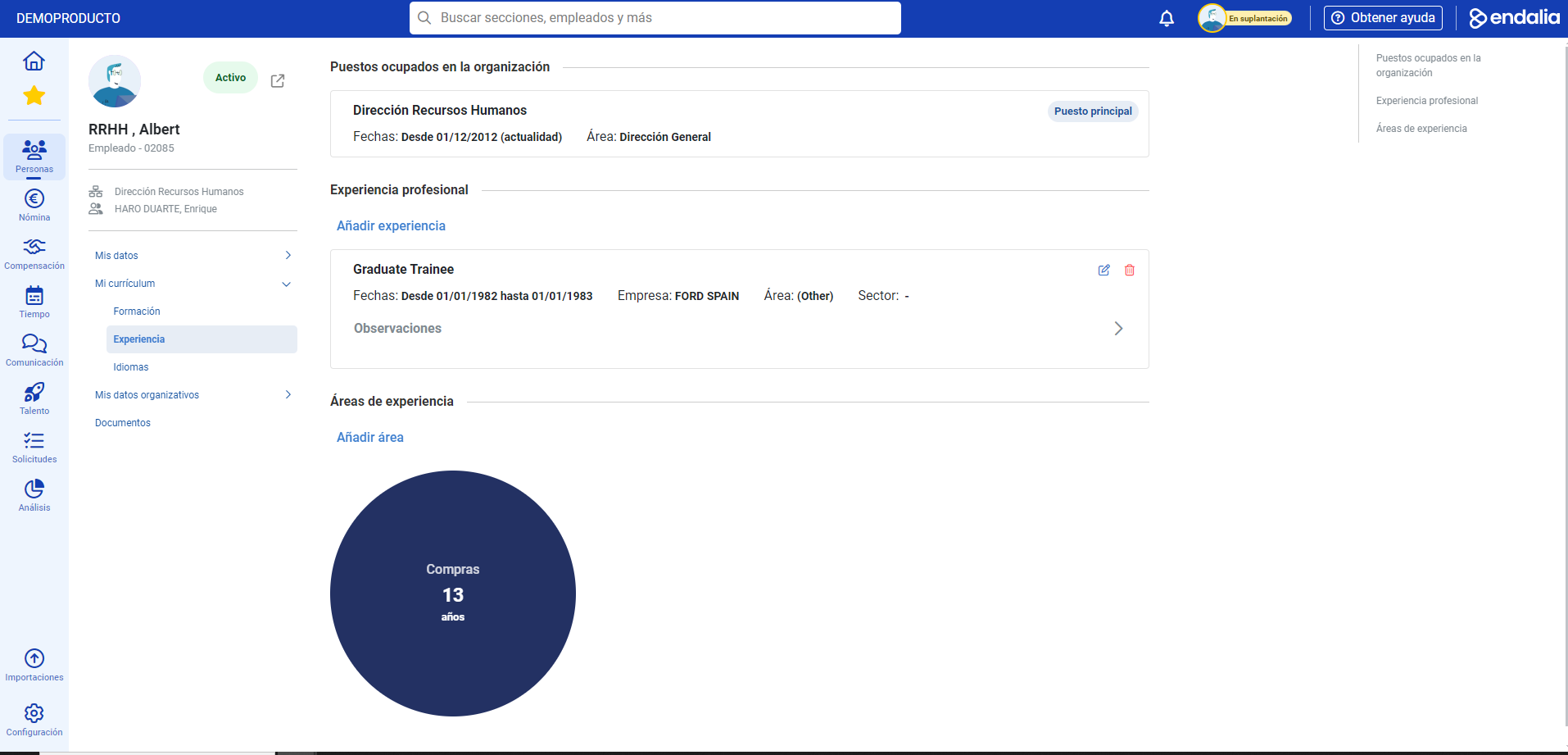
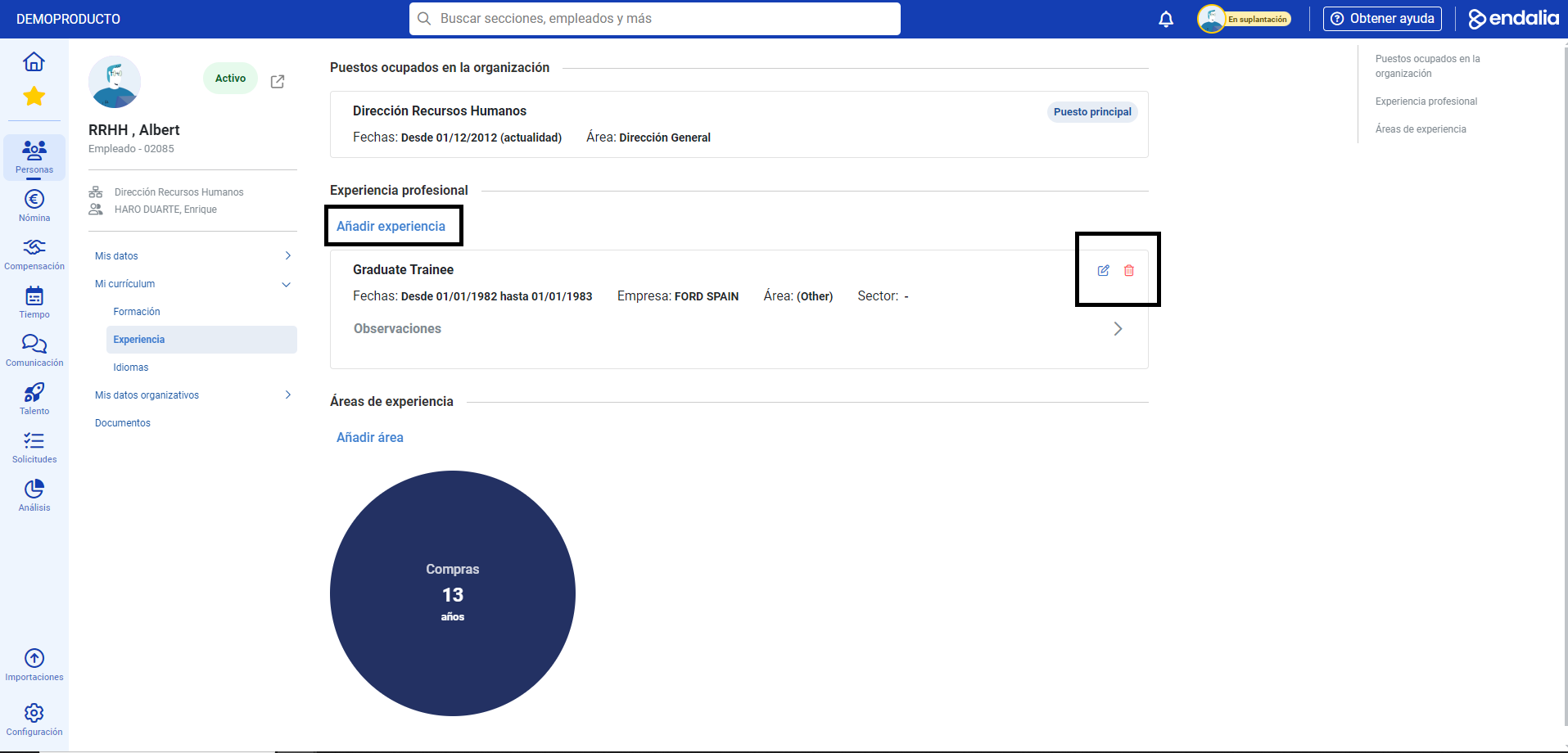
- Within the hub Organization and People, navigate to People> My Employee Profile > My Resume
- Next, scroll through the menu items of the sheet to reach the various related fields, specifically My Curriculum, consisting of Education, Experience, and Languages. Utilize the features available in the various sections corresponding to the menu items (Add Education, Add Experience), or the buttons you find in the toolbar, in the case of the Languagessection. Always remember to click on Add or alternatively Save in the various side modal windows when making modifications, to make your preferences effective:
Important: note that the visibility or editing of fields will be subject to what is previously established by the administrator.
Video of the process
Want to learn more? Check out the following related articles:
- View professional data/contracts and management of additional information
- View and manage personal, family, and contact data
If you have doubts with the terms, check out our glossary at this link.
Was this article helpful?
That’s Great!
Thank you for your feedback
Sorry! We couldn't be helpful
Thank you for your feedback
Feedback sent
We appreciate your effort and will try to fix the article