Important: this article is aimed at Endalia HR users with an Administrator profile.
Variables refer to the different elements of a payroll, which can be very diverse in nature. Here we'll show you how to manage them in the simplest way possible.
This article contains:
Enter variable amounts
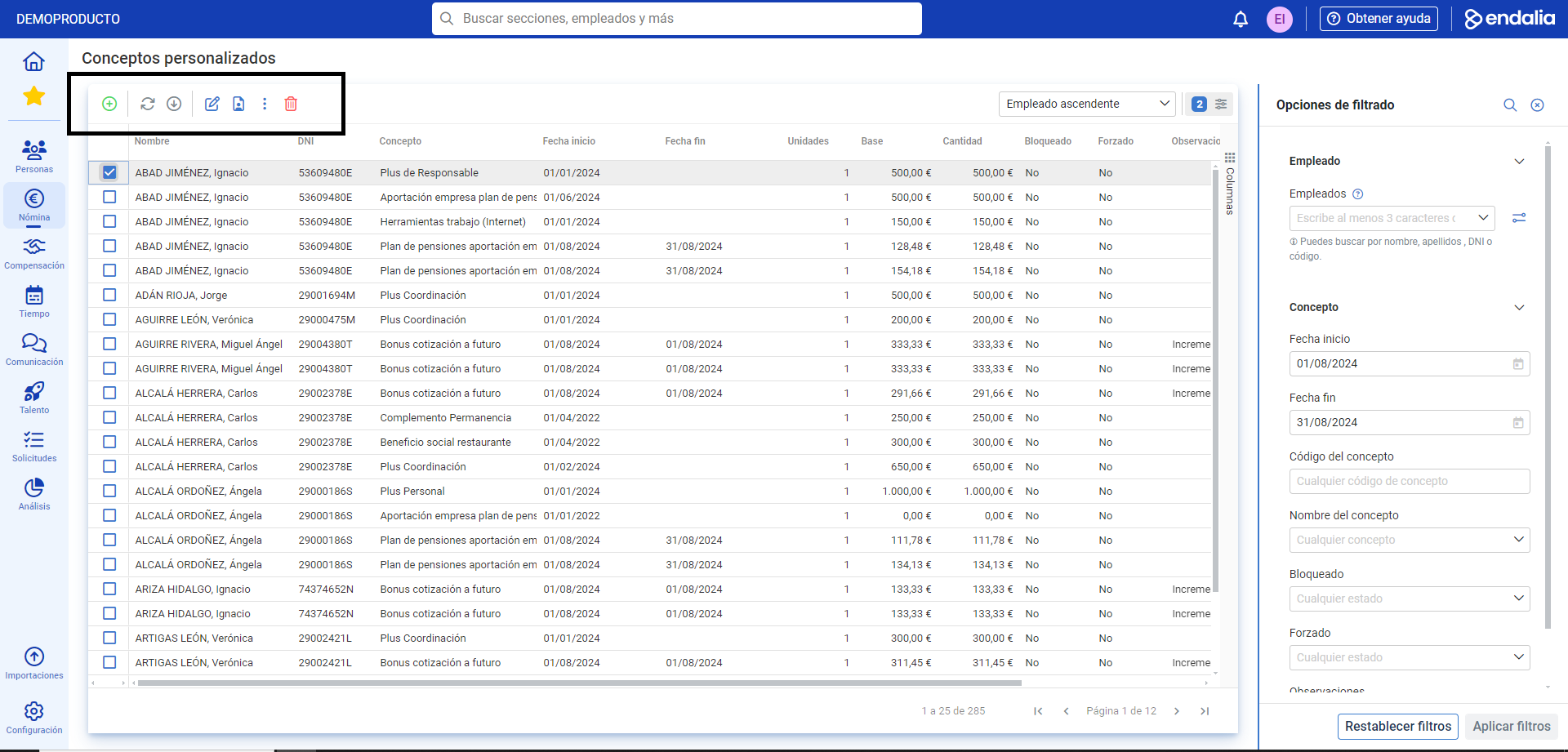
Within the hub, click Payroll > Payroll Incidents > Custom Concepts
- On this first screen, there is a list of all the custom variable concepts already assigned to the employee, with different periods and nature (personal bonus, transportation bonus, seniority, in-kind compensation for parking space, etc.). As usual, select one or several and use the different buttons on the toolbar to Edit, Delete, Lock/Unlock, etc. Among them is also the Add button, which allows you to manually add custom concepts in a stepper or modal window divided into four steps, which we present below:
- Concepts: allows you to view the list of variables to assign. Activate the View all concepts tab or, alternatively, use the search. Select from the list and click Next.
- Employees: select the names of the worker(s) to whom the concepts will be applied. Again, click Next.
- Configuration: here you must fill in some fields, such as Start Date (and even End Date, which relates to fixed and monthly concepts; see payroll articles for more information); Input Method, such as a single amount (total euros, as a one-time bonus) or units and base (for example, 5 hours at 15 euros per hour). You also have a tab to block editing and a field for descriptions or comments.
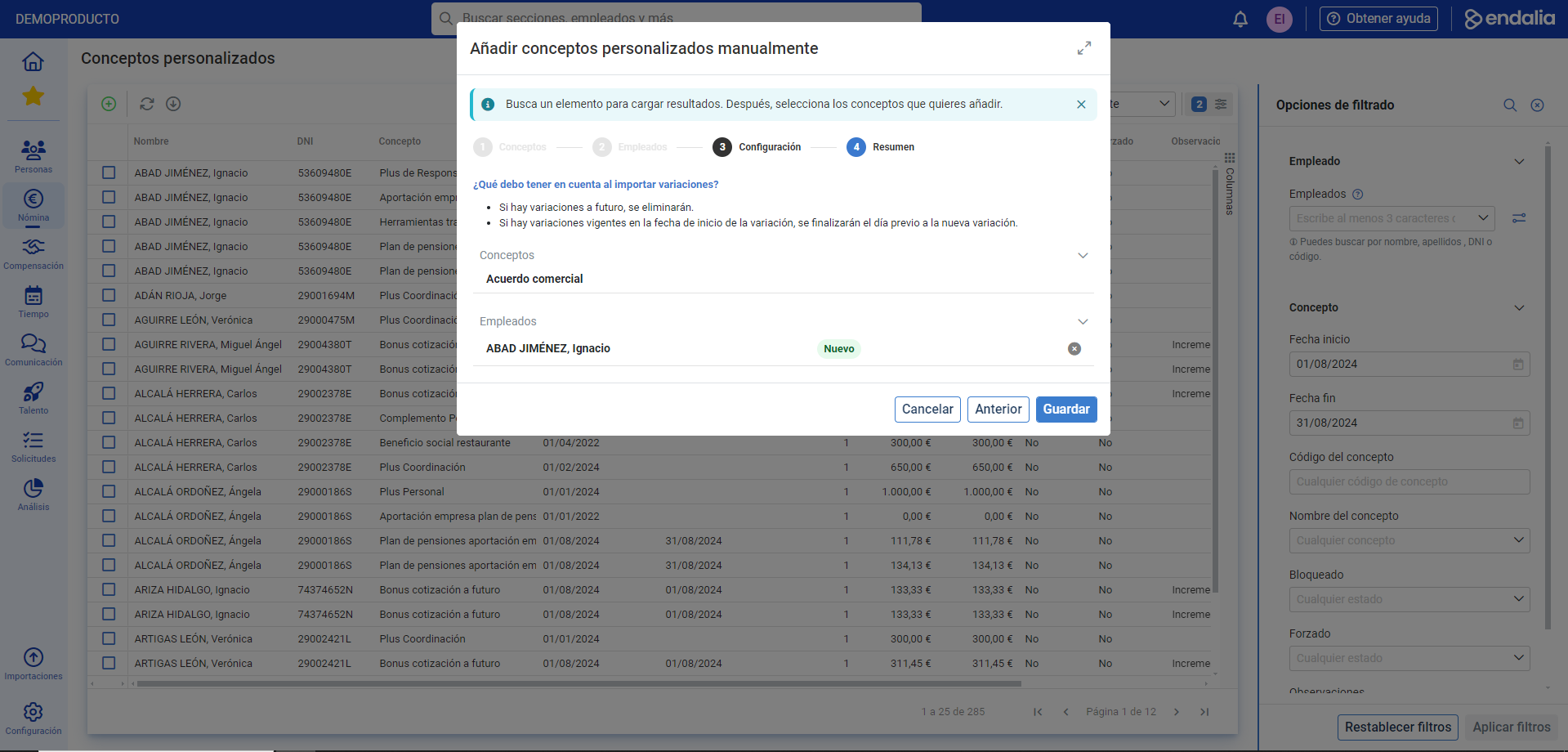
- Summary: contains the sum of all operations performed in the stepper, for verification purposes. Once this last step is completed, click Save to finalize your preferences:
Process video
Learn to navigate the menu with this small informative capsule:
Additionally, you can view our glossary, available at this link.
Was this article helpful?
That’s Great!
Thank you for your feedback
Sorry! We couldn't be helpful
Thank you for your feedback
Feedback sent
We appreciate your effort and will try to fix the article