Important: this article is intended for Endalia HR users with an Administrator profile.
Occasionally, employees are unable to perform their work activities due to various factors, and must receive healthcare assistance from Social Security. This is an important issue in every company, and its management must be carried out meticulously.
In this article, you will find:
Temporary incapacity (IT)
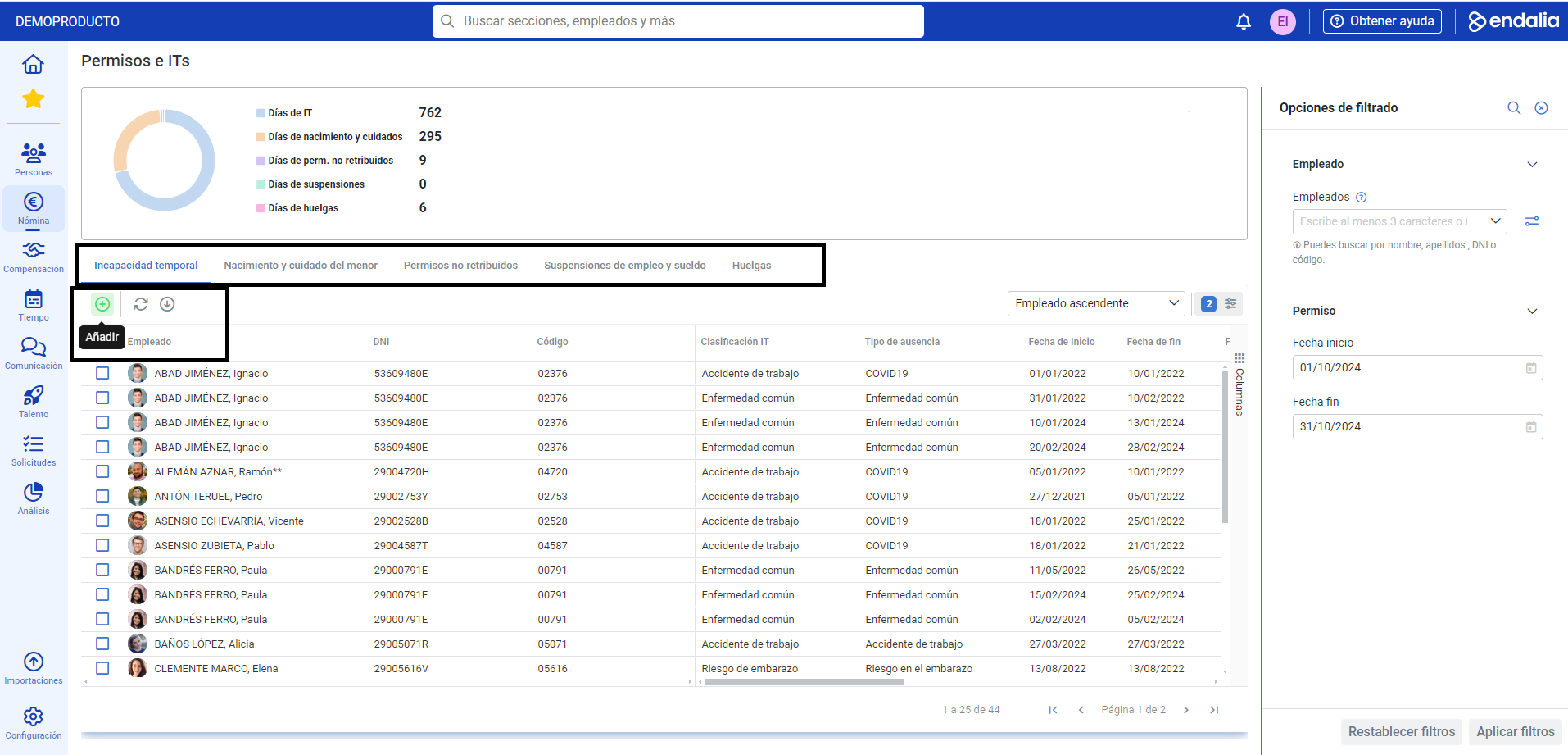
Within the Payroll hub, click on Payroll > Payroll incidents > Permissions and ITs
- On this first screen, at the top, you have a list of the types of permissions, as well as the number of employees who have requested them. Please note that this graph only shows the current month, so if you wish to see other dates, you must enter them in the corresponding filters, located on the right side of the permissions grid from the icon.
- In the lower half, the list of employees with IT in the current month or in the entered date range is displayed. As usual, you can use employee selection and the toolbar buttons to edit or delete the permission.
- To add a new temporary incapacity, click on the corresponding button in the toolbar, within the IT tab, which is displayed by default in this menu. In the next lateral modal window, you have the following fields to fill out. Those indicated with an asterisk (*) are mandatory:
- Employee: the searcher allows you to select the worker.
- IT Classification: used to discriminate between the available types of incapacities. In this regard, there is an interrelationship with Type of absence, which represents one more level of specification to the classification, if any (for example, if the classification is "Risk in pregnancy"; the type of absence may be due to pregnancy or breastfeeding). This is used to identify the type of payment involved with the IT.
- Start/end date: used to specify the time ranges of the beginning (mandatory) and end (optional, since it may not yet be certain) of the IT.
- Has relapse?: If so, the system will offer a list of related previous ITs.
- Lacks term?: in case negative, the system will ask if there is direct payment; if affirmative, it will request a start date for the same.
- Forced regulatory base per day: only to be filled in those cases where this is different from the one calculated by the system.
- Observations: additional comments. This is the last field of this modal window; remember to click on the Add button, to make your preferences effective and to add the employee's name to the list on the main screen:
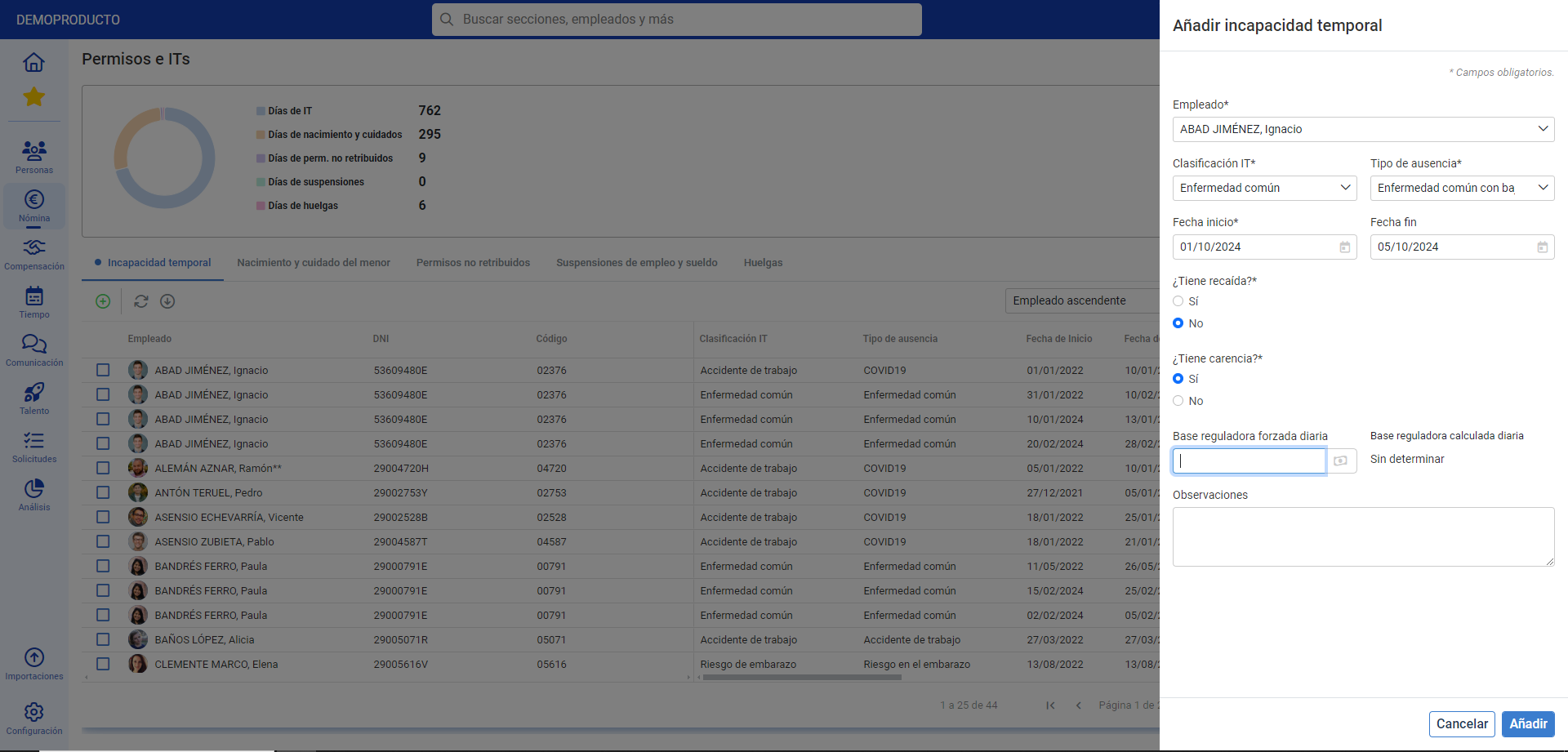
Note: The regulatory base should only be indicated if it is to be forced. The system will calculate the corresponding base according to the criteria of each type of IT.
Note: To learn more about work accident management, check the article with the same name, also available in this hub.
Process video
We will show you this functionality in just a few seconds:
Still have questions? Take a look at the following related articles to learn more:
- Birth and care of a minor
- Manage a work accident
- Unpaid leaves
- Suspension of employment and salary
- Strikes
Additionally, you can view our glossary, available at this link.
Was this article helpful?
That’s Great!
Thank you for your feedback
Sorry! We couldn't be helpful
Thank you for your feedback
Feedback sent
We appreciate your effort and will try to fix the article