Important: this article is aimed at Endalia HR users with Administrator profile.
Allow employees to be absent from work for a specified period of time without any financial compensation. Take a look at the following lines to learn everything about this type of request.
In this article:
Unpaid leaves
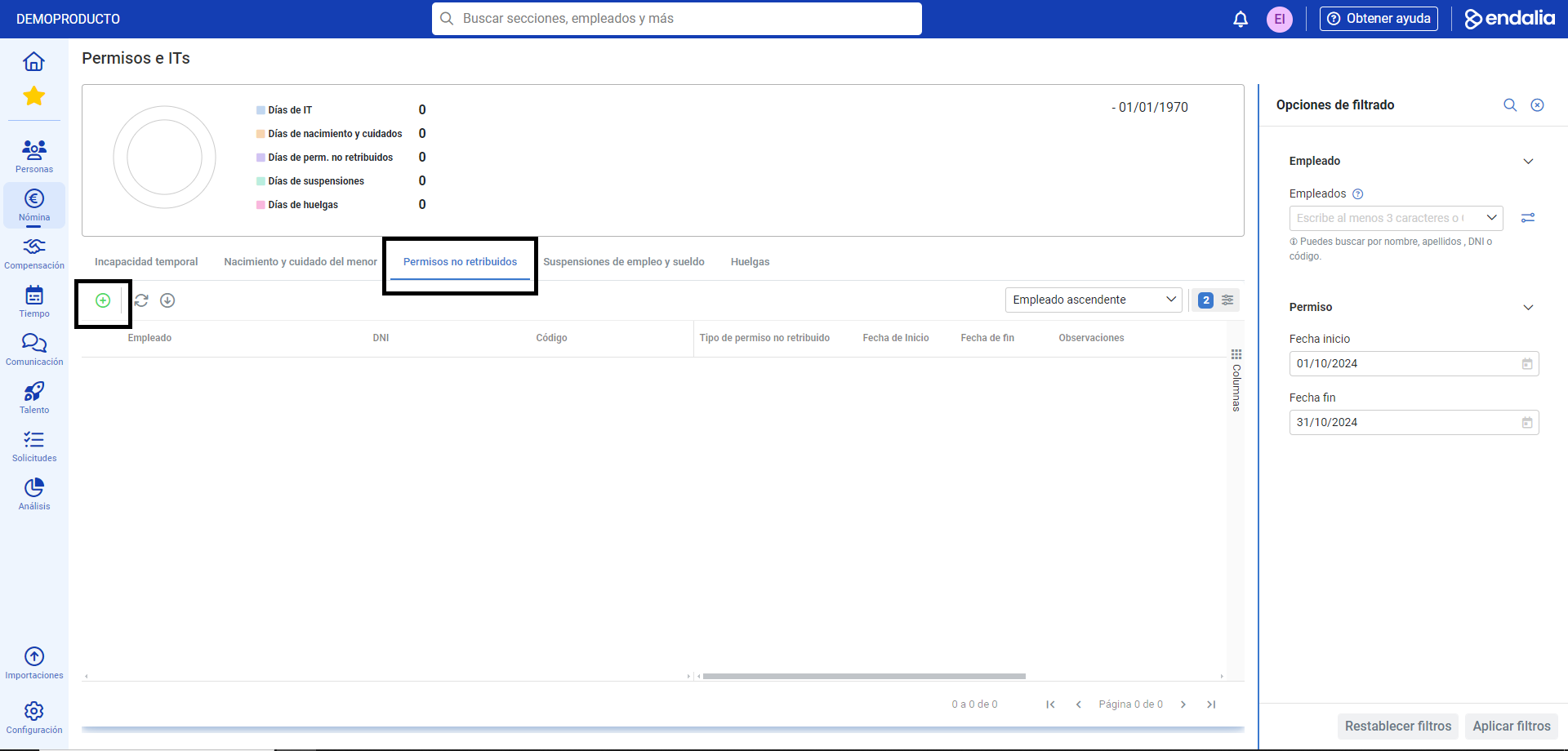
- Inside the Payroll Hub, click on Payrolls > Payroll incidents > Leaves and ITs
- On this first screen, at the top, you have a list of the types of leaves, as well as the number of employees who have requested them. Note that this graph only refers to the current month, so if you wish to see other data, you must enter it in the corresponding filters, located on the right side of the screen.
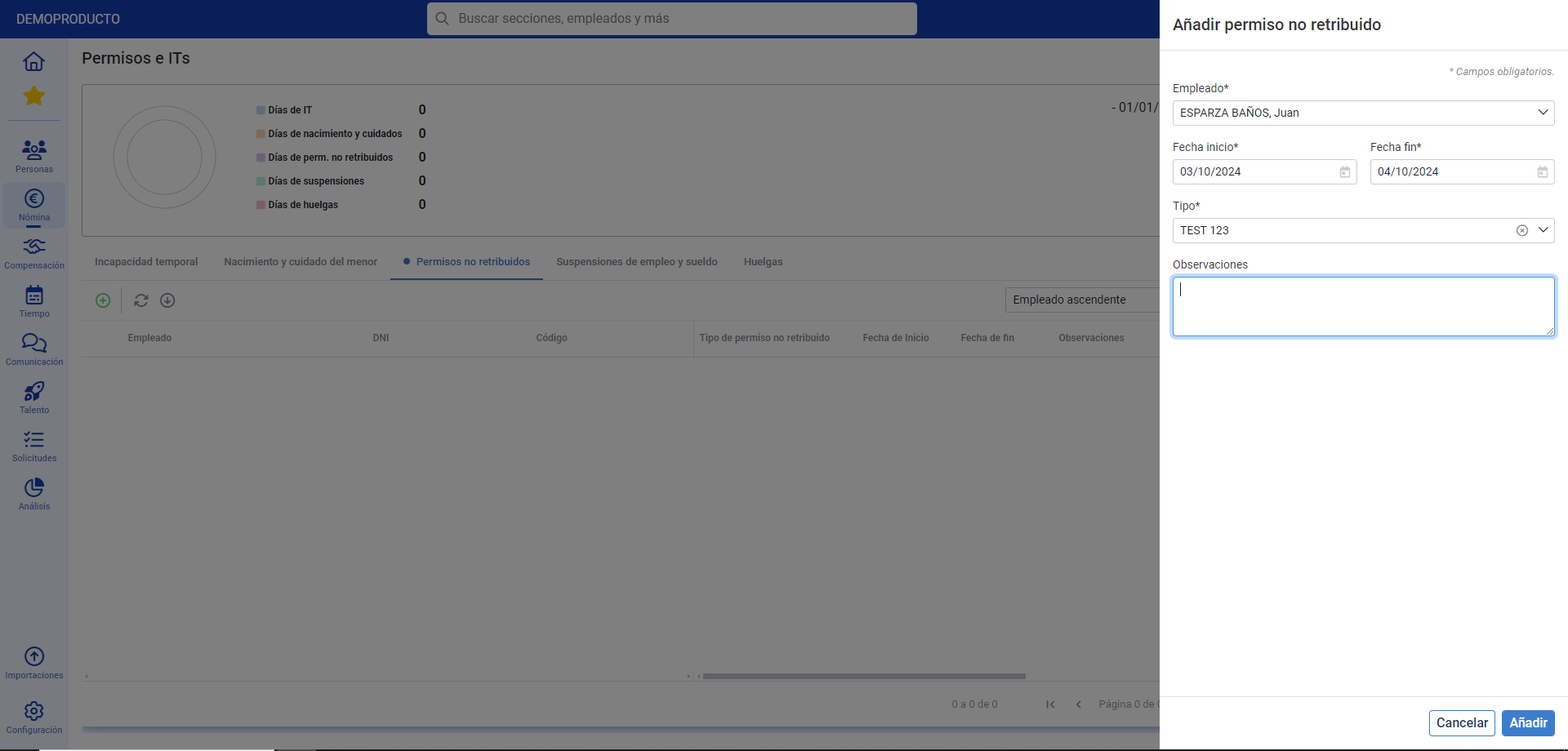
- If you want to add a new unpaid leave, click on the corresponding button (+) on the toolbar, within the Unpaid leaves tab. In the following side modal window, you have the following fields to fill out, some of them mandatory (*):
- Employee: the search engine allows you to select the worker to assign an unpaid leave.
- Start/End Date: you can specify the start and end time ranges of the unpaid leave.
- Observations: additional comments. It is the last field of this modal window; don't forget to click on the Add button, to make your preferences effective and add the employee's name to the list on the main screen:
Process video
Here is the summary of this simple functionality:
Still have questions? Take a look at the following related articles:
In addition, you can view our glossary, available at this link.
Was this article helpful?
That’s Great!
Thank you for your feedback
Sorry! We couldn't be helpful
Thank you for your feedback
Feedback sent
We appreciate your effort and will try to fix the article