Important: this article is aimed at Endalia HR users with an Administrator profile.
They are useful for making specific and special payments; it is a real possibility that is present in the accounting environment; therefore, we show you how to manage it in the simplest way possible.
In this text you will find:
Custom remittances
Within the hub Payroll, click on Payroll > Payroll > Payments > Custom remittances
- In the window presented to you below, you have a list of remittances, with different information regarding them: status, payment date, amount, etc. Alternatively, you can use the filter located at the top right of the screen to locate specific remittances:
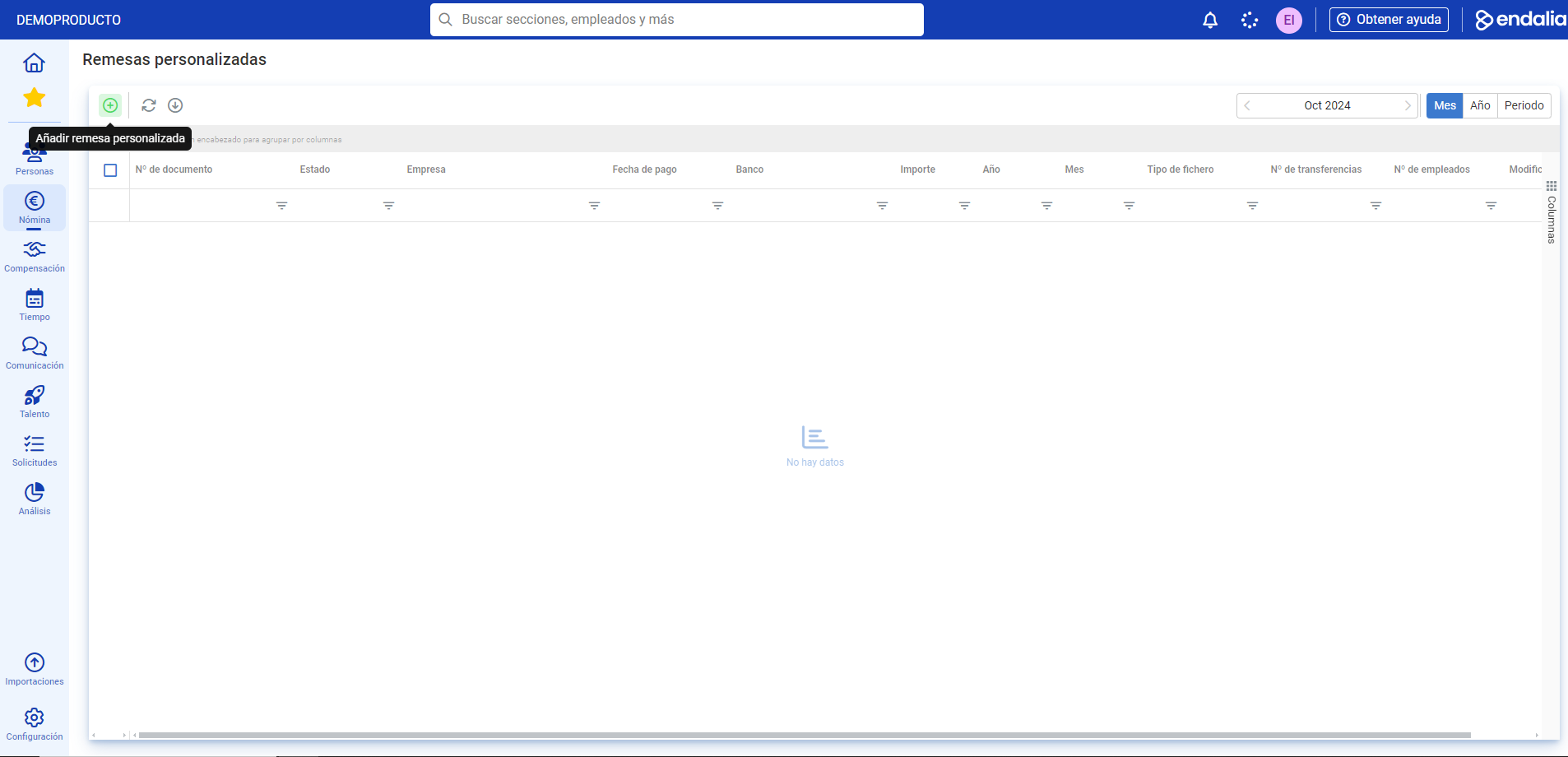
- To edit a remittance, click on the corresponding box or on its name. Please note that, depending on its status, the toolbar will display different actions (Edit, Download files, Delete, Change status to paid, etc.).
- To edit a remittance, simply select it and click on the button designated for this purpose, located on the toolbar. In the window shown below, you have two menu items on the tab, Custom remittance data and Payments. In the first, remember to Save changes to consolidate your modifications (if you make them); in the second, verify the payments made, or delete them if necessary, by selecting and using the toolbar button enabled for this purpose.
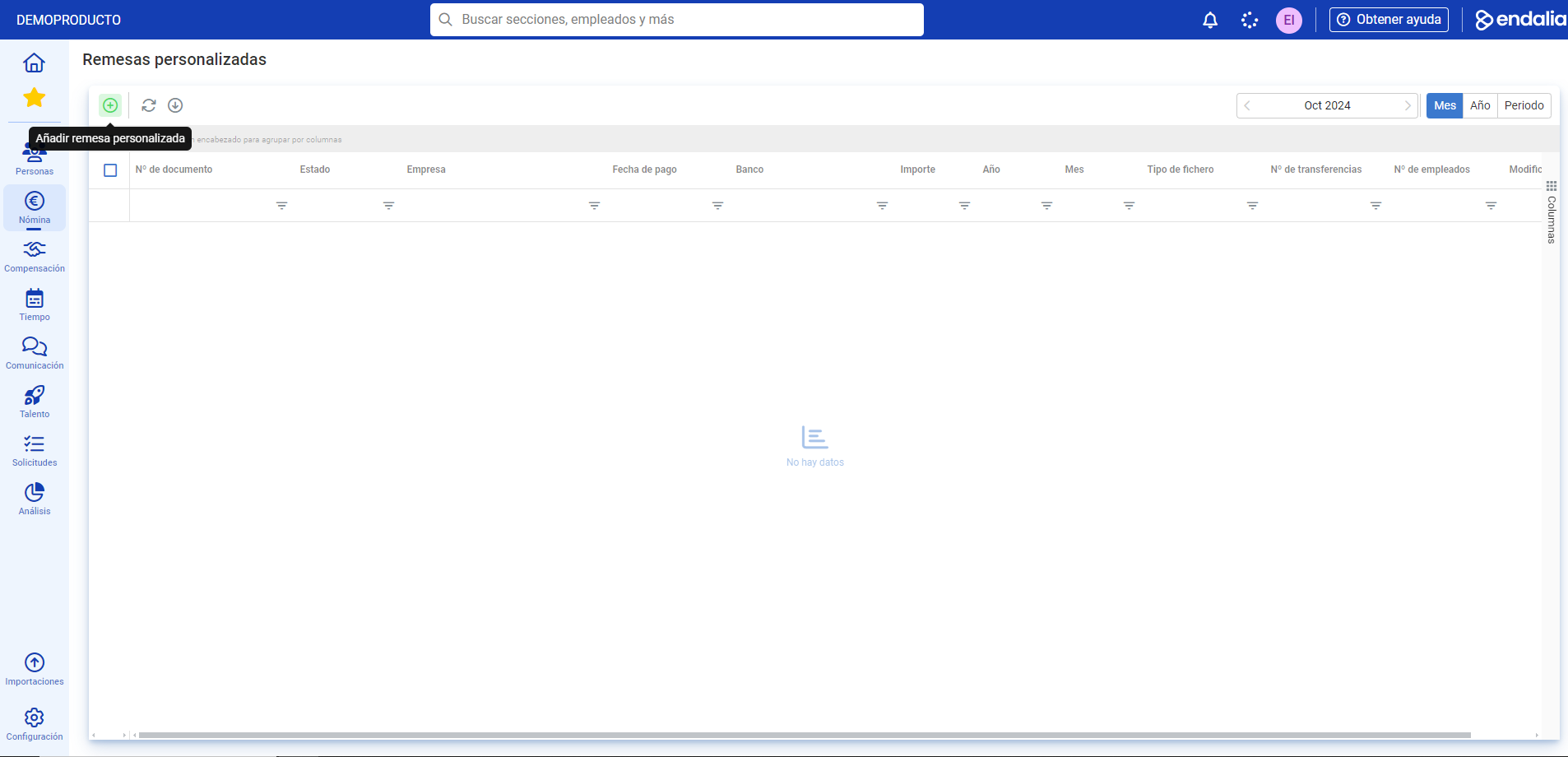
- To generate a new custom remittance, on the main screen, Custom remittances, click on the Add custom remittance button, which you will find, as usual, on the toolbar. Next, you have a screen with four steps to fill out. They are as follows:
- Configure remittance data: here you can provide all the necessary information for the creation of the remittance. The fields Companies and Bank accounts can only accommodate one selection, while Employee selection allows for the selection of multiple workers at once:
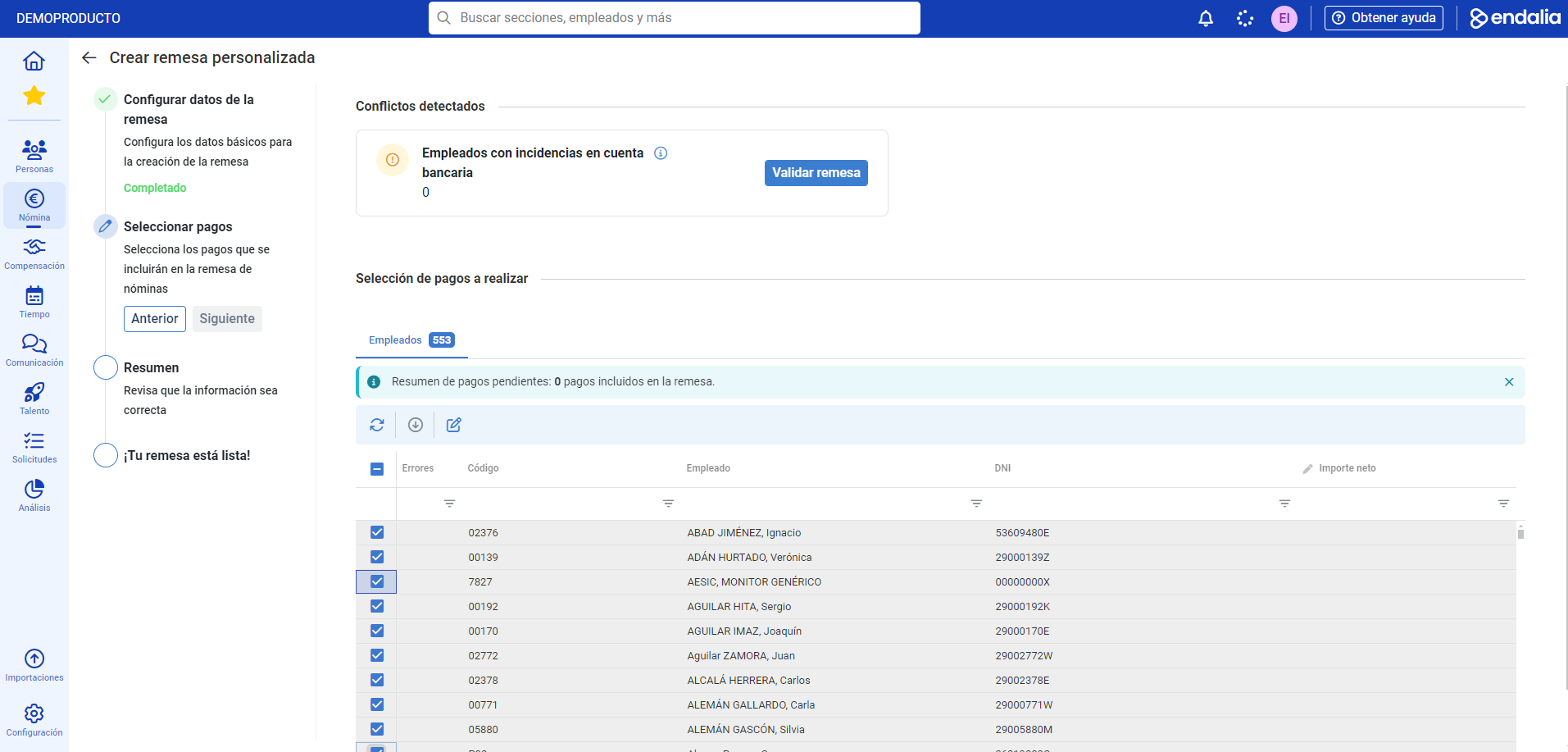
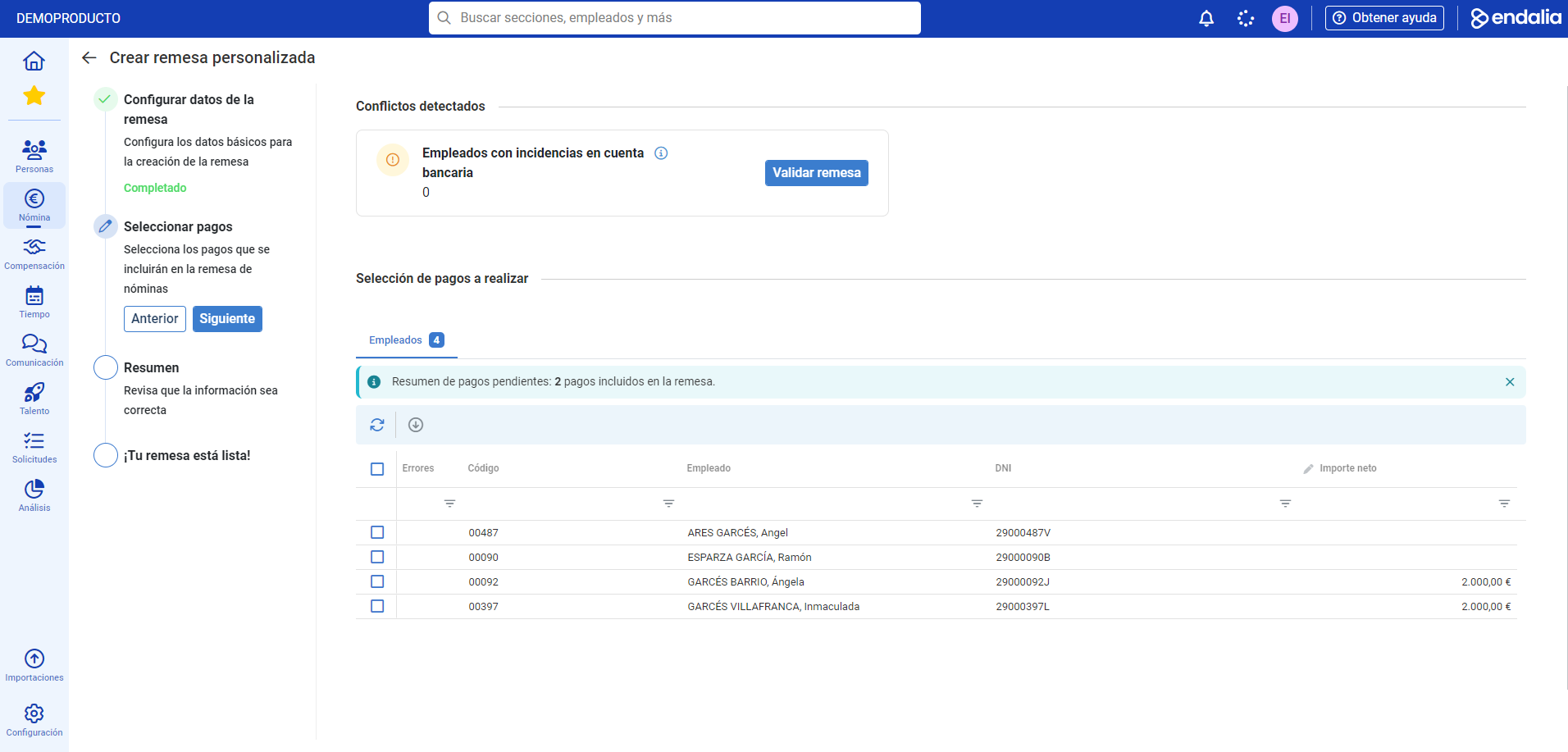
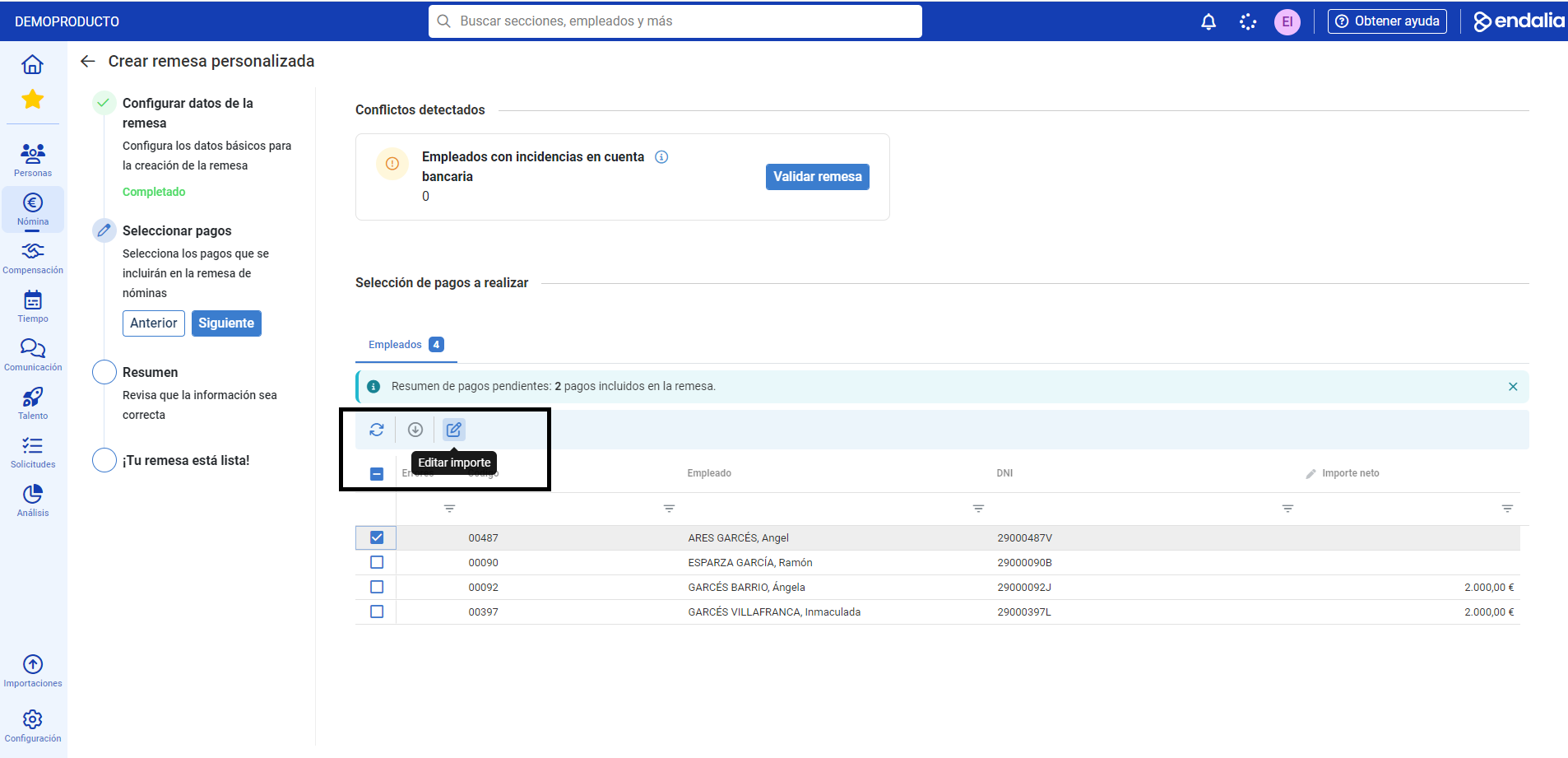
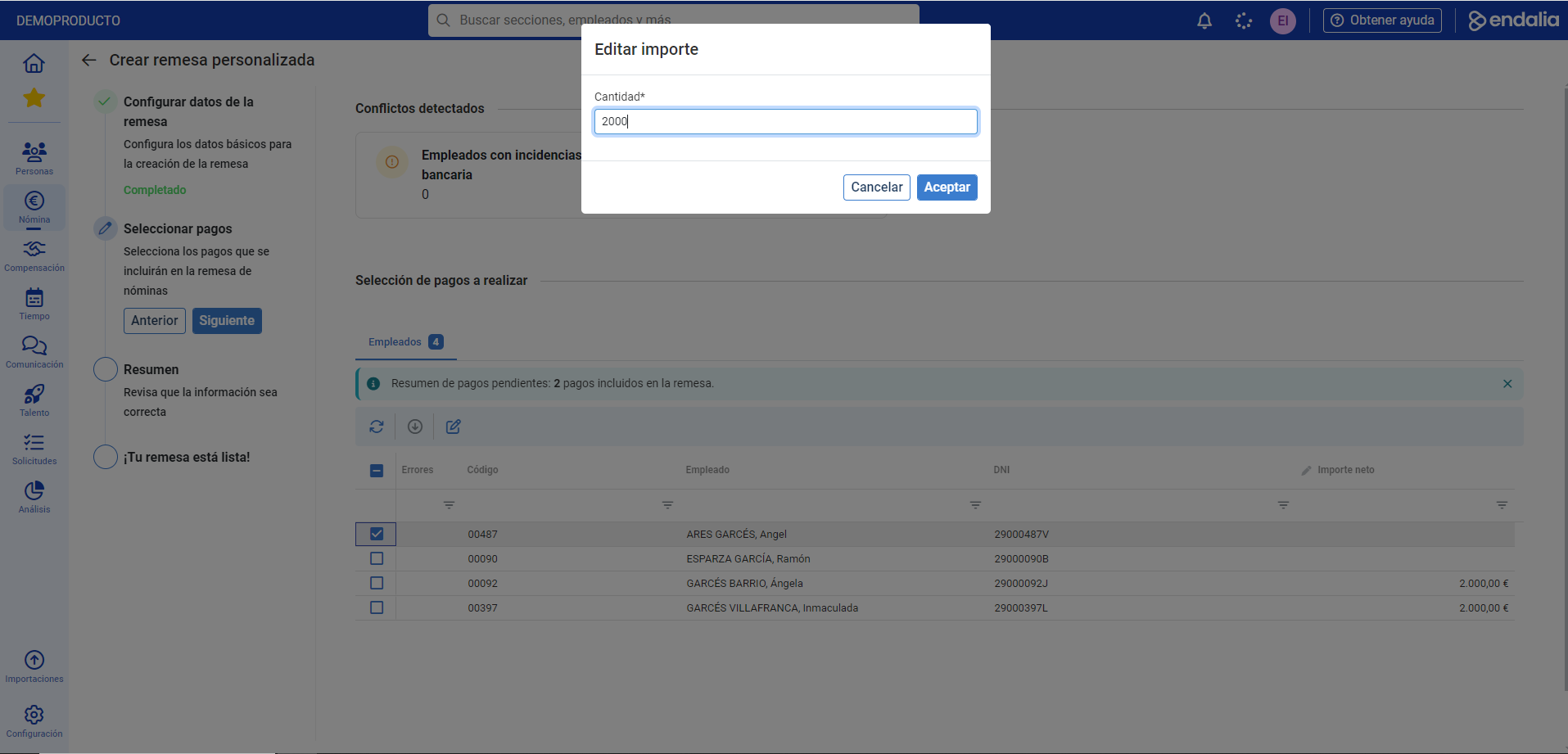
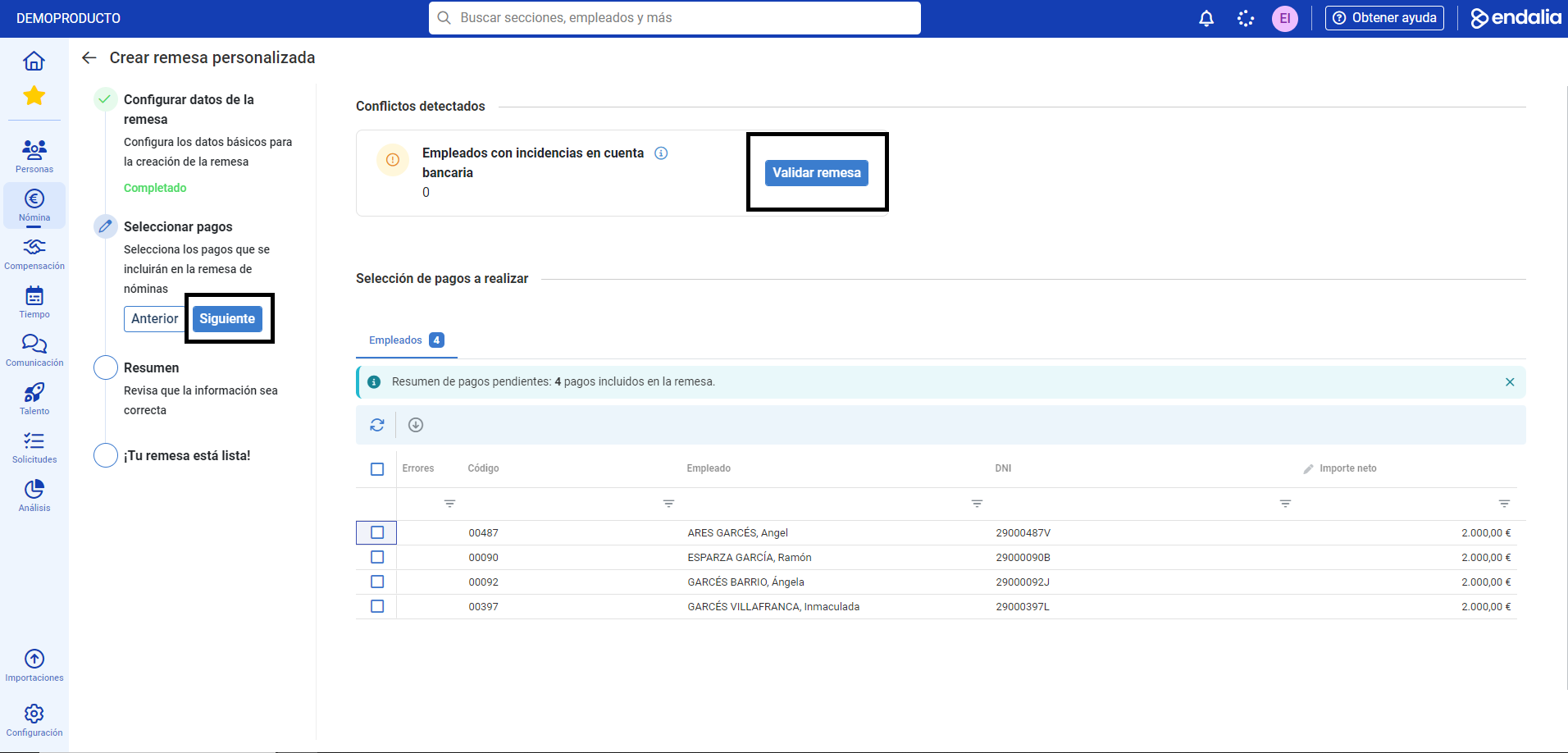
- Select payments: here you can customize them according to the employee, as well as consult other information, such as Employees with negative payments, or account incidents. In the menu subsection, Payment selection to be made, enter the net amount corresponding to each employee, selecting the employees and editing the amount using the toolbar. Once this step is completed, click on Validate remittance, the button you'll find in the upper right of the screen, to move to the next phase (take a look at the images we provide below). Remember that, at all times, you can rely on contextual help (marked with an "i") to obtain additional information. Click on Next
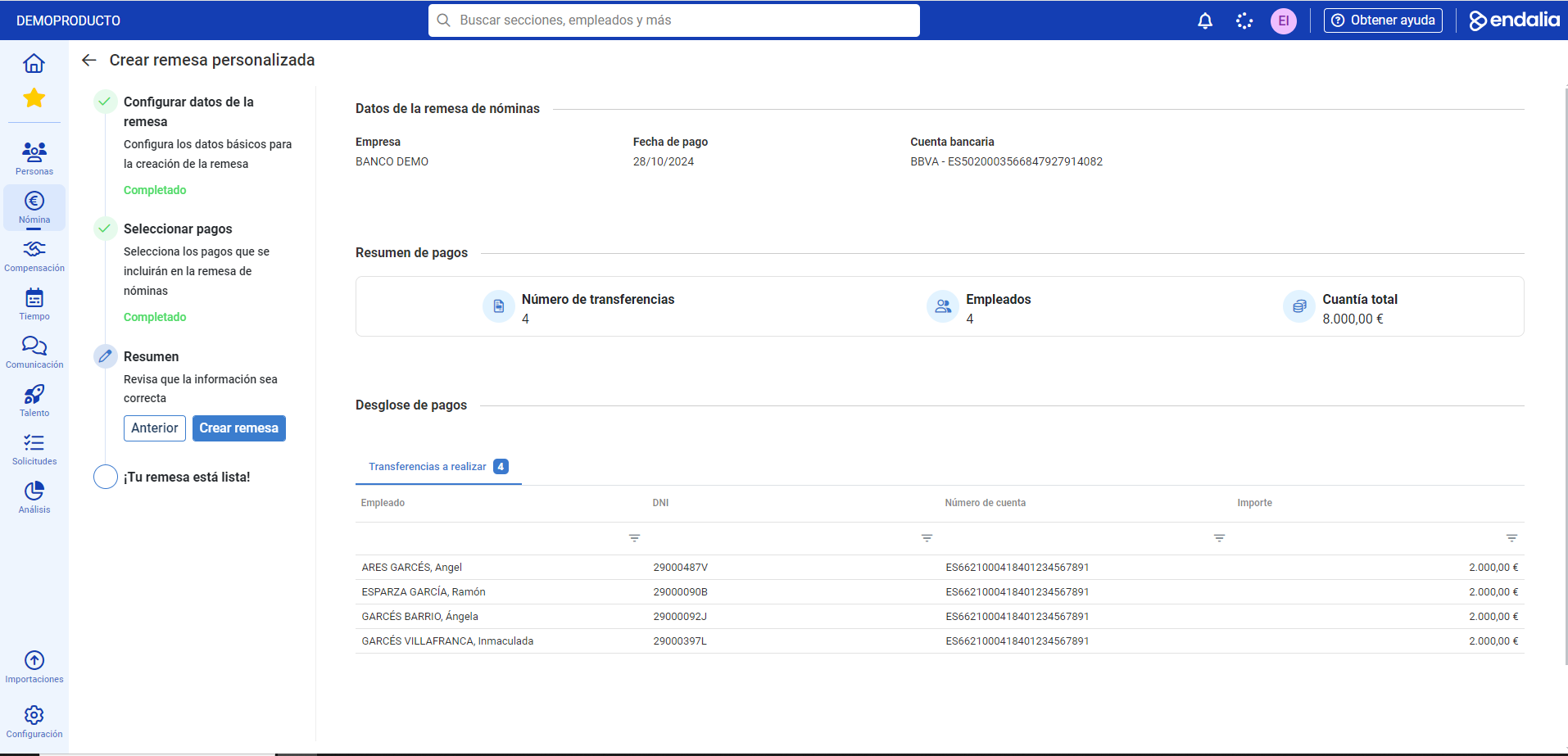
- Summary: verify that the information is correct. Here you can see the number of employees you are going to pay, the number of transfers (they don't all have to be the same amount), and the total amount of the remittance. Click on Create remittance
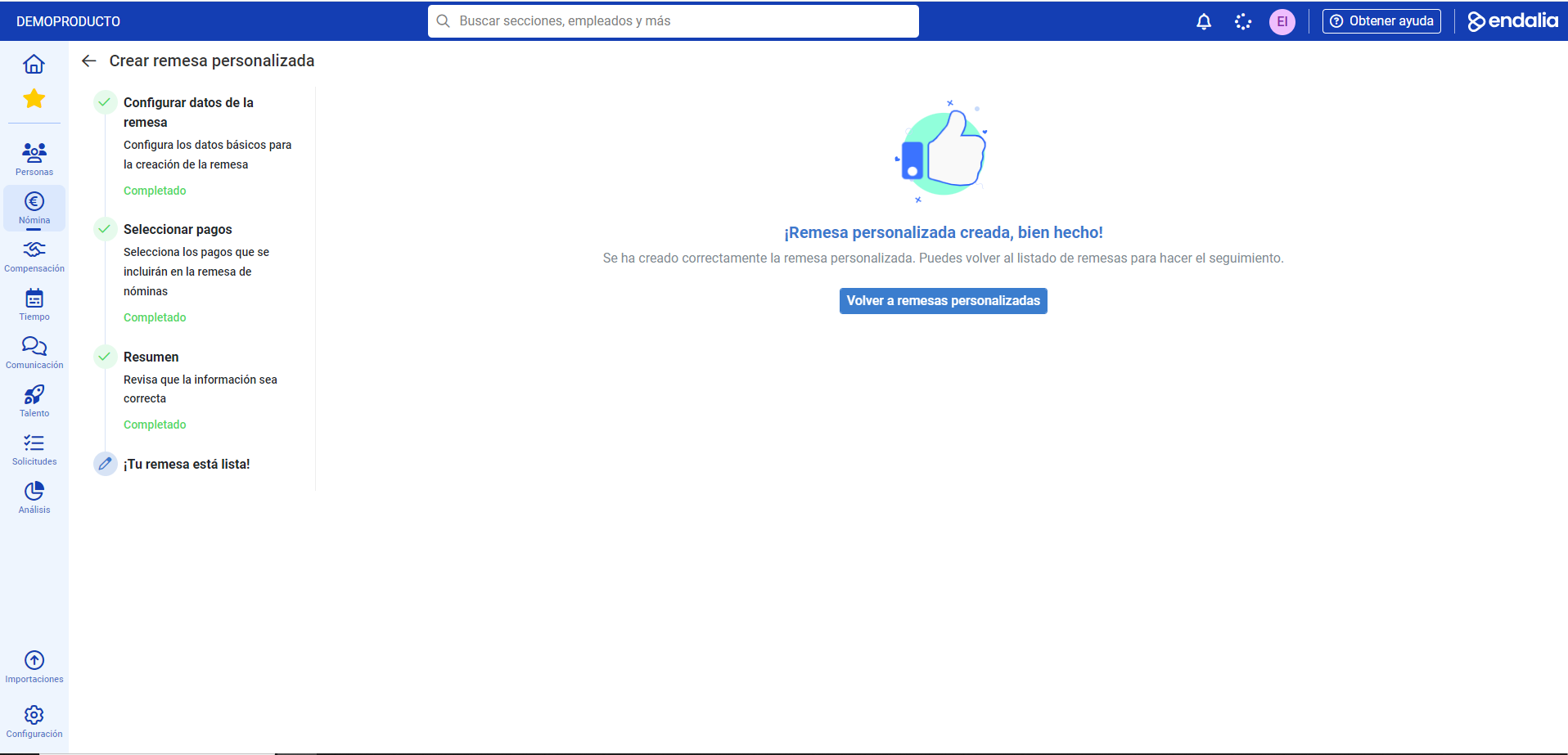
- Custom remittance, well done!: it is now created and valid for operation. Click on Back to custom remittances to see the full list of them:
Note: in the creation wizard, the Previous button will allow you to retrace your steps whenever needed, without losing the information previously entered.
Process video
Take a look at the following related articles to learn more:
Additionally, you can view our glossary, available in this link.
Was this article helpful?
That’s Great!
Thank you for your feedback
Sorry! We couldn't be helpful
Thank you for your feedback
Feedback sent
We appreciate your effort and will try to fix the article