Important: this article is aimed at Endalia HR users with an Administrator profile.
They are necessary for the company to pay its workers (salaries, settlements, bonuses, etc.), so correct management of them is vital. Here you have some useful tips to develop this functionality.
In this text, you will find:
Payroll remittances
Inside the Hub Payroll, click on Payroll > Payroll > Payments > Payroll remittances
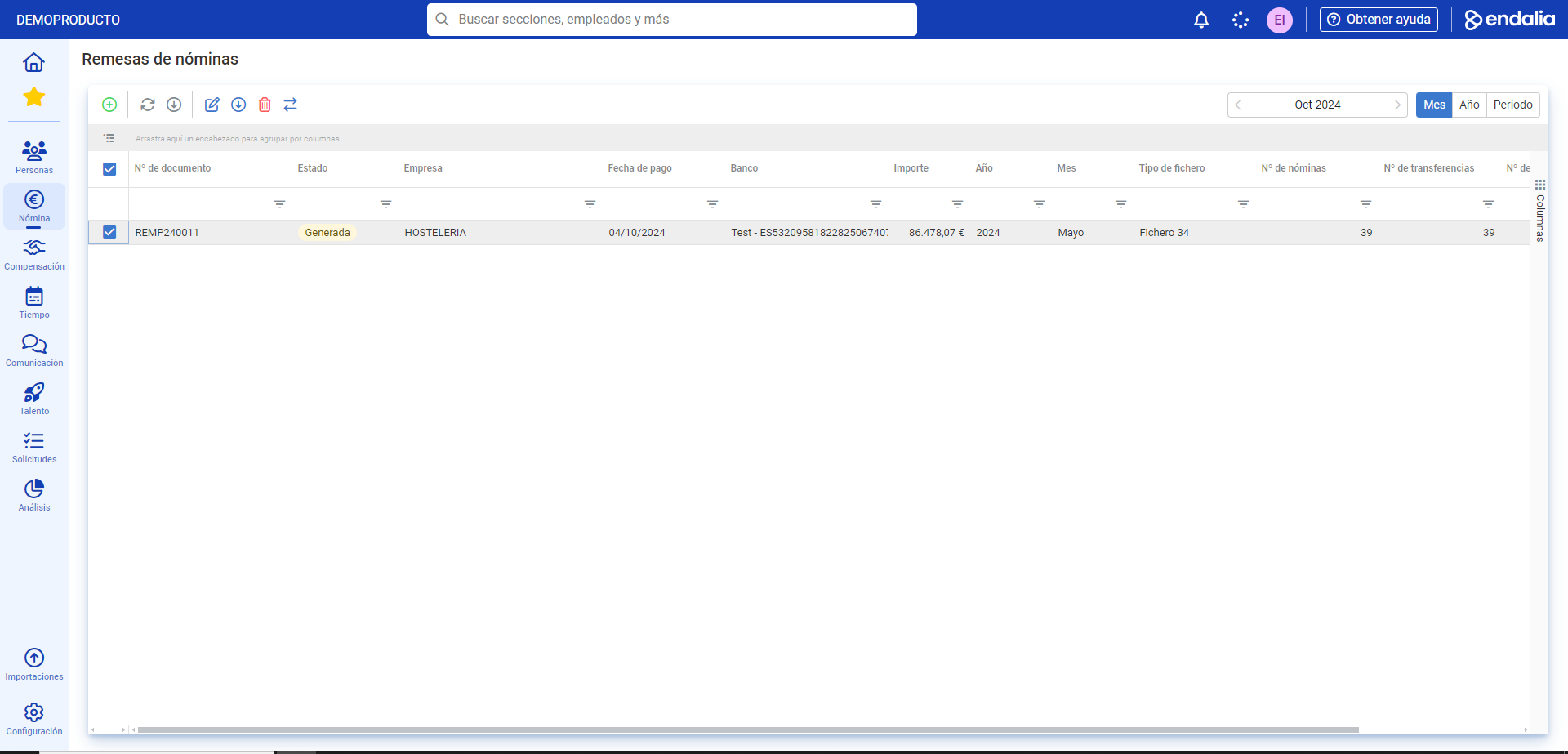
- In the window presented to you, there's a list of remittances with various information: status, payment date, amount, etc. Alternatively, you can use the filter located at the top right of the screen to locate specific remittances.
- To edit a remittance, click on the corresponding box or its name. Note that depending on its status, the toolbar will display different actions (Edit, Download files, Delete, Change state, etc.):
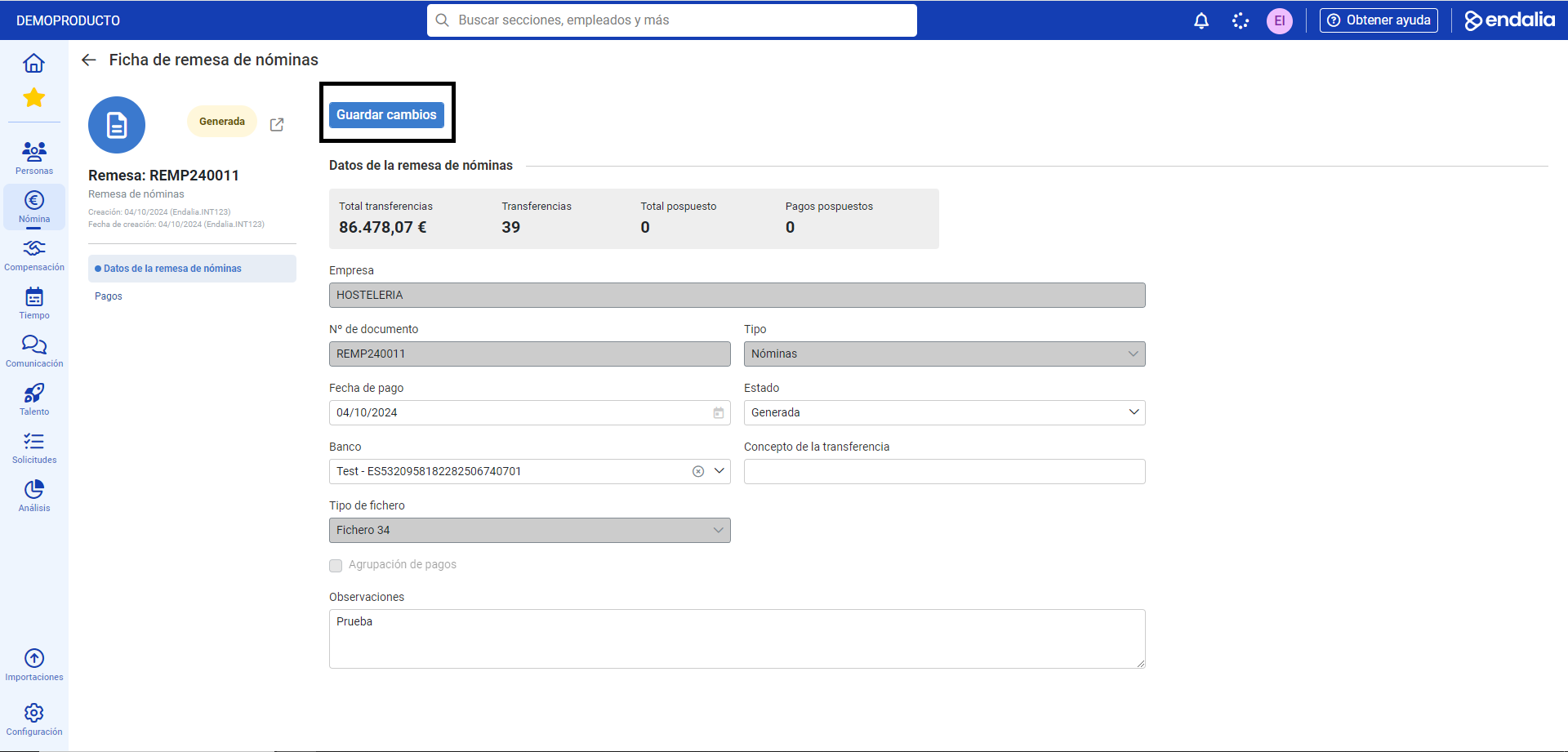
- To edit a remittance, simply select it and click on the designated button in the toolbar. In the subsequent window, you'll find two menu items on the tab, Remittance Data and Payments. In the first one, remember to Save changes to consolidate your modifications (should you make any); in the second, use the toolbar buttons to execute various actions:
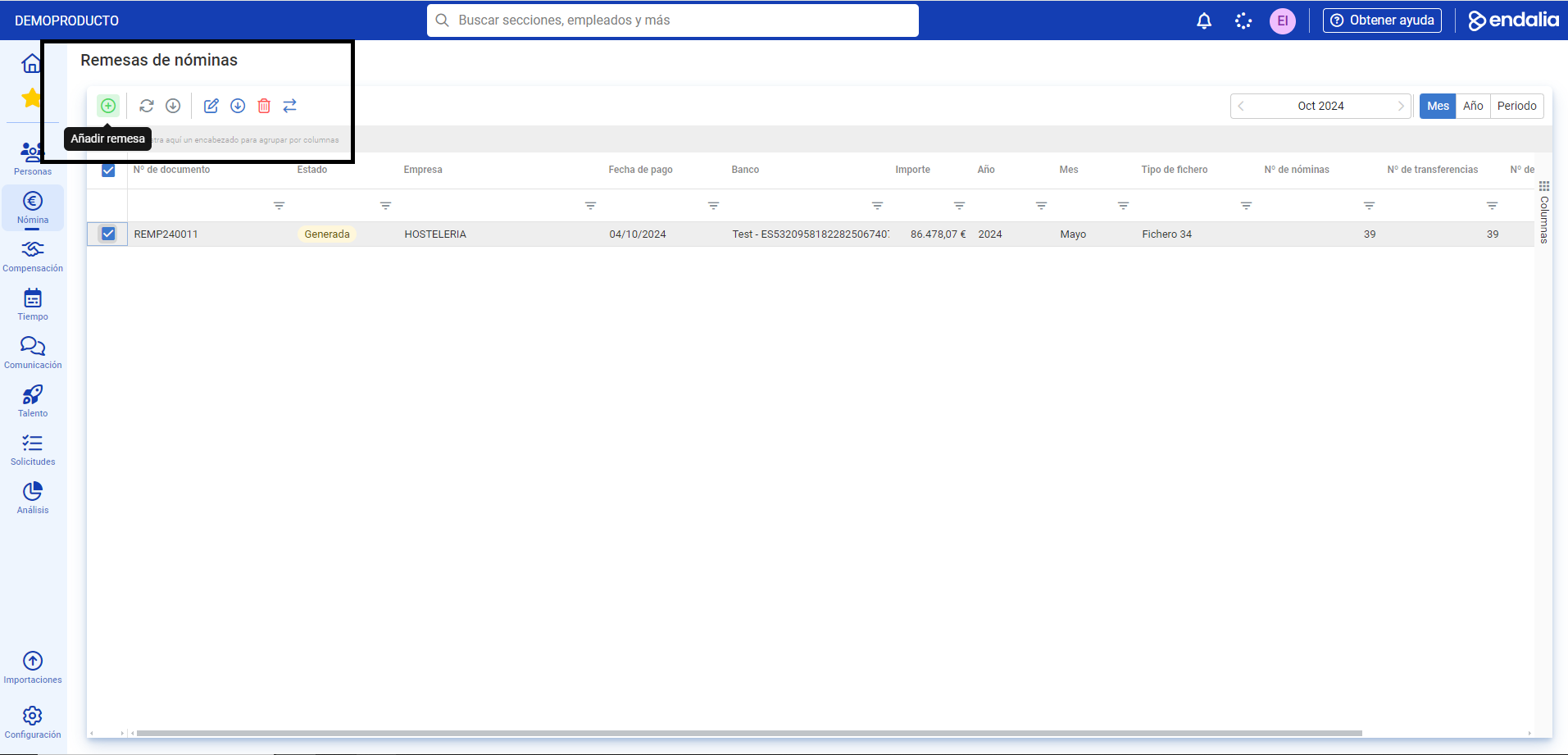
- To generate a new remittance, on the main screen, Payroll remittances, click on the Add remittance button, which, as usual, is found on the toolbar. Next, there's a screen with four steps to fill in. They are the following:
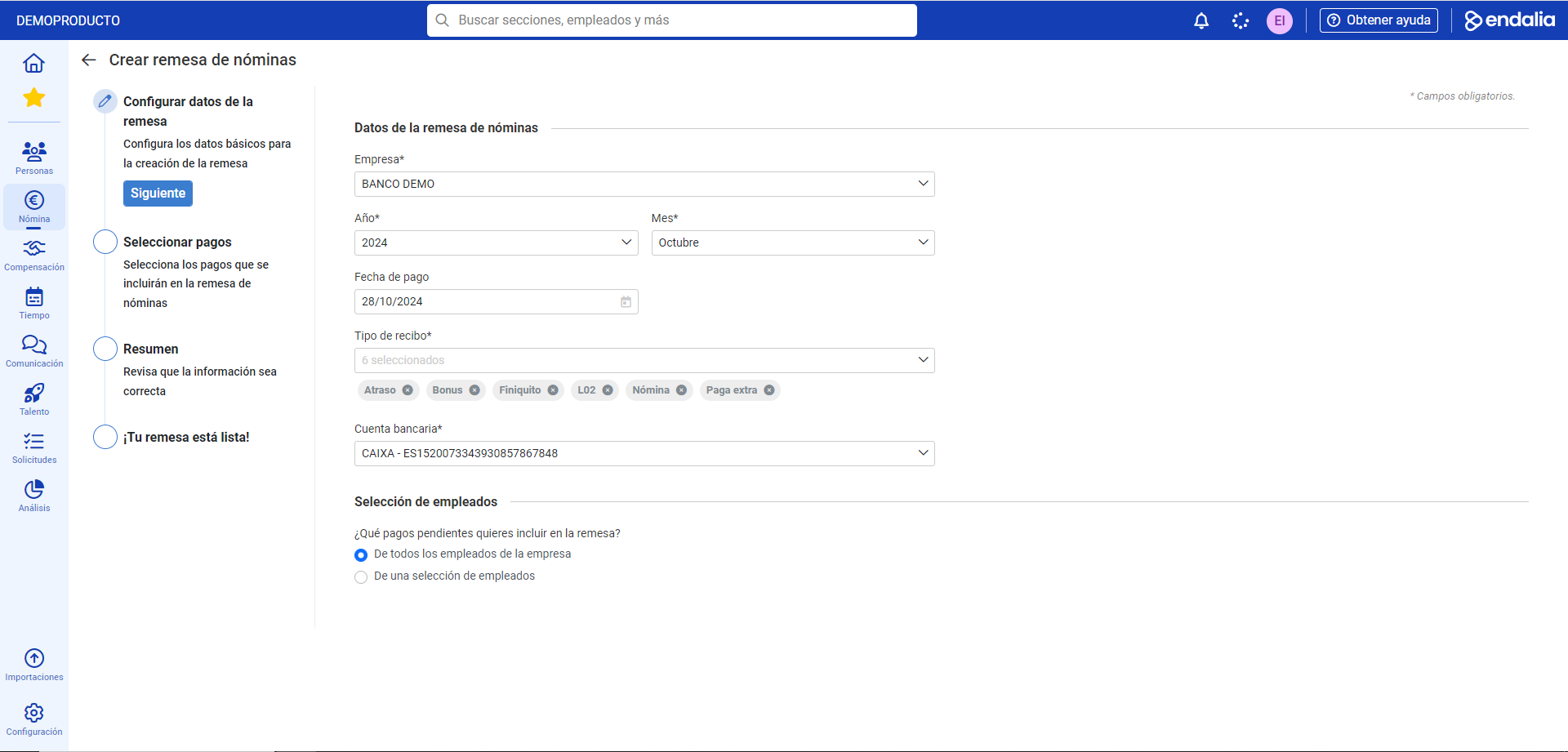
- Configure remittance data: here you can provide all necessary information for creating the remittance. The fields Companies and Bank accounts can hold only one selection, while Receipt Type allows multiple options. Finally, you have the option to include all company employees: selected in the remittance, or only specific employees, which you can choose manually. Click on Next
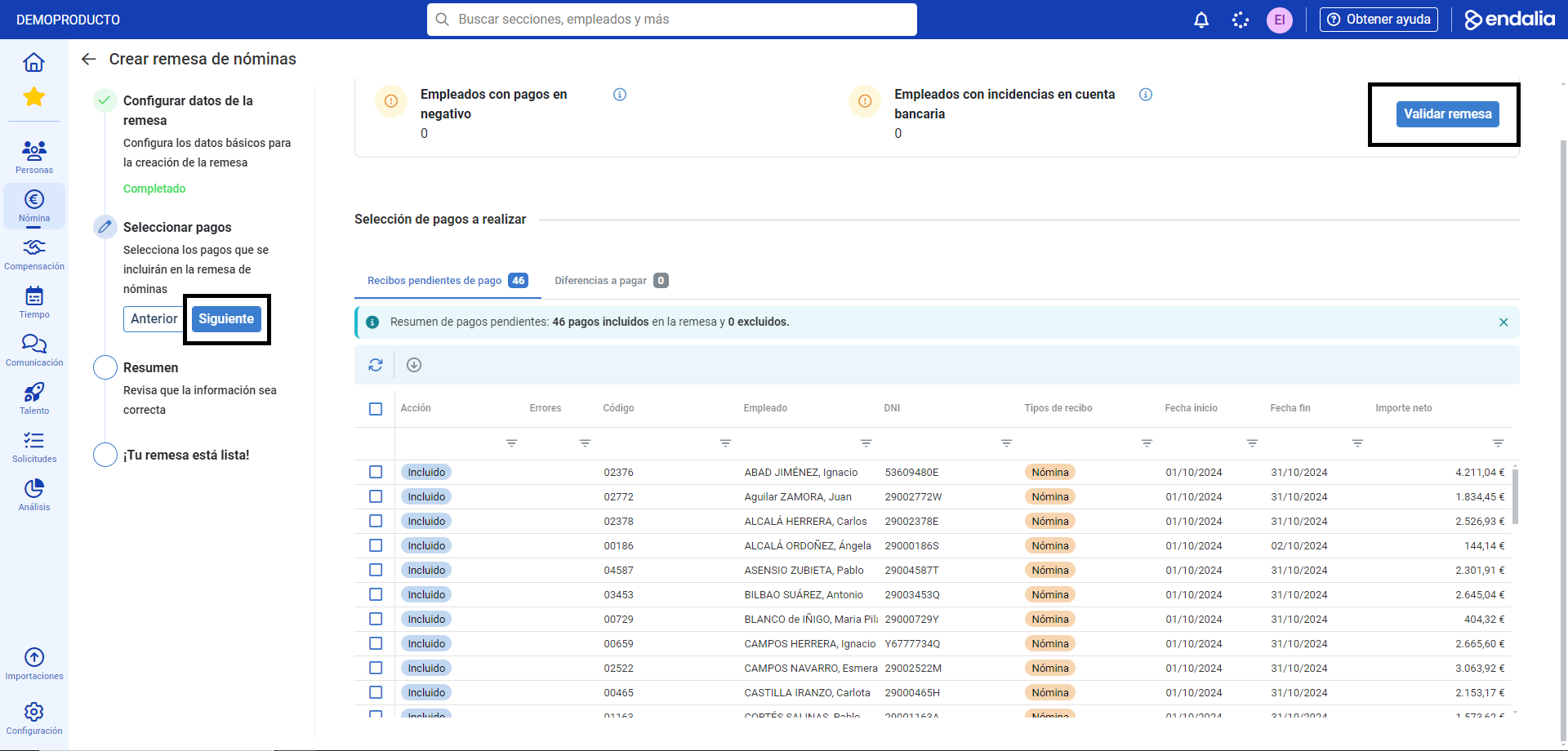
- Select payments: here you can customize them according to the employee, in addition to consulting other information, like Employees with negative payments, or bank account issues. In the next section, Selecting payments to be made, you can see pending payment receipts or payment differences, which you can transfer to another month using the corresponding button on the toolbar. Once issues are resolved, click on Validate remittance, found at the top right of the screen. Remember that at any time, you can rely on contextual help (marked with an "i") for additional information. Click on Next
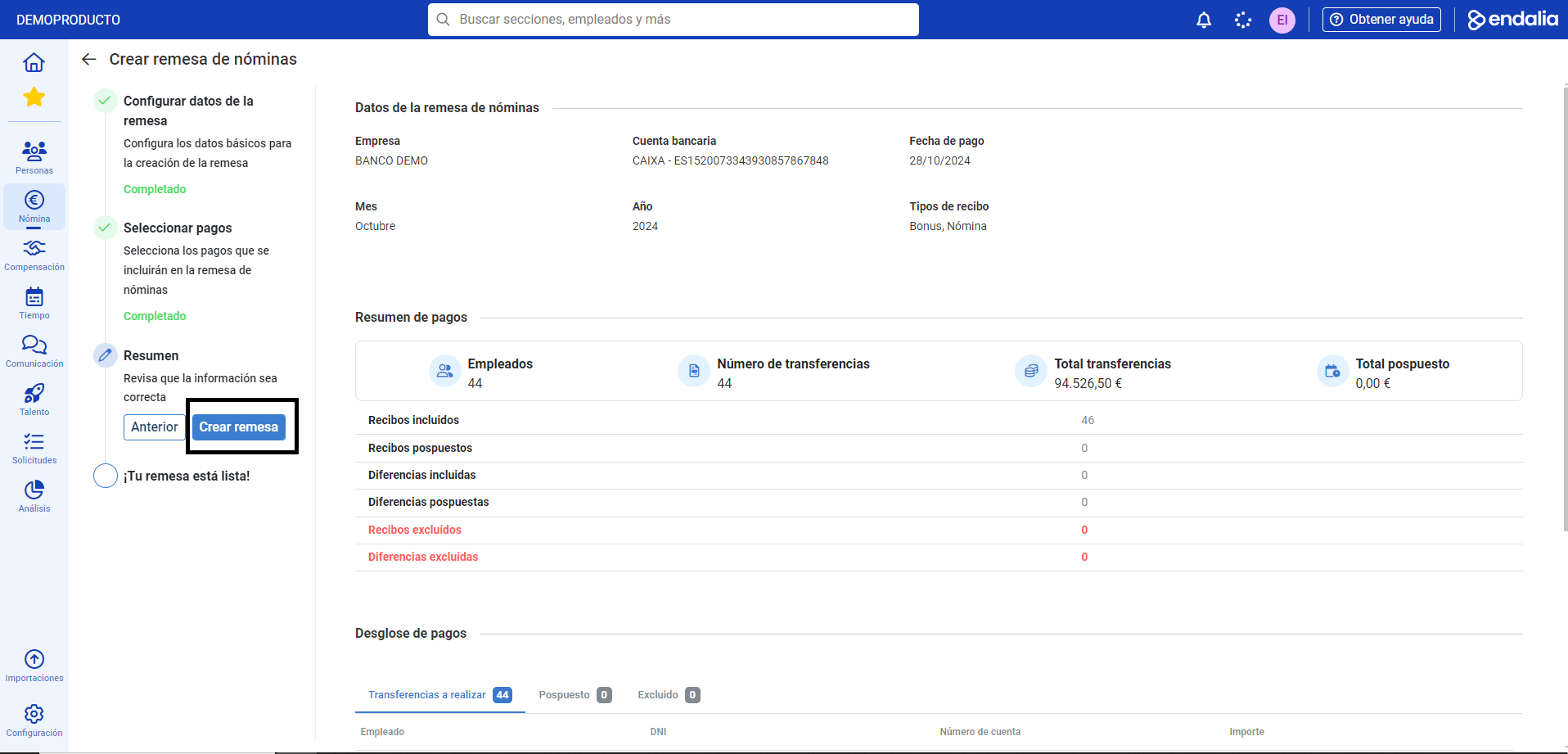
- Summary: ensure the information is correct. Here you can view the number of employees you will make a payment to, the number of transfers (they don't all have to have the same amount), the total remittance amount. Click on Create remittance
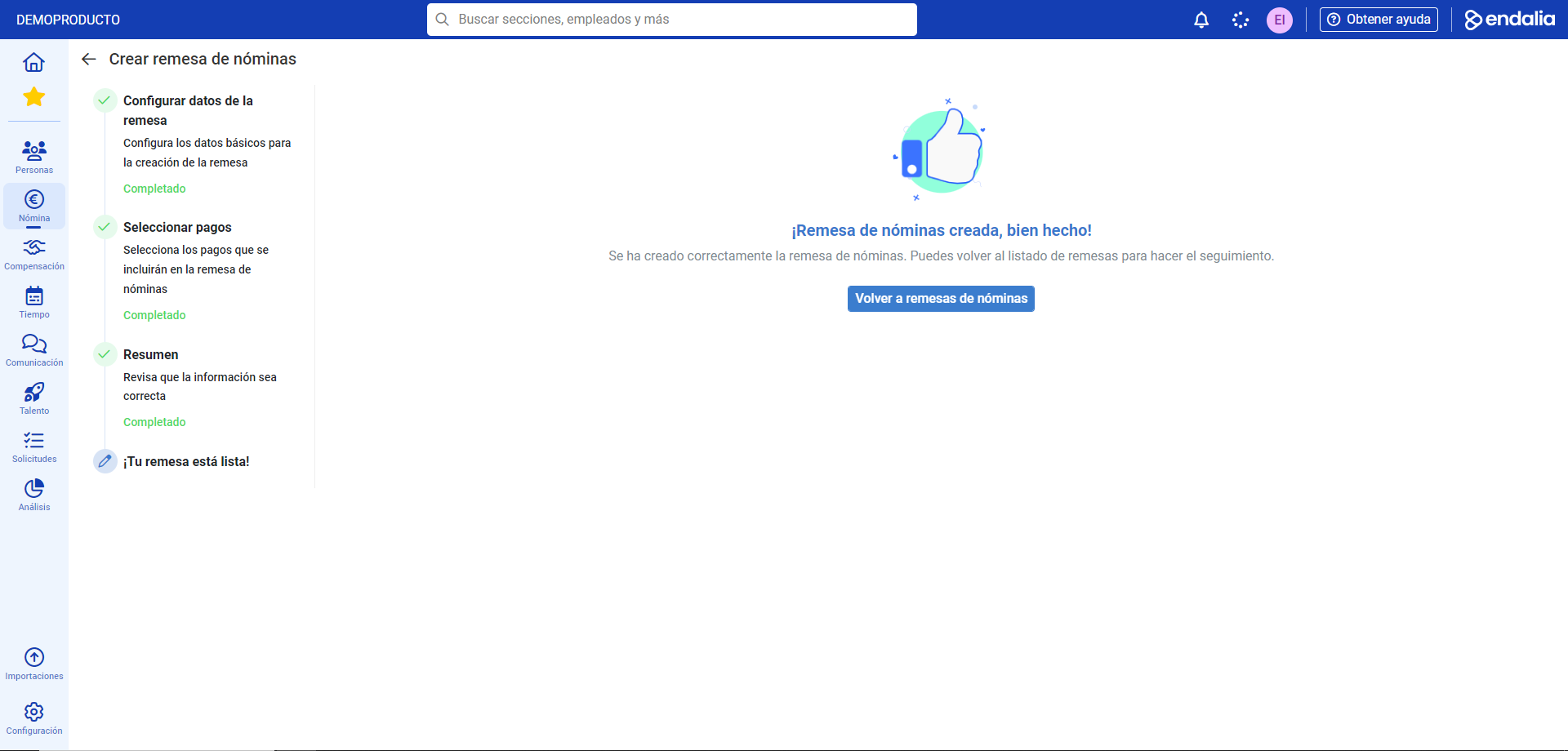
- Your remittance is ready!: it's already created and valid to operate:
*Note: to transfer a payable difference, in step 2, Select payments > Differences to pay, select a name from the list and click on Transfer to another month, on the toolbar. In the side modal window, follow the steps and finally click on Transfer.

Process Video
Check out the summary of the feature, here:
Take a look at the following related articles to learn more:
Additionally, you can view our glossary, available here.
Was this article helpful?
That’s Great!
Thank you for your feedback
Sorry! We couldn't be helpful
Thank you for your feedback
Feedback sent
We appreciate your effort and will try to fix the article