Important: this article is intended for Endalia HR users with an Administrator profile.
To understand and compare part of the company's accounting, the closure becomes a fundamental element as it allows the settlement of expense reports associated with different employees and thus ensuring a good balance in the financial aspect.
In this article:
Create an expense closure
- Within the Compensation and Benefits hub, click on Expenses > Expense closure
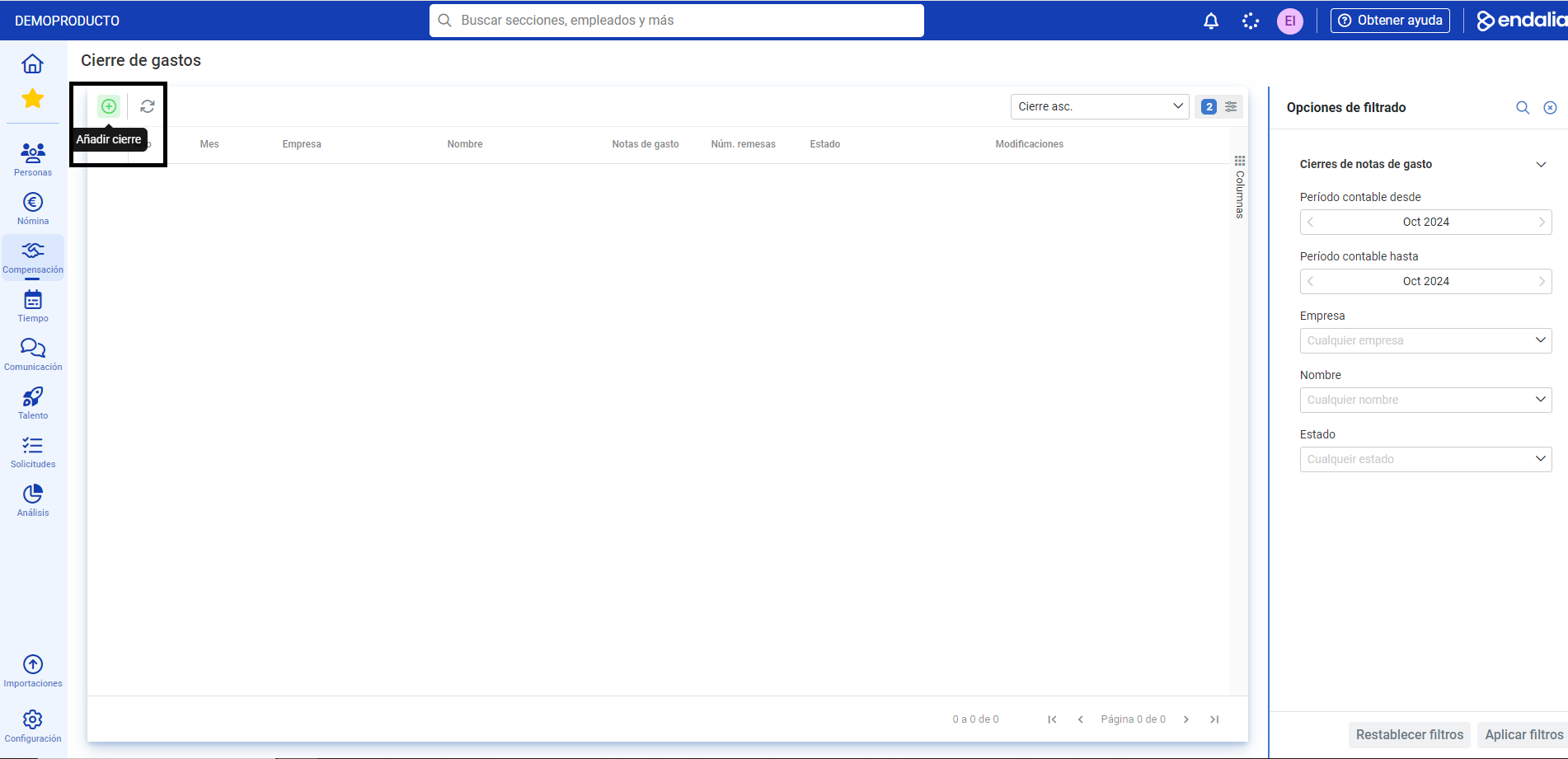
- In the next screen, click the Add button, which you'll find in the toolbar:
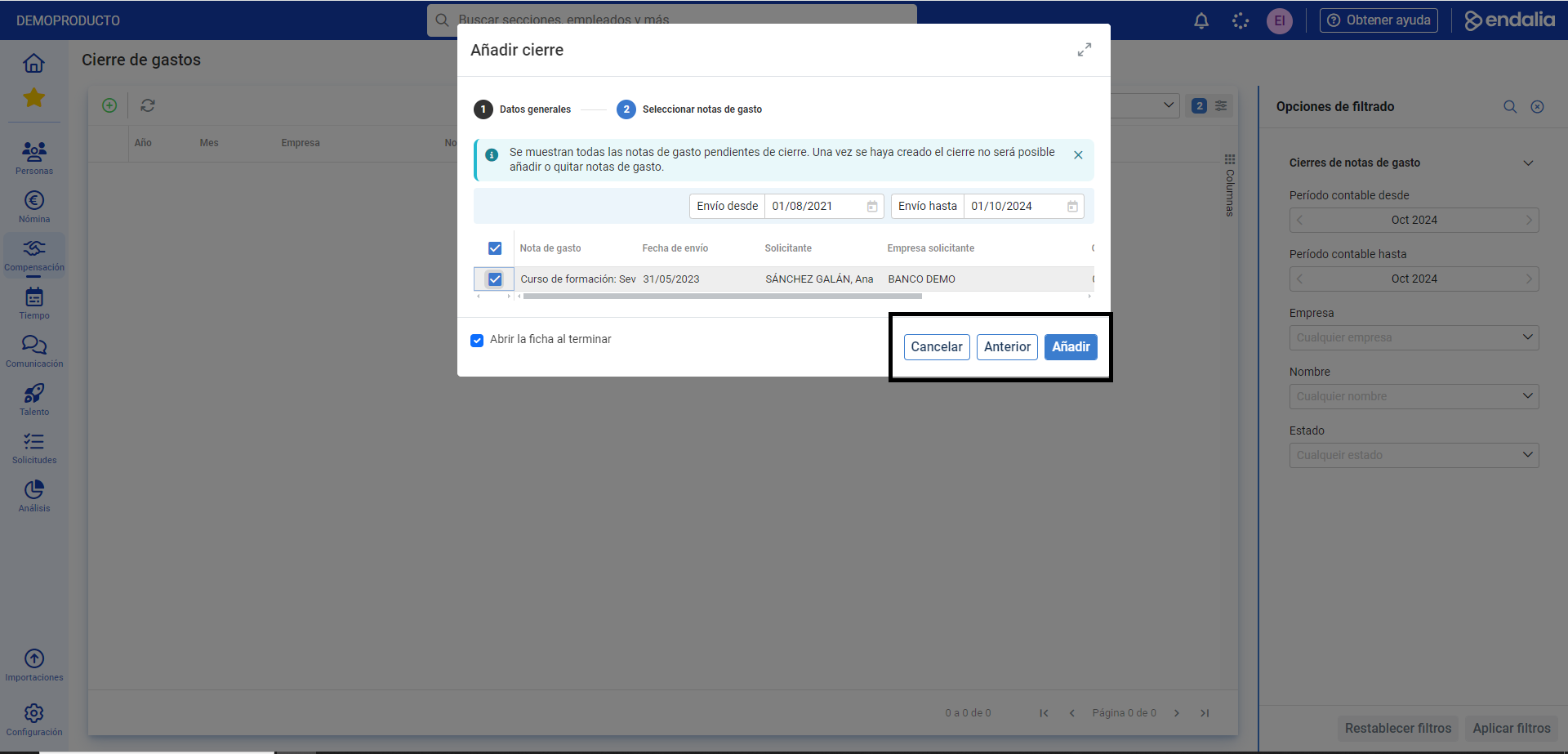
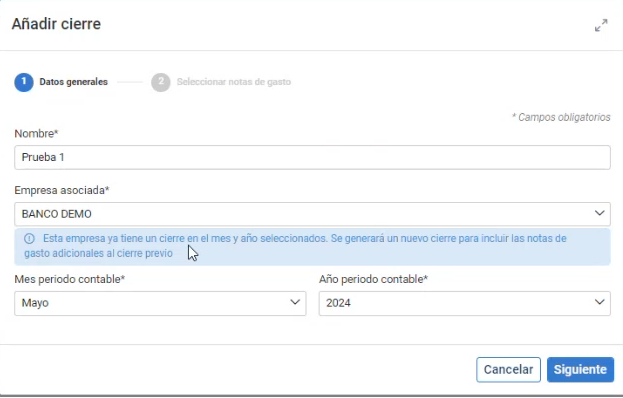
- In the presented modal window, Add closure, two steps are shown. In the first, General Data, you must fill in all fields (*) mandatorily; in the second, Select expense notes, the pending expense notes for closure are shown. Remember that once the closure is created, it's not possible to add or remove expense notes. Next, click Add to generate the closure:
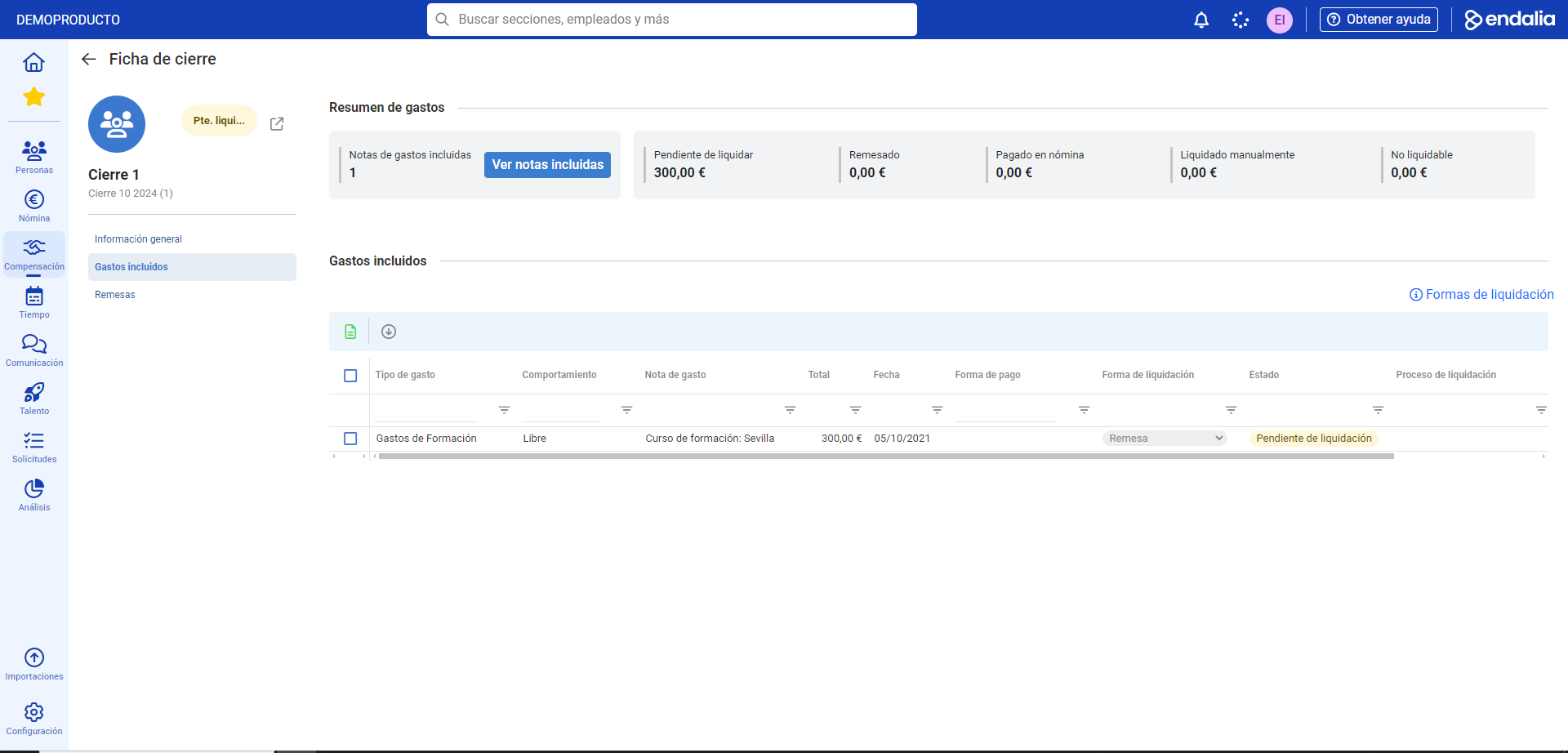
- In the closure sheet, you have three menus. In General Information, you can modify Name and State; in Included Expenses, a summary of expenses associated with the closure is offered, in addition to the possibility of create a remittance (within the menu of the same name, click on the toolbar icon Settle expenses > Create remittance) and, at the third level, you can consult the remittances linked to the closure. Always remember to press the Save changes (see in video) button to properly finalize the closure:
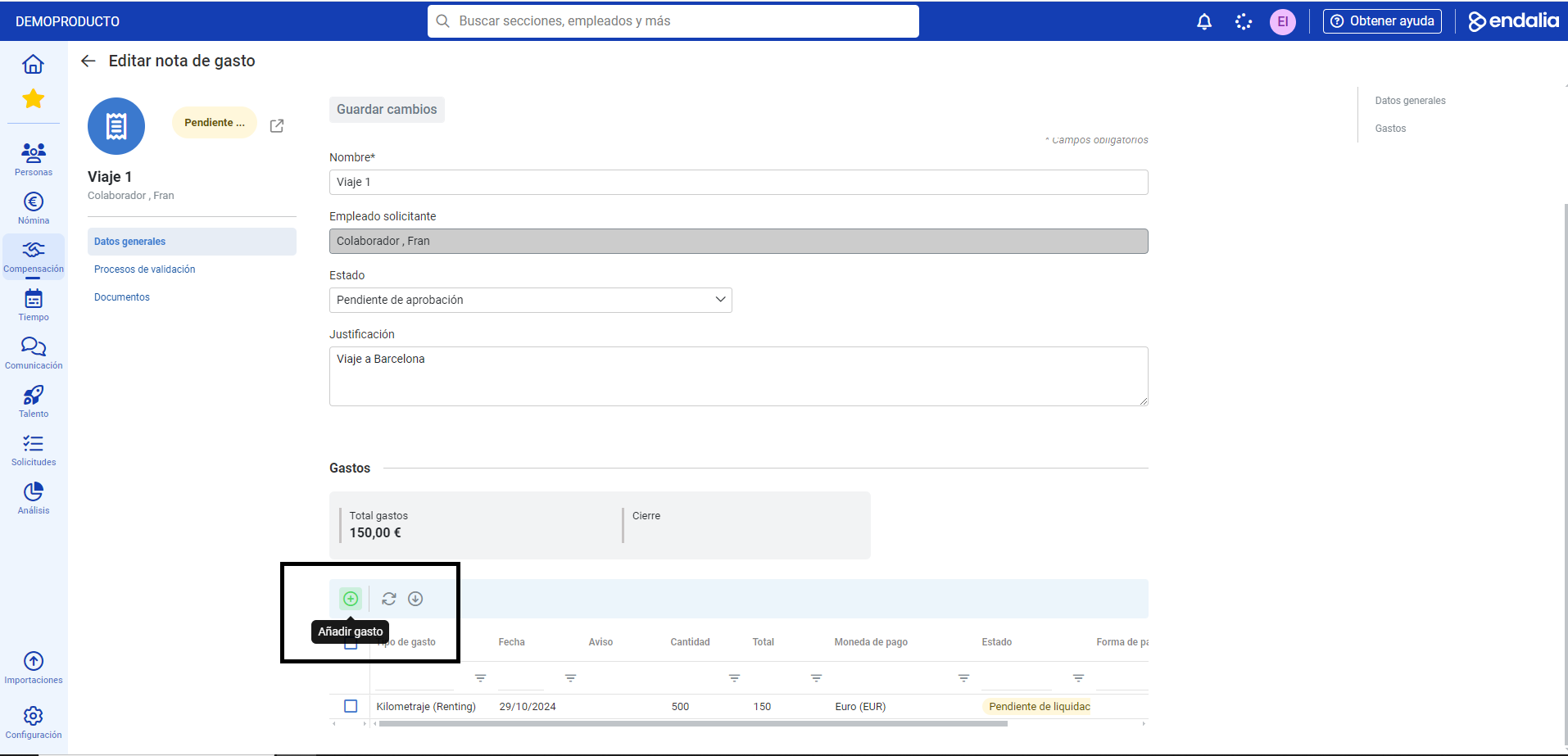
To add expenses to a note, you must follow these steps:
In the expense note, in the Expenses section, click the Add expense button found in the section's toolbar. The active options will correspond to the previously associated expense types in the category for this expense note (free, diet, and mileage). Fill out the corresponding fields and, finally, do not forget to click Add to register your preferences.
Note: Alternatively, you can create multiple expense closures for the same company by month and year. For this, on the main screen, Expense closure, click the Add button in the toolbar. In the two-step process presented in the next modal window, first complete the general data; then add the expense notes and click on Add again. The system will return you to the main screen, where all expense closures are located.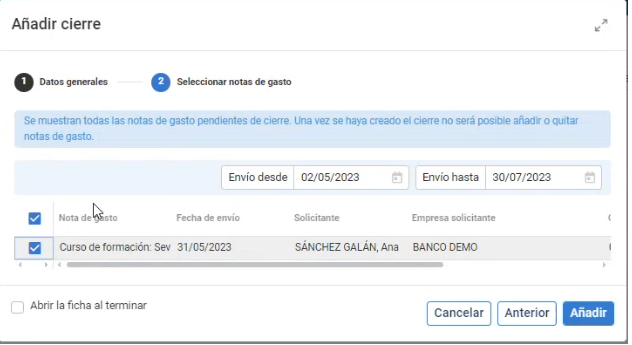
Video of the process
These functions are explained in this brief informative segment:
We remind you that the following related articles are available to you:
- Create/Delete an approval flow
- Add/Delete type of expense - free, diet, and mileage
- Create/Delete an expense category
- Create an expense note
If you have questions about the terms, feel free to look at our glossary at this link.
Was this article helpful?
That’s Great!
Thank you for your feedback
Sorry! We couldn't be helpful
Thank you for your feedback
Feedback sent
We appreciate your effort and will try to fix the article