Important: this article is aimed at Endalia HR users with an Administrator profile.
Expenses derived from labor activity must be integrated into the employee's account within the pre-set timeframe. Learn how to create a remittance with this short tutorial!
In this article:
Create a remittance
- In the hub Compensation and Benefits, navigate to Expenses > Expense Remittances
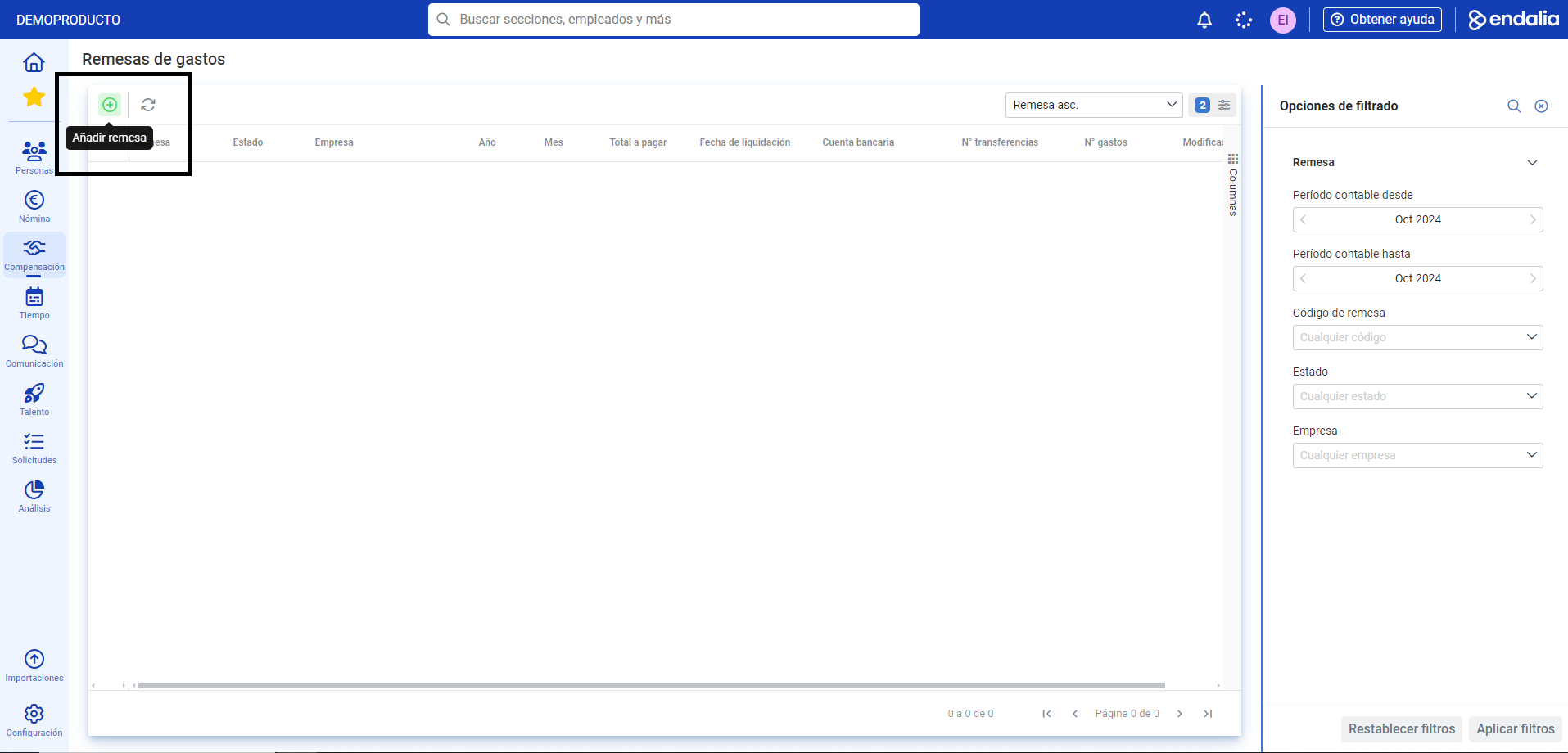
- Next, click the Add remittance button in the toolbar:
 A modal window is presented in 4 simple steps, which are:
- Select closure: to associate the remittance. Remember that only closures containing expenses pending liquidation will be displayed.
- Select expenses: to include the expenses in the remittance; by default, those pending liquidation that are not associated with a remittance are displayed.
- Configure remittance: this step serves to configure the bank account from which payments are made (the employee's account comes directly informed if it is managed in their file), and the liquidation date.
- Summary of expenses
3. Don't forget to click the Generate, button to create the remittance. If you activate the Open file at the end option, you will directly access all its information. Also, remember to click Save changes to make your preferences effective: 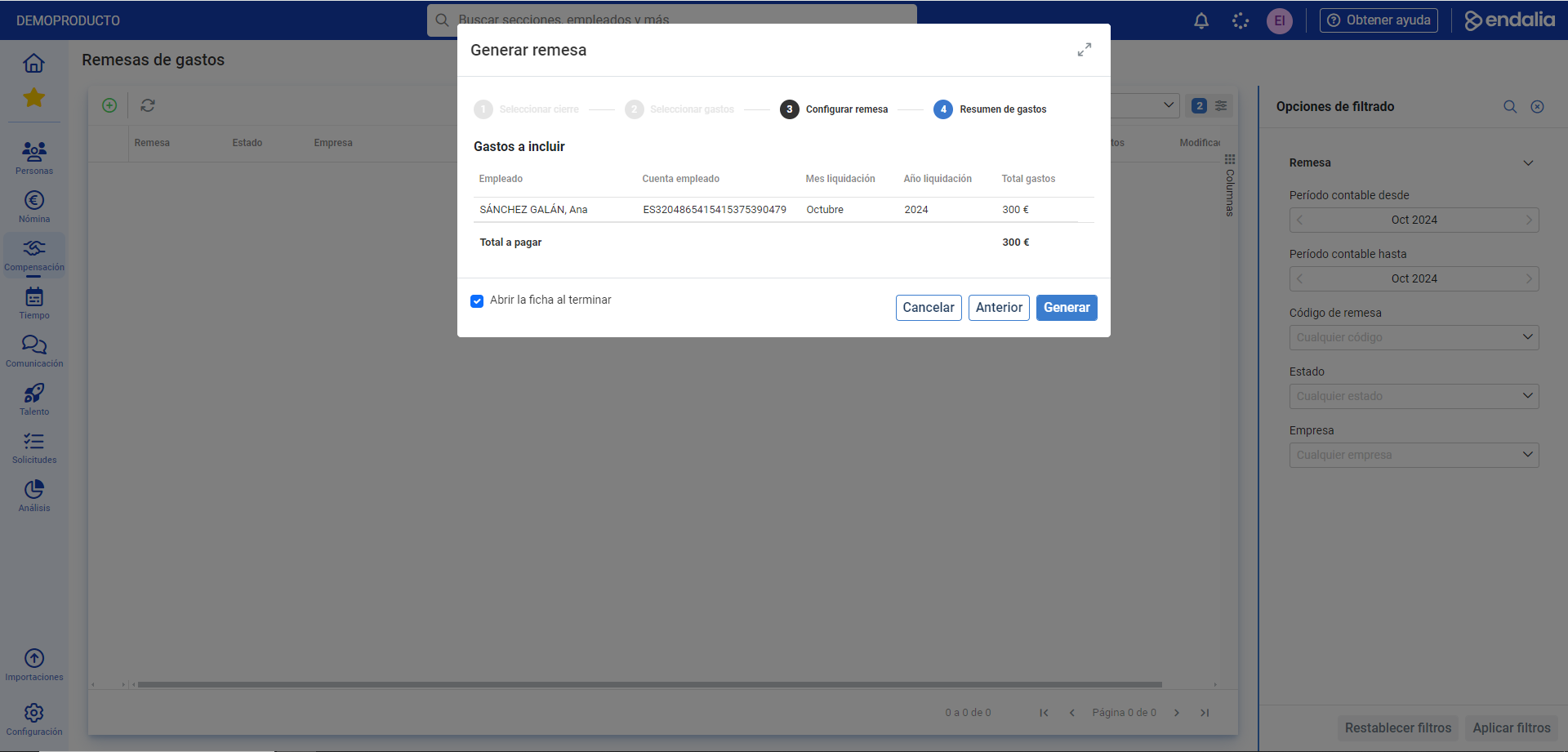
Alternatively, you can generate a remittance from Compensation and Benefits > Expenses > Expense Closure. Double click on the closure of your choice to edit it. On the next screen, go to the Included Expenses menu, then click the Settle expense > Generate remittance button, which can be found in the toolbar.
Want to know more? Check out the following related articles:
- Create/Delete an Expense Category
- Add/Delete Expense Type - Free, Diet, and Mileage
- Create an expense note
- Create an Expense Closure
If you have questions about the terms, take a look at our glossary at this link.
Was this article helpful?
That’s Great!
Thank you for your feedback
Sorry! We couldn't be helpful
Thank you for your feedback
Feedback sent
We appreciate your effort and will try to fix the article