Important: This article is intended for Endalia HR users with a "Collaborator" profile.
Just as they are initiated, all training actions have a completion criterion. Learn to carry them out in the most logical and simple way possible with this mini tutorial that we offer you.
Prerequisites:
- The training action must be in "Completed" status
- Your status as a participant must be "Pending to finalize"
- The administrator must have configured the training action to allow participants to upload their certificates
Steps
Within the hub Talent, go to the module Training > My Training > My Training Actions. Locate the training actions that are in "Pending to finalize" status. 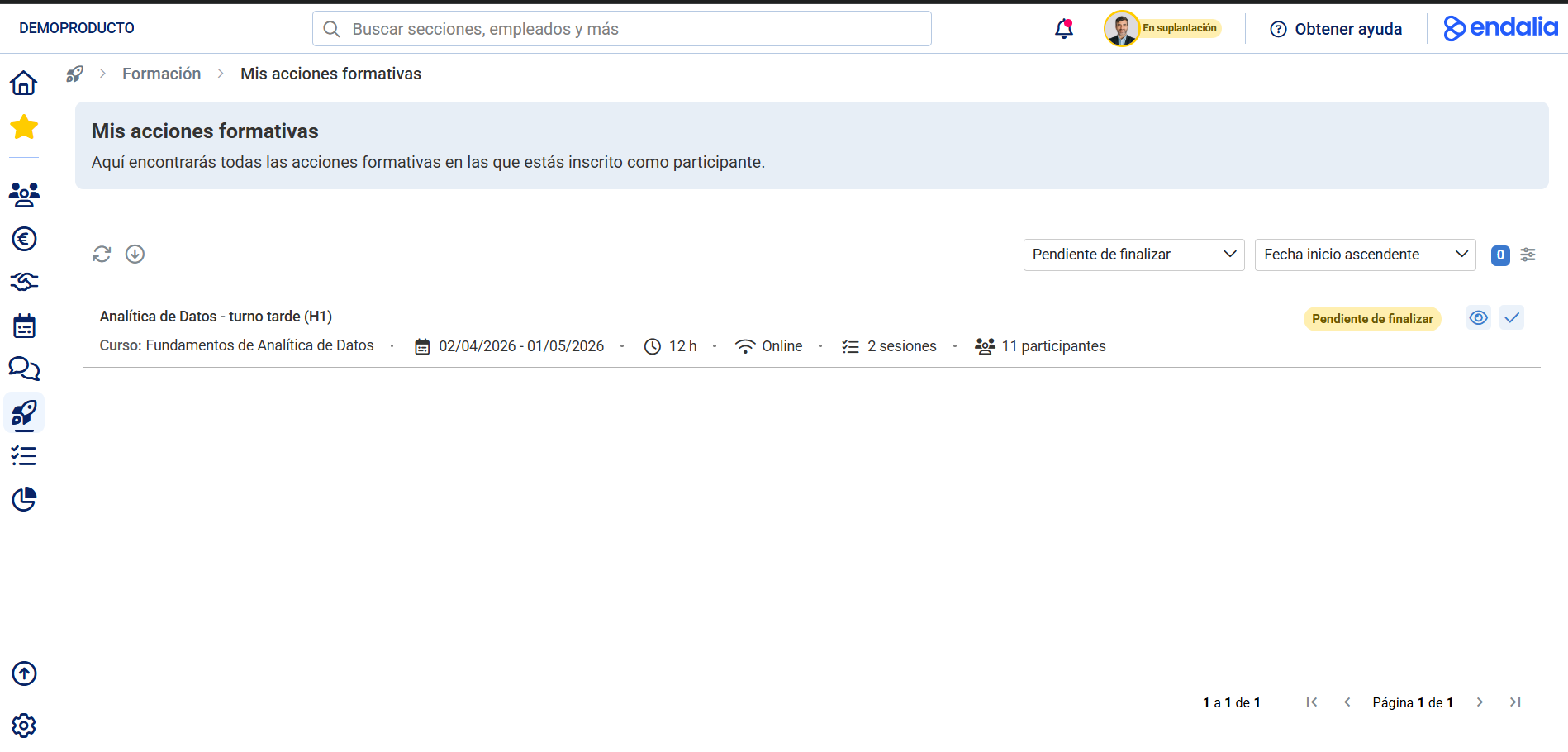
You can finalize your participation in two ways:
- Quick Option: Click on the tick (✓) button directly from the list
- Complete Option: Click on the View icon to access the training action sheet
Option 1 - Quick finalization from the list
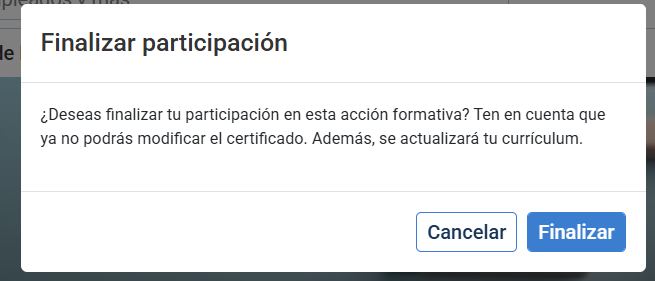
Clicking on the button tick (✓), will open a confirmation modal window. Press "Finalize" to confirm
Important: When finalizing your participation:
You will no longer be able to modify your certificate.
Your curriculum will be automatically updated.
This change cannot be undone.
Option 2: Upload certificate and finalize from the sheet
Within the training action sheet, go to the "Certificates" tab. Click on upload certificate.
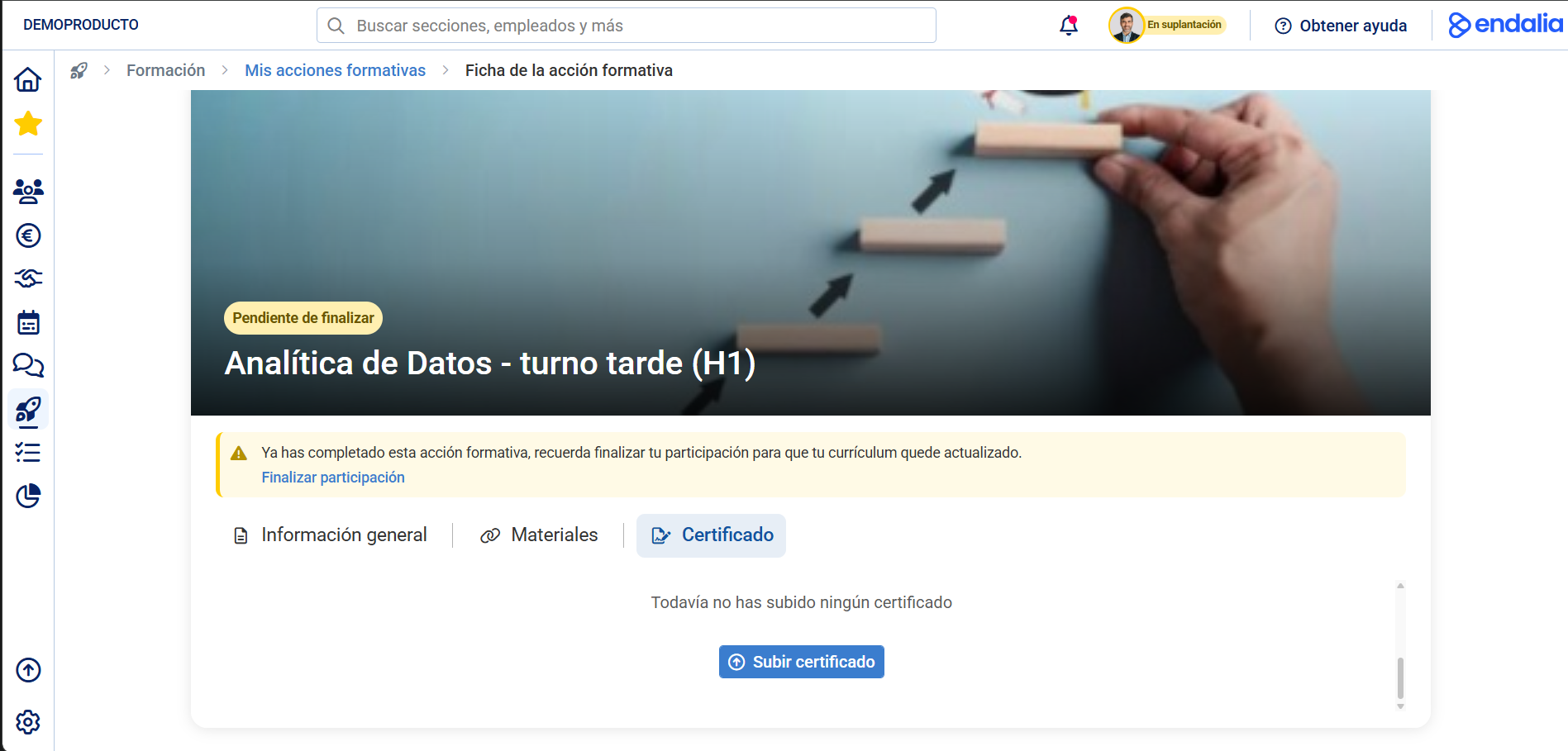
You will access the file explorer, where you must choose the corresponding certificate that proves the completion of your training. The certificate must be in PDF format, with a maximum size of 25MB, it will be uploaded automatically:

Still have questions? Refer to the following related articles:
Additionally, you can view our glossary, available at this link.
Was this article helpful?
That’s Great!
Thank you for your feedback
Sorry! We couldn't be helpful
Thank you for your feedback
Feedback sent
We appreciate your effort and will try to fix the article