Important: this article is aimed at Endalia HR users with a Manager profile.
At times, it becomes necessary to compare employees from different positions and the same period to evaluate them; thus, we provide these notes, so you can quickly and efficiently carry out this task.
In this article you will find:
Multiple Consolidation
- Within the hub Performance and Talent, follow this route: Development > Employee Development > Profile Consolidation
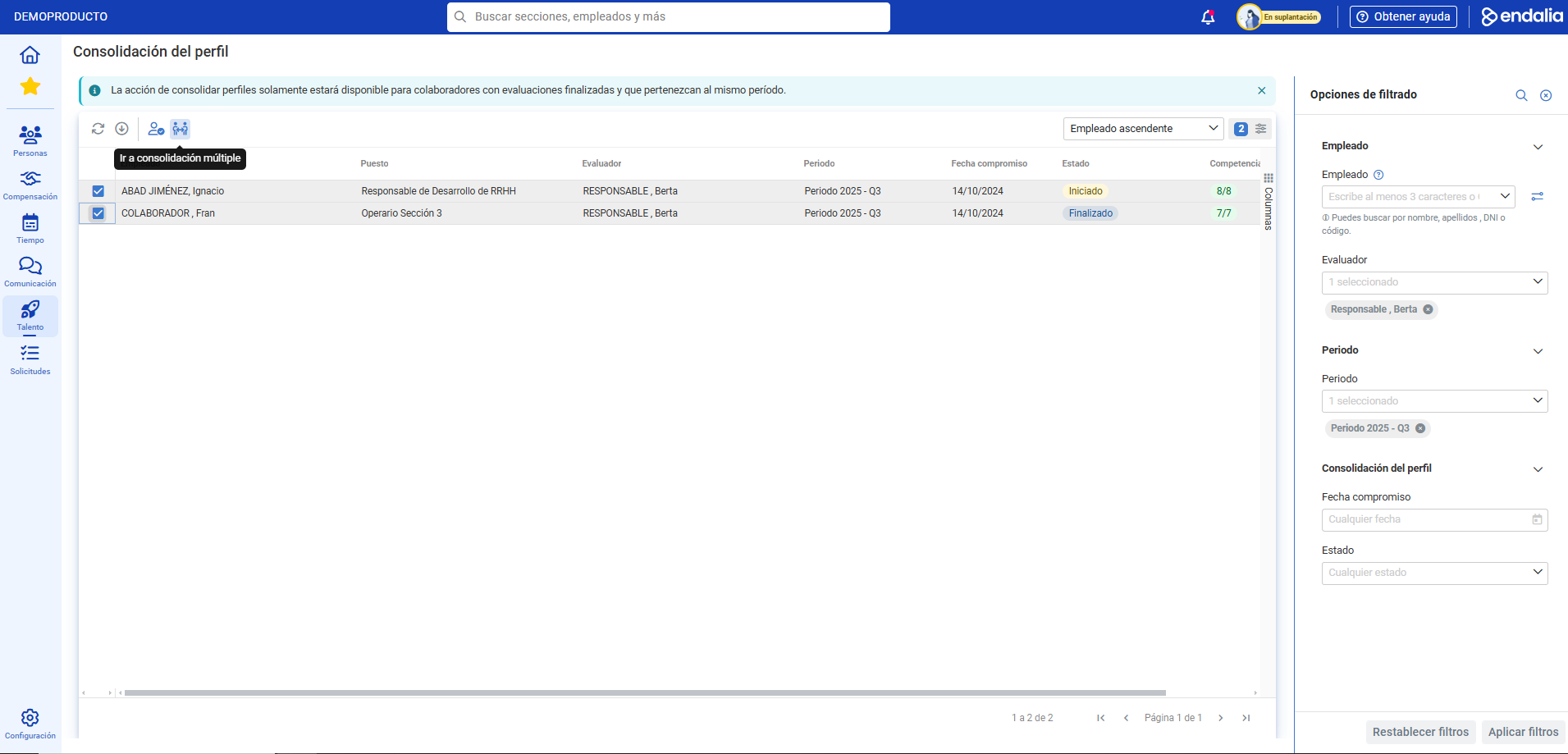
- Now, you can see a list of collaborators. Select those you wish to use the provided checkboxes and click on the Go to Multiple Consolidation button, which you will find on the toolbar:
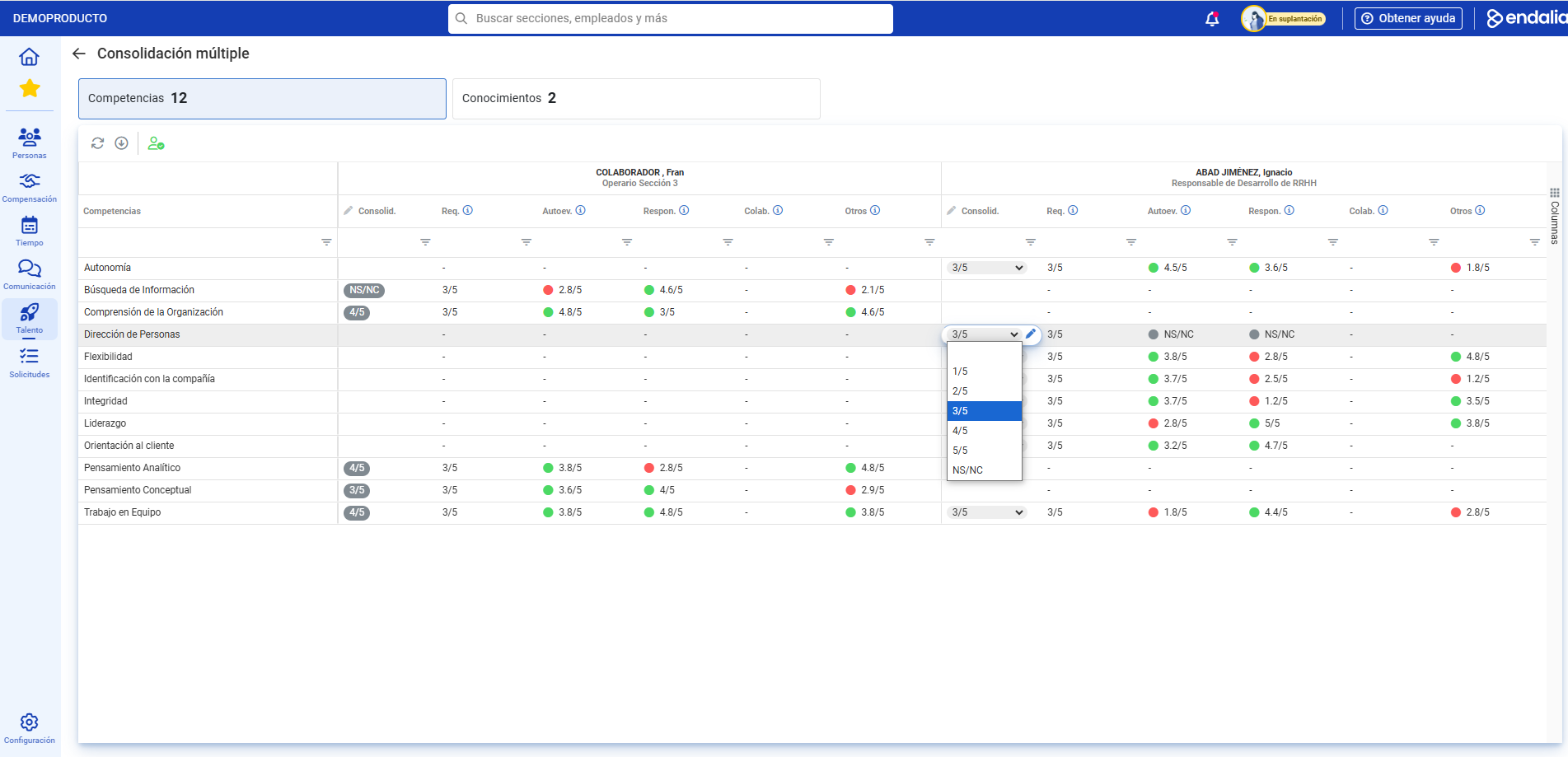
- On the screen that follows, you first have two tabs with what you can evaluate (Skills and Knowledge). Then, a matrix where you can see, from top to bottom and left to right, the name of the employees to consolidate, with their current position, list of skills to evaluate, the consolidated value (what you can modify), the matrix's entry needed for the position (Req.), the value the employee has added in their self-assessment (Self-assess.), and the manager's note (Resp.). All this will allow you to see how your employees are placed in relation to the skills required for a specific position. Consolidate all fields for each employee that the system allows you to edit (they have a pencil icon) before moving on to the next step:
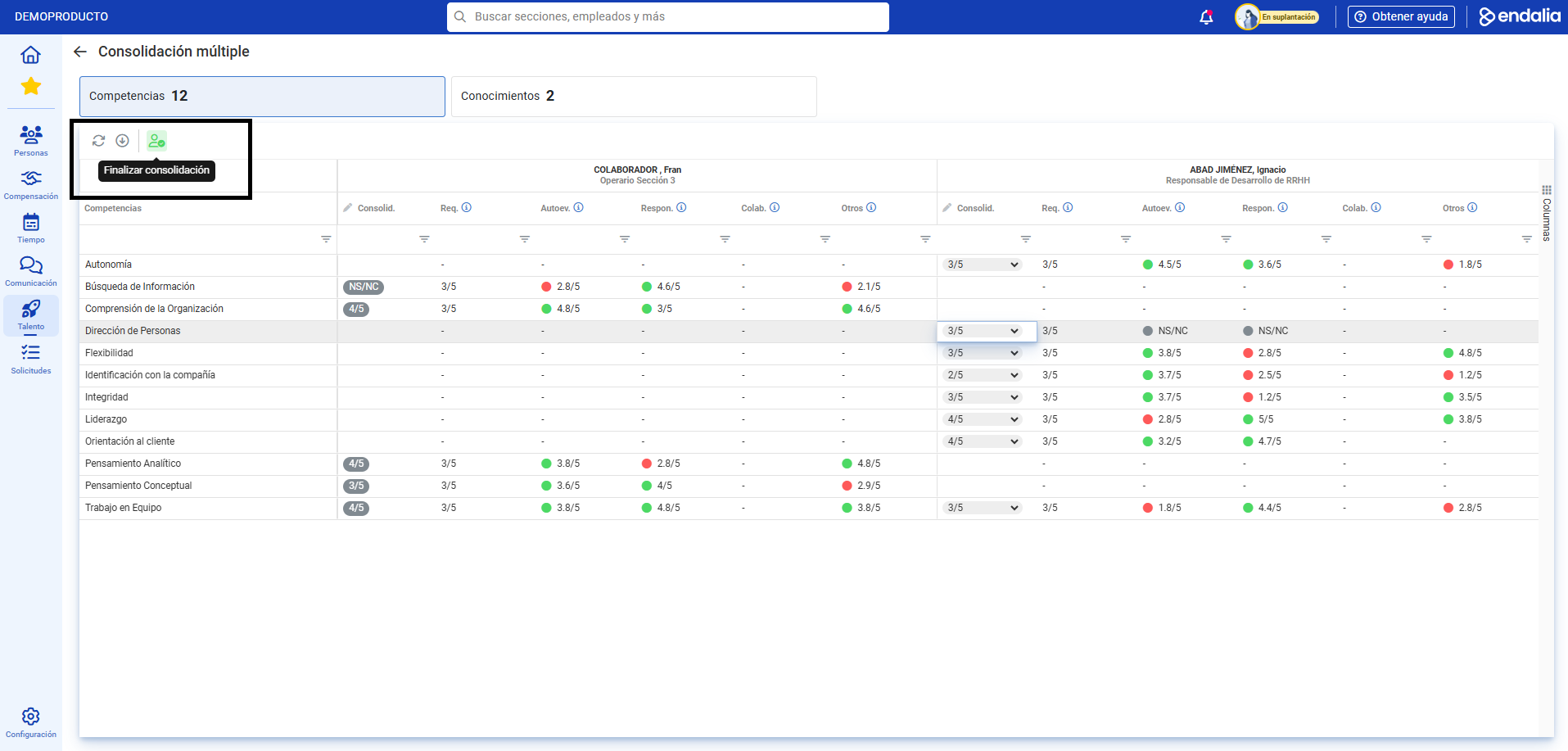
- Now, it's time for Finalize Consolidation, an action you will find again on the toolbar. In the modal window that appears next, the assistant will help you select the employees on whom you can perform this action. This happens because when comparing multiple collaborators, one or more may already have their profile consolidated, so this task can no longer be performed. Click on the button enabled for this purpose (again, Finalize Consolidation), to finalize your preferences and close this task:
Note: If some cells appear with dashes (-), it means they are not part of the employee's skills. Therefore, they will remain unevaluated.
Process Video
Questions? You may find this article of interest:
Additionally, there is a glossary of useful terms available. To access, simply click on this link.
Was this article helpful?
That’s Great!
Thank you for your feedback
Sorry! We couldn't be helpful
Thank you for your feedback
Feedback sent
We appreciate your effort and will try to fix the article