Important: this article is intended for Endalia HR users with the Collaborator profile.
It consolidates pending actions, tracking of active training, and available courses on a single screen, without the need to navigate between different sections.
What is the My Training dashboard?
When you access Talent > Training > My Training from the side menu, the dashboard is the first screen you see. It brings together in one view everything you need to know about your training: pending tasks, annual progress, ongoing actions, and recommended courses.
It brings together in one view everything you need to know about your training:
- pending tasks
- annual progress
- ongoing actions
- recommended courses
 Pending tasks
The Pending Tasks section shows you the tasks you need to complete your participation in training activities.
- They appear automatically when there is an action required on your part.
- They disappear automatically when you complete the corresponding action.
Pending questionnaire.
Grouped with a counter shown (e.g. "2 pending questionnaires"). By clicking, you go to My questionnaires with the filters for type Evaluation and status Not started or Started already applied.
Pending certificate.
Appears individually for each training action where you need to upload your certificate. By clicking, you go directly to the Certificates tab of that training action.
This notice appears when you are in Pending completion status, the training action requires certificate upload by participant, and you have not yet uploaded it.
Note: notices disappear automatically when you complete the corresponding action.
Annual summary
Shows an overview of your training activity for the current year. The calculation is based on the overlap of each training action with the calendar year, not the enrollment date.
You will see four metrics. By clicking on each one, you will access the corresponding list of training actions:
- Enrolled. Participations in Enrolled status, not counting those about to start.
- Upcoming. Enrolled actions with a start date in 3 days or less.
- In progress. Participations in Started, In progress, or Pending completion status.
- Completed. Participations in Completed status.
The percentage of completed is calculated as: completed divided by the total number of participations for the year.
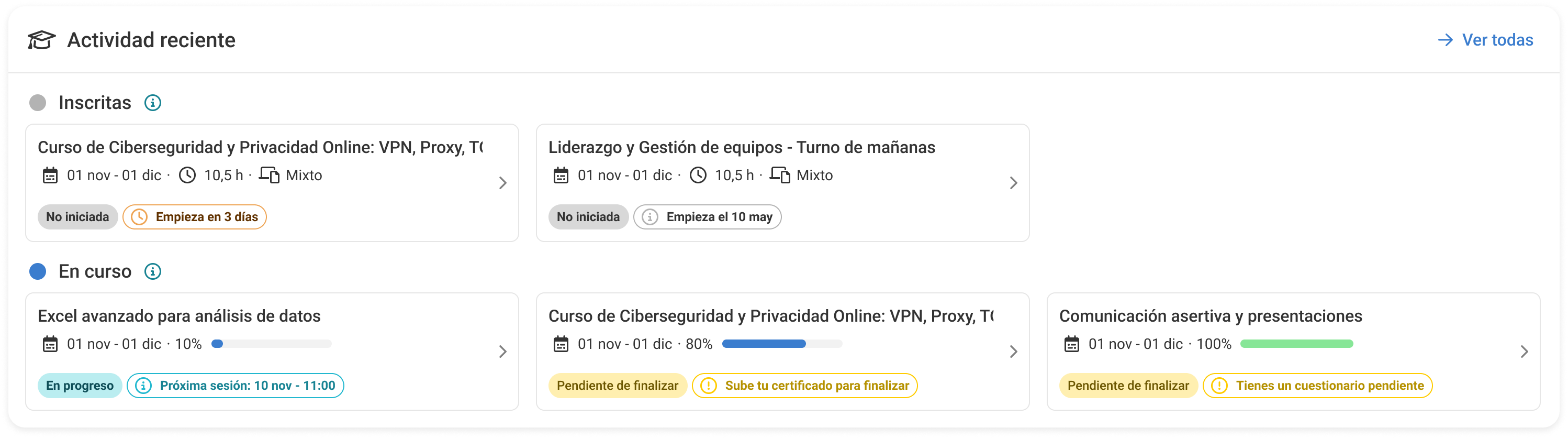
Recent activity
Shows your active training actions organized by status. The same time filter as the annual summary is applied. "See all →" redirects you to My training actions with the preselected filter. A maximum of 3 cards are shown per row.
Enrolled
Actions in Not started status, ordered by proximity to the start date.
- If the start date is in 3 days or less: orange badge with "Starts in X days".
- If the start date is in more than 3 days: text "Starts on dd/mm/yyyy".
In progress
First appear the actions in In progress status (ordered by next session or, if there is none, by end date), and then those that are Pending completion (first those whose training action is already completed, then those still in progress, by end date proximity).
- If you have a future session: "Next session: [day month] [start time]".
- If there are no sessions and the end date is in 3 days or less: "Ends in X days".
- If there are no sessions and the end date is in more than 3 days: "Ends on dd/mm/yyyy".
- If you are in Pending completion: the prioritized pending action according to the configuration of the training action is displayed. It may be "Upload your certificate", "Confirm your completion", or "Pending validation".
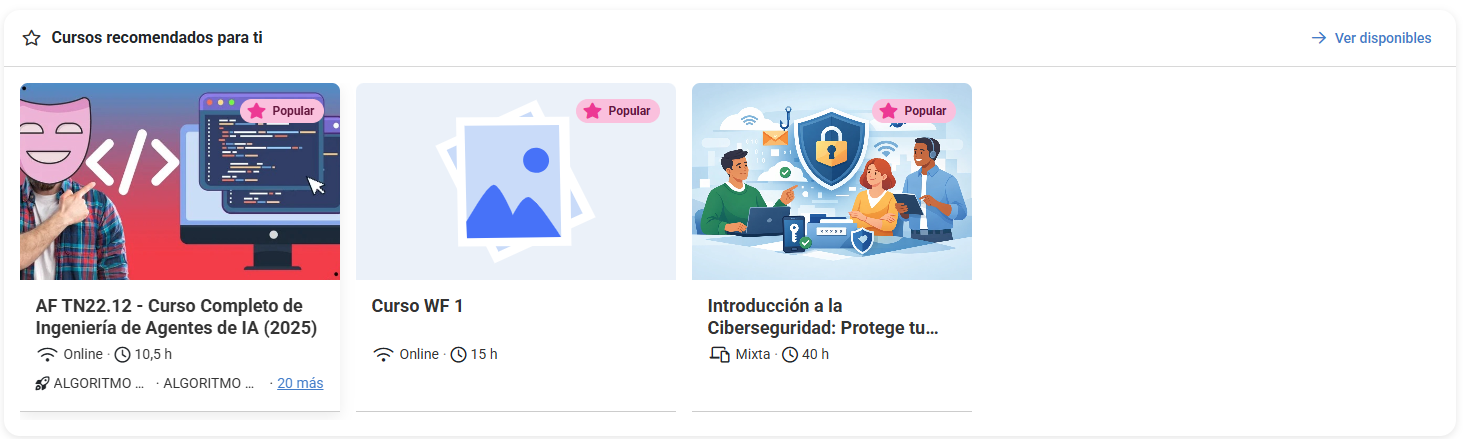
Recommended courses for you
Horizontal scroll with up to 10 courses. Courses in Available status are shown, visible to you, in which you are not already enrolled in any active training action.
The order is: first those marked as Popular (the courses with the highest number of unique participants, excluding dropouts and cancelled actions), and then the rest in alphabetical order.
Note: the "Popular" badge is assigned to the 3 most attended courses that are not part of your active development plan.
Was this article helpful?
That’s Great!
Thank you for your feedback
Sorry! We couldn't be helpful
Thank you for your feedback
Feedback sent
We appreciate your effort and will try to fix the article