Important: this article is intended for Endalia HR users with an Administrator profile.
Temporary employment regulation files (ERTE) are a reality in today's labor market; therefore, it is necessary to learn how to correctly generate and manage them. Here we offer you a practical guide to achieve this.
In this article:
Create and manage ERTEs
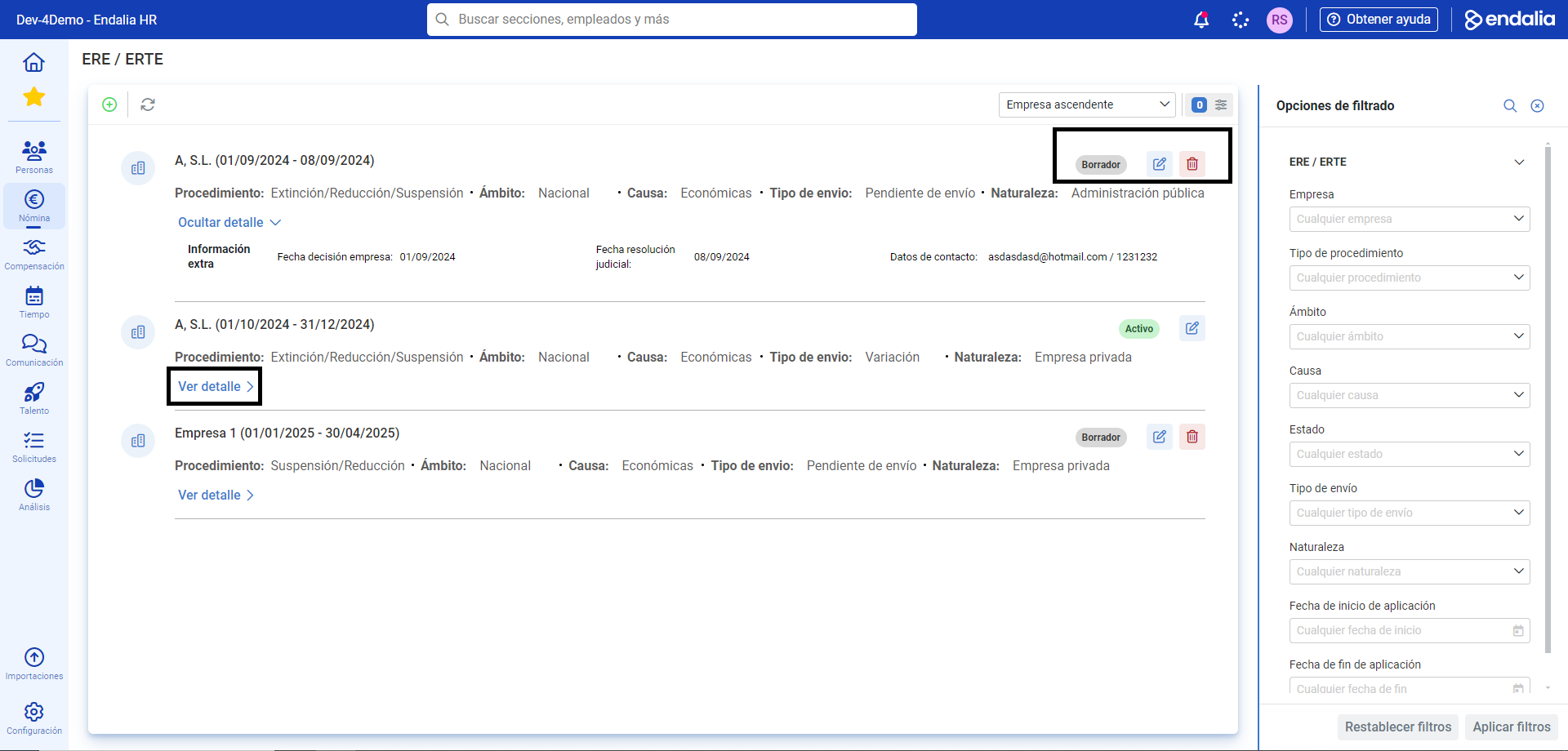
Within the hubPayroll, click on Payroll > ERE/ERTE
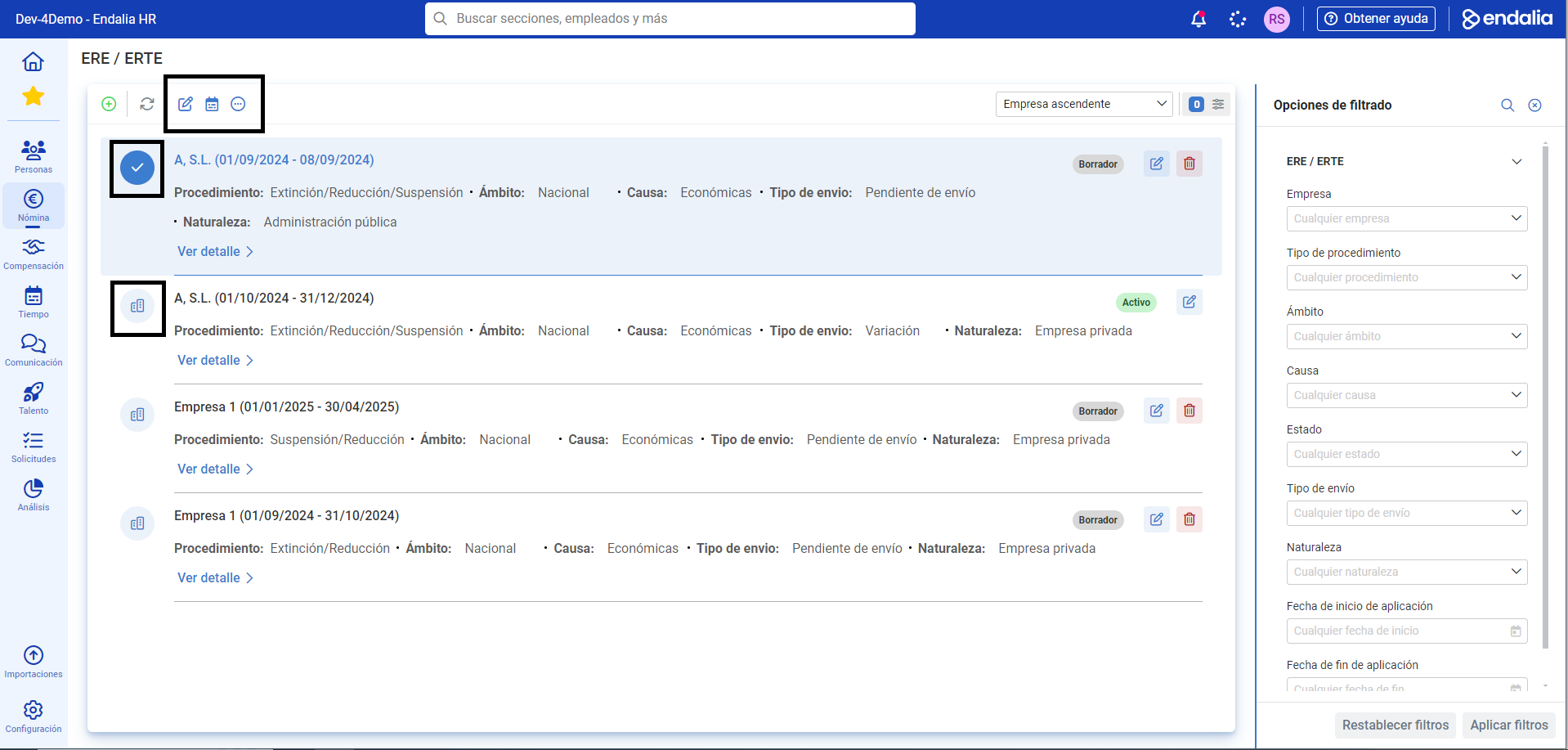
- On this first screen, you have a list of ERTEs already created, as well as various information about them. Use the View details button for additional information, or the buttons on the side of the card to Edit or Delete each of them, depending on the ERTE status (Active, Draft). Finally, if you click the icon to the left of the ERTE name, new actions will appear in the toolbar:
- To create a new ERTE, click the corresponding (+) button located in the toolbar.
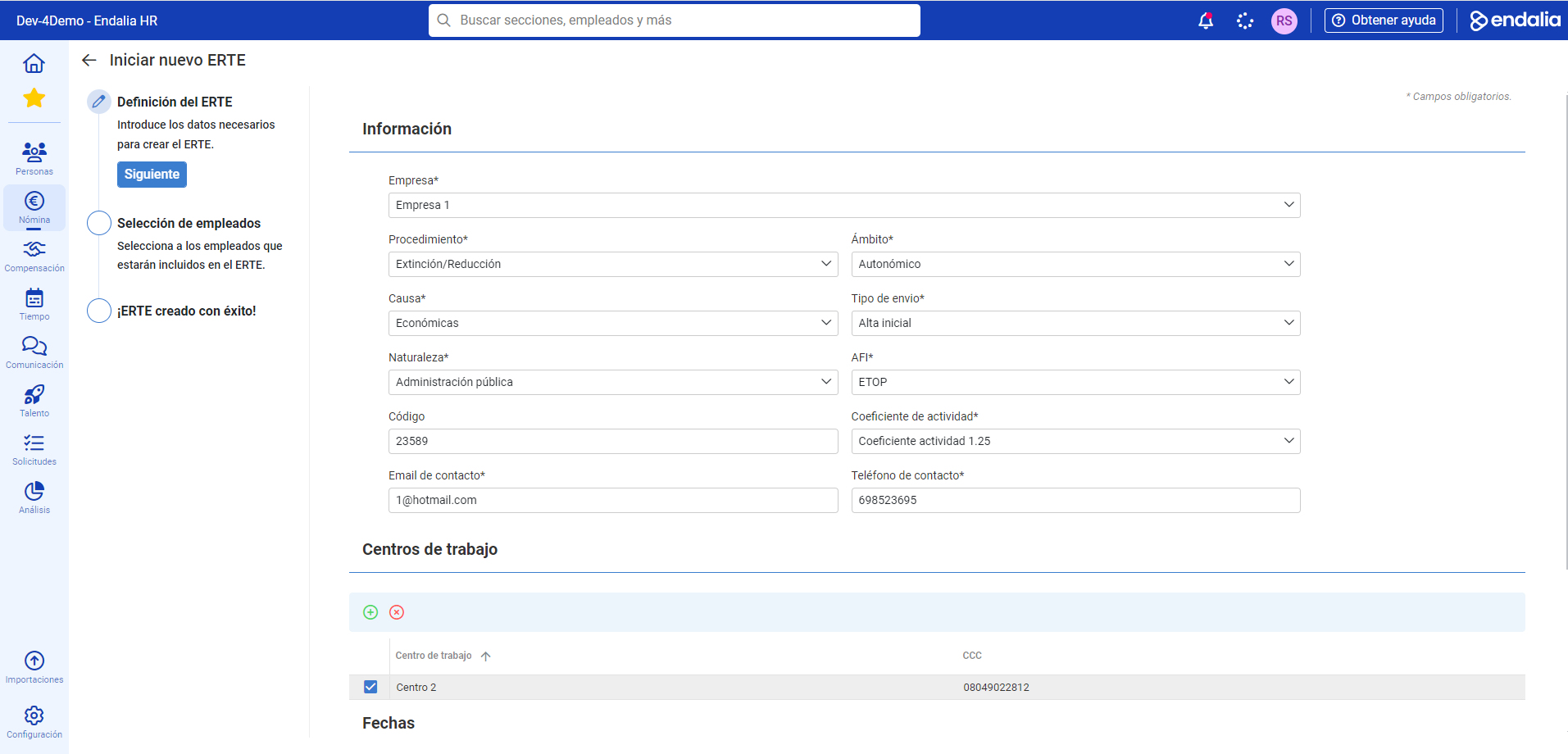
- Now, you have a stepper or tunneled process in three steps. In the first step, fill in at least the mandatory information (*). Remember to complete the work centers, which you can select one by one, before clicking Next
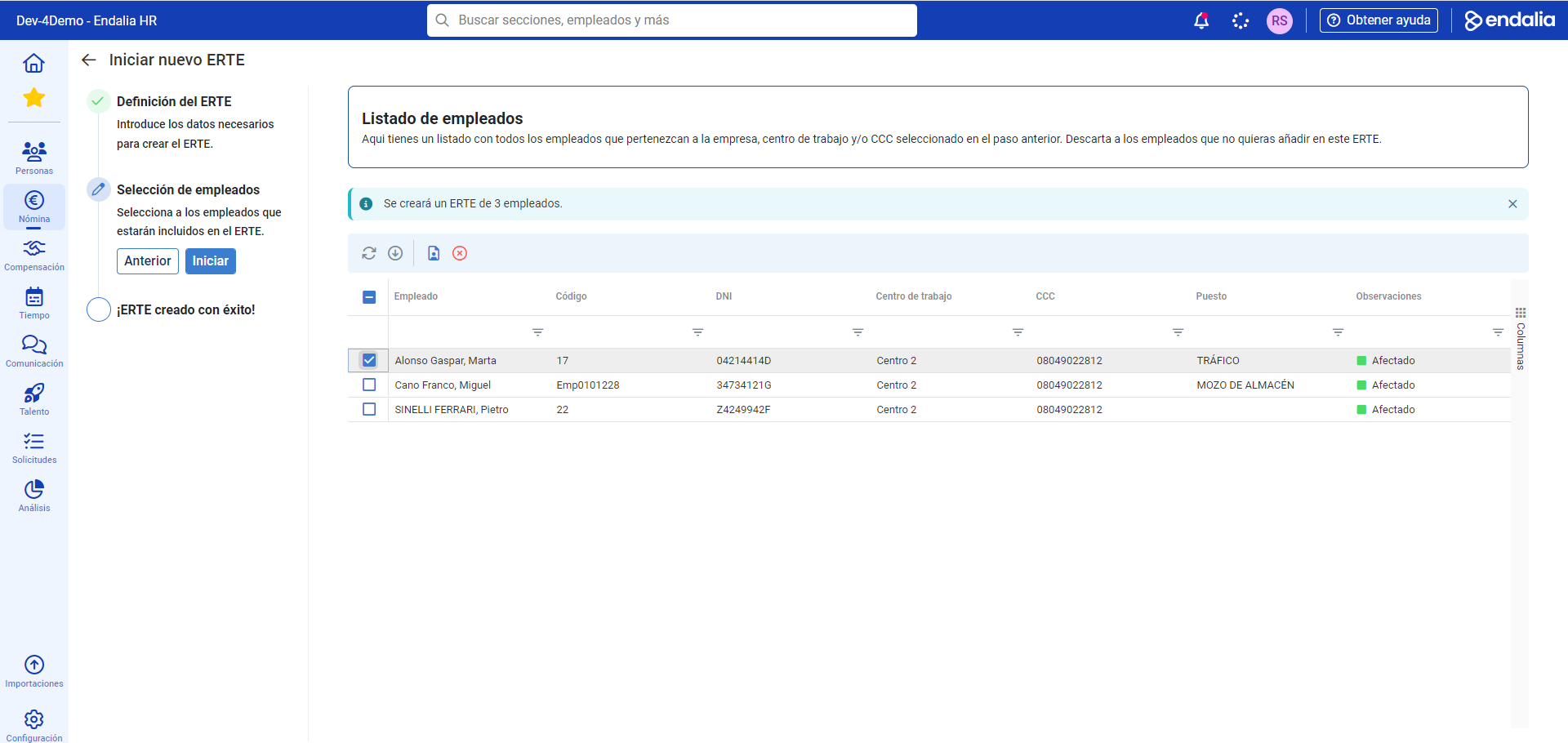
- In the next step, the system suggests a list of employees who, at a certain time and based on the entered data, will be affected by the ERTE within its duration; this means that the list may show employees for whom this file will not apply immediately, but at another time, once the ERTE is activated. Therefore, the system will notify those affected of this condition. Remember that you can use the toolbar buttons to discard employees from the list, view their cards, etc. Click Start to launch the process:
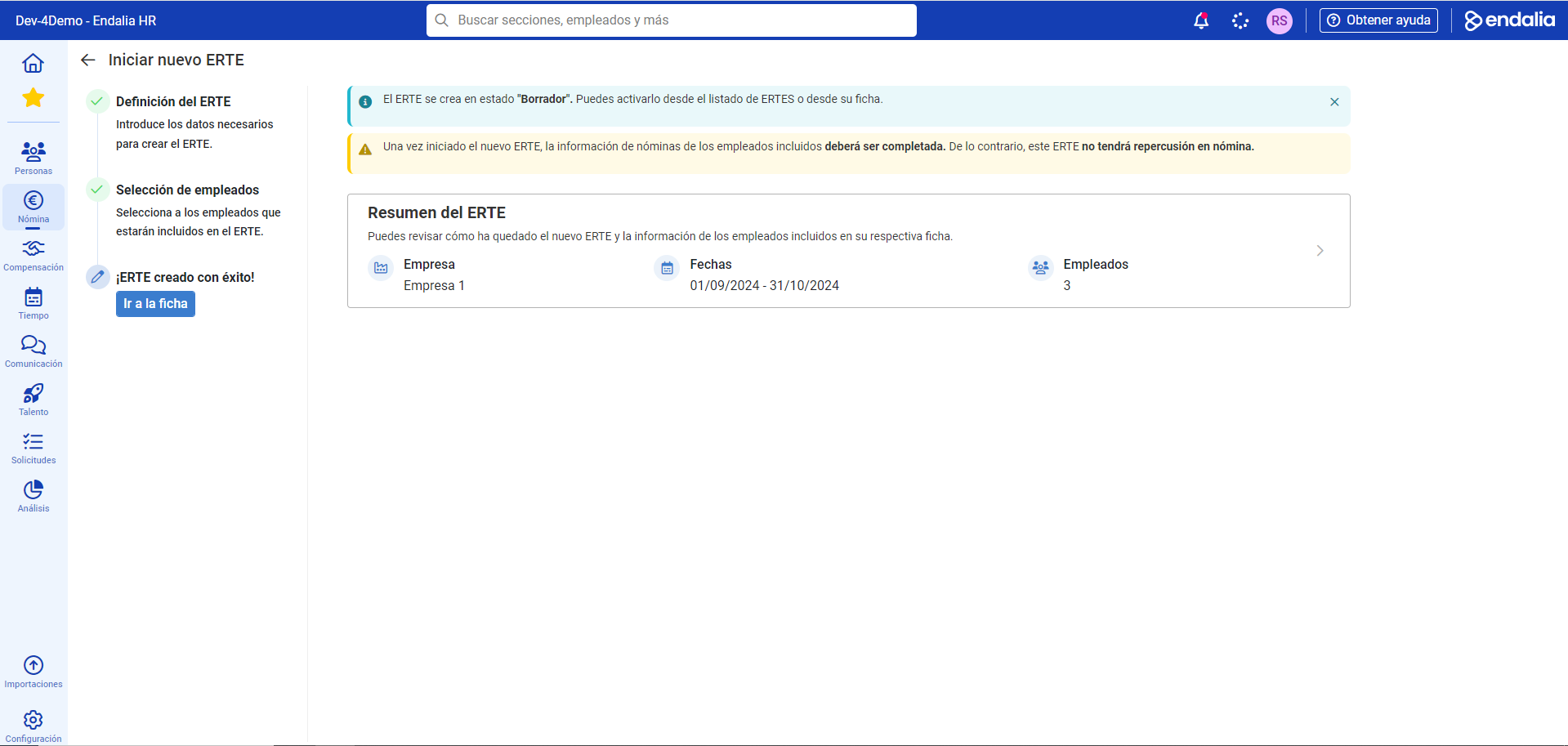
- The system notifies you that the ERTE has been successfully created, in Draft status. To activate it, you can go to the list (step number 2 of this guide) or directly within its corresponding card, through the button of the last step of this process, Go to card:
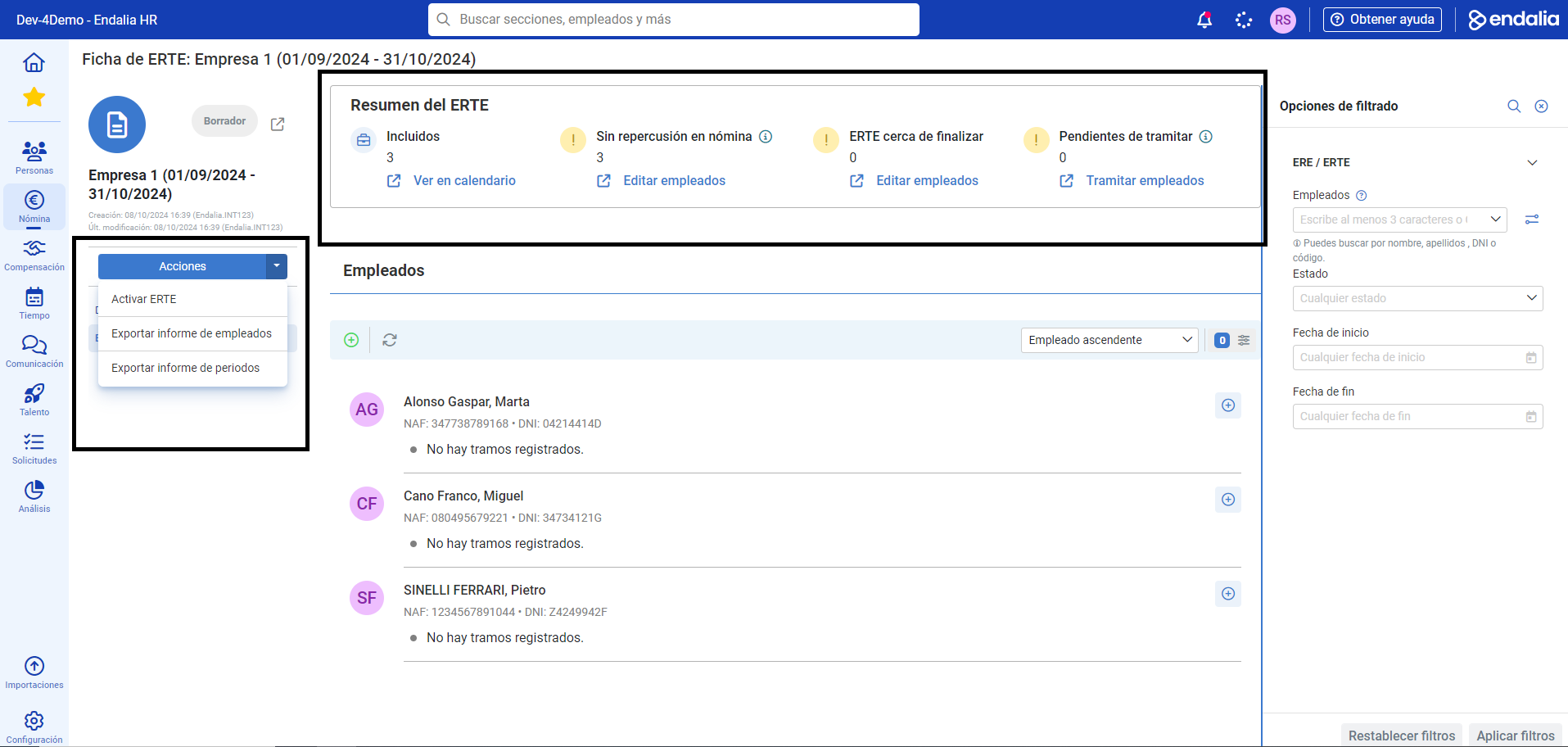
- Once inside it, you have, first of all, a summary of the ERTE, with different buttons such as Edit/Process employees that direct you to the various actions to perform. Similarly, the Actions button, shaded in blue, allows you to activate the ERTE (currently in Draft status) or Download reports, both for employees and for ERTE periods associated with them:
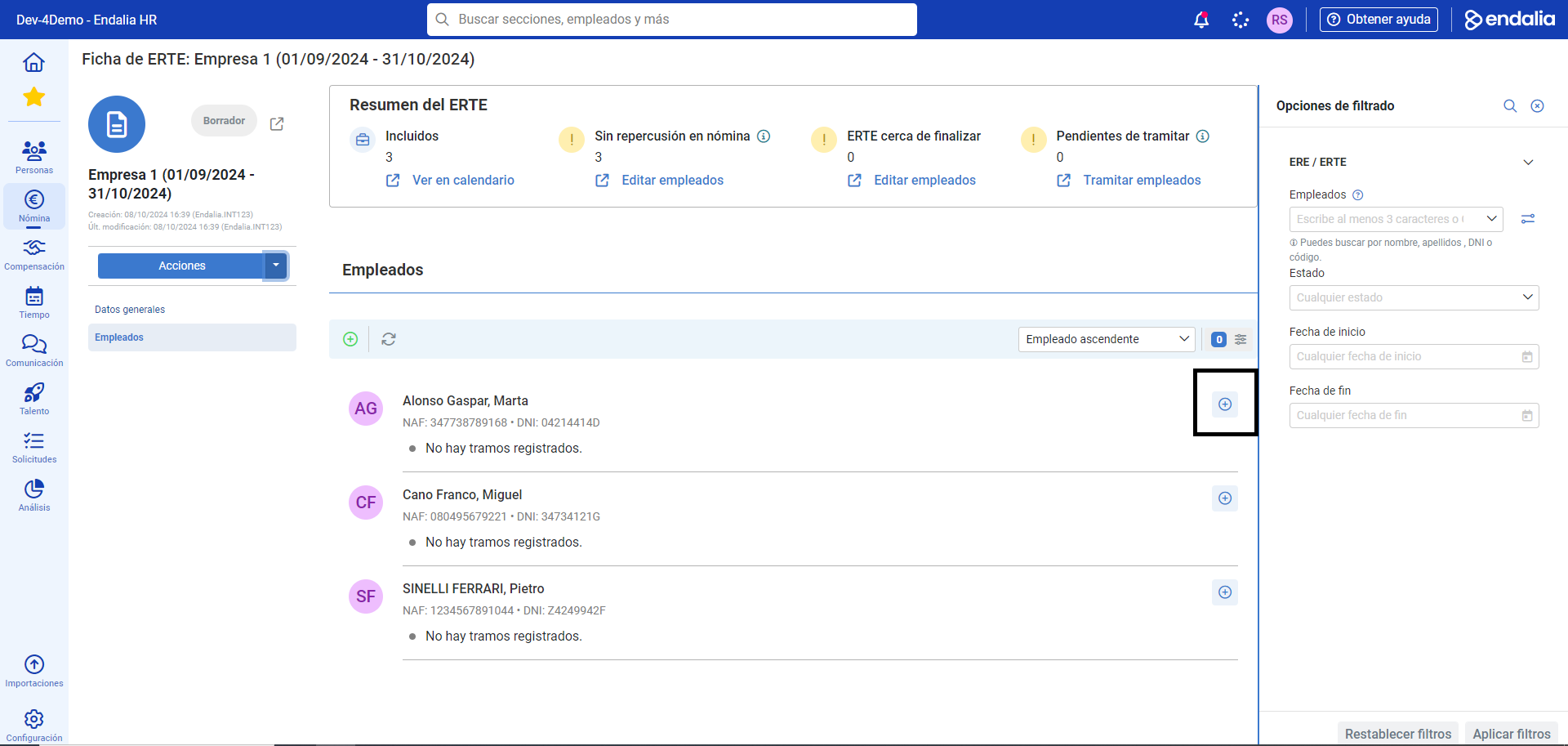
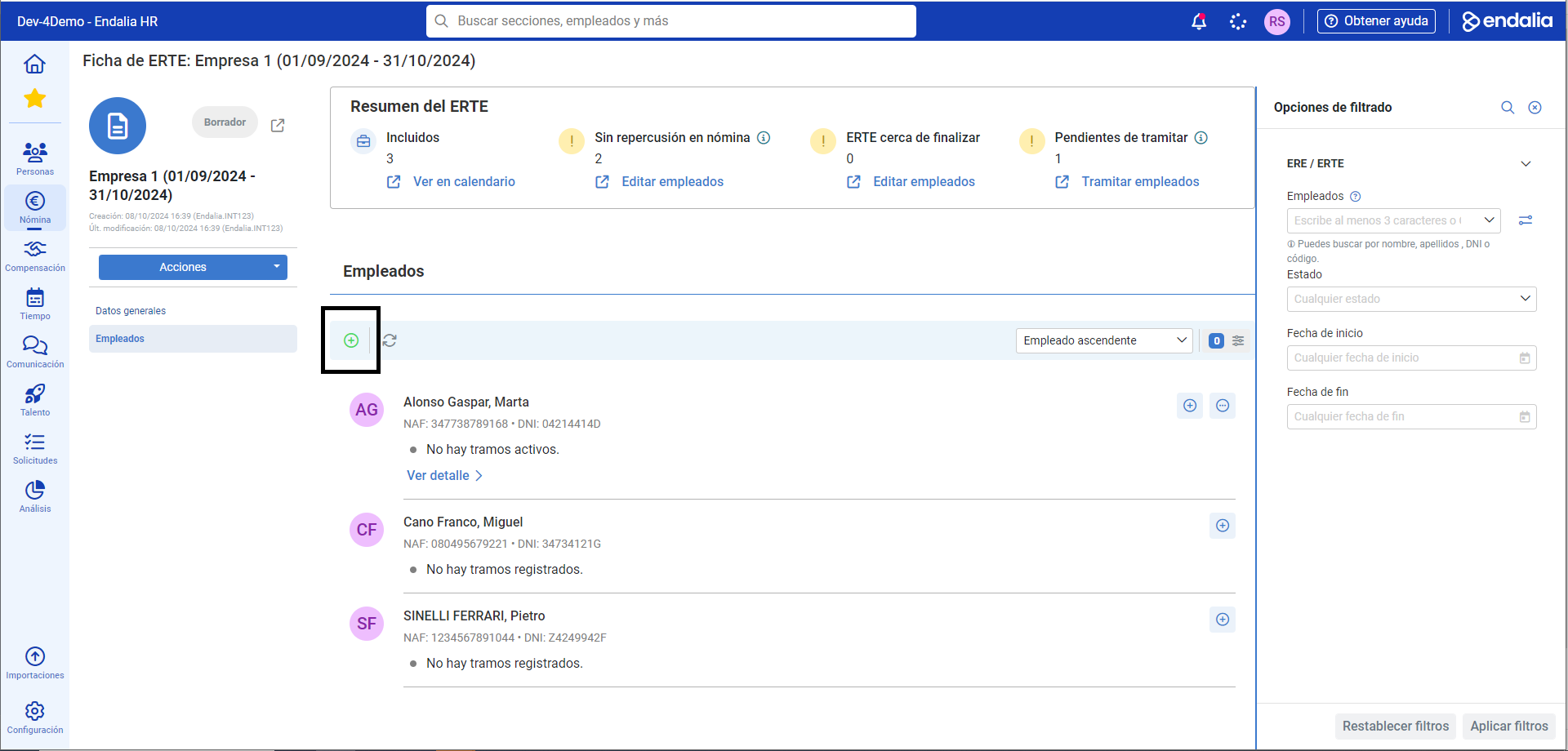
- As for the menu items, the system defaults to showing General data; complete information on the ERTE. In the second item, called Employees, you have a list of workers included in future actions on the file you are in. Now is the time to assign segments, that is, define the actions and time slots to apply to the worker. To do this, go to the Add button, which you will find within the same card:
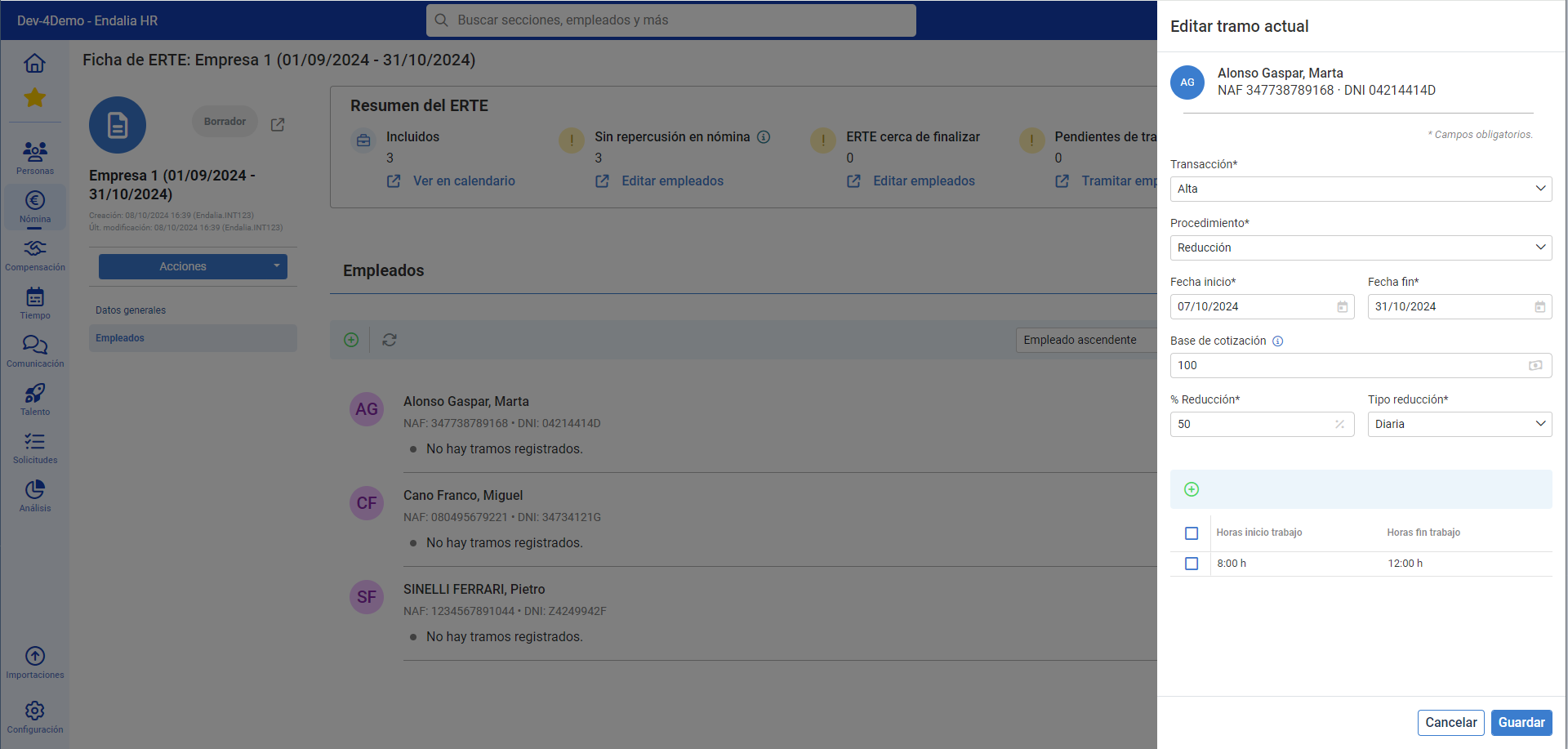
- Once the software presents the side modal window, fill in the mandatory fields (*), as well as any additional information you need and click Save to set your preferences. Remember, if you configure the sections in the future, you can edit them at any time through the employee's card, in the Details section:
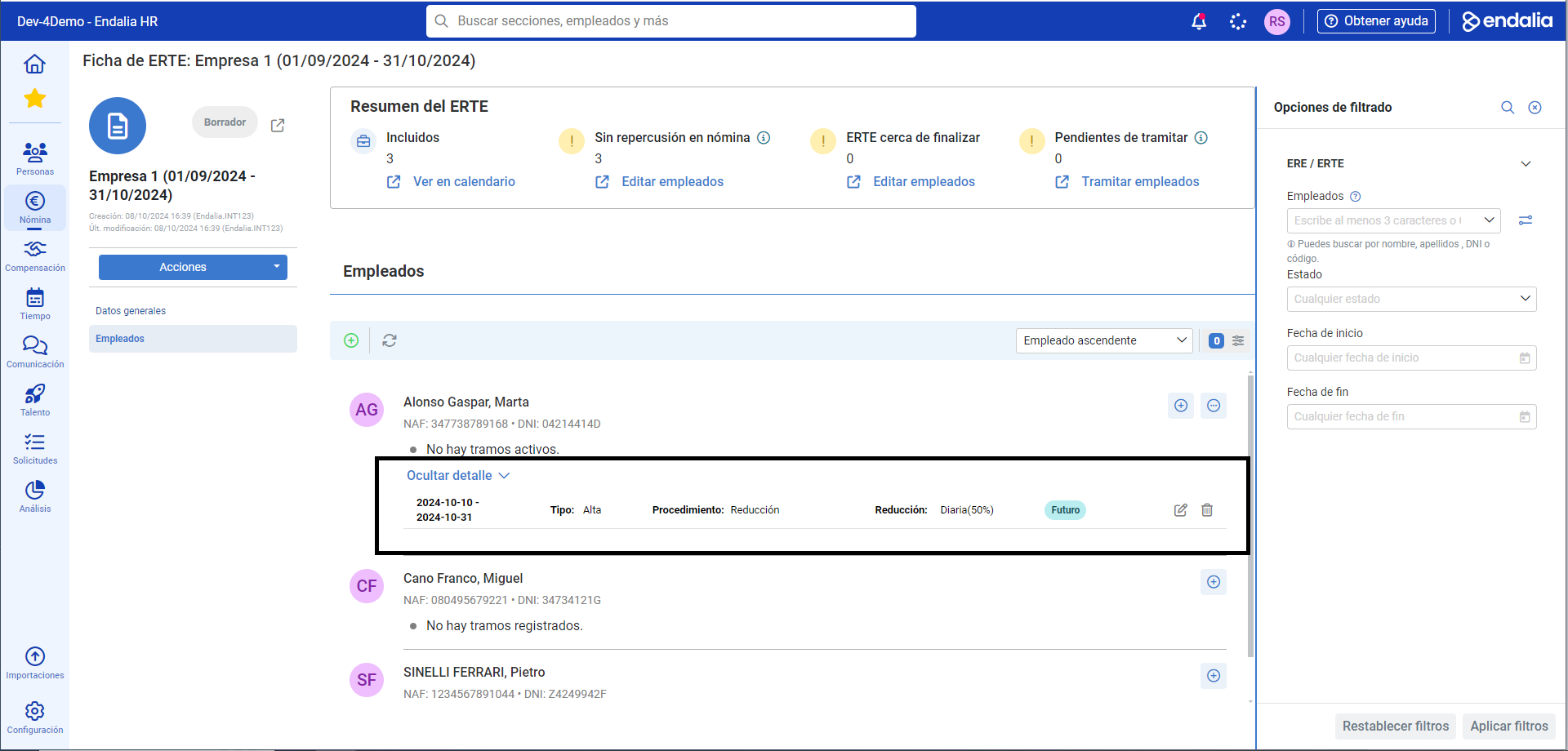
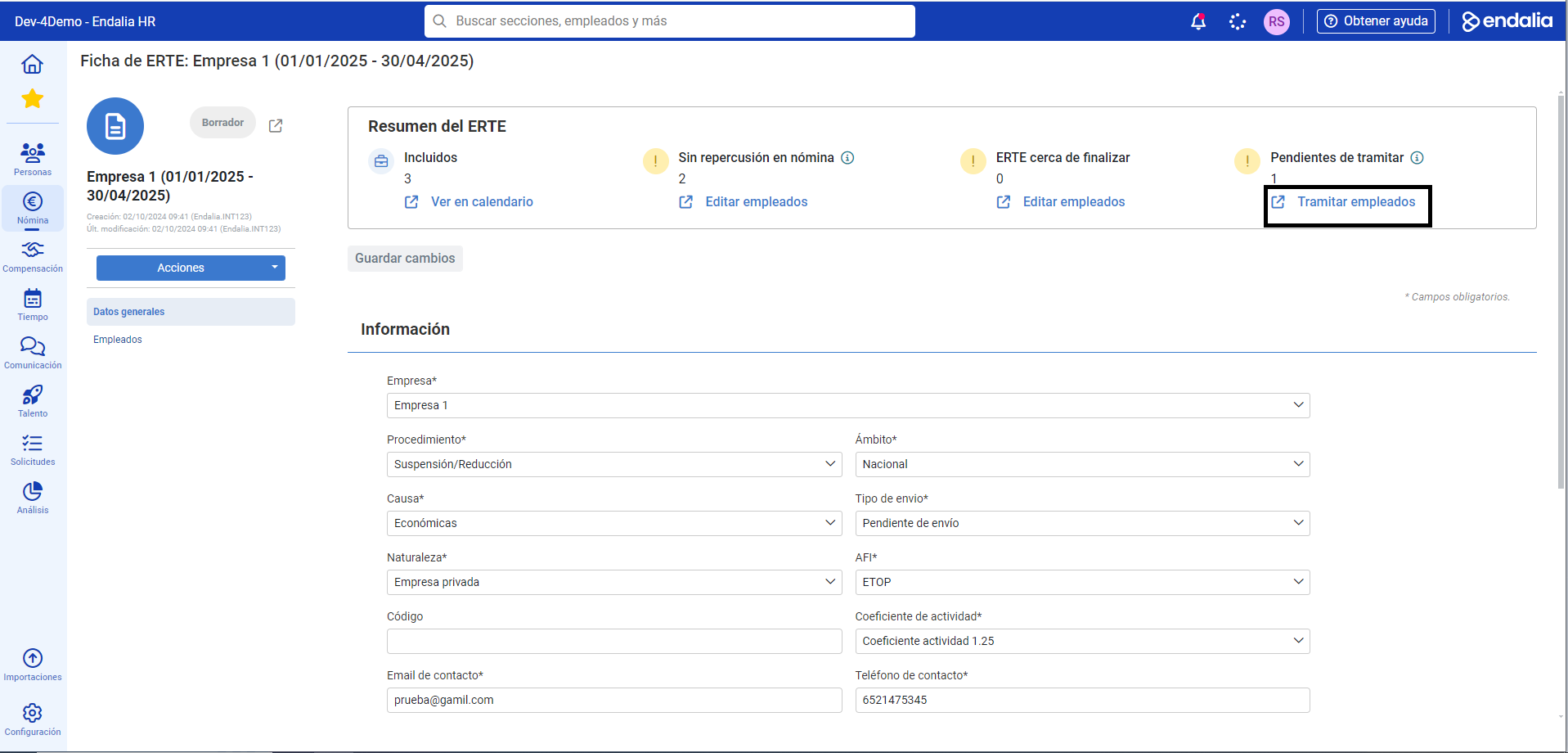
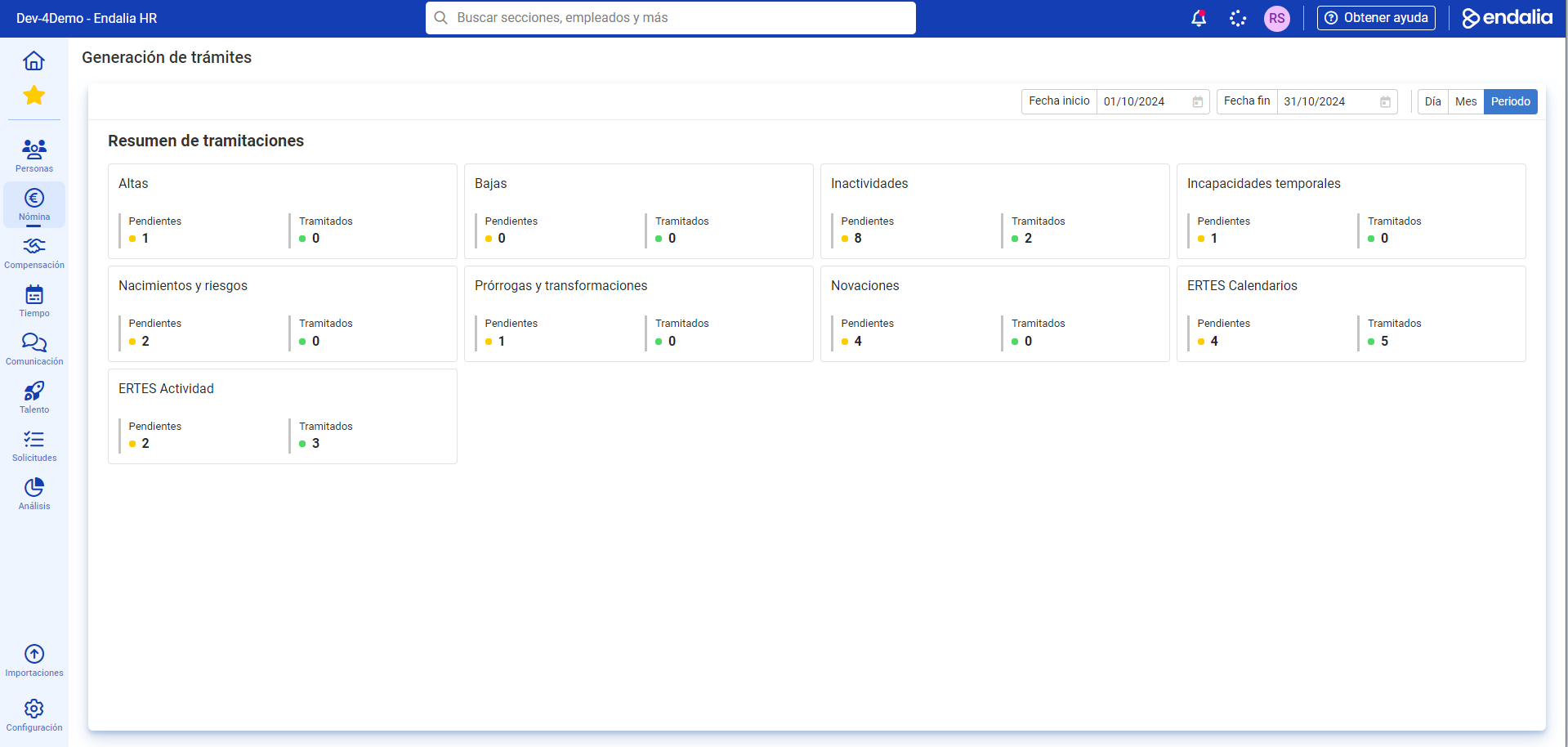
Note: Other interesting considerations for managing ERTEs: - You can add segments in bulk: in the ERTE card, in the Employees section, click Add, and follow the steps of the tunneled process to perform bulk actions described in steps 8 and 9 of this article:- To view a complete monitoring of ERTEs, in its card and within the Summary, you have a button named Process employees. Click on it to access the Generation of procedures screen, where you can consult data related to all the ERTEs of your company by clicking on each of the enabled cards:
In addition, you can view our glossary, available at this link.
Was this article helpful?
That’s Great!
Thank you for your feedback
Sorry! We couldn't be helpful
Thank you for your feedback
Feedback sent
We appreciate your effort and will try to fix the article