Important: this article is aimed at Endalia HR users with an Administrator profile.
As an administrator, you can create the full training catalog for your organization: from reusable templates (courses) to specific editions with dates (training actions). This article guides you through the entire process.
In this article we show:
Understanding the model: Courses vs Training Actions
A course is a reusable template that defines the general learning content. It does not have specific dates or participants.
- Permanent and reusable content
- Used to create multiple editions (training actions)
- Defines basic information: name, description, skills, categories
- No start/end dates
- No enrolled participants
- Visible in "Available Courses" catalog
A training action is a specific edition of a course, with specific dates and enrolled participants.
- It has specific start and end dates
- Enrolled participants
- Linked to a course (template)
- Management of attendance, certificates, questionnaires
- Participants enroll in training actions, not courses
Relationship: Course → Training Actions
- Create Course (once): Defines the training.
- Link skills/categories (once): Relate to catalog.
- Create Training Actions (multiple times): Create editions with dates.
- .Manage participants: Participants enroll in actions.
- Create sessions.
Create a course
Navigation: Training > Employee Training > Courses. You will see the full list of the organization's courses. Click the "Add Course" button
Step 1: Complete the general information of the course.
- Although "Objectives" and "Content" are optional, it is highly recommended to complete them. They help collaborators understand if the training is relevant to them.
- The course's visibility is inherited by all its training actions. Collaborators will only see training actions from courses visible to them.
- Link to categories. Categories are tags that group courses thematically to facilitate navigation and filtering. Categories must be pre-created from settings.
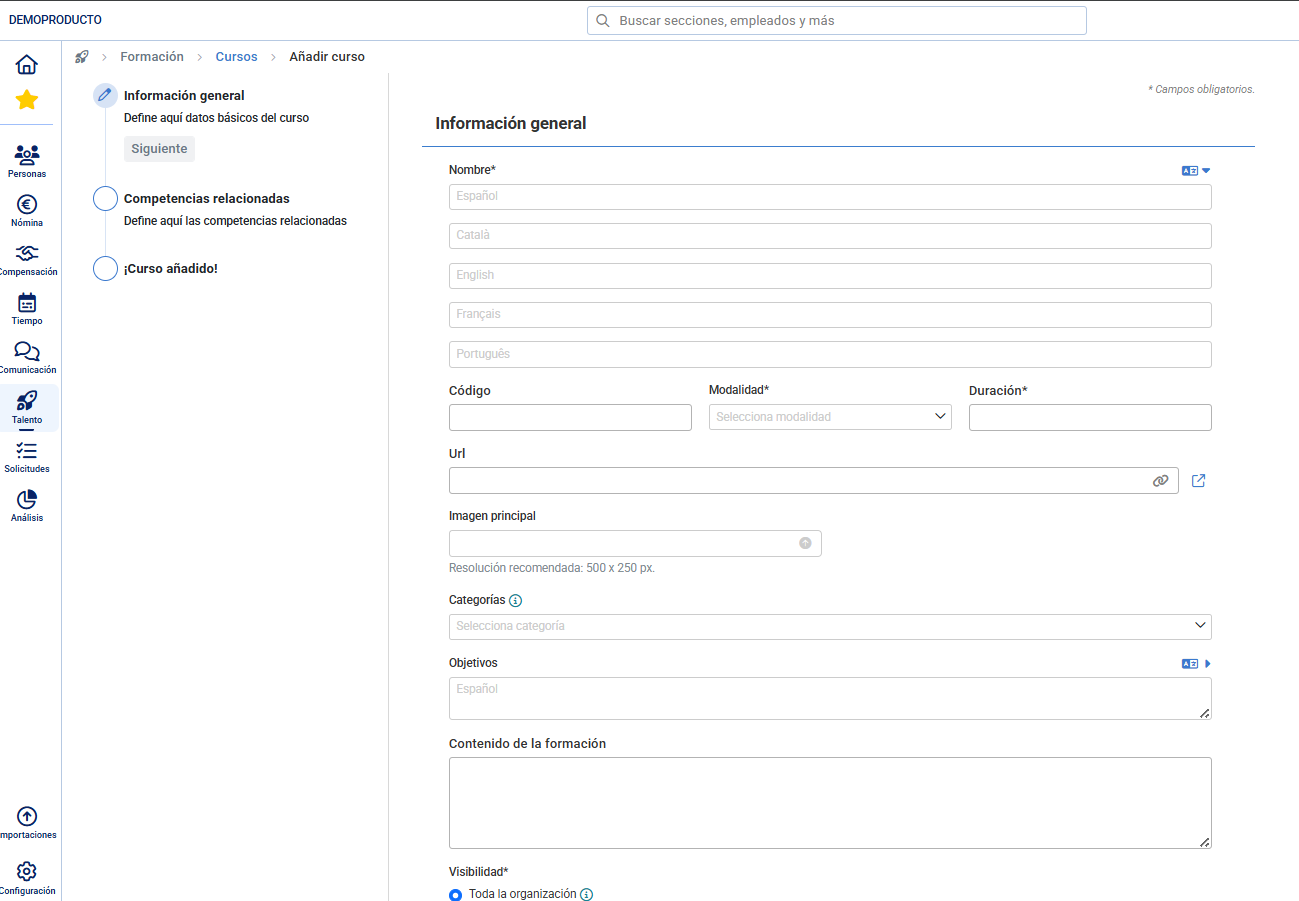
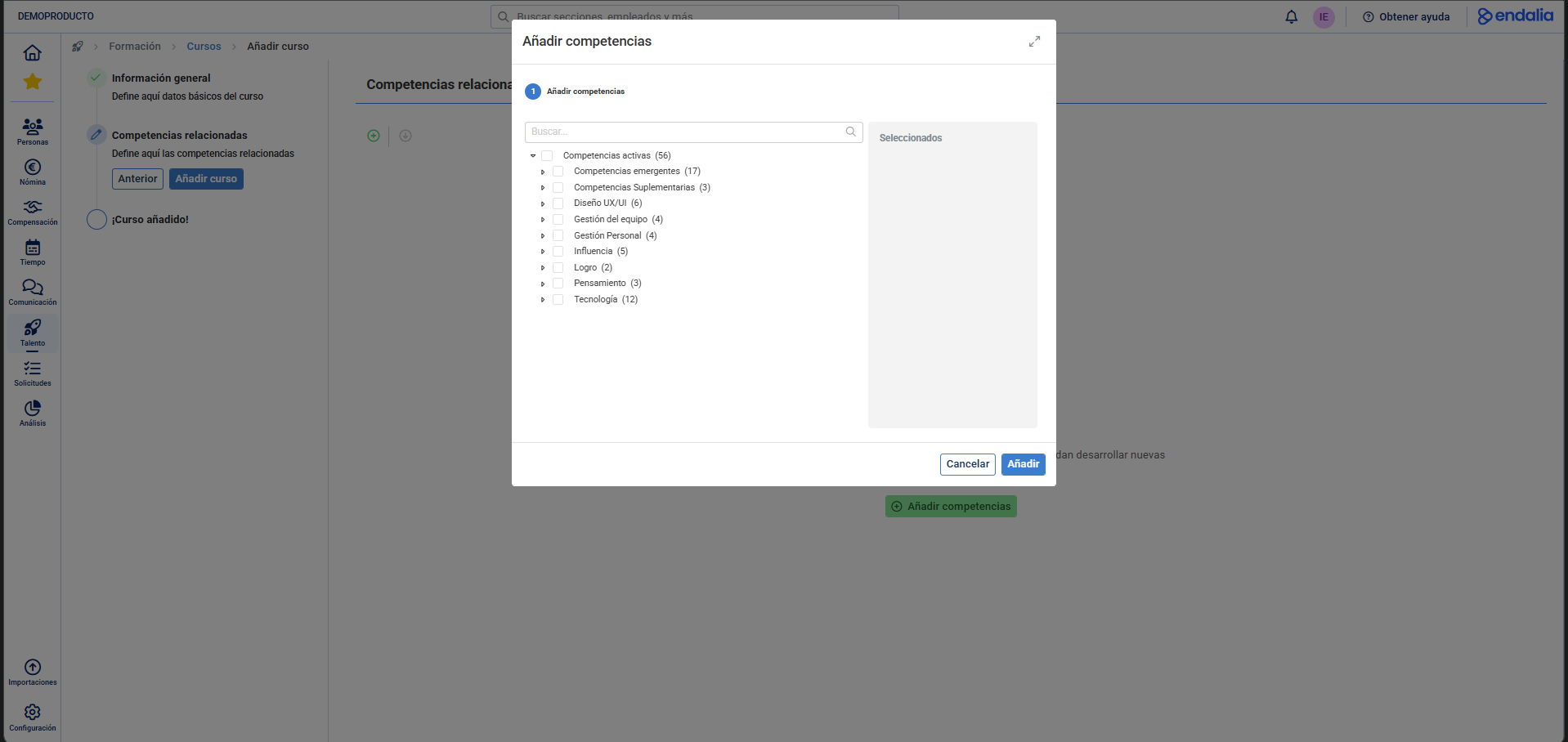
Step 2: you can link to catalog skills, skills connect training with the Development module.
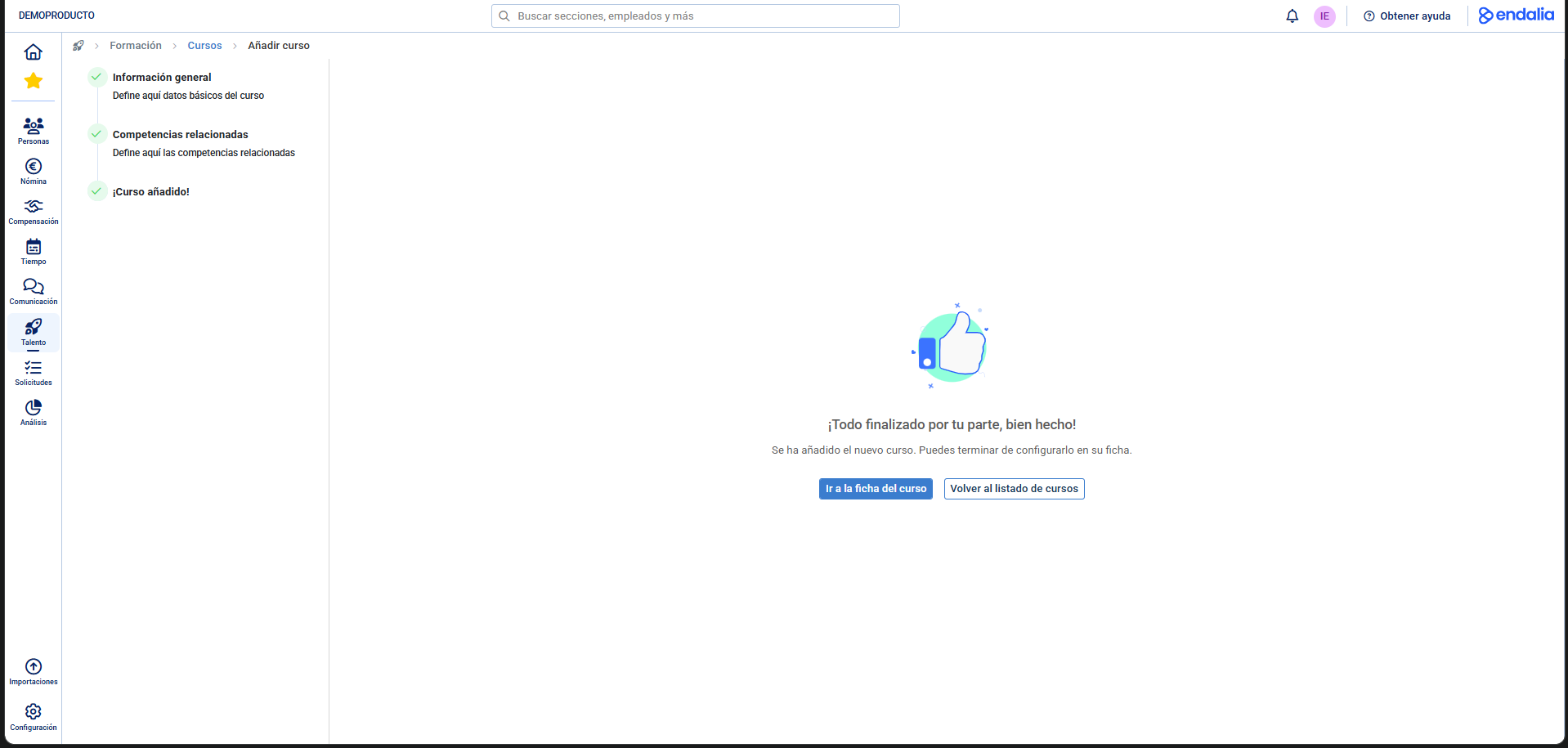
Confirm and create the course, it is automatically created in inactive status. Once the course is created, you need to create training actions (editions) for collaborators to enroll.
Create a training action
Prerequisite: You must have a course created before creating training actions. To generate a new training action, you must click on the Create Training Action button:
- Option 1: From the course file, in the Training Actions section.
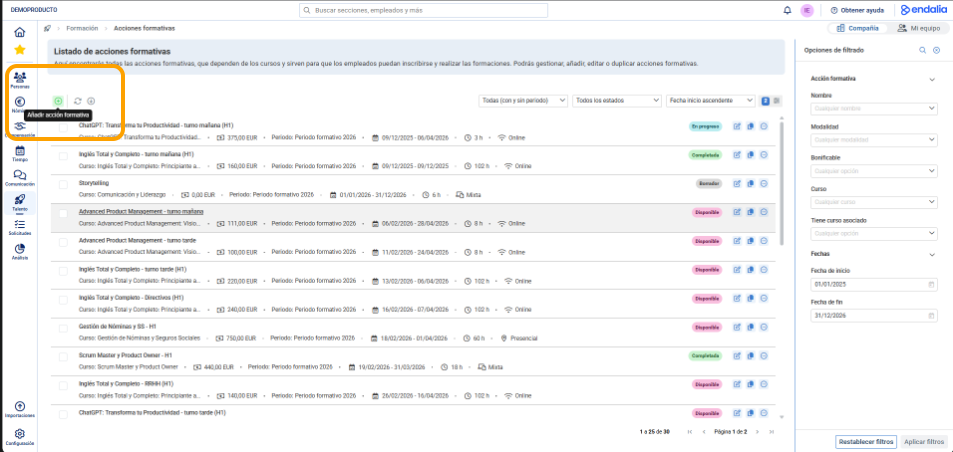
- Option 2: From the "Training Actions" list
Step 1: Complete the basic data of the training action. The training action will be created in "Draft" status
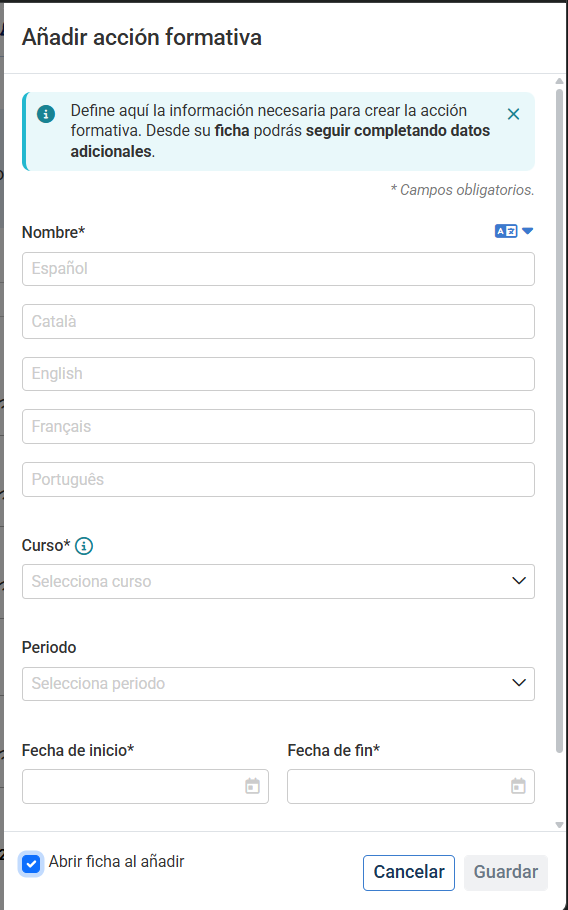
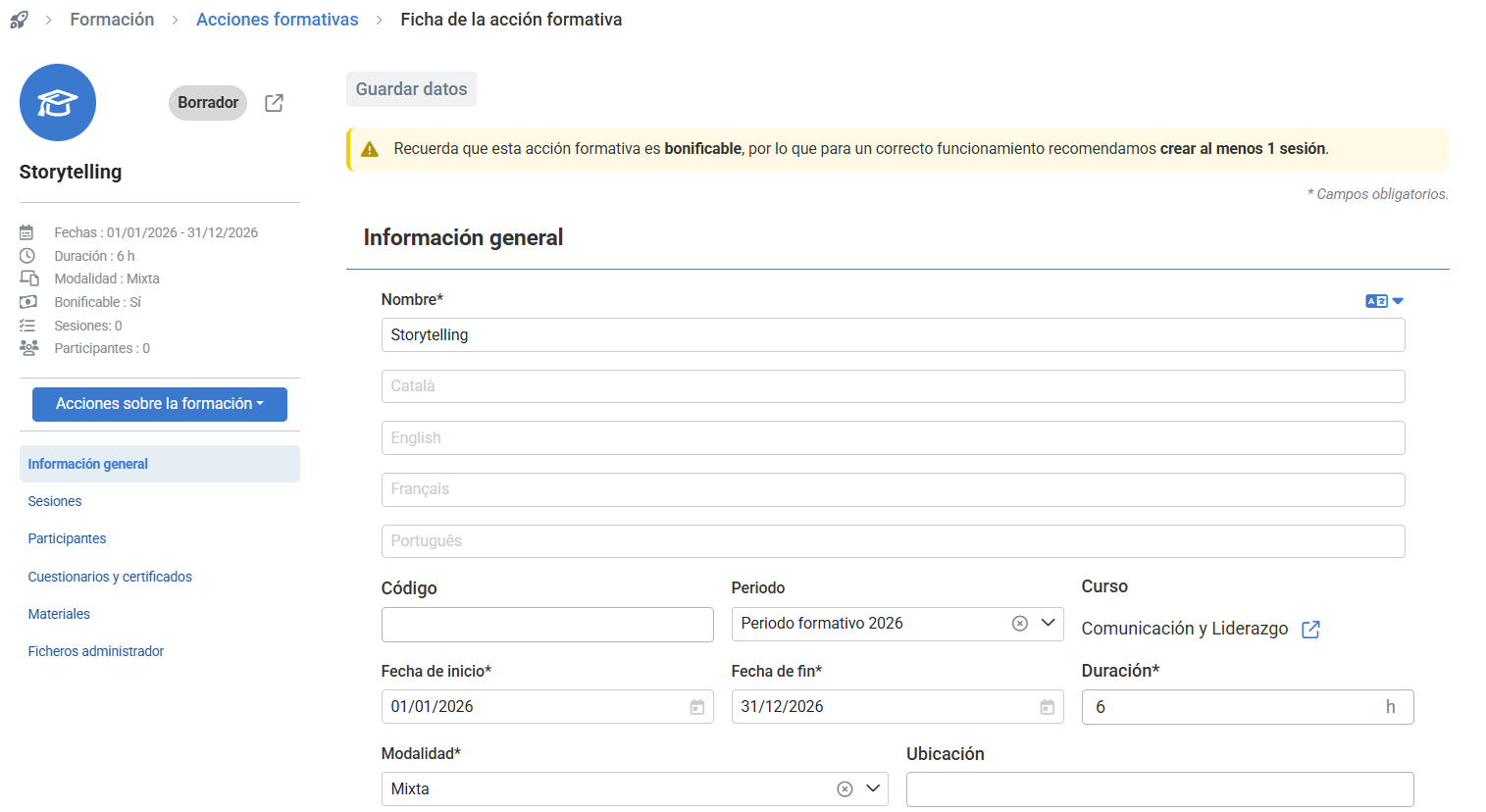
Step 2: Open the file of the training action to complete it:
- General information: Covers general information and Configures if the training action is discountable, costs, and provider data. Important: Training actions cannot be created with past dates.
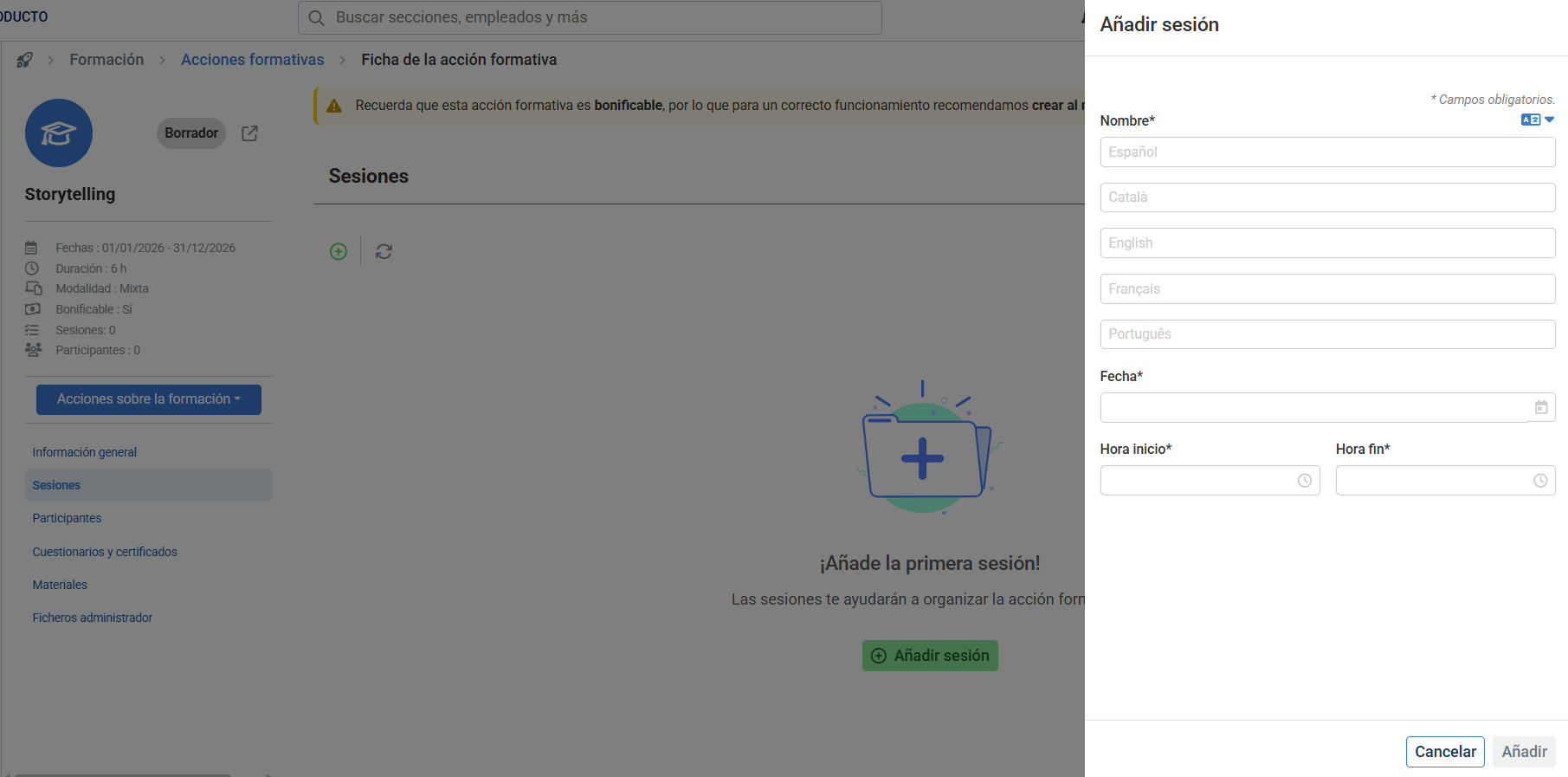
- Add sessions: Sessions are the segments (date and time) in which the training action is organized.
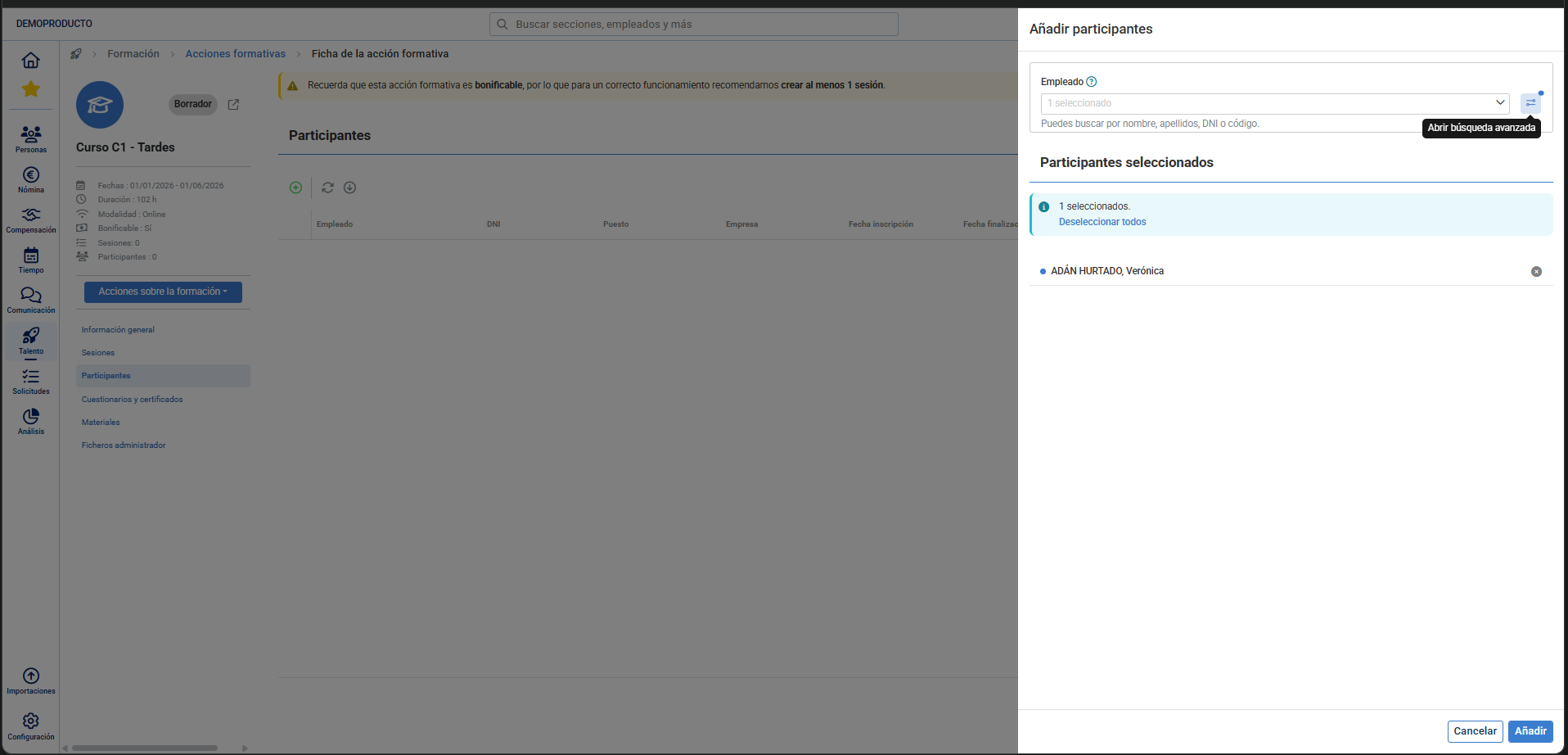
- Add participants: Add collaborators as participants of the training action. You can add participants after creating the training action from its file.
- Configuration of questionnaires and certificates, materials and private files.
Step 3: Update from draft to available to publish the training action, from then on it will be visible in available courses and allow enrollment requests. At this stage, you can add more participants from the file.

- Attendance to sessions is the % of sessions in which an employee has participated. You can manage it in the Sessions section.
- Manual attendance is the % of attendance you manage outside of the sessions. Allows you to manage the attendance of participants if the training action has no sessions, or correct the % of session attendance when required.
- You can upload participants' certificates when their status is Pending to finalize or Finalized.
- Only active participants (both internal and external) can be managed. Remember that your user's visibility restrictions apply.
Still have doubts? Check the following related articles:
Was this article helpful?
That’s Great!
Thank you for your feedback
Sorry! We couldn't be helpful
Thank you for your feedback
Feedback sent
We appreciate your effort and will try to fix the article