Important: This article is intended for Endalia HR users with an administrator profile.
Once the two previous steps (Create salary level and Manage variations) are completed, the next step is to assign the salary band to the employees. Follow these simple steps to make the most of this feature offered by the software.
In this article:
Assign salary level to an employee
- Within the hub Organization and People, go to Company > Employees.
- On the screen presented next, choose an employee and access their profile by double-clicking the corresponding row or by using the Edit button found on the toolbar.
- In the employee's profile, go to the Organizational Information tab >Professional Data. In this last section, you'll find the Level dropdown; click on it and, in the emerging modal window, Record of variations, choose the desired value and start of variation. Remember to click Save first and then Save changes to make your preferences effective.
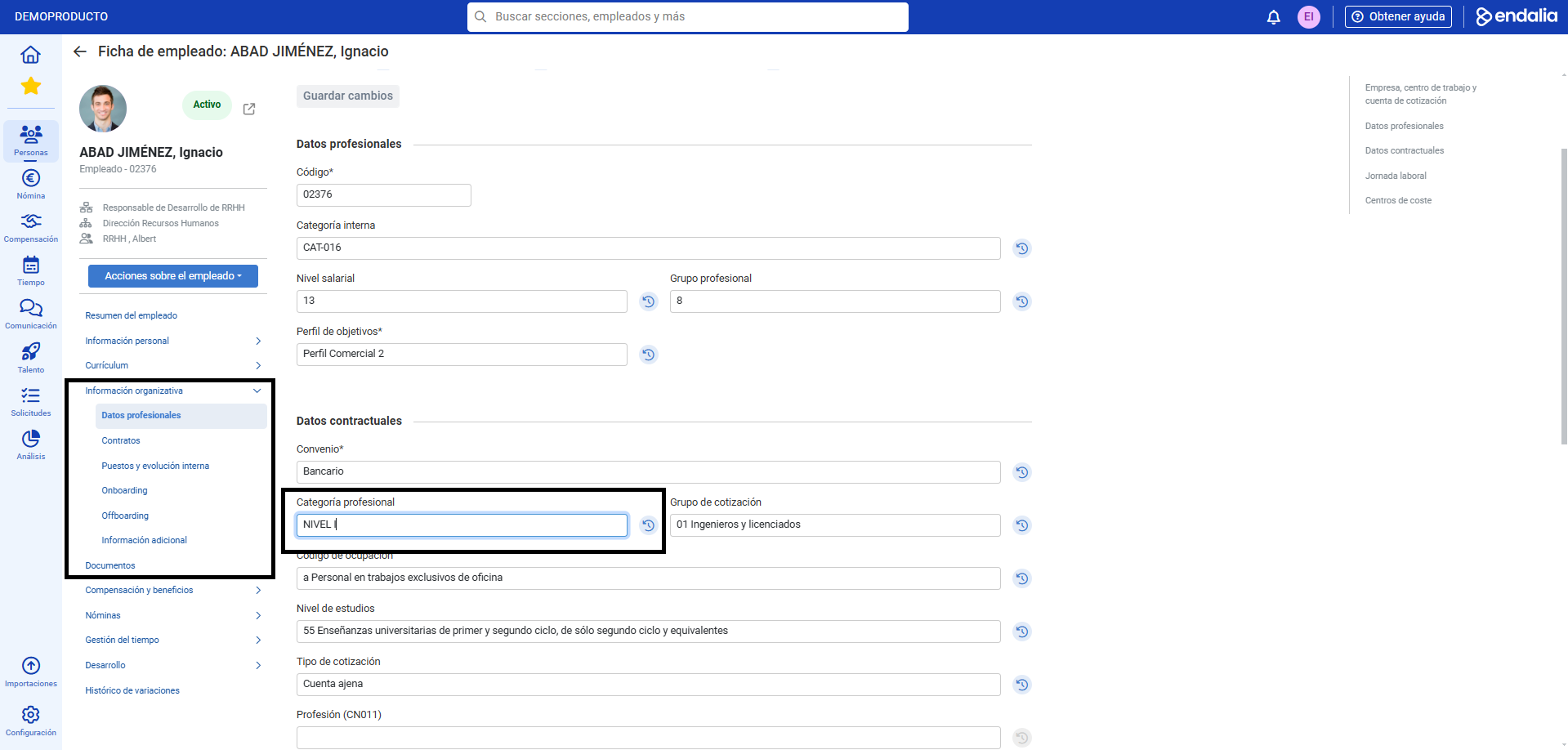
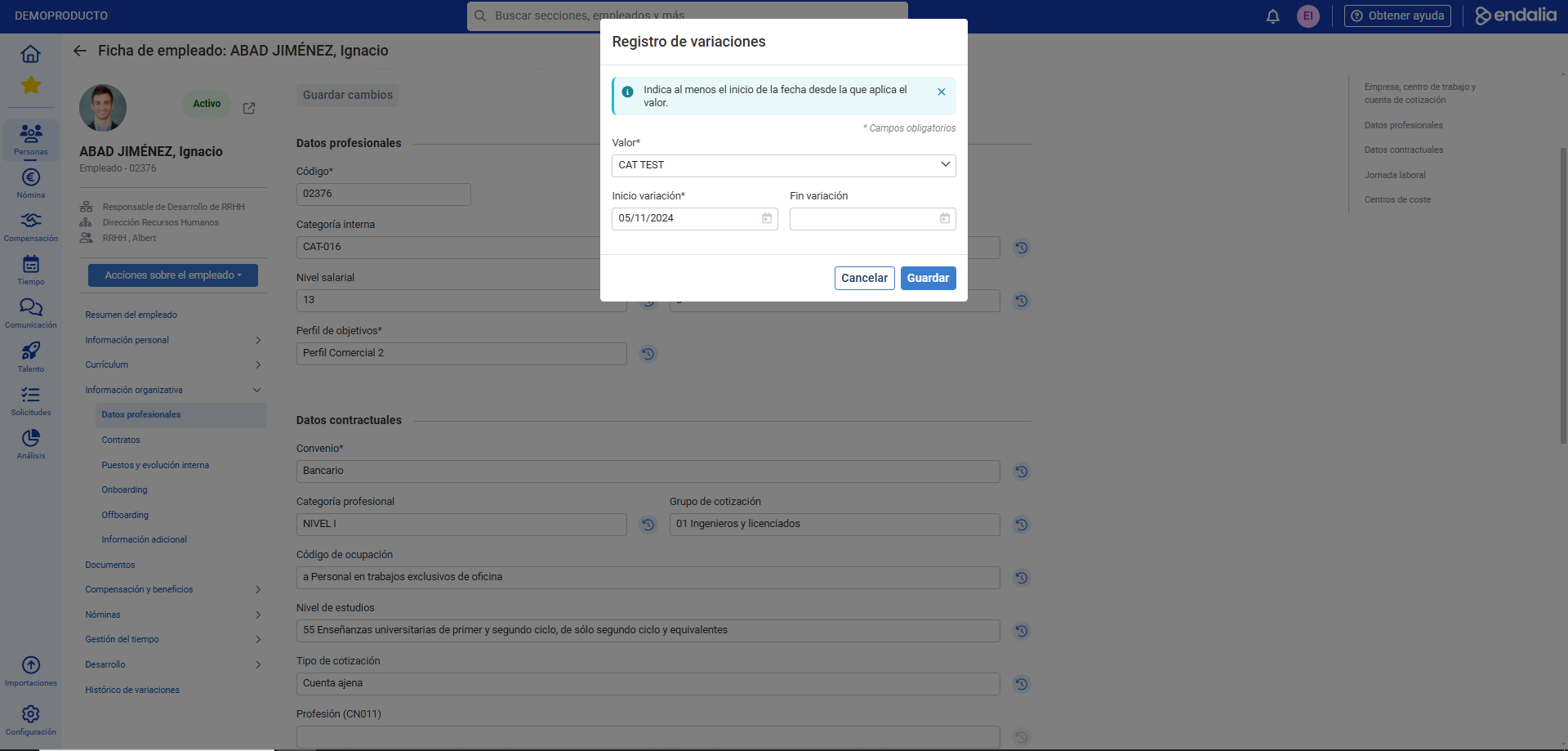
Note: This process can only be performed individually for each employee, not in bulk. Remember that this article refers to the second step of the sequence Create salary level > Manage variations > Assign salary level to an employee. Check all the articles in this module to learn more about these functionalities.
Video of the process
We'll show you quickly:
Lastly, the following related articles are available to you:
Additionally, you have a glossary of terms available at the following link.
Was this article helpful?
That’s Great!
Thank you for your feedback
Sorry! We couldn't be helpful
Thank you for your feedback
Feedback sent
We appreciate your effort and will try to fix the article