Endalia HR announces the addition of a new feature to our platform: Shift Pattern!
The Shift Pattern  will help you organize work days into repetitive intervals more efficiently.
In this article, we will explain how to configure this feature step by step, as well as provide some tips to make the most of it.
What steps should I follow to configure a Shift Pattern in Endalia HR?
Note: You should take into account that to use the shift pattern feature, you must have pre-existing daily shifts configured.
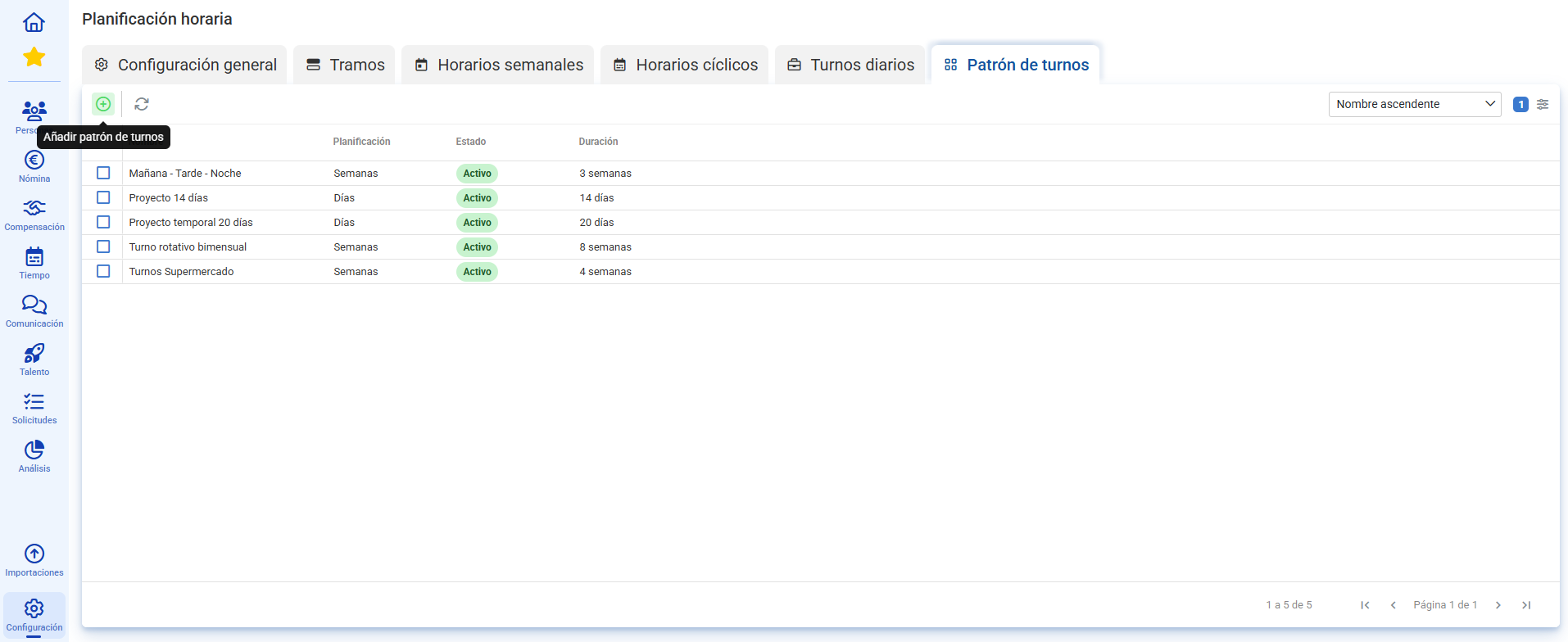
First, go to Settings -> Time Registry -> Timetable Planning -> Shift Pattern, and from there click on Add Shift Pattern:
You can create patterns by days or weeks, wherein you can conveniently define which shifts need to be fulfilled each day.
Furthermore, these patterns can be up to 56 days or 8 weeks long and can be assigned to employees for up to 1 year! 
 Spoiler: You can make mass assignments! This saves you from managing shifts individually day by day if there is any cyclical repetition.
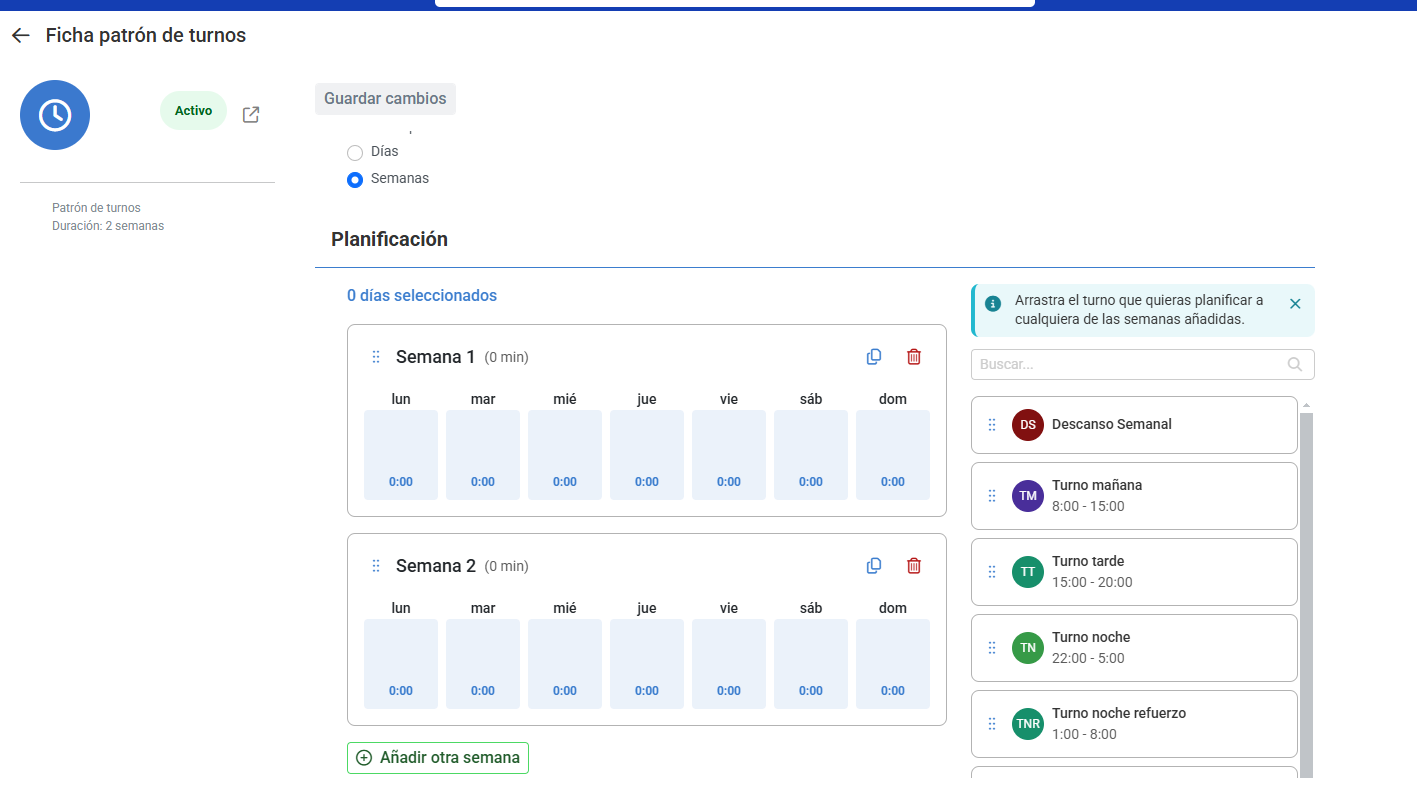
And that's it! Now that you have configured your shift patterns, the next step is to associate them with the corresponding employees. This will allow you to apply work cycles automatically and optimize shift management.
To learn how to make this association, we invite you to check out our article: Shift Pattern Assignment
Was this article helpful?
That’s Great!
Thank you for your feedback
Sorry! We couldn't be helpful
Thank you for your feedback
Feedback sent
We appreciate your effort and will try to fix the article