Once your shift patterns are set up all that's left is to assign them to your employees! 


In this article, we explain step by step how to achieve it.
Note: Remember that to assign shifts to employees, they must be added to the shift management beforehand.
1. The first step is accessing the Time Management -> Planning -> Shifts section. In the assignment section, the option to Assign Shift Pattern will appear:
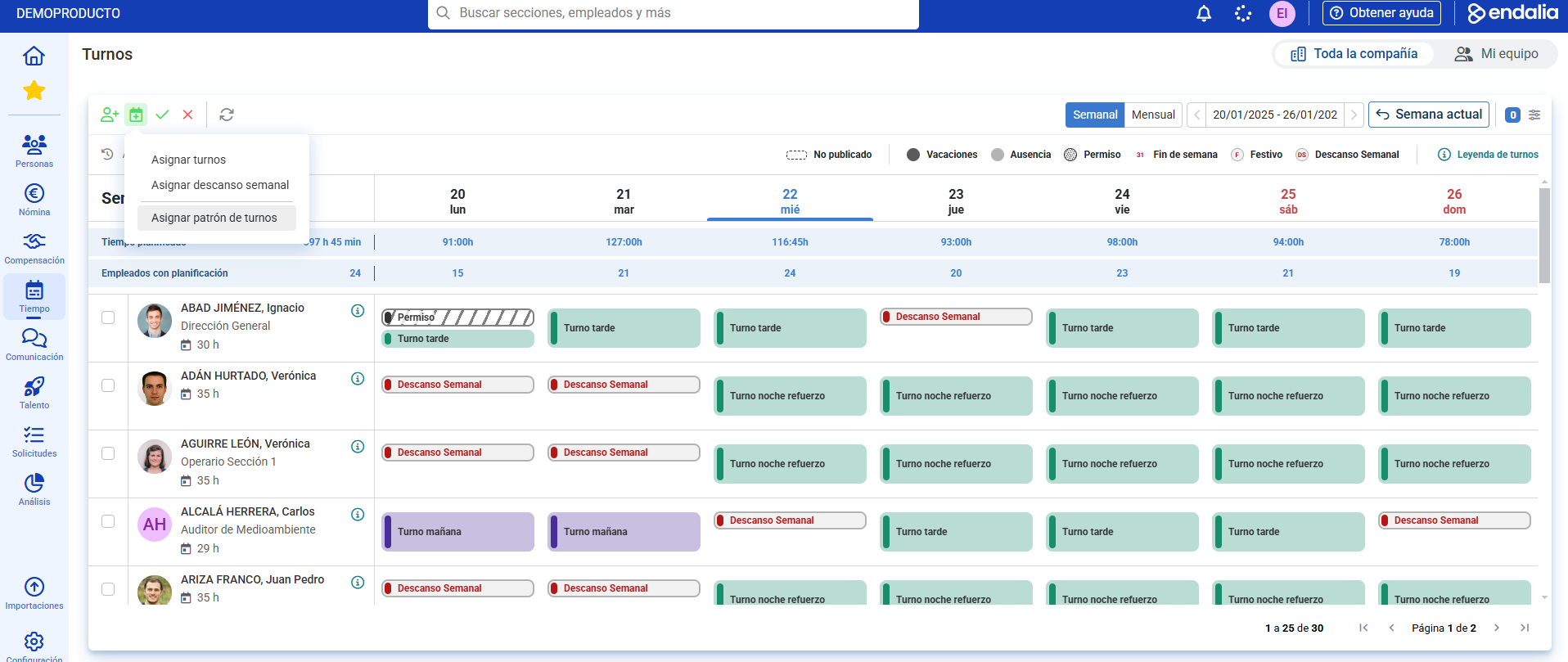
Remember that you can have the employees preselected from this view, or add them later during the assignment according to the needed criteria.
Once the employees are selected, we'll move on to configure our pattern assignment section:
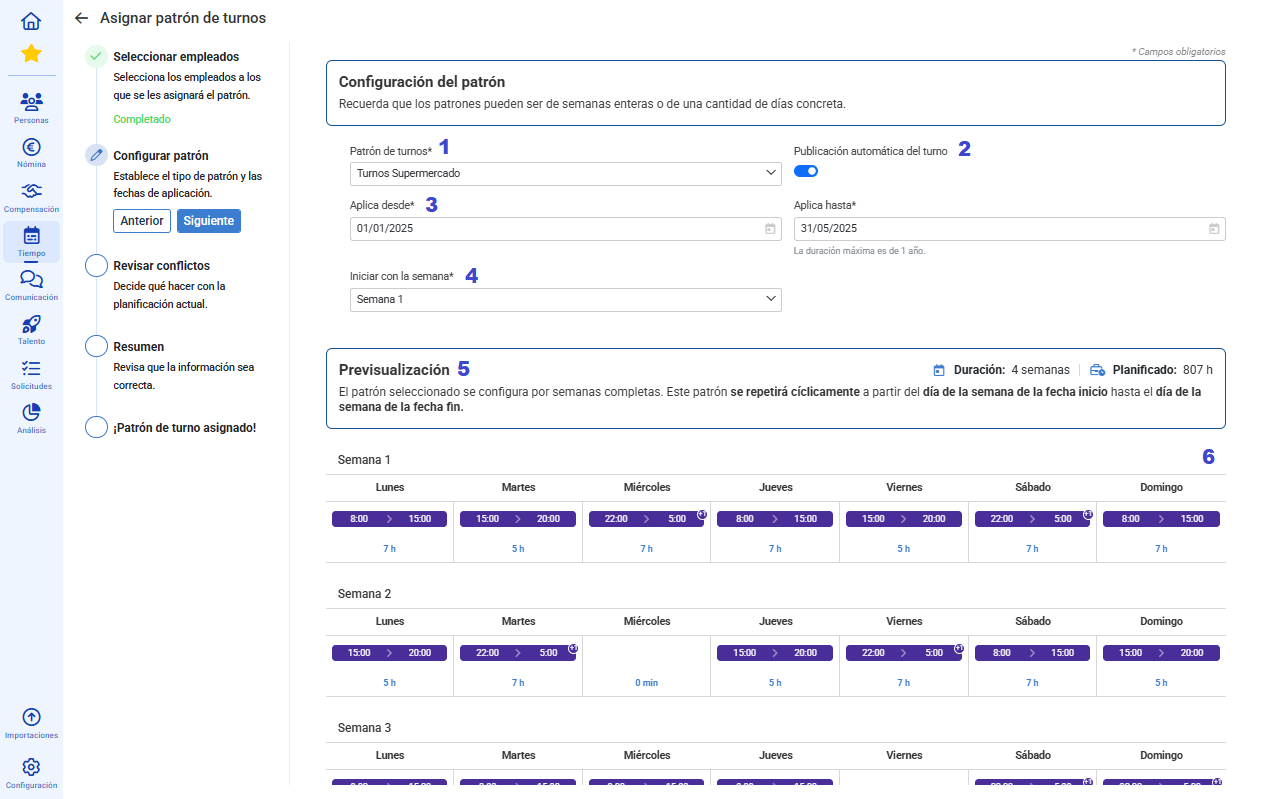
- We will have listed all the previously created patterns to select from in the Configuration.
- Schedule whether you want, upon completing the assignment of all shifts associated with the pattern, to automatically publish them to employees or leave them as drafts to publish later from the shifts section.
- Decide the dates on which I want to apply my shift pattern.
- For a day-type pattern, we can select which day we want our pattern to start, and the same applies to week-type patterns.
- Summary preview section of the pattern, showing the totals of days or weeks configured as well as the total hours planned in it.
- Visual section of how our pattern would be reflected in the planning, divided by days or weeks according to previous configuration.
Once these configurations are finished, you will have your shift pattern assigned to your employees!
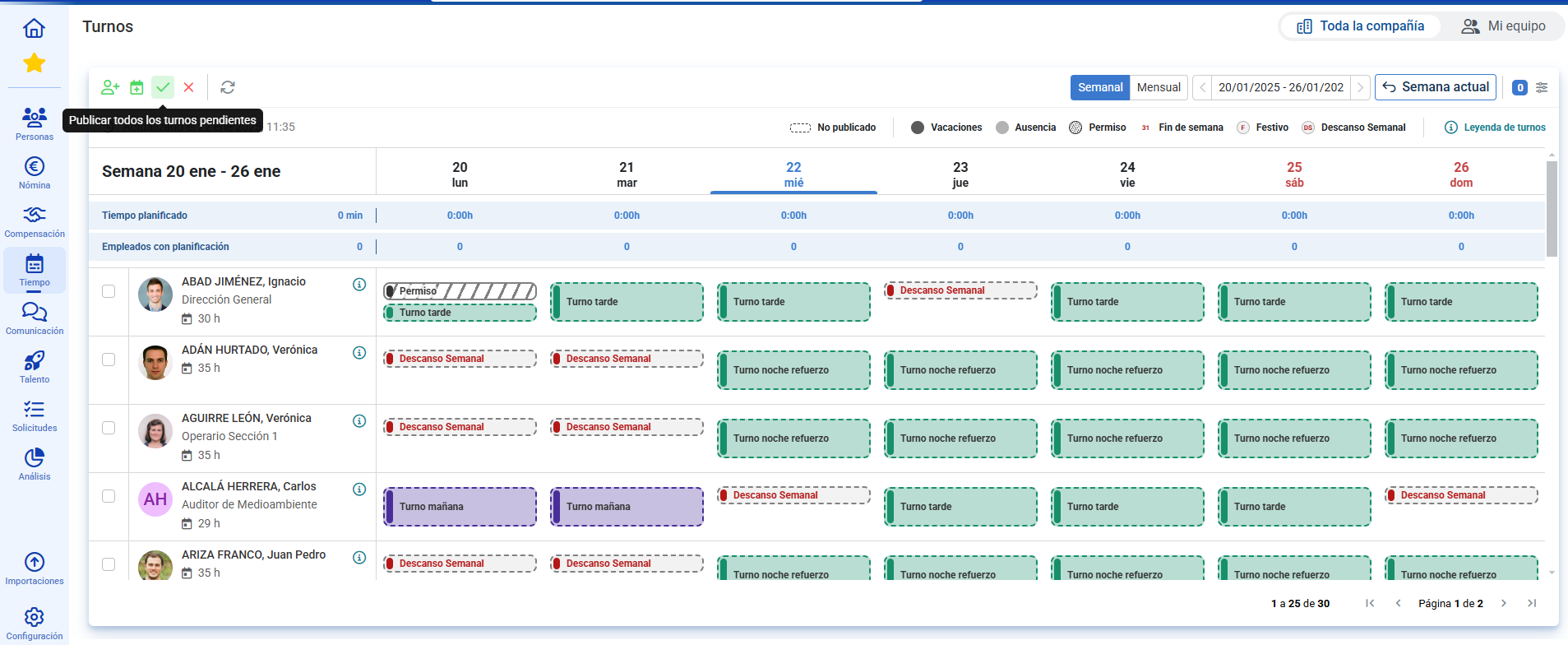
If you left the shifts as drafts, you can make a mass publication of them, respecting the applied filters:
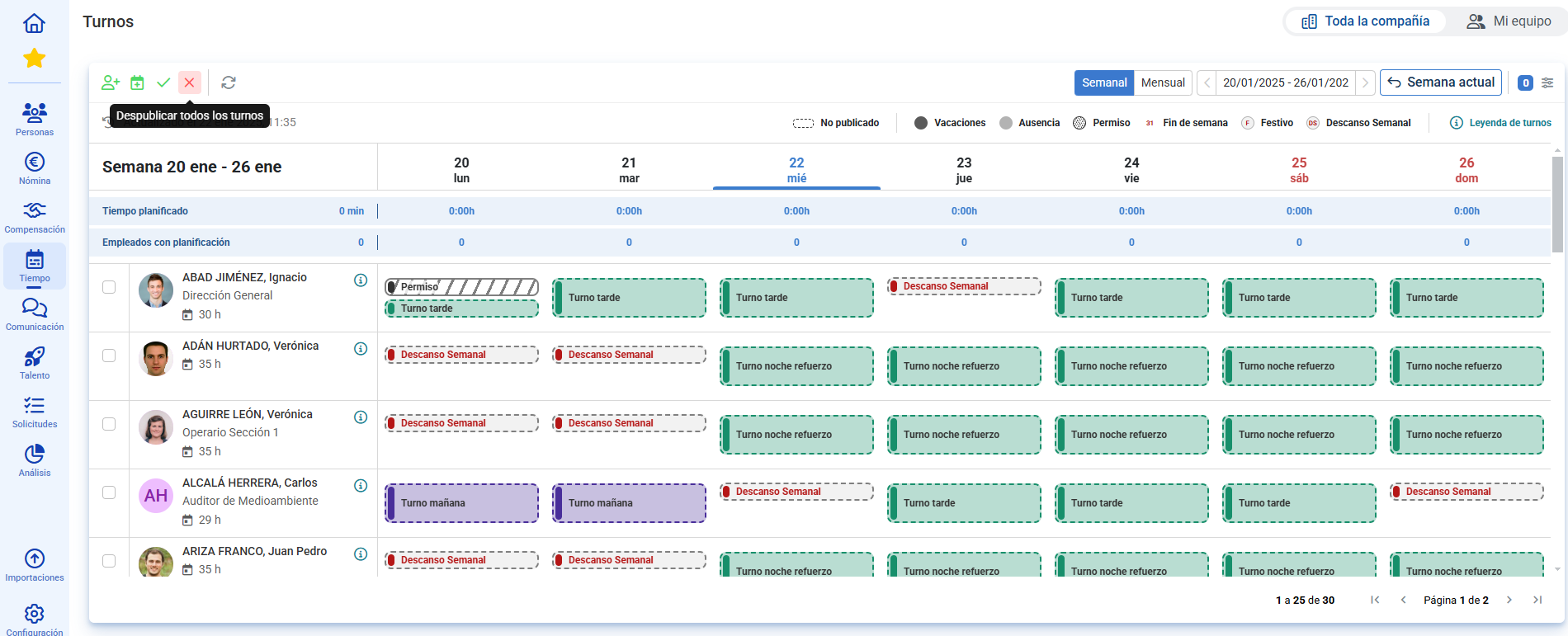
And if you made a mistake, don't worry! You will also have a mass unpublishing option  :
:
Was this article helpful?
That’s Great!
Thank you for your feedback
Sorry! We couldn't be helpful
Thank you for your feedback
Feedback sent
We appreciate your effort and will try to fix the article