Important: this article is aimed at Endalia HR users with the Manager profile.
Controlling this triple functionality is essential to correctly modify a schedule. We offer you the keys to manage, quickly and easily, the shifts associated with employees.
In this article:
Edit/Delete/Add shifts
Within the hub Time Management, go to the module Time Recording > Planning > Shifts
- In the list presented to you below, hover over the shifts of each employee to see the Add Shift button, which you'll find in the quadrants related to them. Click this button to proceed to the next modal window:
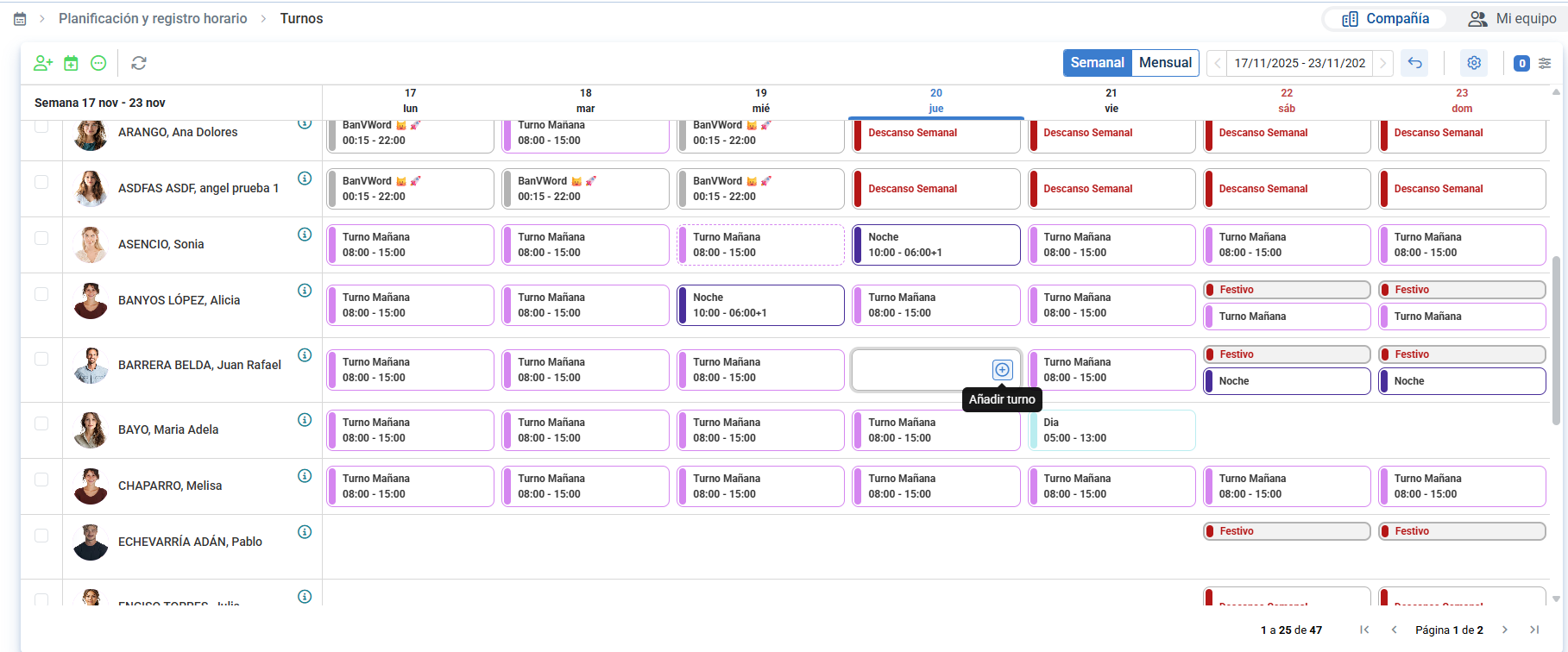
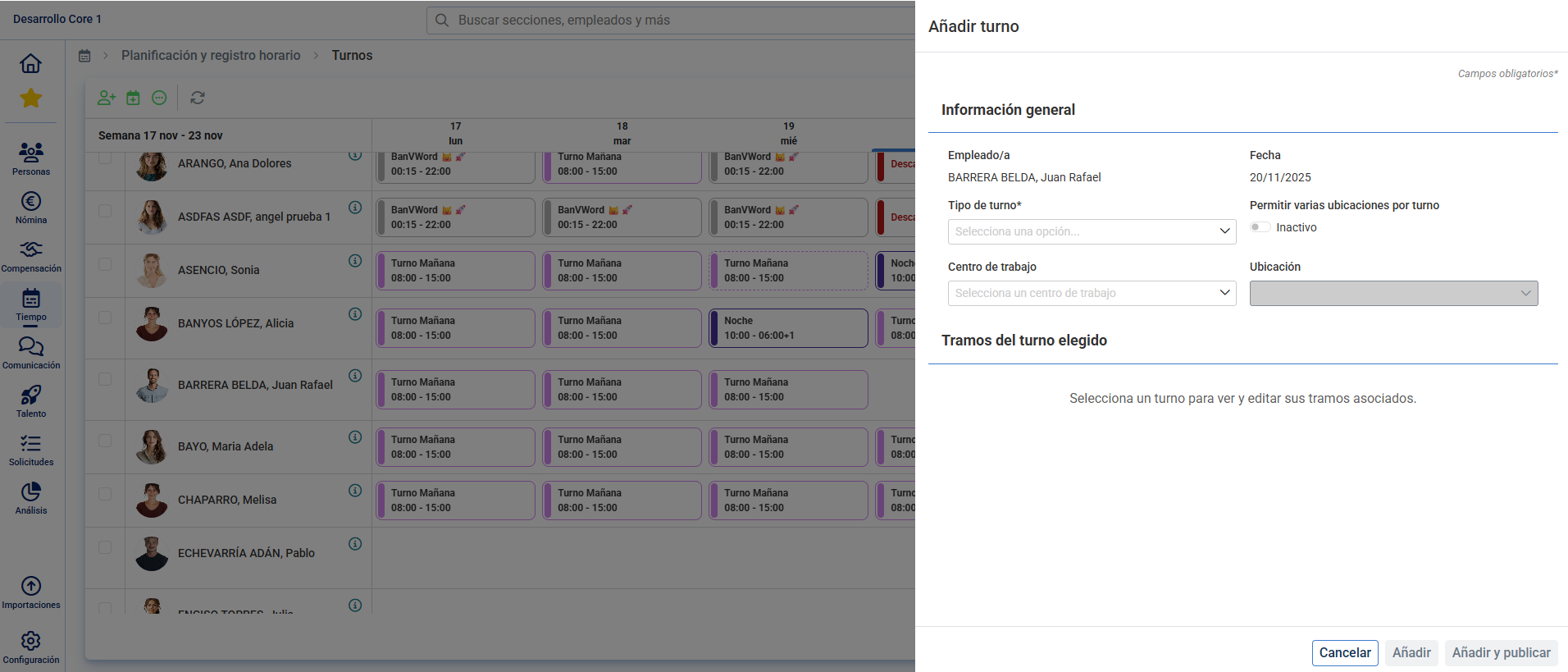
- Select the type of shift and its duration. Next, press Add or Add and Publish. Back on the main screen, the new shift appears highlighted next to the employee. Double-click it to modify or delete it according to your preferences, using the buttons enabled for that purpose, located in the pop-up modal window:
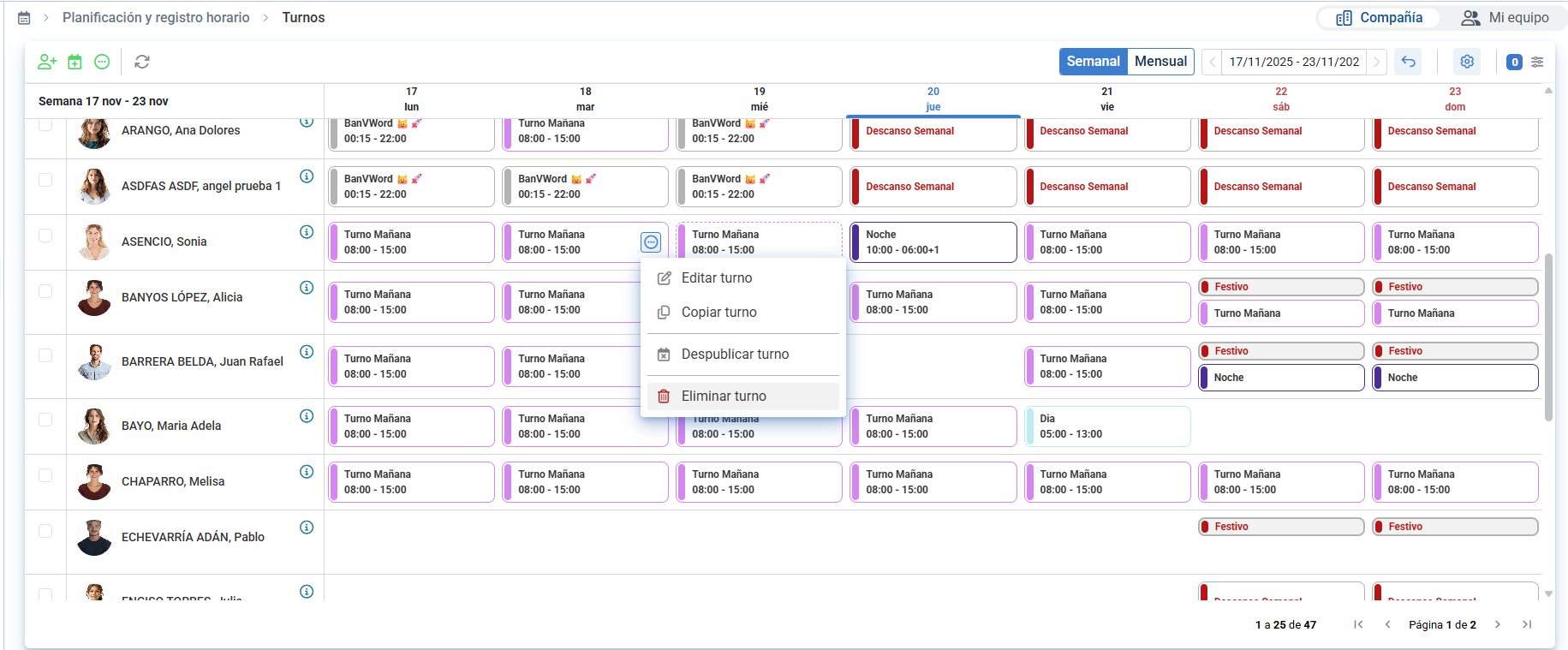
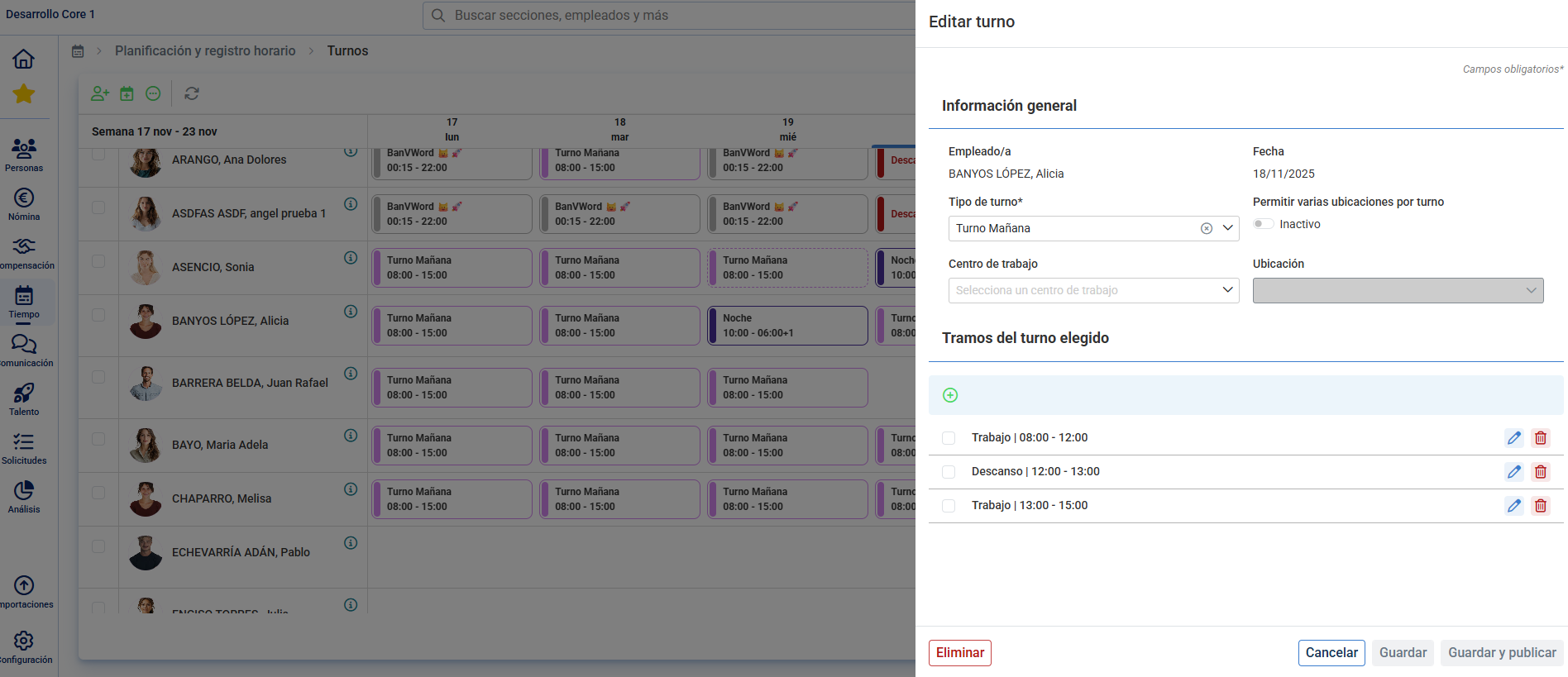
- You can also edit, copy, depublish, or delete an existing shift by clicking it and following the steps described in the modal window:
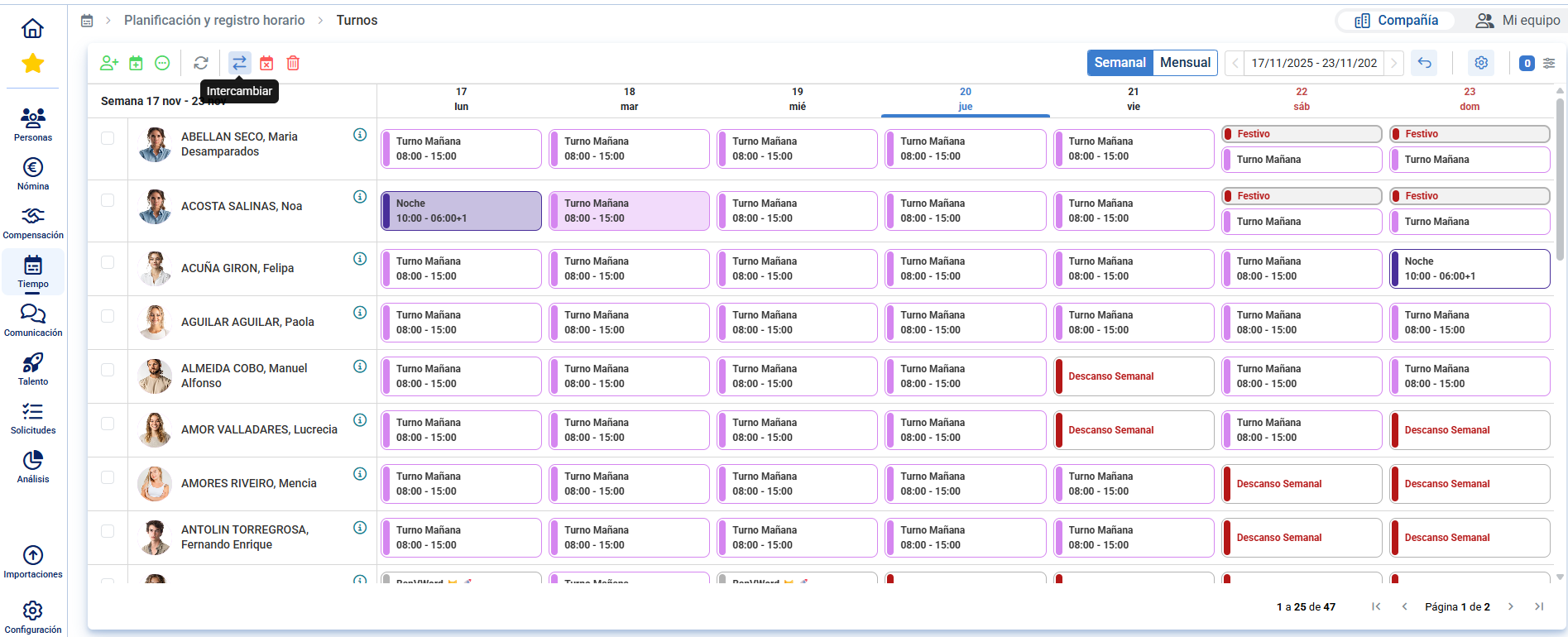
- The next action you can do is Exchange shifts by individually selecting two shifts:
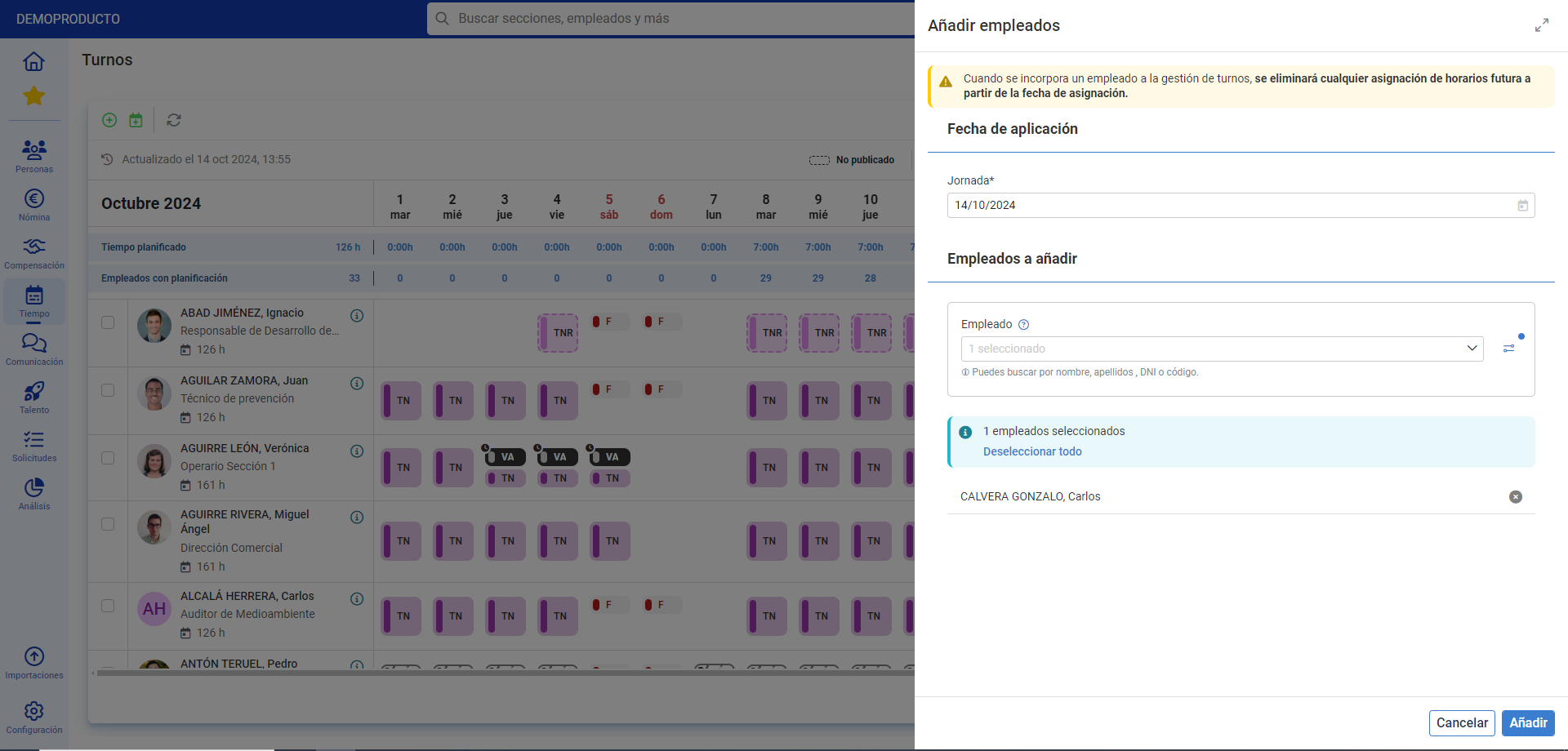
- Another option the system provides is Add Employees, present in the toolbar; click the button and follow the steps to add workers to the list on the main screen:
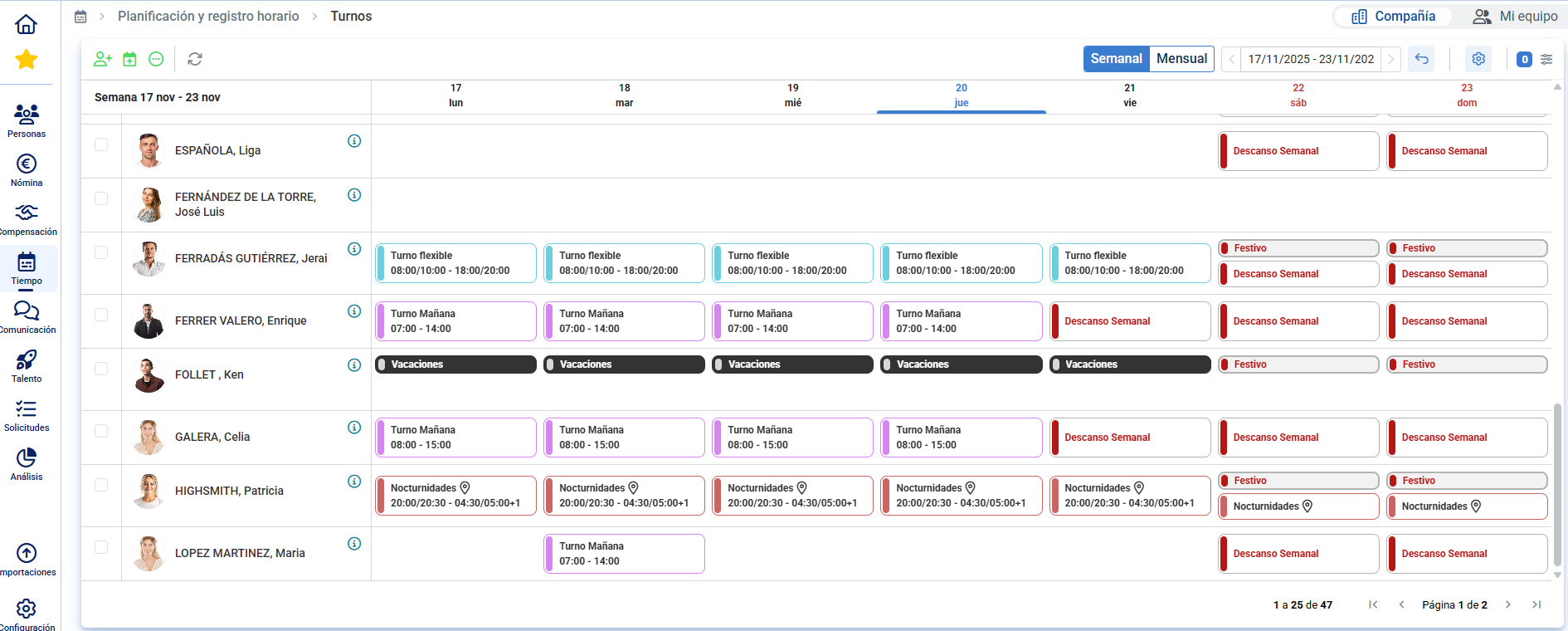
- To the right of the screen are filters by shift name and status, to quickly check which employees are assigned to a specific shift, as well as consult the totals of employees and hours planned at the top.
- The cells where a person cannot be managed by shifts (they were not yet included on the screen, do not have a valid contract, or the workdays are closed) will appear shaded in gray and cannot perform any actions described previously.
- On the same screen, both absences (vacations, absences, or permissions and ITs), as well as holidays and workday extensions, are displayed, differentiating between those pending validation with a clock at the top left and those that are validated. There is an automation that, when validating vacations, absences, or full-day permissions, erases the affected planning on those days.
Publication/depublication of shifts
To do shift planning, it is common to manage the weekly or monthly template with shifts still unpublished, once accepted and validated by the interested parties, are published to incorporate into the collaborators' planning.
There is an option for publication/depublication through employee selection, where, based on the selected employees and incorporated shifts, the actions of publishing or depublishing week or month will be displayed:
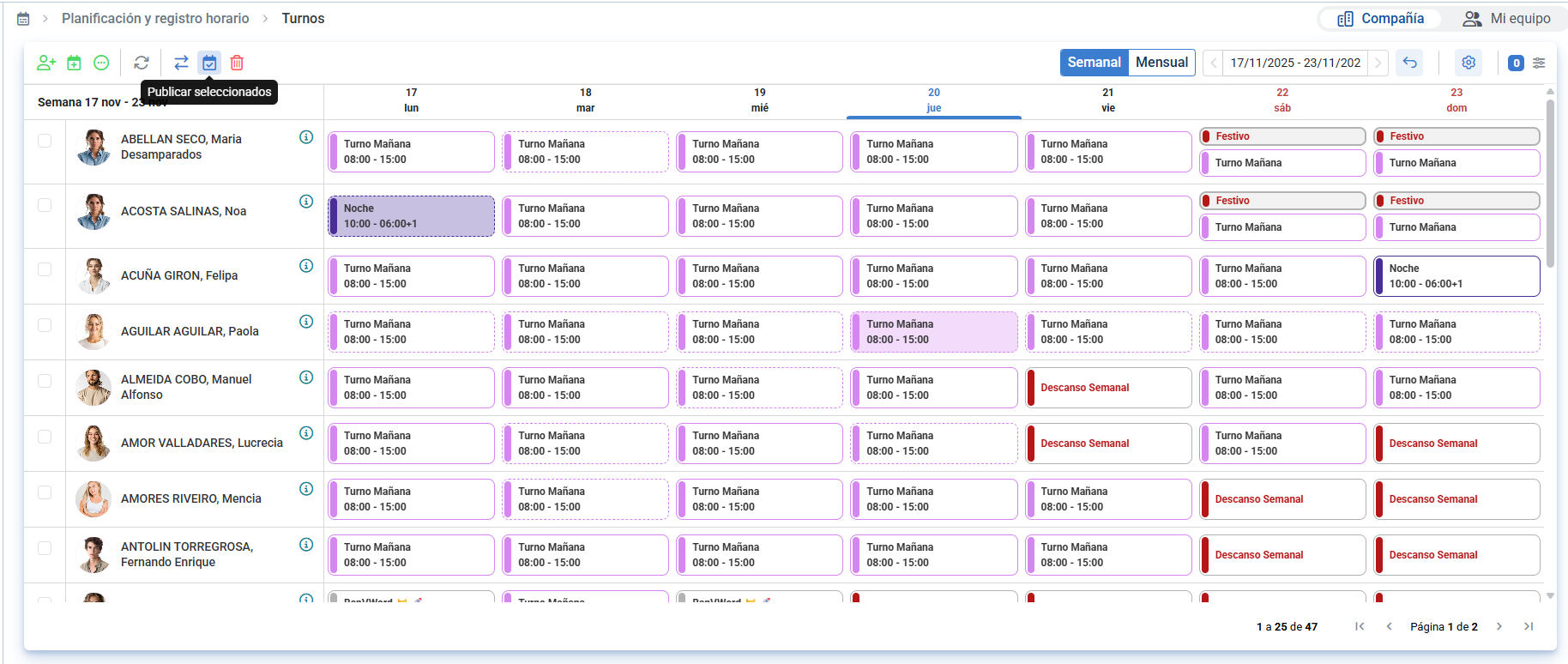
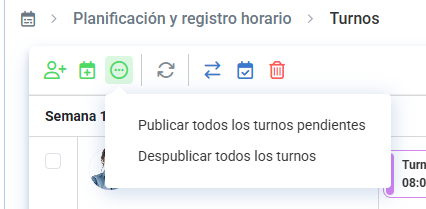
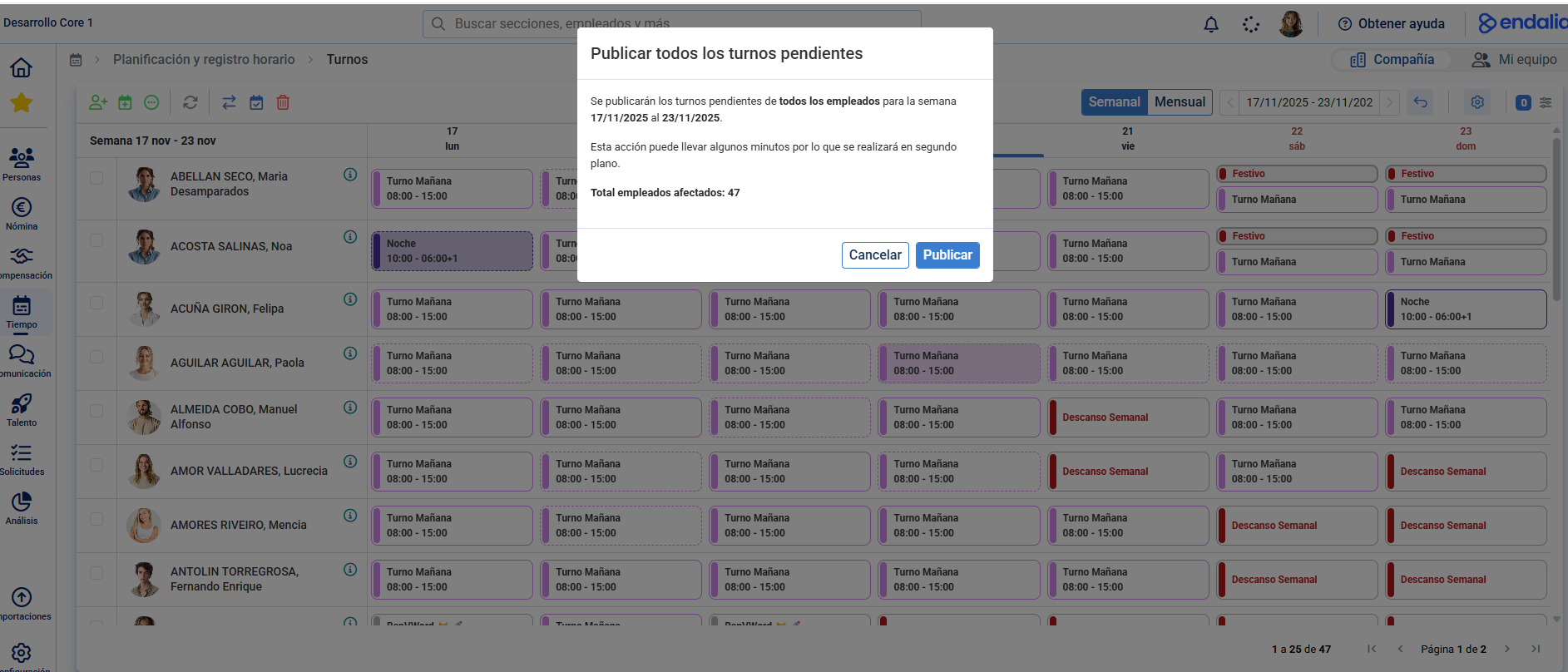
- There is also the possibility to publish or depublish all pending shifts massively, without selecting any employee where that action affects all employees that appear on the screen, with the visibility and filters applied:
3. You will also have the possibility to notify employees when shifts are published, whether they are daily, weekly, or monthly. Through the configuration and with the notification active, it will be emitted automatically when publishing shifts and once received, it will redirect them to the my planning web screen or mobile calendar.

Configuration of planning
Additionally, a new section is enabled in the employee's file where you can consult the planning configuration and the employee's work calendar. It allows direct schedule assignments to the employee or starting shift management to add shifts on the same tracking screen.
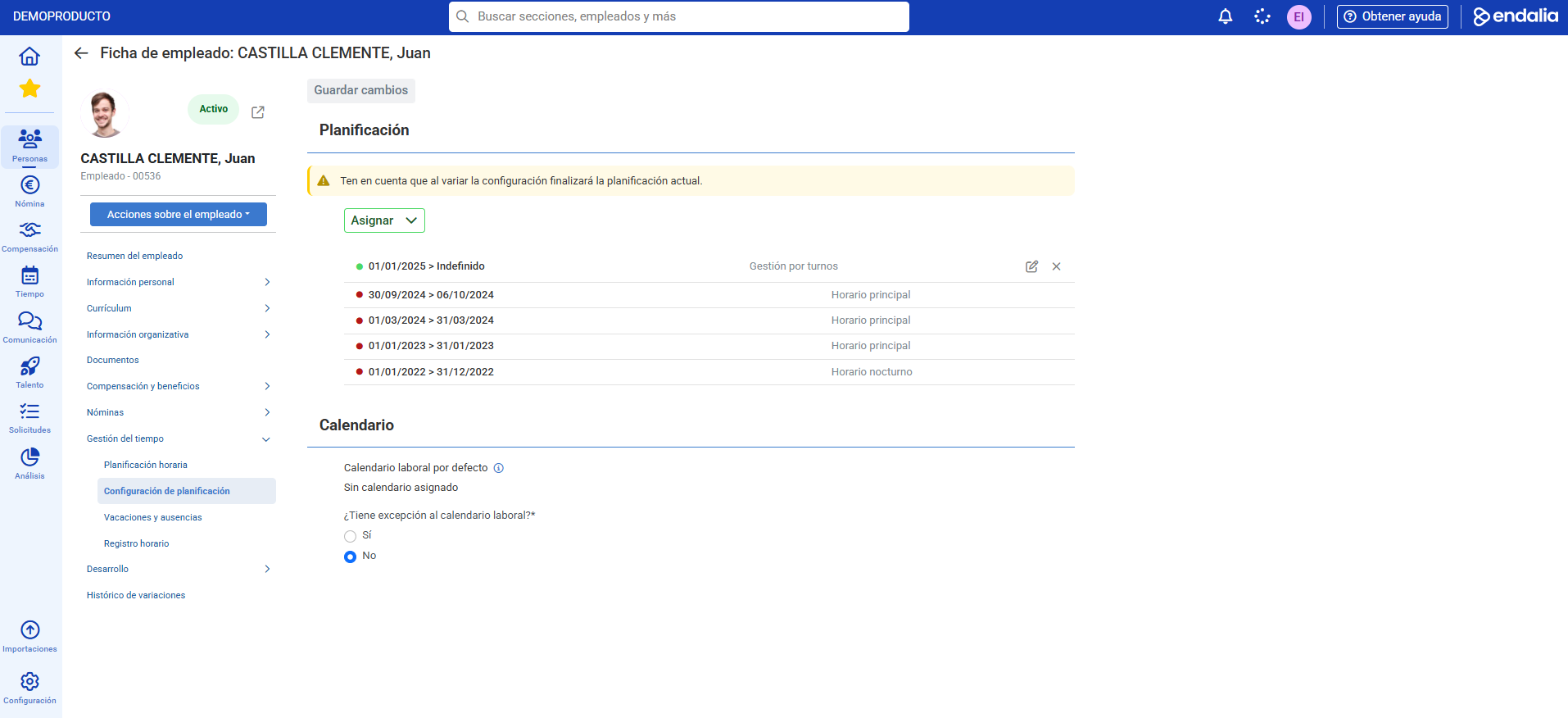
You can check past schedule assignments and only edit or delete current and future ones.
We propose:
Additionally, you can view our glossary, available at this link.
Was this article helpful?
That’s Great!
Thank you for your feedback
Sorry! We couldn't be helpful
Thank you for your feedback
Feedback sent
We appreciate your effort and will try to fix the article