Important: this article is for Endalia HR users with an Administrator profile.
In this guide article, you will learn a dual functionality: associating generated schedules to employees and seeing their weekly structure. Important options about this module that we show you below.
Here you will find
Assign schedules
- Within the hub Time Management, navigate to the Time Record > Planning > Schedules
- On the screen presented to you next, you have a stepper or five-step process to complete.
- The first of these, Select Employees, allows you to choose the workers to associate with the function described in this article. Use the search feature or alternatively copy and paste lists in the space provided for this purpose (for more information, see our specific article named Employee Selector). Next, click on Next
- In the next section, Configure Schedule, you must complete the type of schedule to assign to the previously selected employees, the specific duration of this action (which can be indefinite if you check the appropriate box) and the option to delete manual segments. Again, click Next
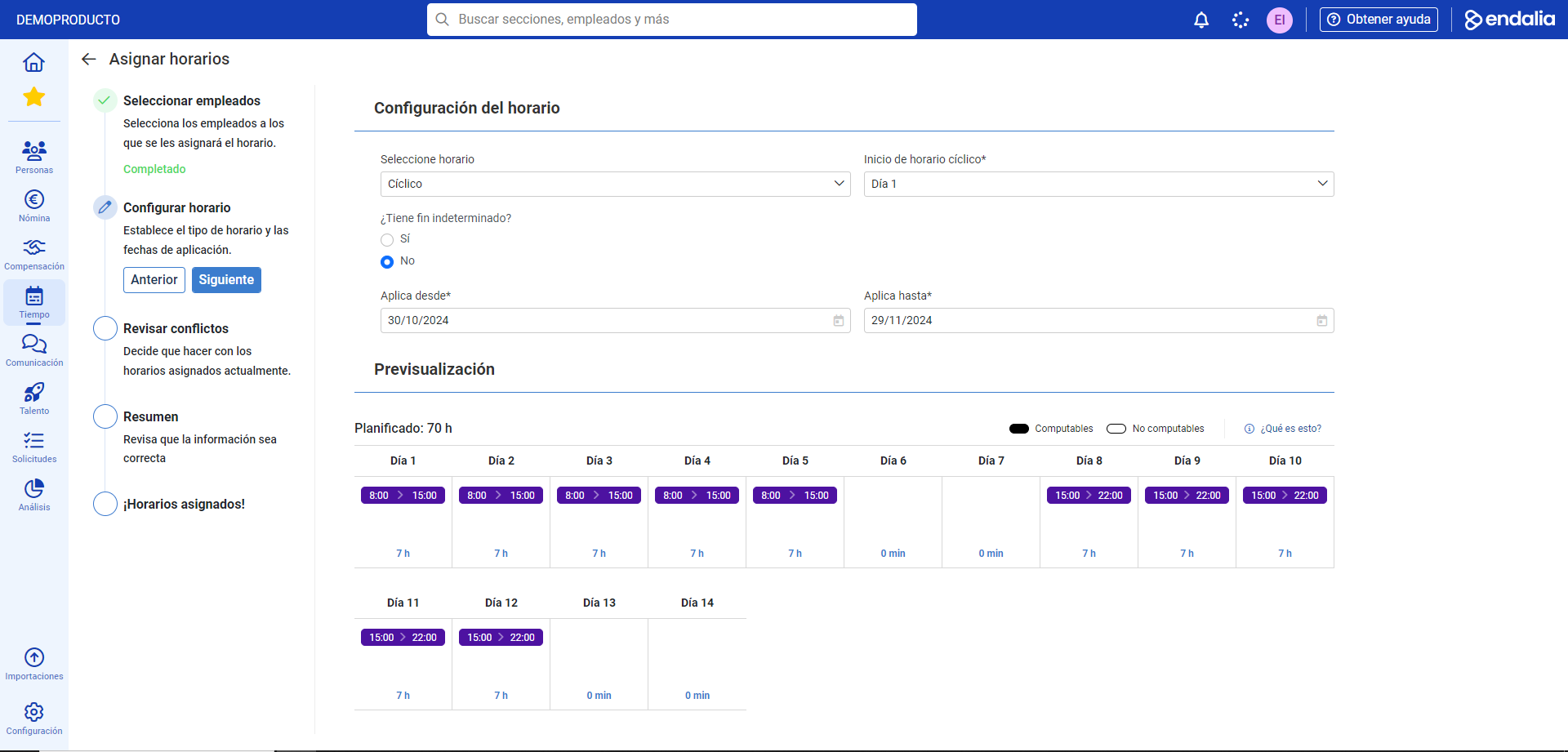
- In Review Conflicts, the system provides a list of possible schedule or shift management conflicts affecting the previously chosen workers. You can discard them to avoid changes, or keep them to apply the new schedule, in the column located on the left side of the screen. Once you have set your preferences, click the Next button again.
- On the Summary screen, you can check that your selection is correct (you can always go back on your steps in each section of the menu by clicking Previous). If the data is correct, click Assign Schedules
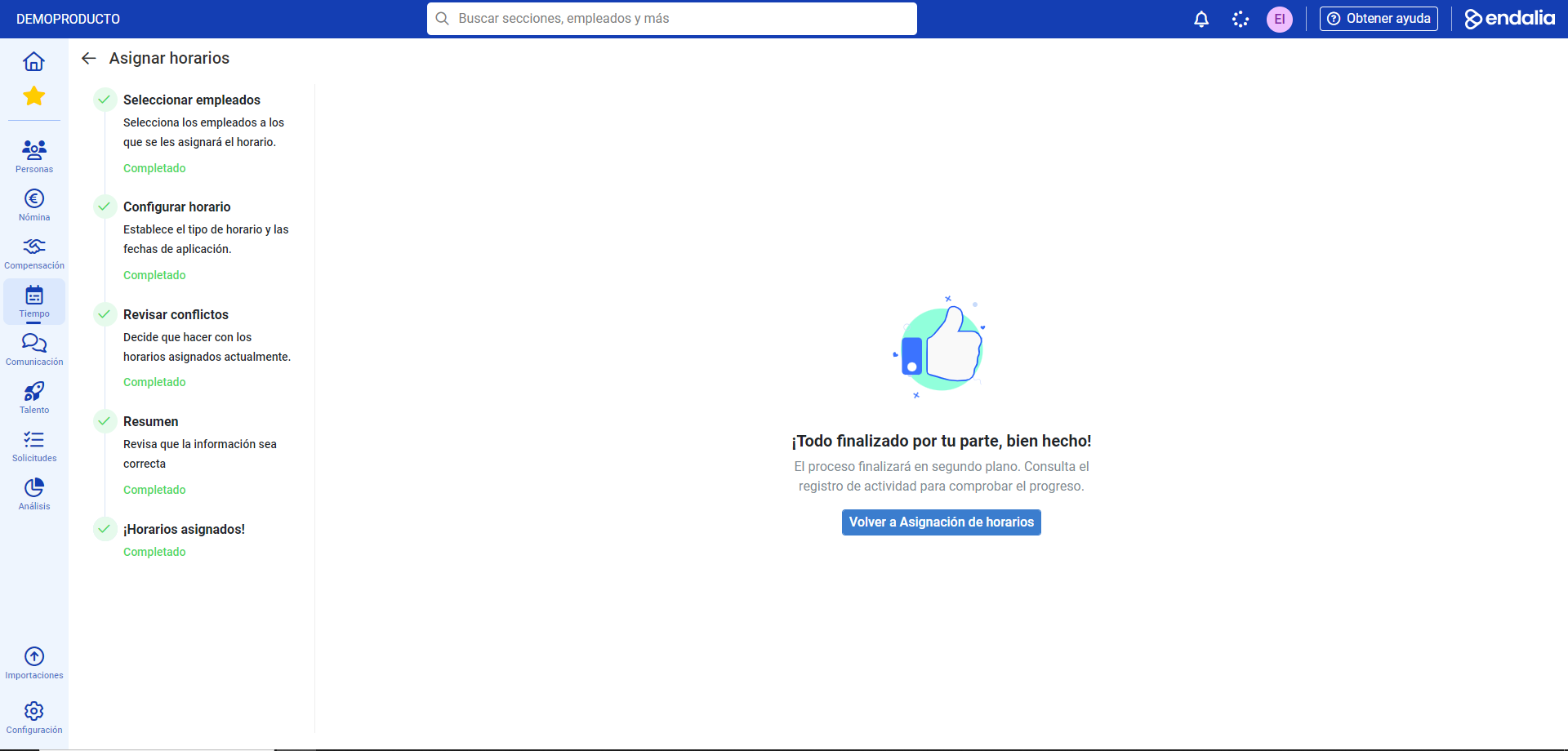
- The message All done on your part, well done! will inform you that the process has been successfully completed. You can return to the main screen to view the result of your selections:
Planning
Arises after assigning a schedule to an employee since a schedule is actually a set of shifts. To see this functionality, go to Time Management > Time Record > Planning
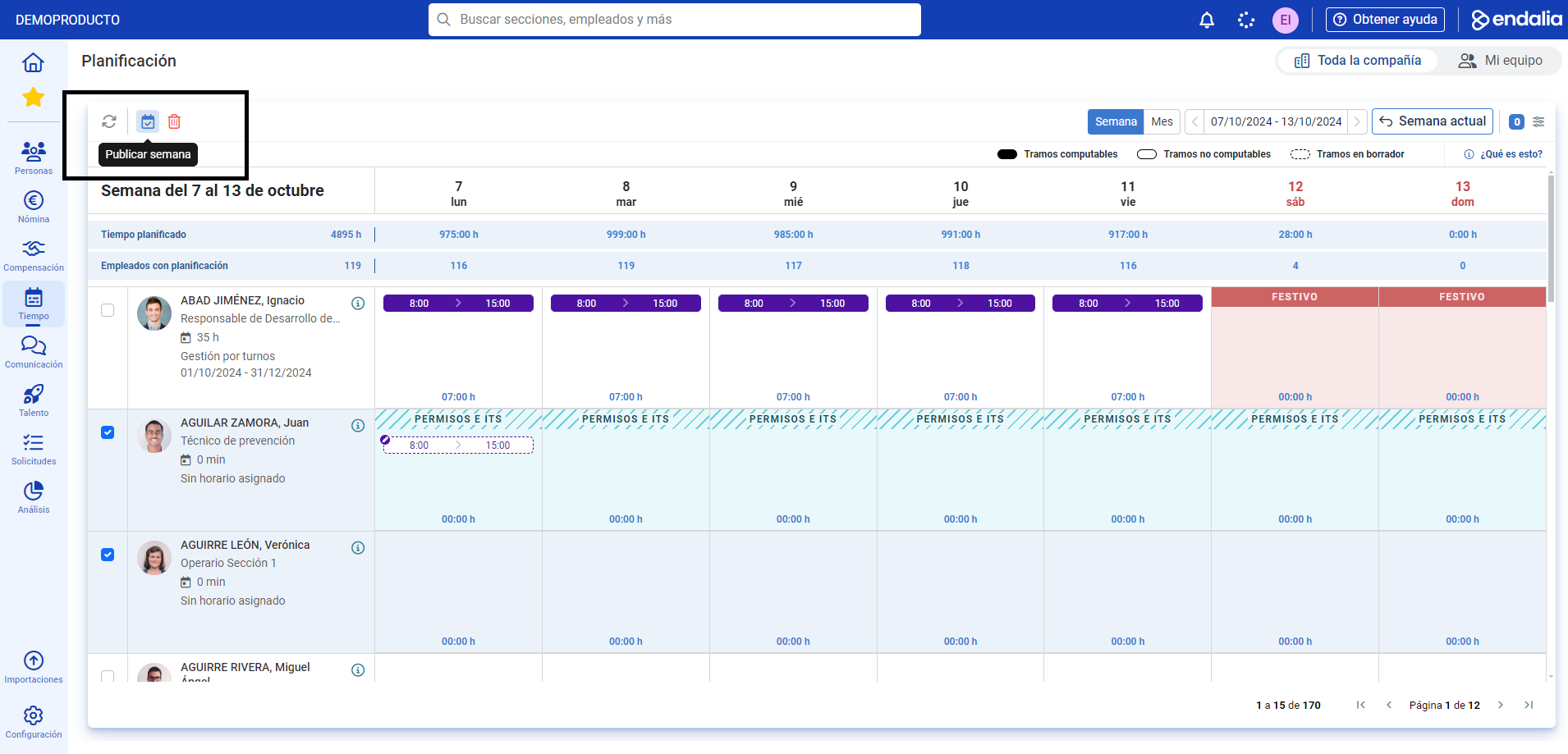
- On the screen shown next, you can see at a glance the weekly schedule of each employee, with their corresponding shifts, which you can edit or delete by double-clicking on them, or add them by hovering over them with the pointer and then selecting the option Add segment. Whatever your preference, do not forget to click Save in the emerging modal window to set your preferences.
- Requested time expansions can be viewed here, but editing must be done in Time Record > Time Record Monitoring > Expansions
- When weekly segments are modified or new ones are added, they are saved as drafts. It is necessary to publish them (button Publish Week, in the toolbar) so that they are visible to the collaborator.
Similarly, weekly shifts can also be deleted using the Delete button, in the same location described above.
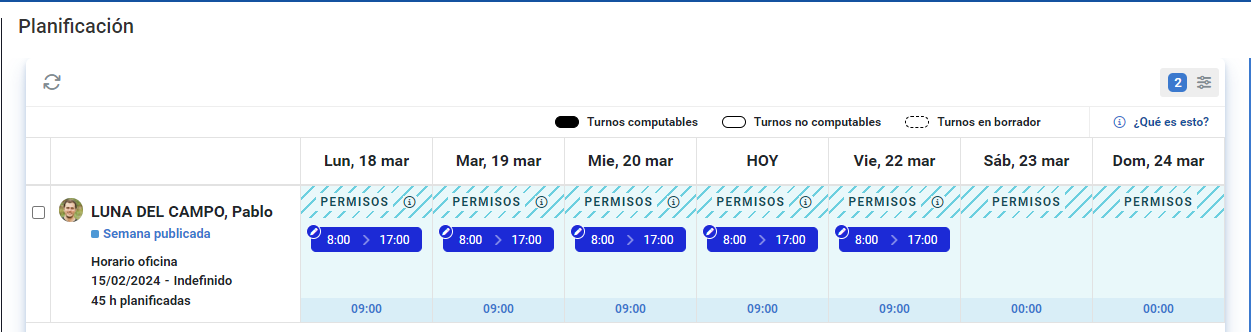
- If the employee has permissions and/or IT (temporary disabilities), they will also be displayed in their planning:
Schedule configuration
Additionally, a new section has been enabled in the employee's record, where you can consult the scheduling configuration and the employee's work calendar. It is allowed to assign schedules directly to the employee or start shift management to add shifts on the same tracking screen.
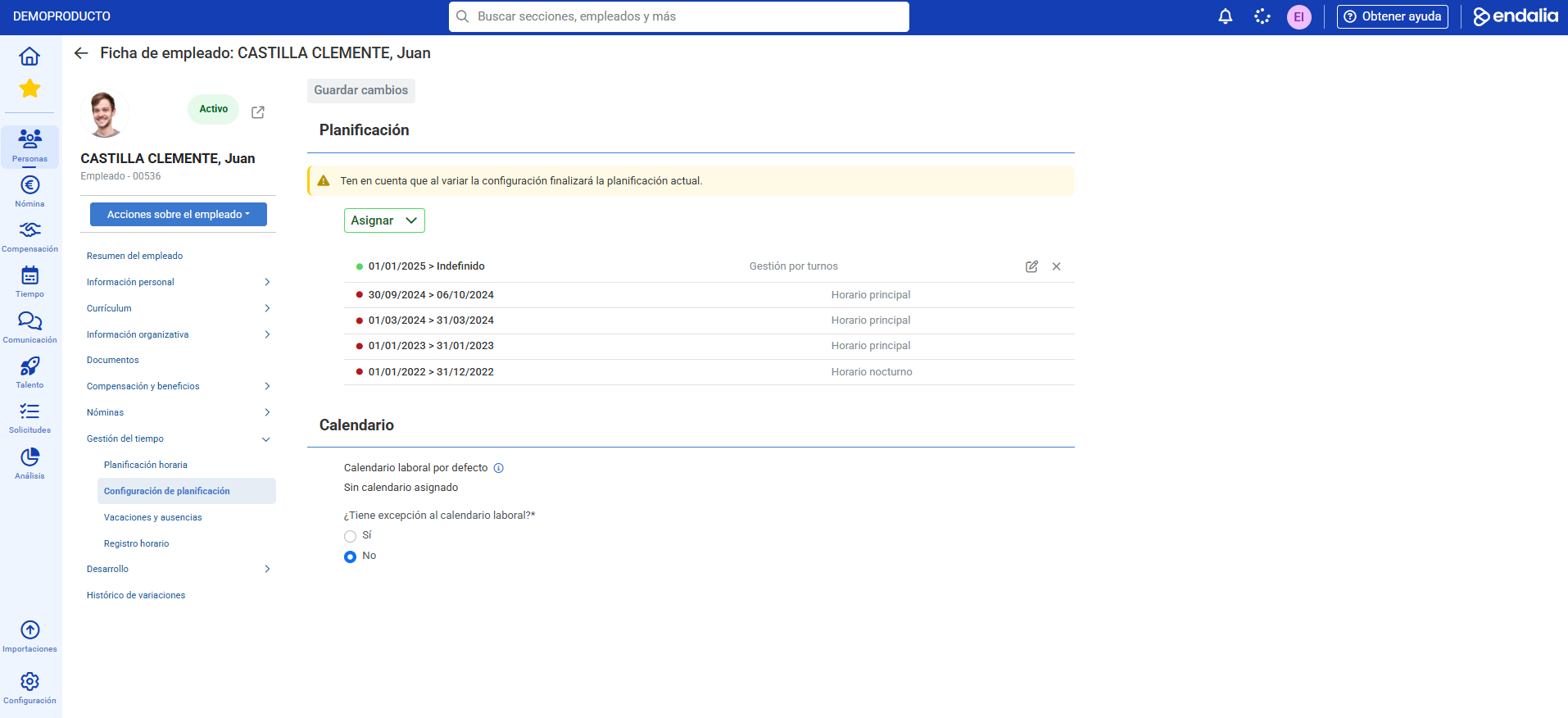
Past schedule assignments can be consulted, with the ability to edit or only delete current and future tasks.
Process video
All process steps within one click:
Still have questions? Check out the following related articles:
Additionally, you can view our glossary, available at this link.
Was this article helpful?
That’s Great!
Thank you for your feedback
Sorry! We couldn't be helpful
Thank you for your feedback
Feedback sent
We appreciate your effort and will try to fix the article