Important: This article is intended for Endalia HR users with the Administrator profile. You can only see this functionality if the advanced shift management is previously configured (Configuration > Time Registrations > Scheduling > General Configuration)
Controlling this triple functionality as an alternative to schedules becomes essential. Therefore, we offer you the keys to manage employee-associated shifts swiftly and easily.
In this article:
Edit/Delete/Add shifts
Within the hubTime, go to the module Planning and Time Registrations > Planning > Shifts.
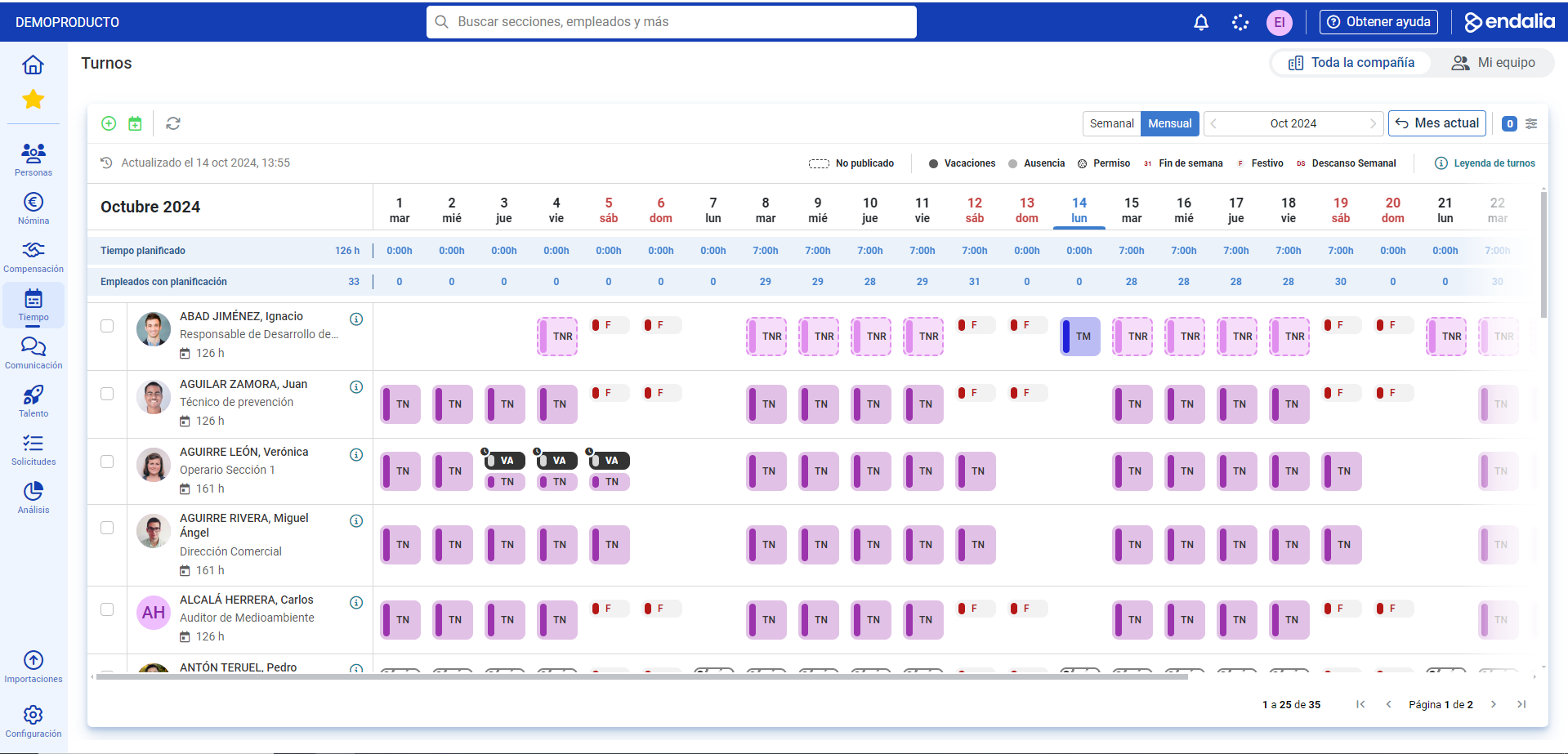
- On the screen that appears next, you have a complete visualization of all employee shifts, both weekly and monthly. First, utilize these filters, located at the top of the grid, to achieve the desired view:
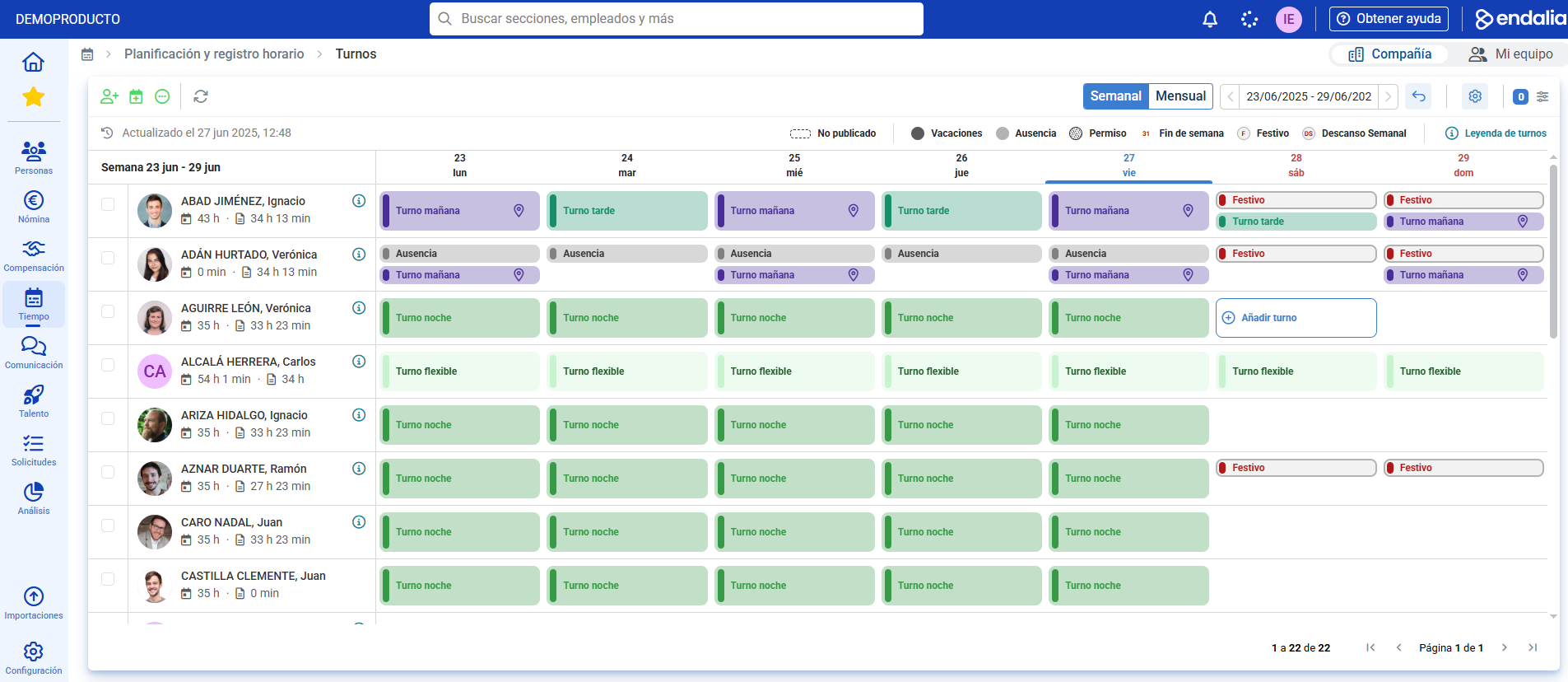
- From this moment, you can perform many actions on employees; for example, add a shift on days where there isn't one, which you can Add or Add and publish, if you wish to keep it fixed.
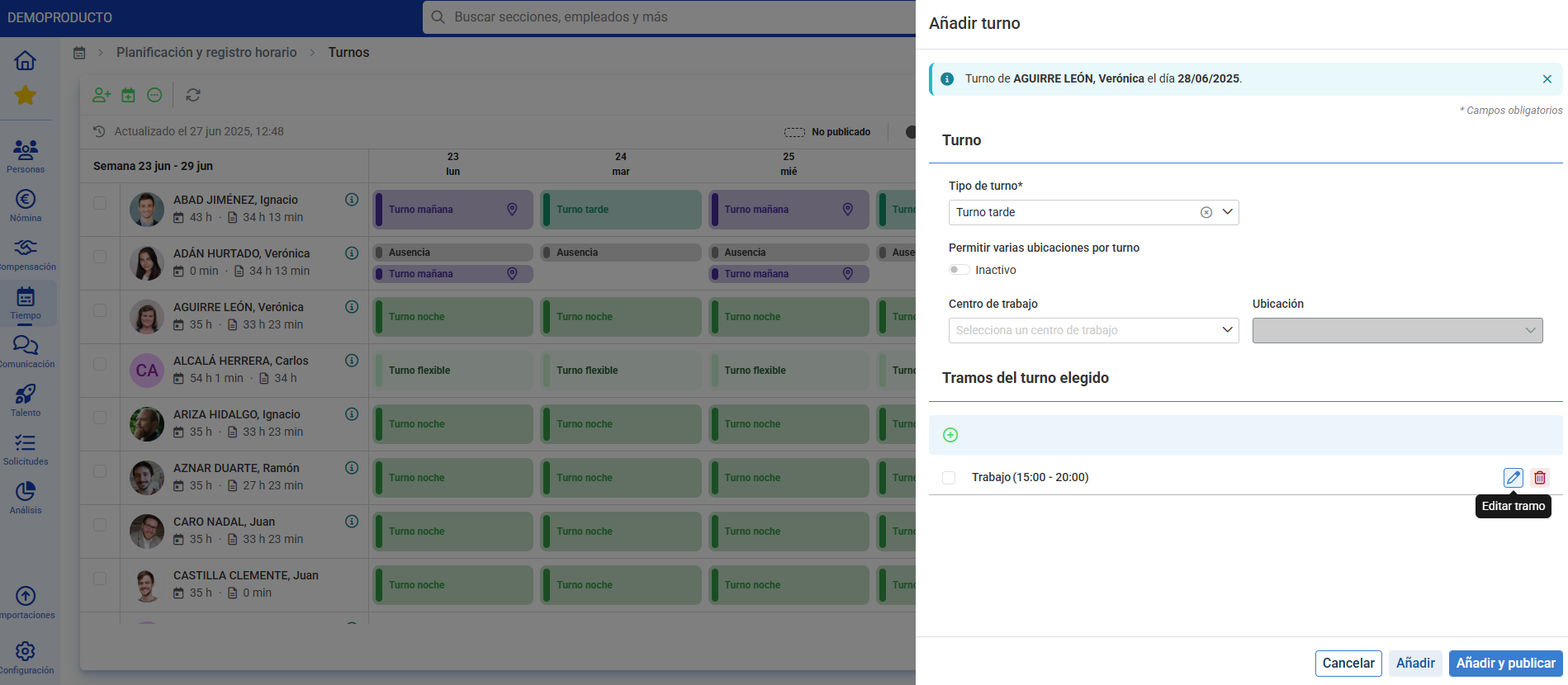
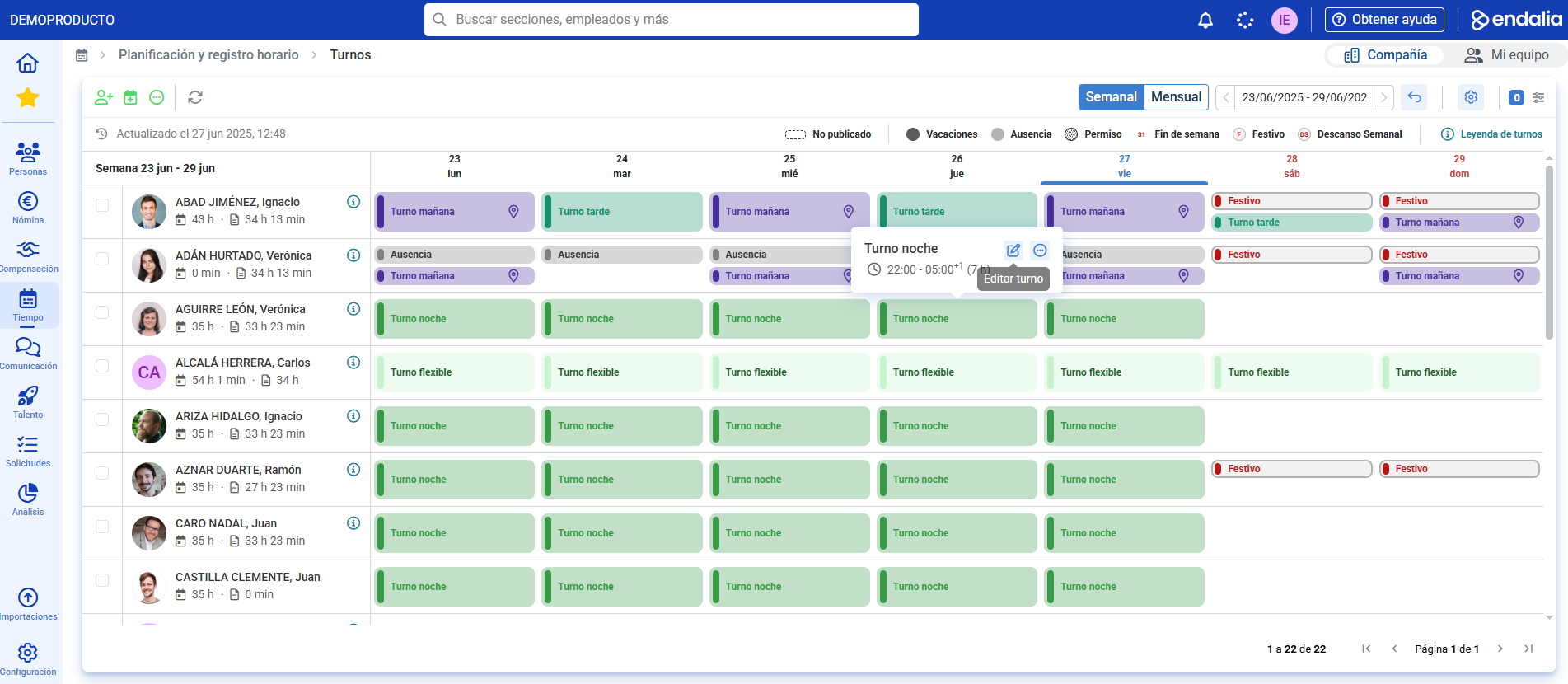
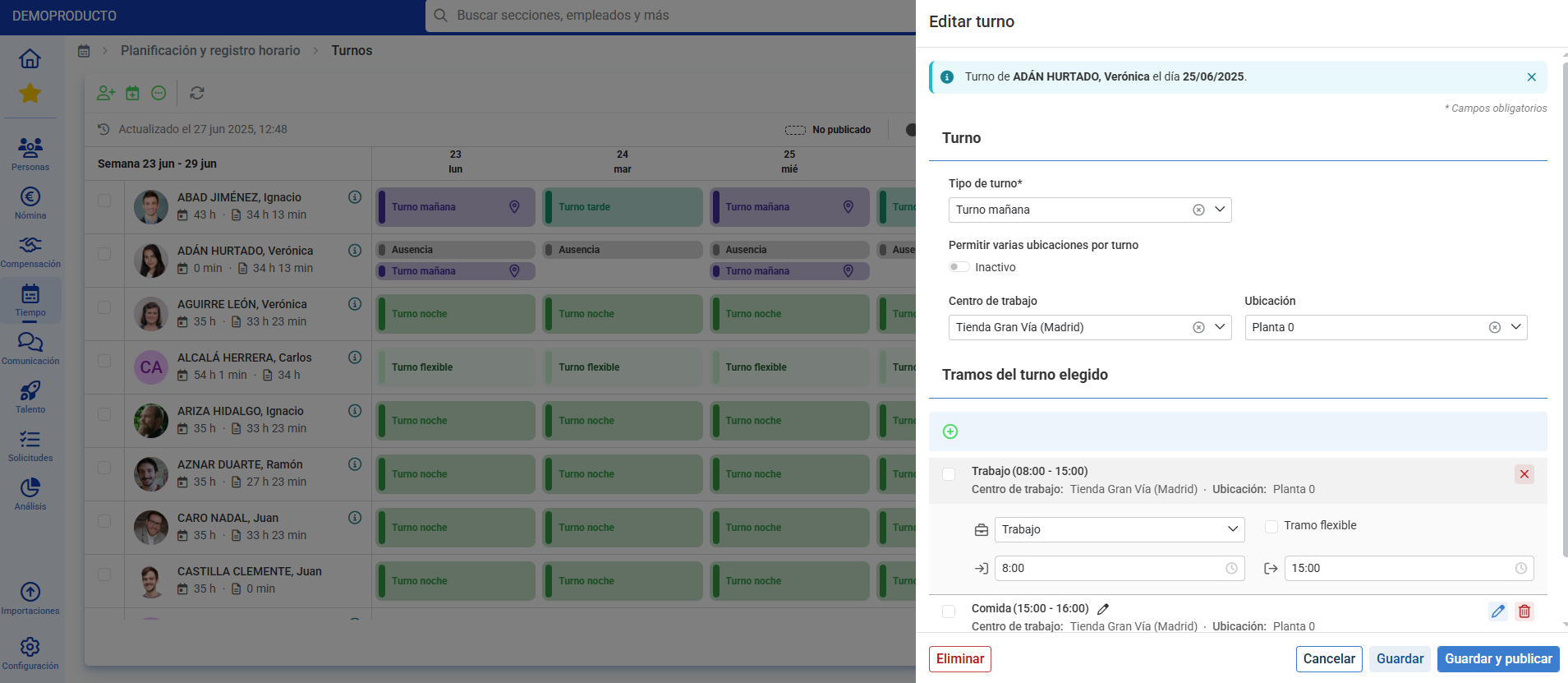
- You can also edit or delete an existing shift by clicking it and following the steps described in the modal window:
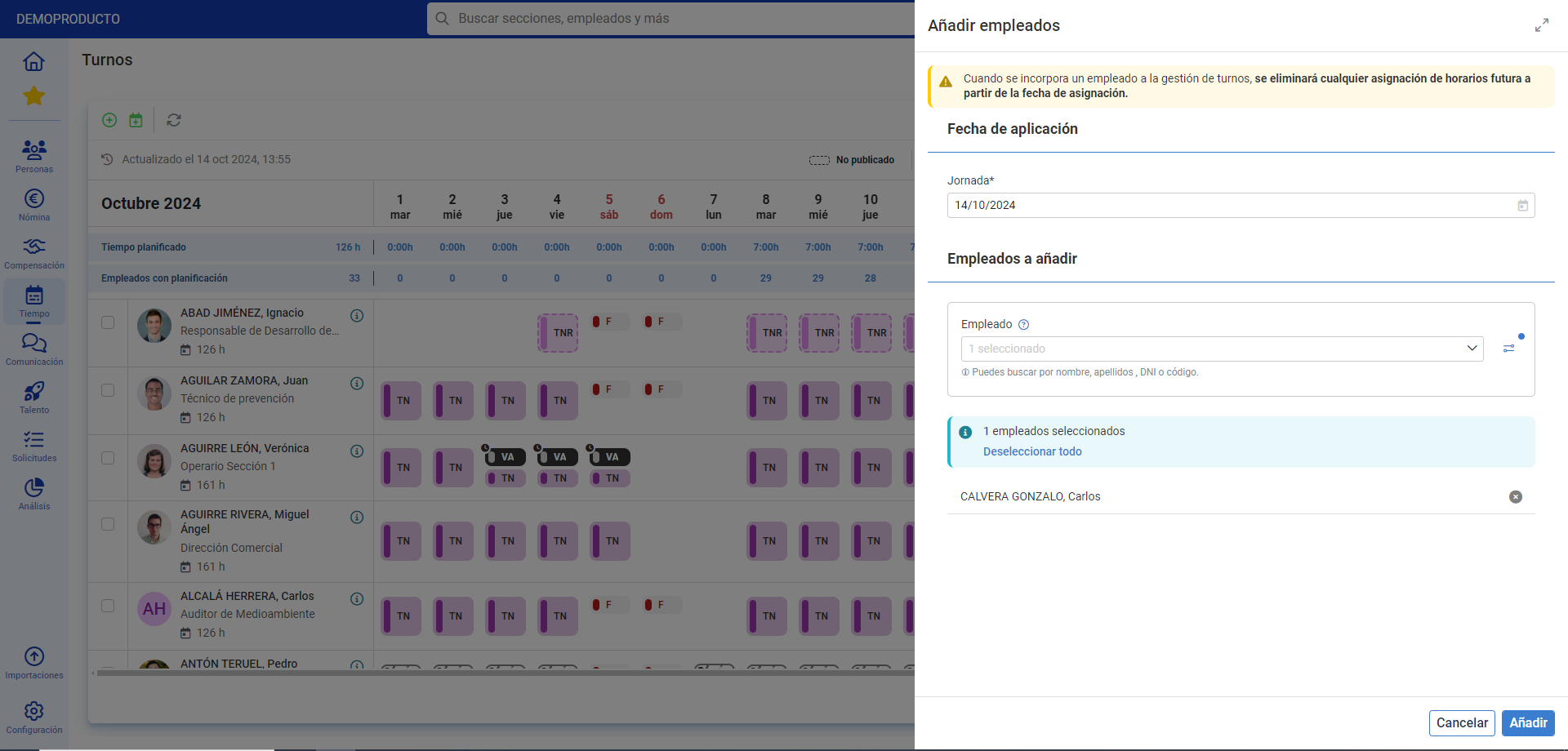
- Another option the system offers you is Add Employees, present in the toolbar; click the button and follow the steps to add workers to the main screen listing:
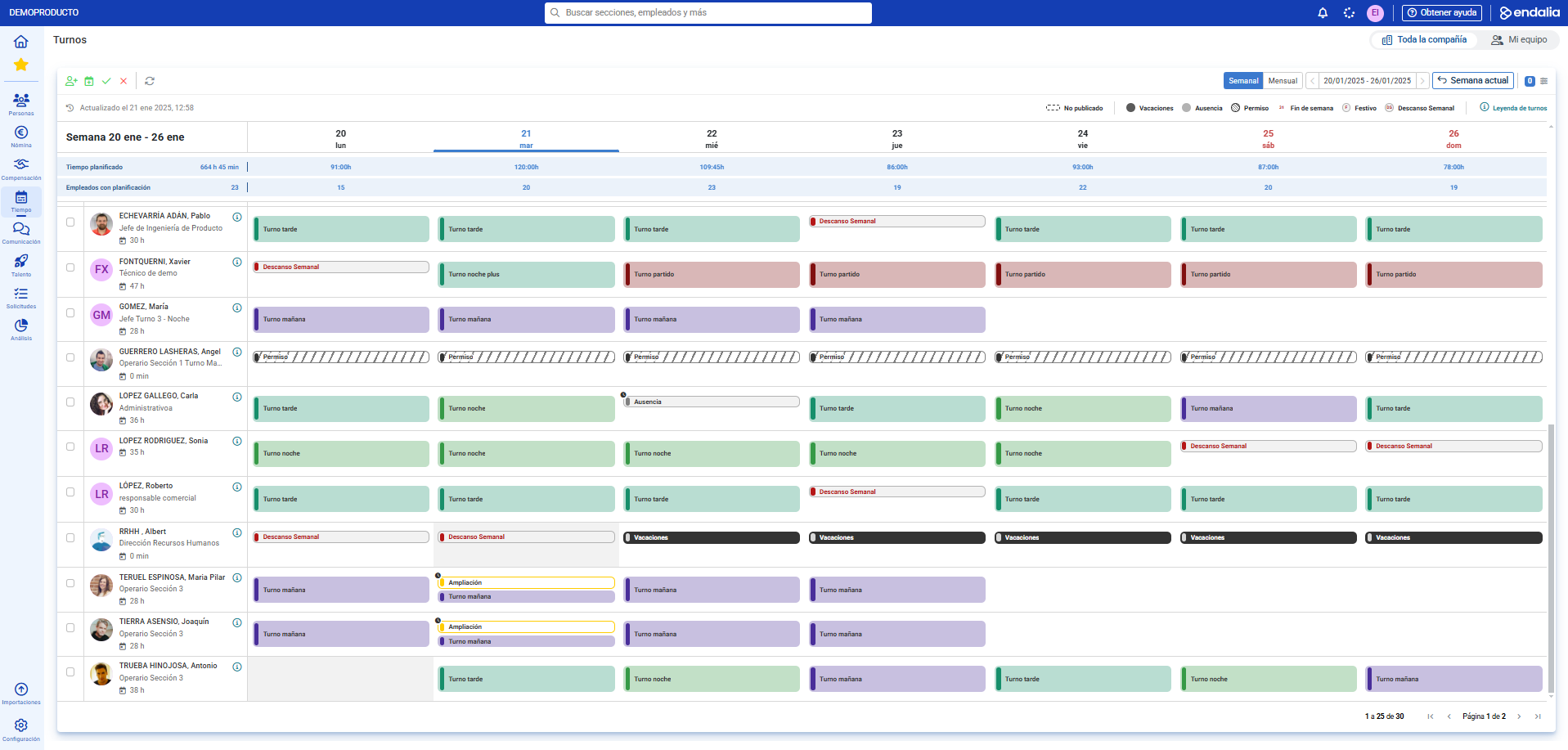
- To the right of the screen, you will find filters by shift name and status to quickly check which employees are assigned a specific shift, in addition to checking the planned employees and hours totals at the top.
- Cells where a person cannot be managed by shifts (not yet included on the screen, no valid contract, or closed schedules) will be shaded in gray and cannot perform any described actions.
- On the same screen, you can see absenteeism (vacations, absences or permits and ITs), holidays, and working hours extensions, differentiating between those pending validation with a clock in the top left and those already validated. There is an automation that, when validating vacations, absences, or full day permits, deletes the affected planning on those days.
Publication/unpublication of shifts
To carry out shift planning, it is common to manage the weekly or monthly template with shifts not yet published. Once accepted and validated by the interested parties, they are published to incorporate into the collaborators' planning.
There is an option for publication/unpublication by selecting employees, where depending on the employees selected and the shifts included, the actions of publishing or unpublishing week or month will be displayed:
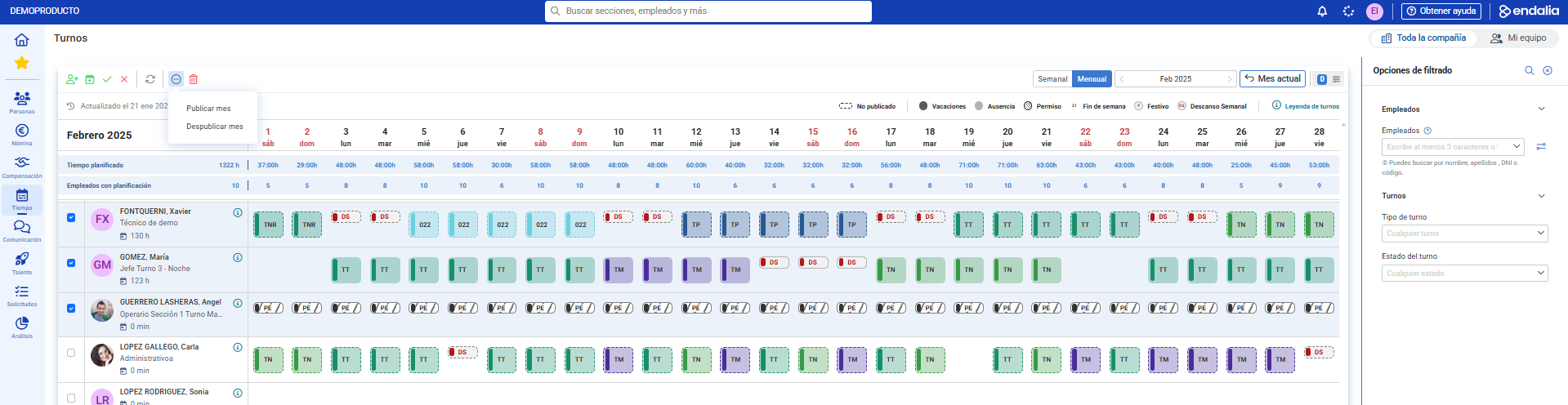
- There is also the possibility to publish or unpublish all pending shifts en masse without selecting any employee, where this action affects all the employees appearing on the screen, with visibility and filters applied:
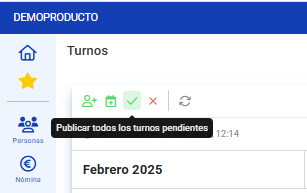
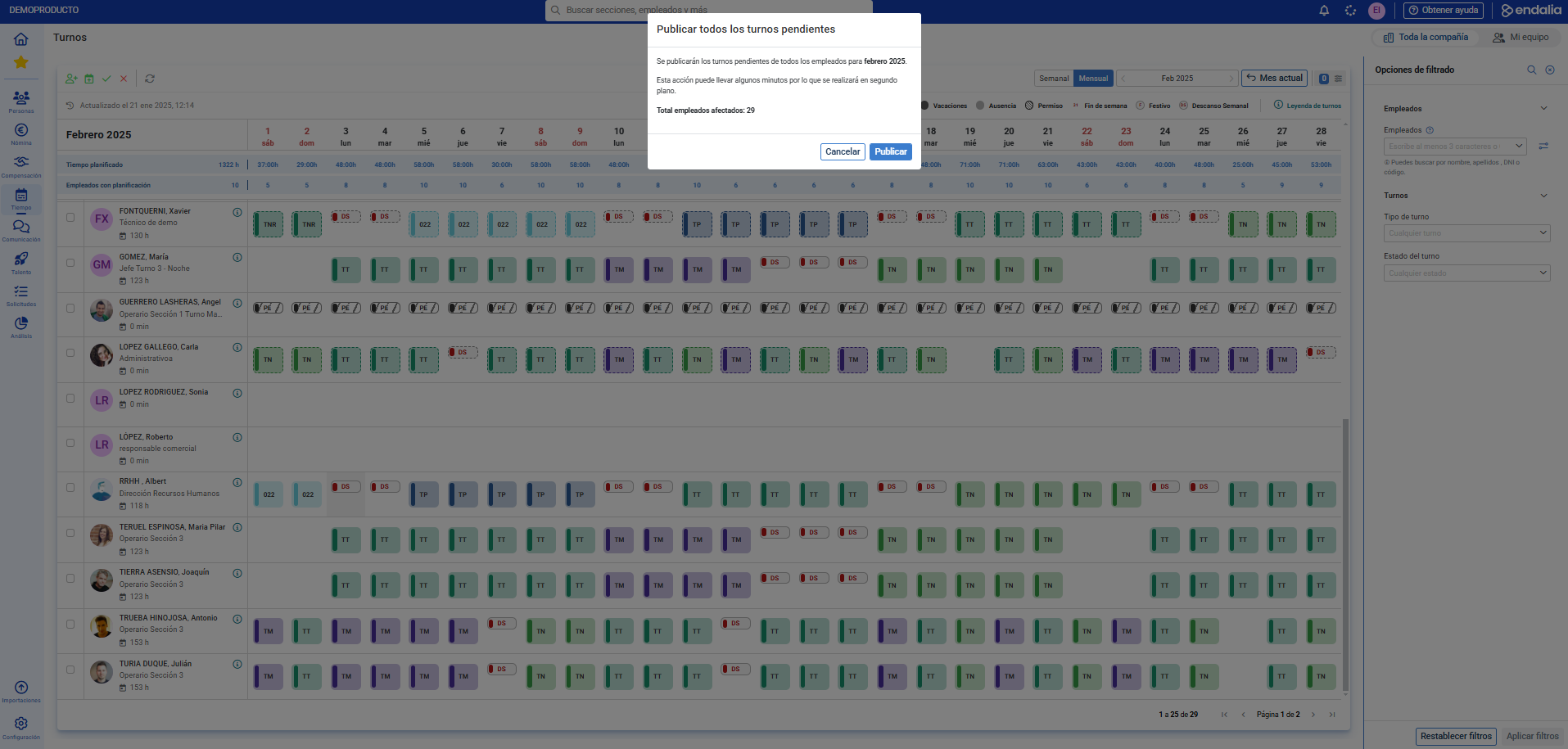
3. You will also have the possibility to notify employees when shifts are published, whether they are daily, weekly, or monthly. Through the configuration, with the notification active, it will be emitted automatically when publishing shifts, and once received, it will direct them to the web scheduling screen or mobile calendar.

Planning configuration
Additionally, a new section in the employee's file has been enabled where you can check the planning configuration and the employee's work calendar. You are allowed to assign schedules directly to the employee or begin shift management to add shifts on the same tracking screen.
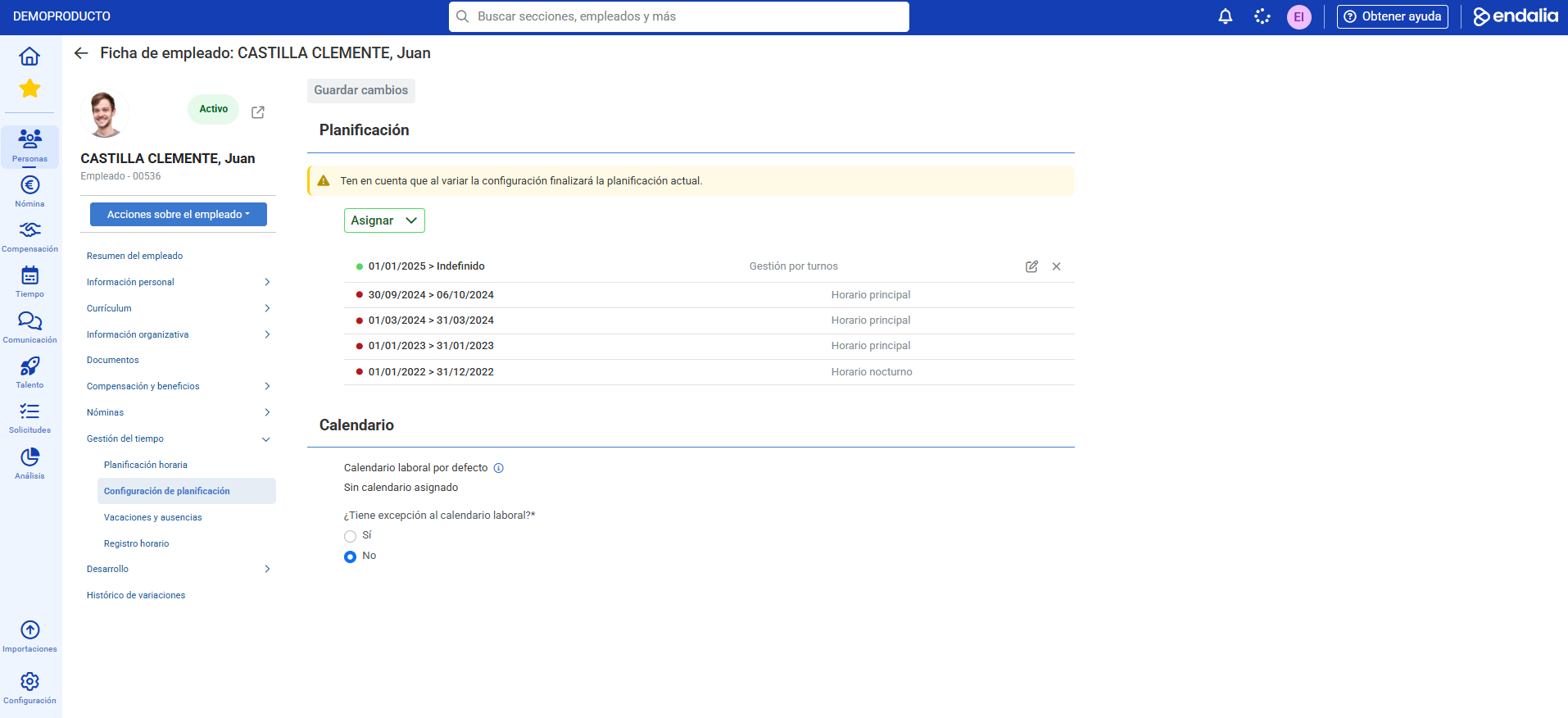
You will be able to consult past schedule assignments, being able to edit or delete only the current and future ones.
Process video
We quickly show you all these processes:
We propose to you:
Additionally, you can view our glossary, available at this link.
Was this article helpful?
That’s Great!
Thank you for your feedback
Sorry! We couldn't be helpful
Thank you for your feedback
Feedback sent
We appreciate your effort and will try to fix the article