Important: this article is intended for Endalia HR users with an Administrator profile.
Whether you need one functionality or the other, Endalia has the perfect solution to fit your needs.
This article contains:
Configure and edit shifts
Within the hub Configuration, click on the Time Registration > Shift Planning module
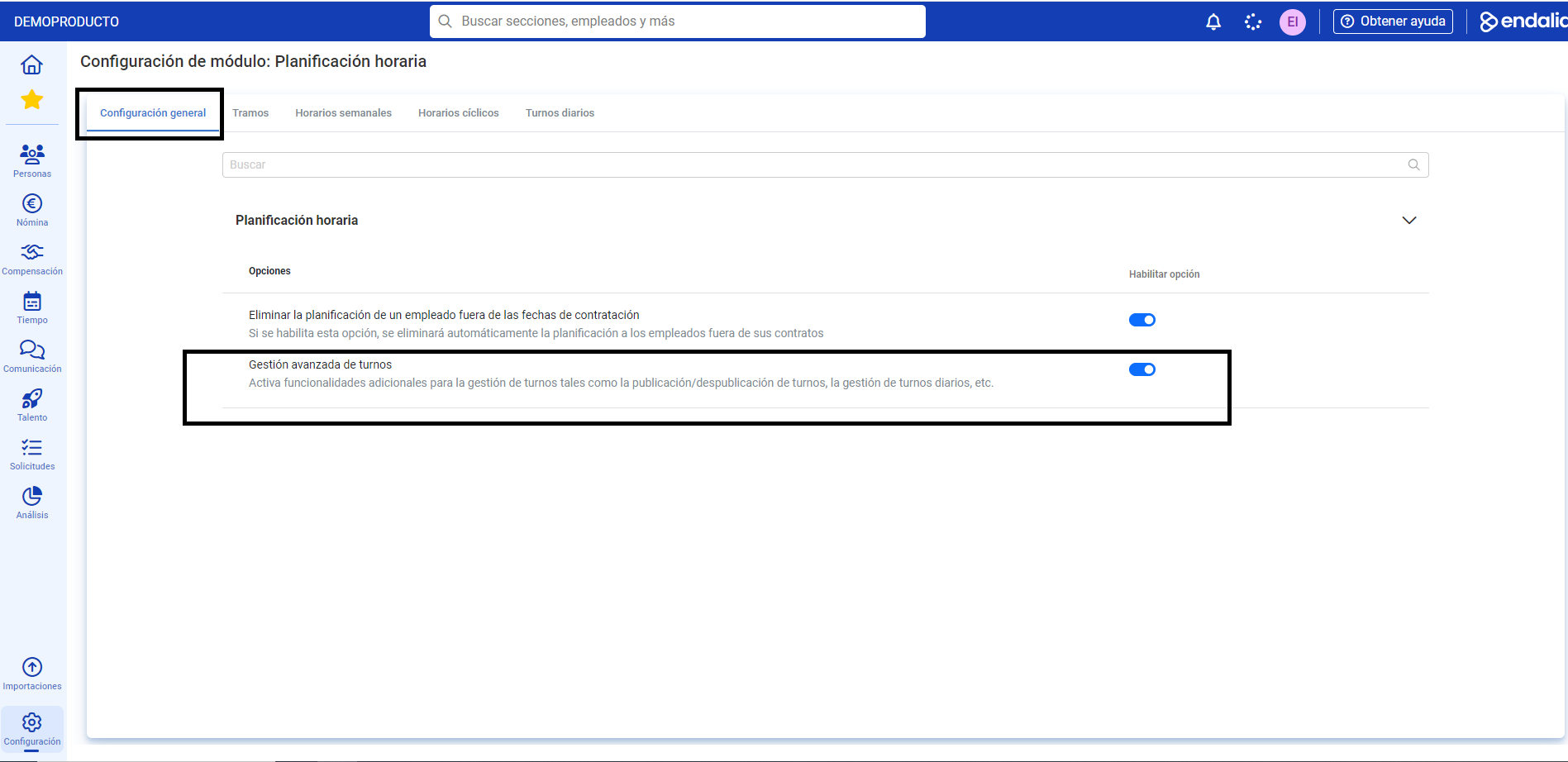
- In the first tab, General Configuration, you have a specific section called Advanced Shift Management within shift planning. Enable the option to access the functionality:
- As you can see now, a new tab named Daily Shifts has been automatically added by the system on the main screen. Click on it to access their list:
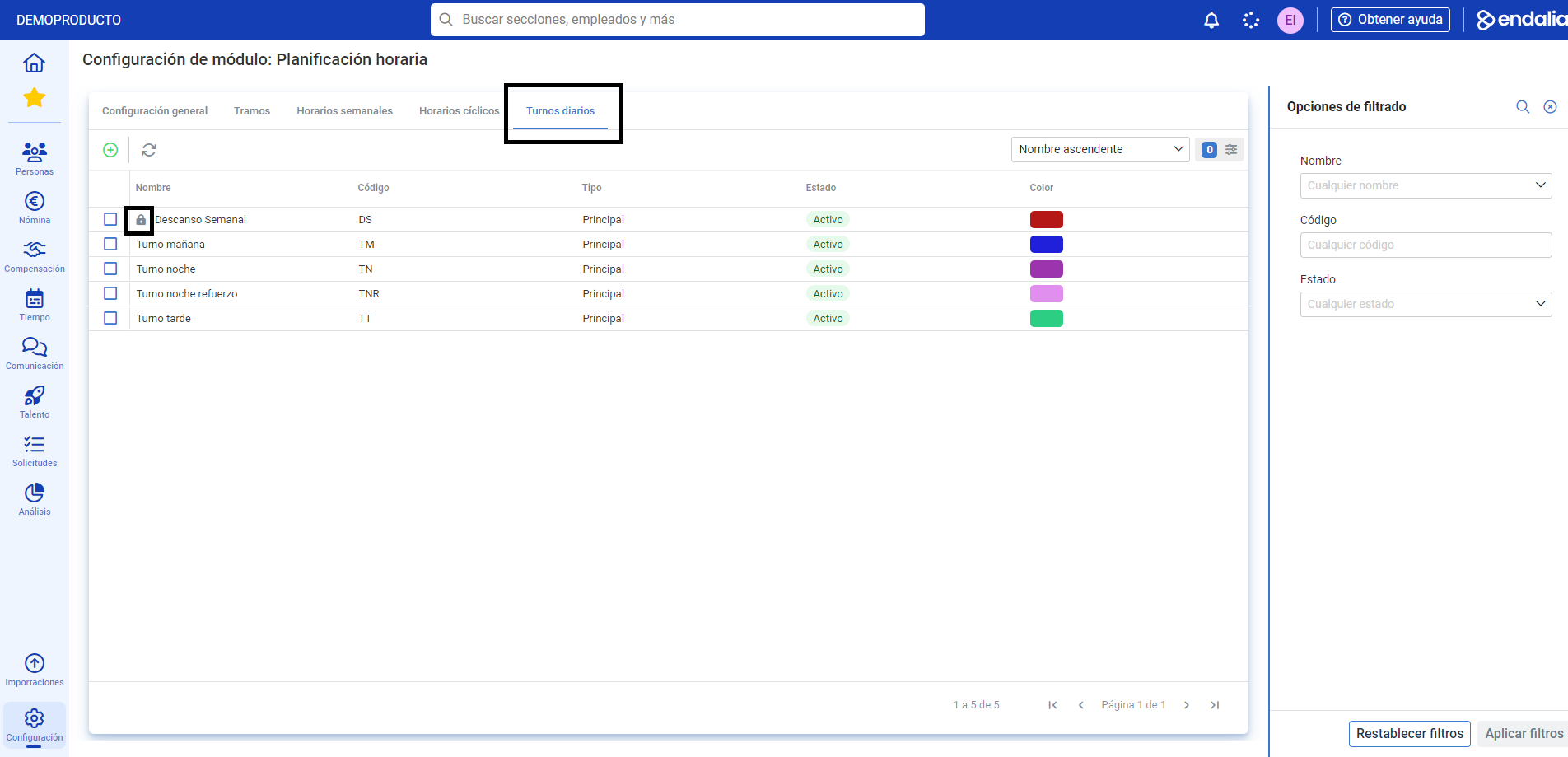
- As you can see on the main screen, there are shifts included by the default system (represented by a lock icon) and other shifts you previously created. To edit a shift, select it by clicking on the name or the corresponding box and click on Edit Shift, a button you'll commonly find on the toolbar:
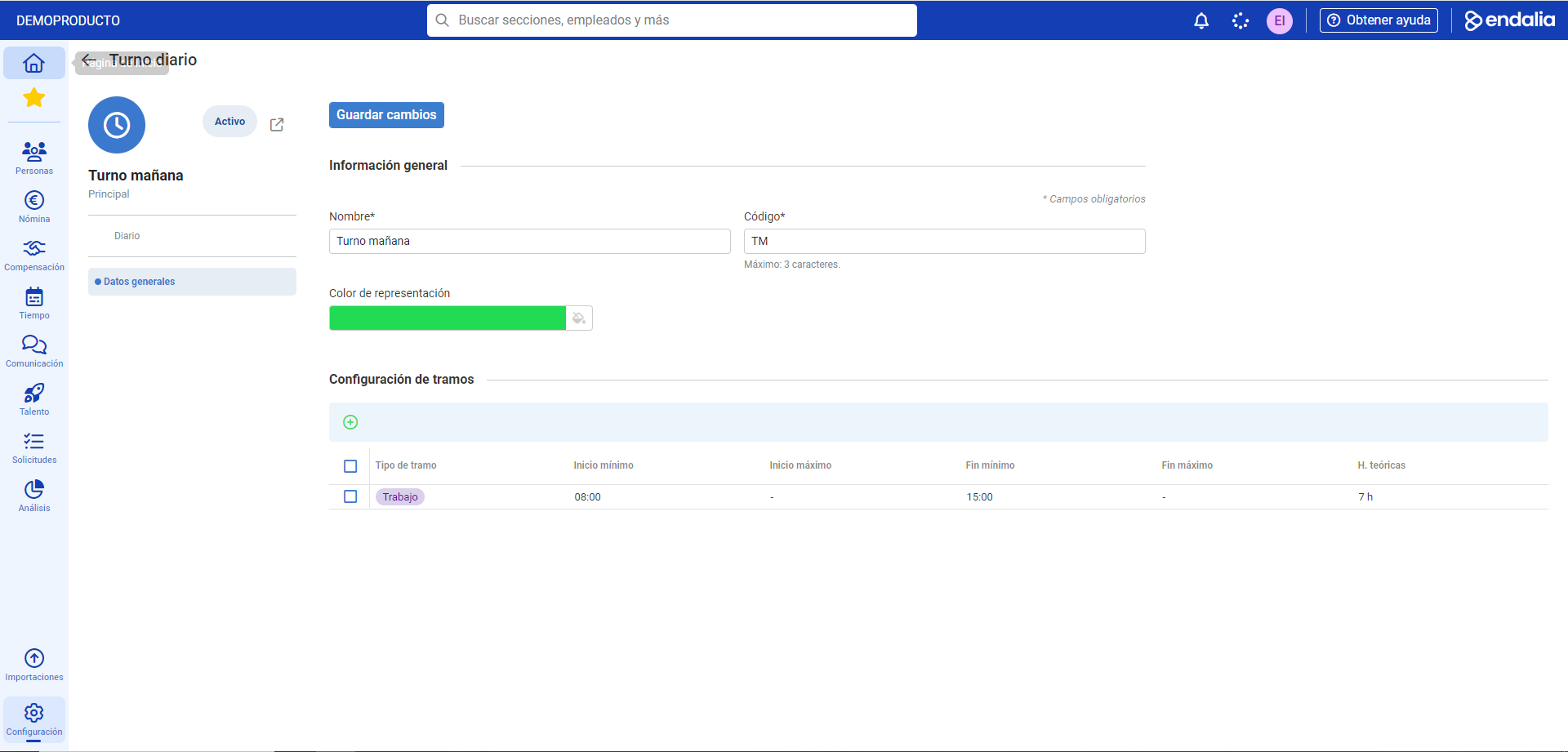
- The General Data menu item allows you to modify both the information and the representation color, as well as modify the sections associated with it. Navigate through the different sections to configure this shift to your liking, and remember to click on Save changes, at the top of the screen, to update your preferences.
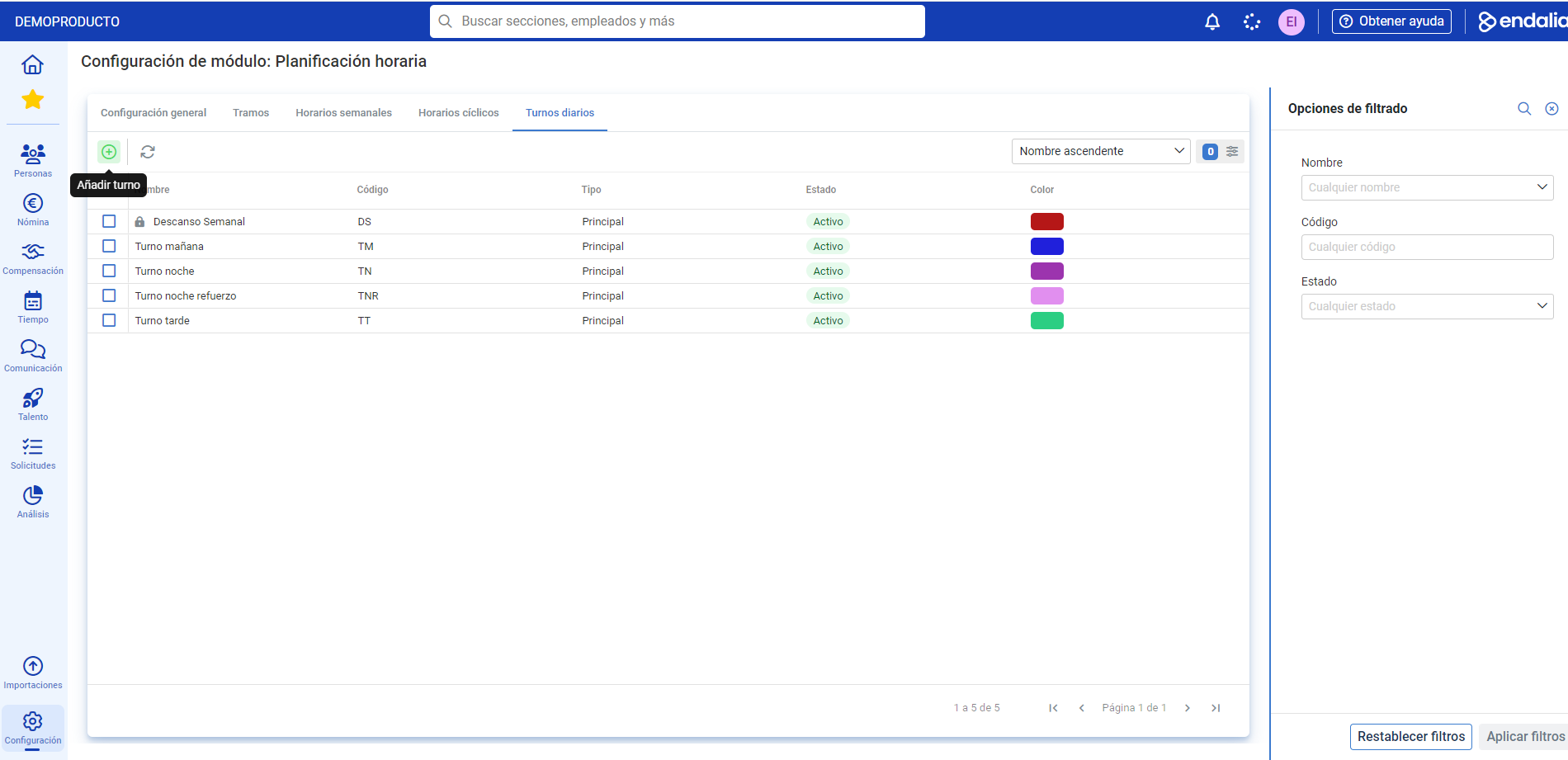
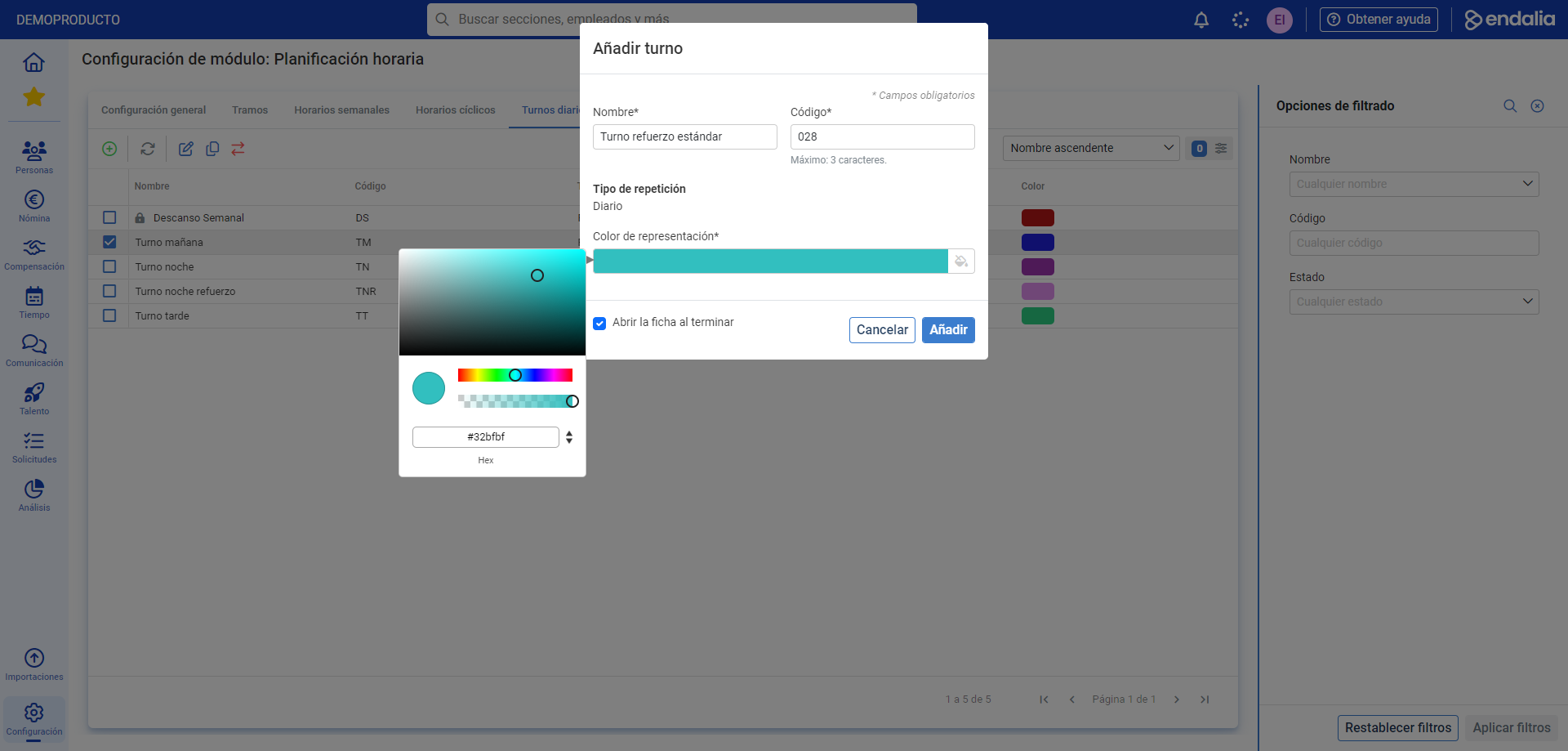
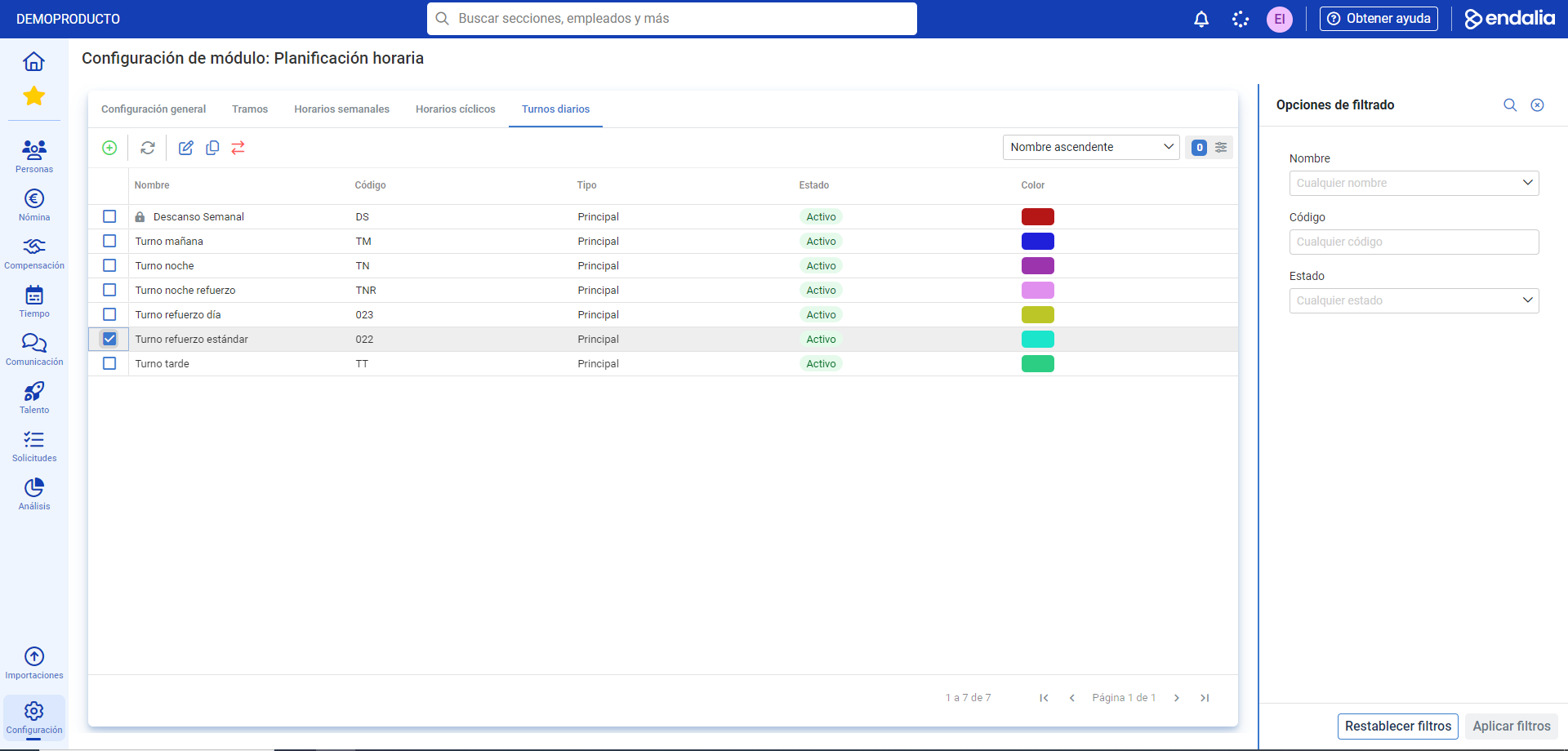
Note: If you want to add a shift, within the Daily Shifts tab itself, click on Add Shift, a button located on the toolbar:-Configure it to your liking in the modal window and click on Add. Now, the new shift will appear in the list within the daily shifts tab, and you can edit it at any time:
You might also be interested in:
Additionally, you can view our glossary, available at this link.
Was this article helpful?
That’s Great!
Thank you for your feedback
Sorry! We couldn't be helpful
Thank you for your feedback
Feedback sent
We appreciate your effort and will try to fix the article