Important: this article is intended for Endalia HR users with the Administrator profile.
The training dashboard is your starting point as HR to manage the organization’s training activities.
At a glance, you can see which requests are awaiting your action, the status of the training year, budget consumption, and which actions have participants yet to close.
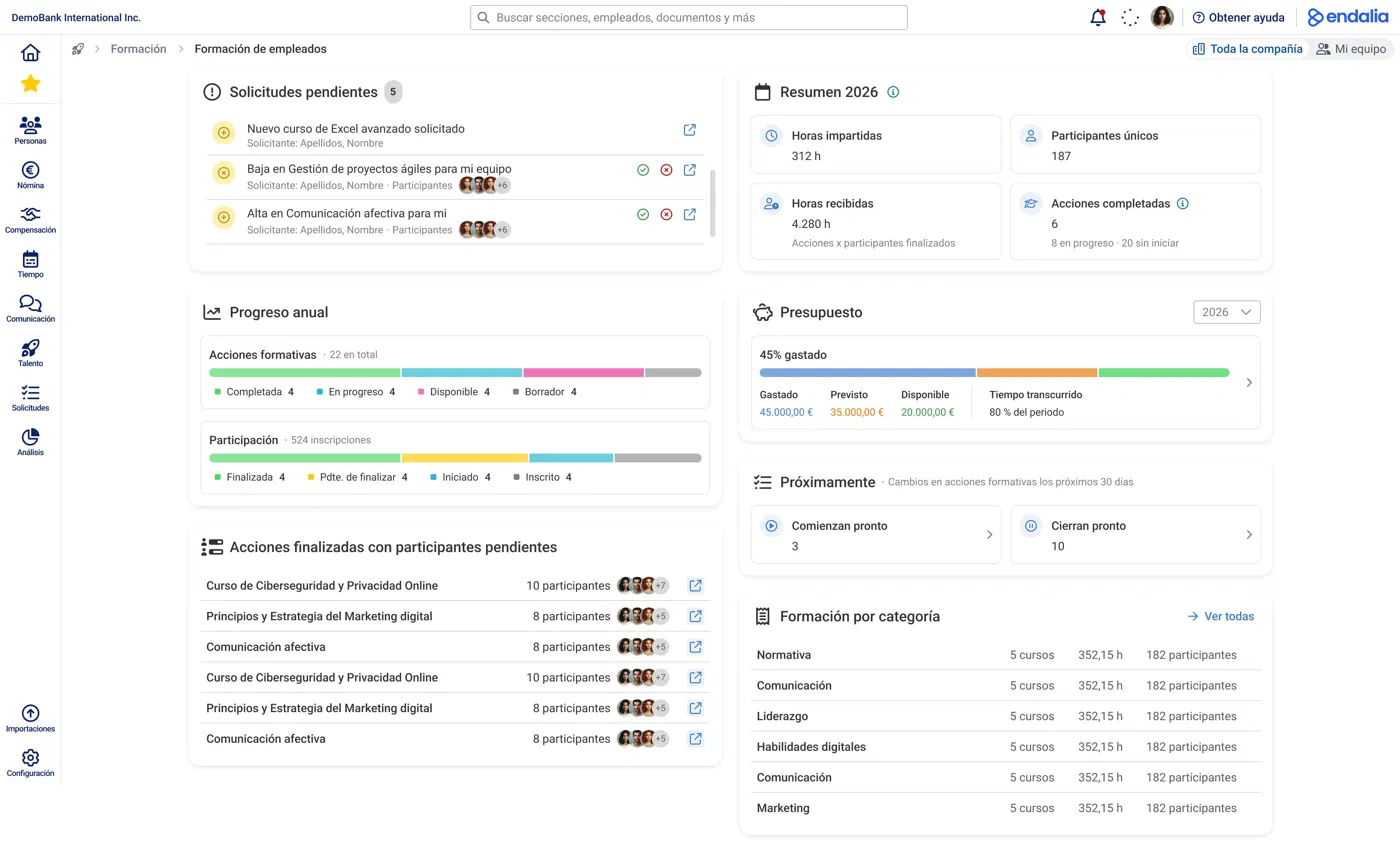
TABLE OF CONTENTS
- How to access
- Pending requests
- Summary 2026
- Annual progress
- Budget
- Upcoming
- Completed actions with pending participants
- Training by category
How to access
Navigation: inside the Talento hub, go to Training > Employee Training. The dashboard is the main screen upon entering, accessible from the Entire company view.
Pending requests
List of training requests that are in your inbox awaiting processing. Each request shows:
- The type and name of the request (for example: Enroll in Effective Communication for me, Remove from Agile Project Management for my team, New Advanced Excel course requested).
- The name of the requester (employee or manager who initiated it).
- Participants affected, if applicable.
- Direct action buttons to approve ✓ or reject ✗ without leaving the dashboard.
- A link to open the full request.
This block only displays requests pending processing by HR. It does not include intermediary manager validations nor already resolved requests.
Summary 2026
Four counters with the training activity of the current calendar year:
- Hours delivered: total training hours for training actions in the year.
- Unique participants: number of distinct people who participated in any training action.
- Hours received: total hours received by completed participants (actions × completed participants).
- Completed actions: training actions in Completed status, with details of how many are in progress and how many not started.
Click on the ⓘ icon next to the title to view more information on how the data is calculated.
Annual progress
Two segmented bars showing the distribution of the year’s training activity:
Training actions — total actions for the year distributed by status: Completed, In progress, Available, Draft. Total is shown in the header (for example: "22 in total").
Participation — total enrollments distributed by participant phase: Completed, Pending completion, Started, Enrolled. The total number of enrollments is shown in the header.
Budget
Only appears if there is a period with configured budget. You can change the year using the drop-down selector.
Displays:
- % spent as the main headline.
- Visual bar with the proportion of Spent, Forecast, and Available.
- Four key figures: Spent, Forecast, Available, and Elapsed time (% of period consumed).
Click on the arrow → to access the full details of budgets and expenses.
If there is no period with configured budget for the selected year, this block will not appear.
Upcoming
Relevant changes in the next 30 days, shown in two cards:
- Starting soon: number of training actions whose start date is within the next 30 days.
- Closing soon: number of training actions whose end date is within the next 30 days.
Click each card to see the corresponding list of actions.
Completed actions with pending participants
List of training actions in Completed status that have participants in the Pending completion phase, that is, who have not yet finalized their participation.
For each training action, the name is shown, as well as the number of pending participants and their avatars. Click on the direct access link to go to the Participants tab of that action and manage them from there.
If all completed actions have their participants finalized, this block appears empty.
Training by category
Table with training activity broken down by course category. For each category, it shows:
- Number of courses.
- Hours delivered.
- Number of participants.
Click on View all to access the complete list of categories.
Was this article helpful?
That’s Great!
Thank you for your feedback
Sorry! We couldn't be helpful
Thank you for your feedback
Feedback sent
We appreciate your effort and will try to fix the article