Important: this article is aimed at Endalia HR users with an Administrator profile.
You can record and monitor participant attendance in training sessions. This functionality is essential for training follow-up, managing FUNDAE bonuses, and assessing employee commitment to their development.
In this article you can find
Attendance types
Endalia allows attendance to be managed in two different ways depending on how the training action is organized:
- Session attendance (automatic), designed for in-person trainings with scheduled sessions. The administrator marks attendance session by session, and the system automatically calculates the total percentage of attendance.
- Manual attendance (directly entered), intended for online training without scheduled sessions. The administrator manually enters the attendance percentage (0-100). No created sessions are required.
By default, the "Manual Attendance" field is initialized with the value of "Session Attendance." If you manually edit the "Manual Attendance" field, that value will prevail.
Prerequisites
- The training action is "In Progress" or "Completed"
- The training action has registered participants
Manage session attendance
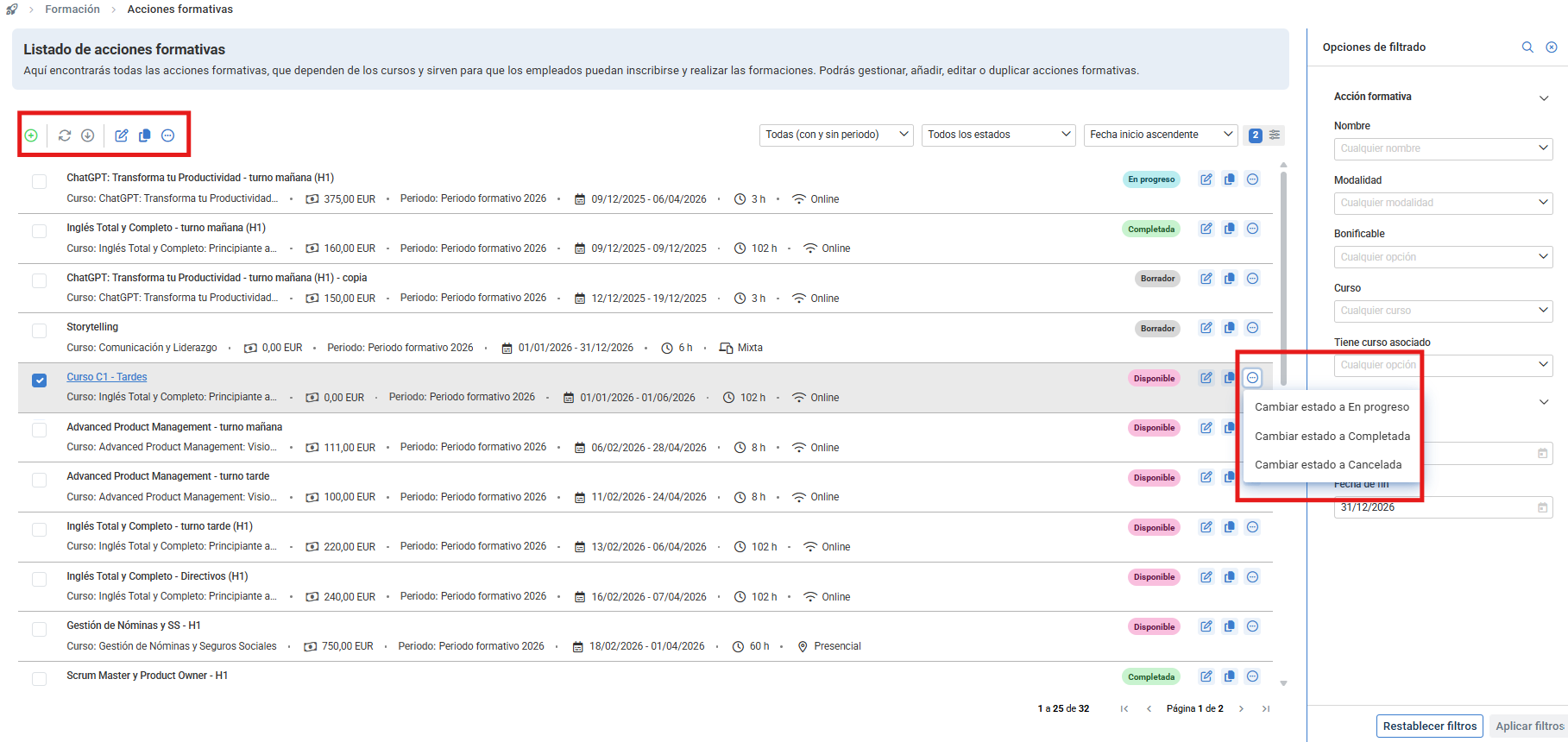
Within the Talent hub, go to the module Training > Employee Training > Training actions.
On the screen presented, you have filtering options by the state of the training action. In each training action, you have a series of actions allowing you to update the state of the training action.
Within the selected action's file, select the Sessions menu item. In the section Data about sessions, you have two options, manage attendance or upload the signature sheet.
- Participant attendance can only be managed if the training action is in "In Progress" or "Completed" states.
- Only active participants (both internal and external) can be managed. Remember that the visibility restrictions of your user apply.
- You can upload the signature sheet for each session once the training action is "In Progress" or "Completed."
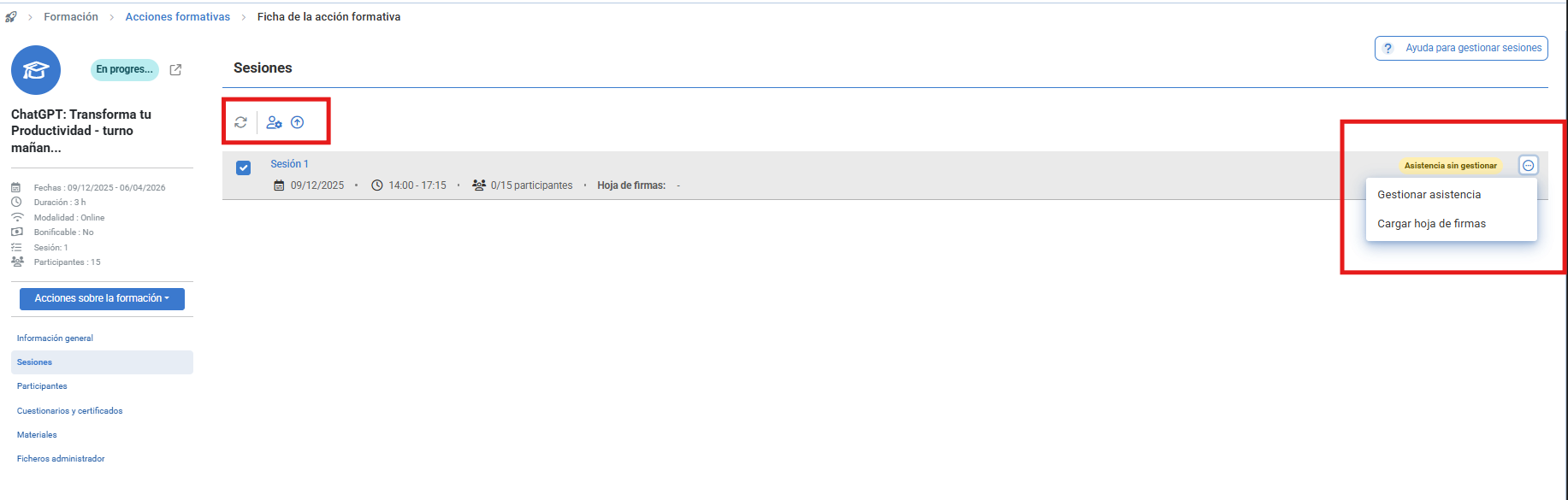
If you choose the first option, Manage attendance, a modal window will open where you can select the participants whose follow-up will be tracked. 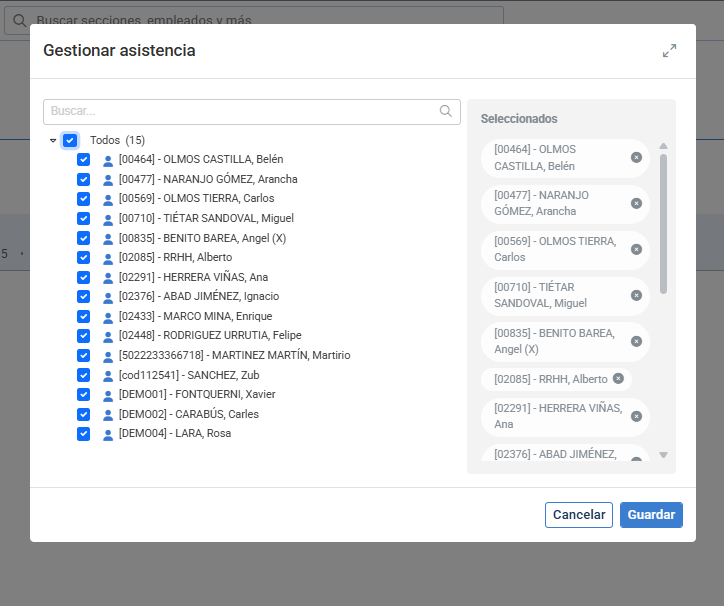
For the second option, Upload signature sheet, a specific window will open for selection. These sheets are individual per session, can be downloaded massively (using the button enabled for this purpose), must be a maximum of 10 MB per file, and must be in one of the following formats: .xls, .xlsx, .pdf, and .zip.
Once session attendance has been managed , in the Participants menu item, the system will show you the percentage of attendance calculated for each participant, based on the total sessions attended.
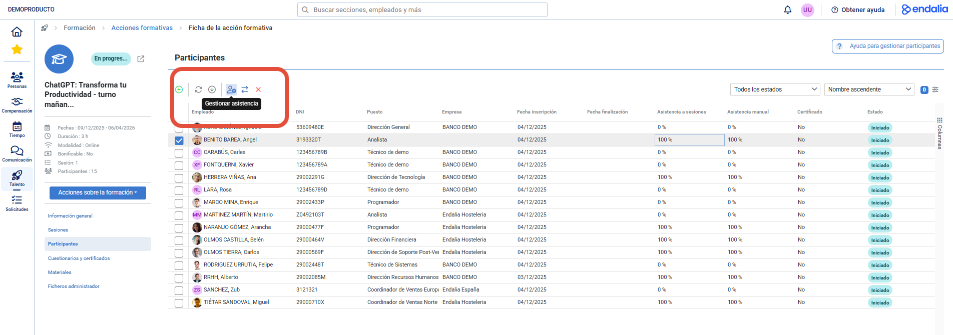
You can manage attendance manually, this will overwrite the calculated attendance.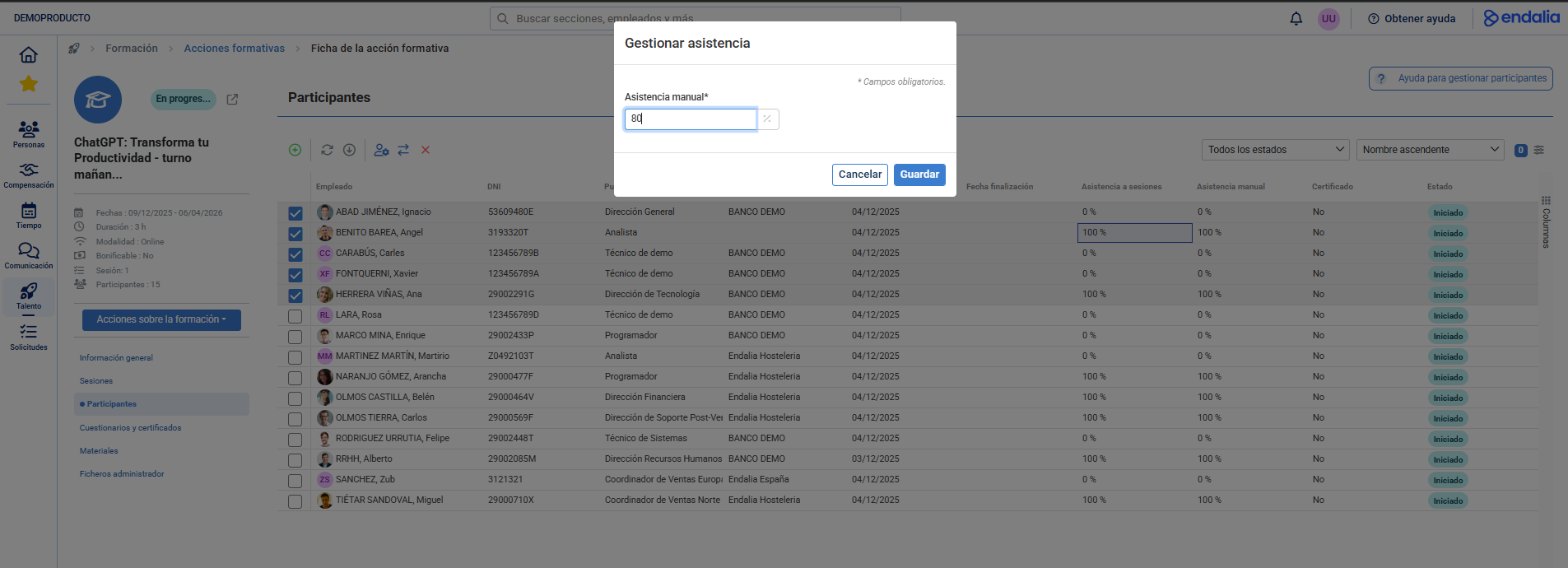
Still have questions? Consult the following related articles:
You can also view our glossary, available at this link.
Was this article helpful?
That’s Great!
Thank you for your feedback
Sorry! We couldn't be helpful
Thank you for your feedback
Feedback sent
We appreciate your effort and will try to fix the article