Important: this article is aimed at users of Endalia HR with an Administrator profile.
Once a period is configured, it is necessary to create a calendar with the key dates for the employee, to which other variables of special relevance will be associated. We show you how to take advantage of this functionality in a few simple steps.
Here you will find:
Create and configure calendars
Within the hub Configuration, click on the Vacations and absences > Calendars module
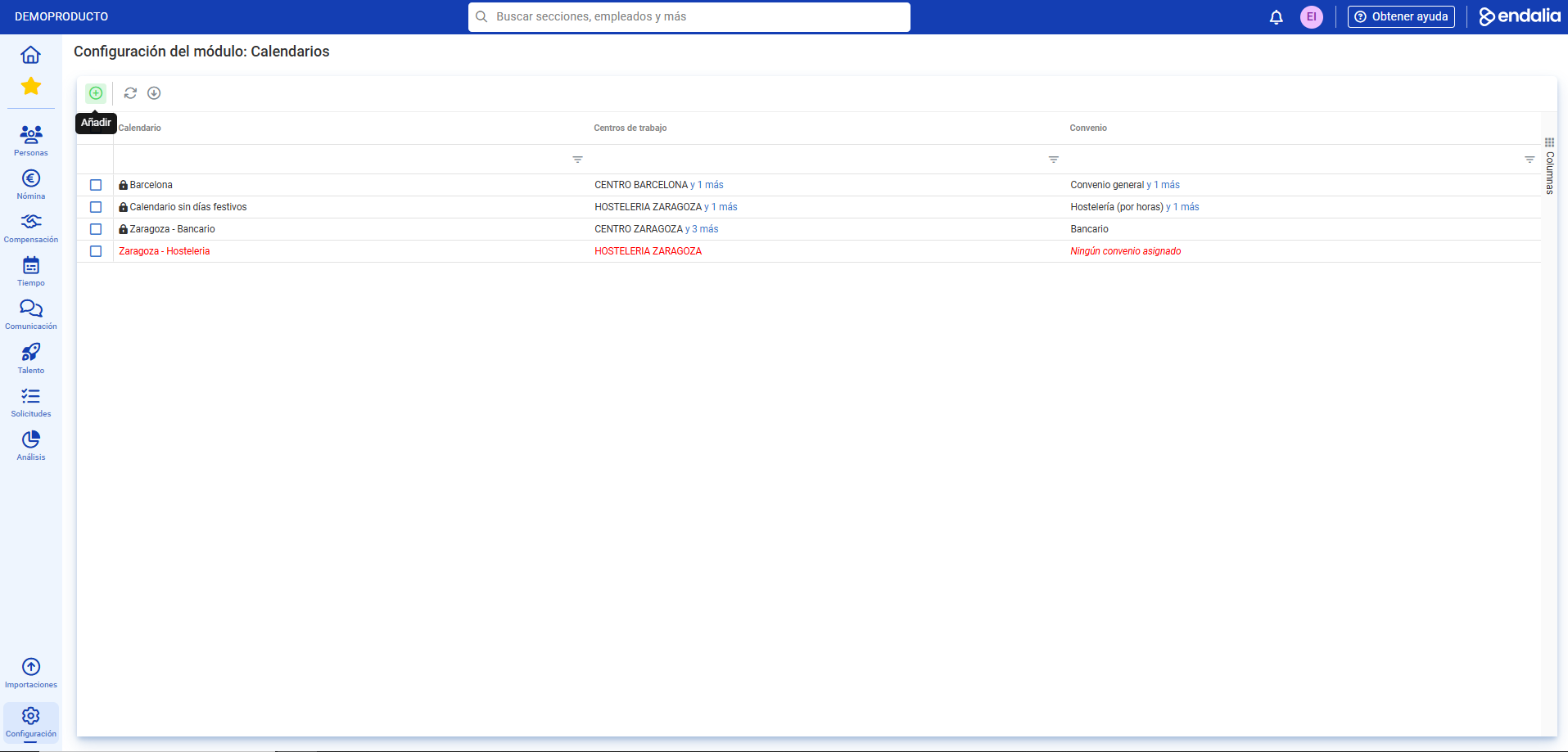
- On this first screen, all existing calendars are displayed, along with their corresponding work centers and associated agreements. To generate a new one, click the Add button, located on the toolbar:
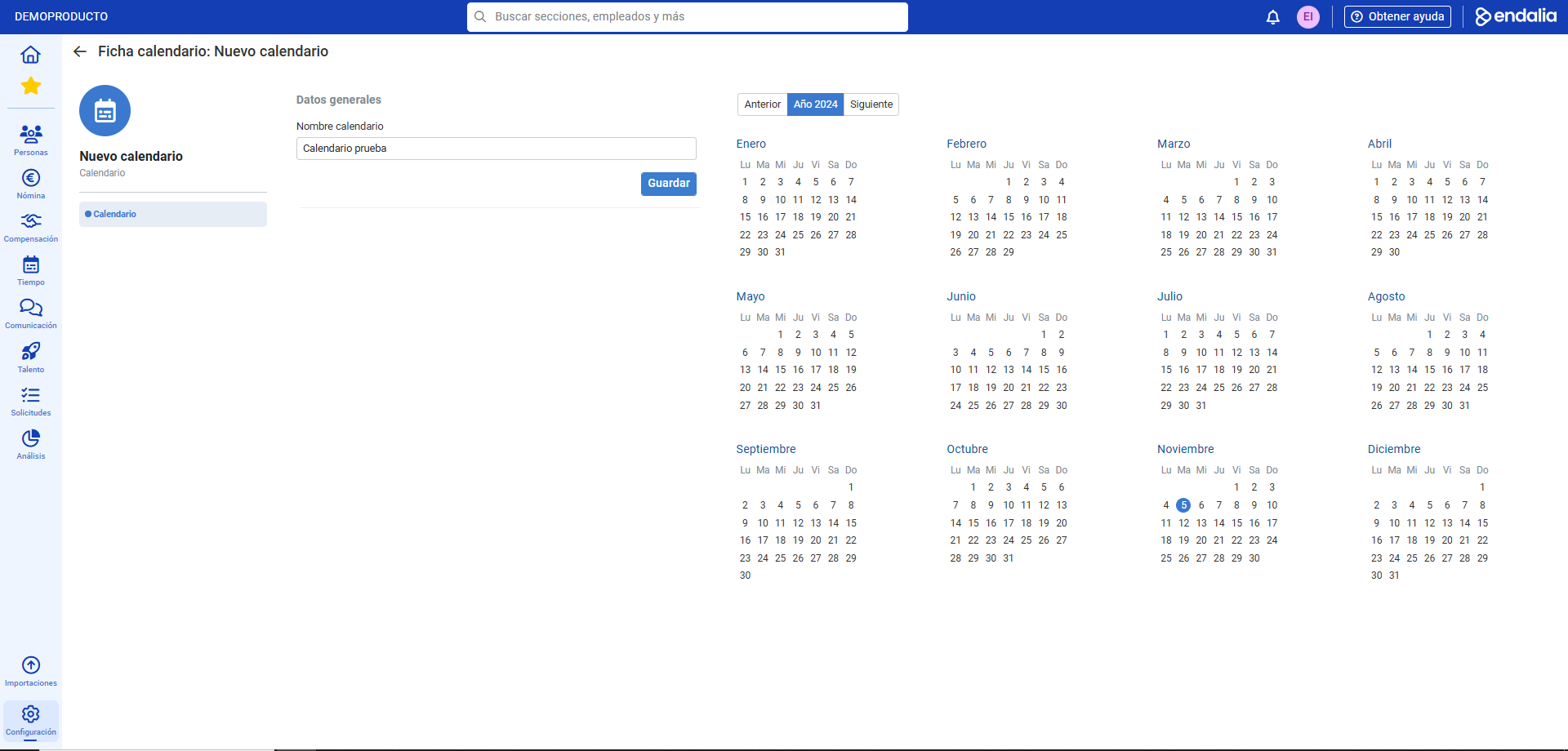
- On the next screen, you must first create your calendar. Under General Data, enter the name of the calendar and then click Save to display the rest of the fields to be filled out:
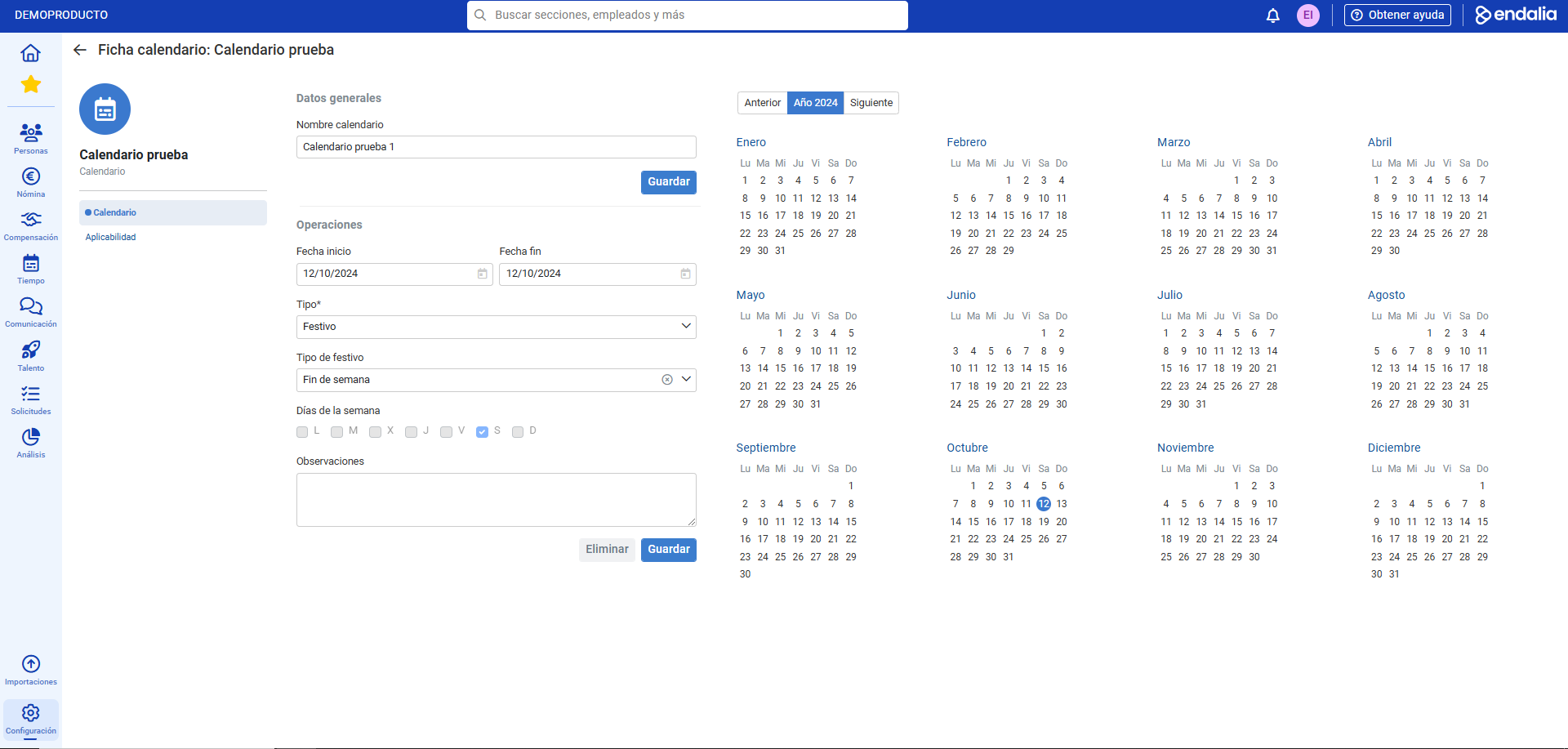
- Enter specifications in the first tab menu, called Calendar. In the Operations section, set the parameters to define the year; for example, to establish holidays for an office schedule, the type of day (such as "holiday"), the type of holiday (weekend), the corresponding days (Saturday and Sunday), and observations (optional). Click once more on Save
- In the modal window Save calendar days, confirmation of days and date ranges is required. Once again, confirm by clicking Save.
- You can now see, on the right side of the screen, the calendar created with its new specifications, shown shaded in red. Similarly, you can continue adding new parameters following the process described in this same step (configure local, regional holidays, etc.)..
7. The other tab menu, Applicability, allows you to manage both the agreement(s) and the associated work centers. Use the Add option, located on the toolbar, to add them to your calendar: 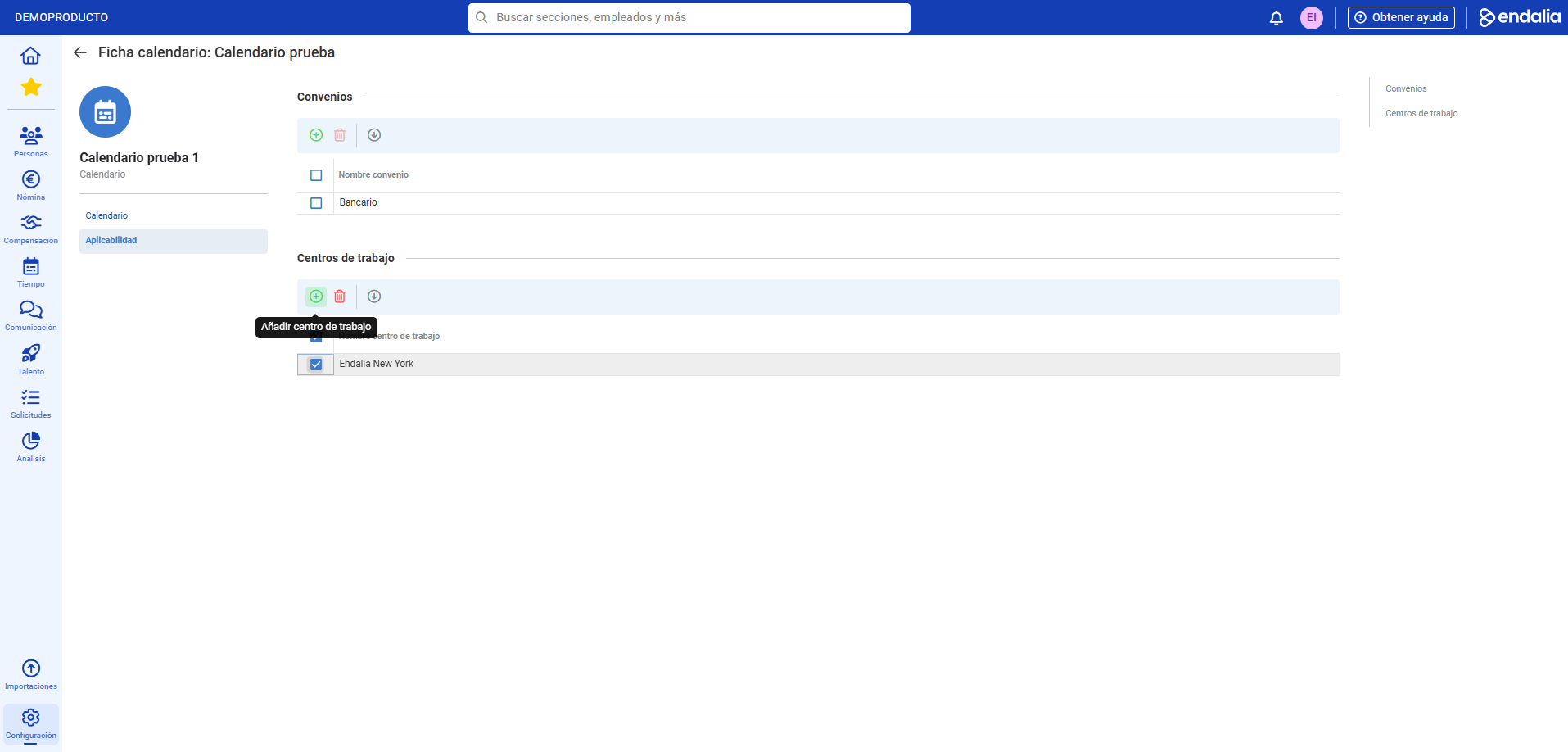
Video of the process
All steps, summarized in the following video:
Still have doubts? Here are more articles that may be useful to you:
Additionally, you can view our glossary, available at this link.
Was this article helpful?
That’s Great!
Thank you for your feedback
Sorry! We couldn't be helpful
Thank you for your feedback
Feedback sent
We appreciate your effort and will try to fix the article