Important: This article is intended for Endalia HR users with an Administrator profile.
As with other software, proper configuration is the first step to maximizing the functionalities our program offers. We'll tell you in detail in these lines.
Here you will find:
Module Options
- Inside the hubConfiguration, click on the Vacation and Absences module> Module Options
- The sections we detail below are found on this screen. Remember you can enable or disable them with the "Enable option" button:
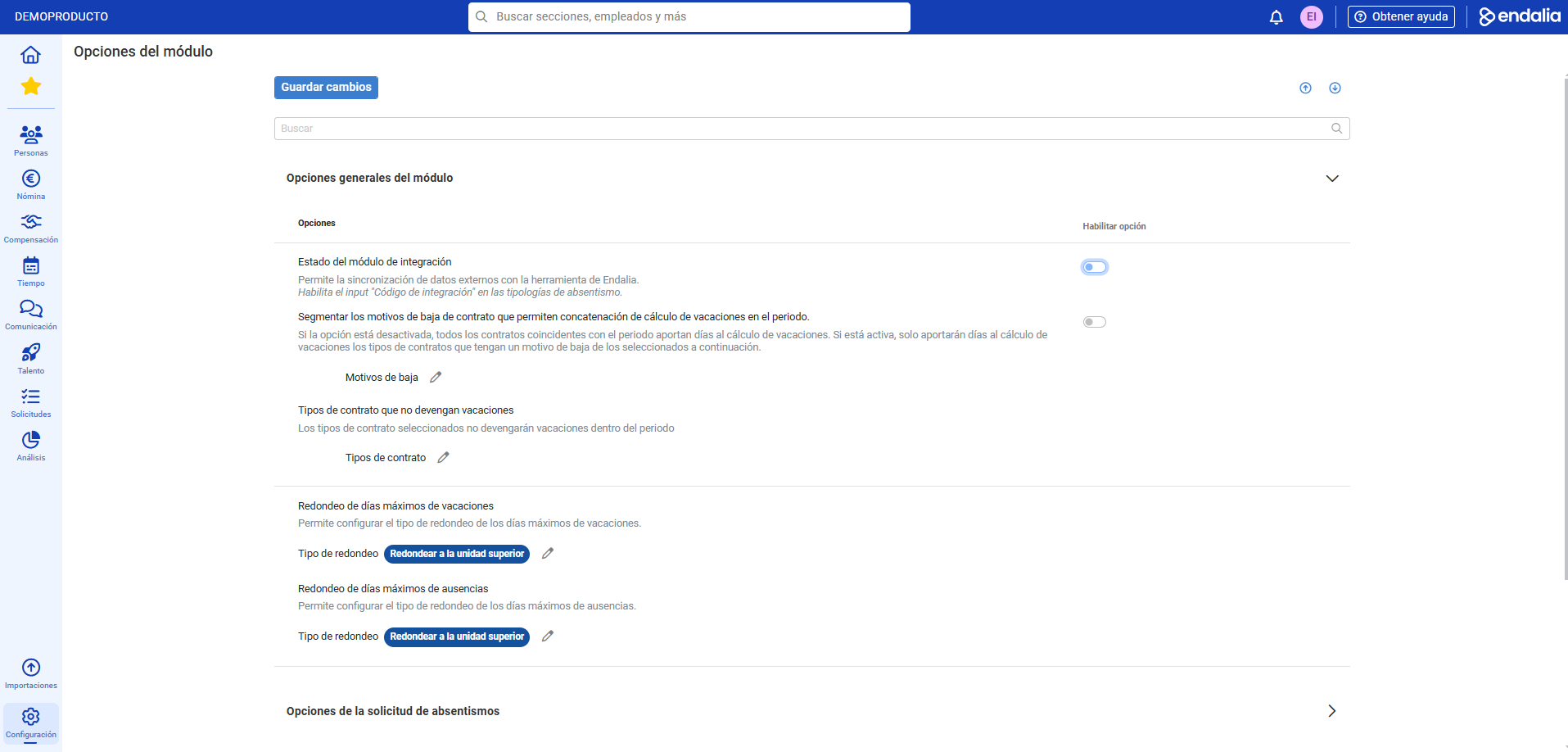
- General Module Options: This generic configuration allows you to synchronize data from external sources with the tool, as well as enable the integration code in absenteeism types. Especially useful for feeding the existing module with new data.
- Absenteeism Request Options: to control the options related to this typology. Here you will find:
- Adjust the maximum duration of absences to 8 hours: prevents the employee from submitting a request that exceeds this time interval; it is particularly important if it is established that the company's workday is 8 hours; therefore, the worker's absence cannot exceed the time they are at their work post.
- Mass absenteeism requests: for the employee to select absences of the same typology (doctor's appointment, exam, etc.) in one process, which can be repeated over time (e.g., a medical check-up every Monday for two months).
- Status and Approval Flow: all permissions are adjusted here for employees and managers and the phases they go through. It is a way to control how vacations and absences are approved, in which phases, and what people are involved in each process. It consists of:
- Status Configuration for Flows: defines names and responsibles for each vacation and absence request. The statuses are divided into Draft (unplanned), Requested (requested but not validated), HR Review (requested and validated by direct manager but not by HR), Validated (approved by all parties involved), and Rejected (requested but not approved). Of these, only Requested and Validated are mandatory for all process phases.
- Approval Flows: defines, within the flows themselves, the states or phases a request process comprises, i.e., the process the request must follow and the relationships between the requester and their direct manager when approving it.
Note: Regardless of flows and their interrelations, HR always has the authority to approve or reject them. HR has the authority to approve or reject them at any time.
- Calendars: This option allows you to control how calendars appear in various environments. You can manage whether the company's external employees appear in the comparative calendar, which centers it applies to, and the visibility of My Circle on the home; according to the organizational chart, visualize my manager, colleagues in the same position, the first level of descending employees from the first ascending organizational unit found, and employees whom I am responsible for at the first level.
- Delegates: This option allows individuals other than direct supervisors to approve absences, both through the full flow and at first approval. To know more about this functionality, check out this article: Delegation
- Hourly Pool: Enabling this option allows extensions and on-calls to count as a bank of hours and therefore can be compensated later with free time.
- Collaborator Absenteeism Summary: allows comfortable viewing of these parameters, as well as configuring the interface to display absenteeism expressed in maximums, by employee agreement, and, at a higher level, the employee's vacations, the types of leave available to the worker, whether they have compensation for an hourly pool and highlighted absences, if any.
Tip: Additionally, contextual help offers you information at all times about the range of options displayed in this menu item.
Still have questions? Here are more articles that might be helpful to you:
Additionally, you can view our glossary, available at this link.
Was this article helpful?
That’s Great!
Thank you for your feedback
Sorry! We couldn't be helpful
Thank you for your feedback
Feedback sent
We appreciate your effort and will try to fix the article