Important: this article is intended for Endalia HR users with an Administrator profile.
When it comes to time management, we need to limit periods to manage and delimit the actions we perform. Would you like to know how to carry out these functionalities? Take a look at this short text to make the most of this functionality.
In this article:
Create and set up periods
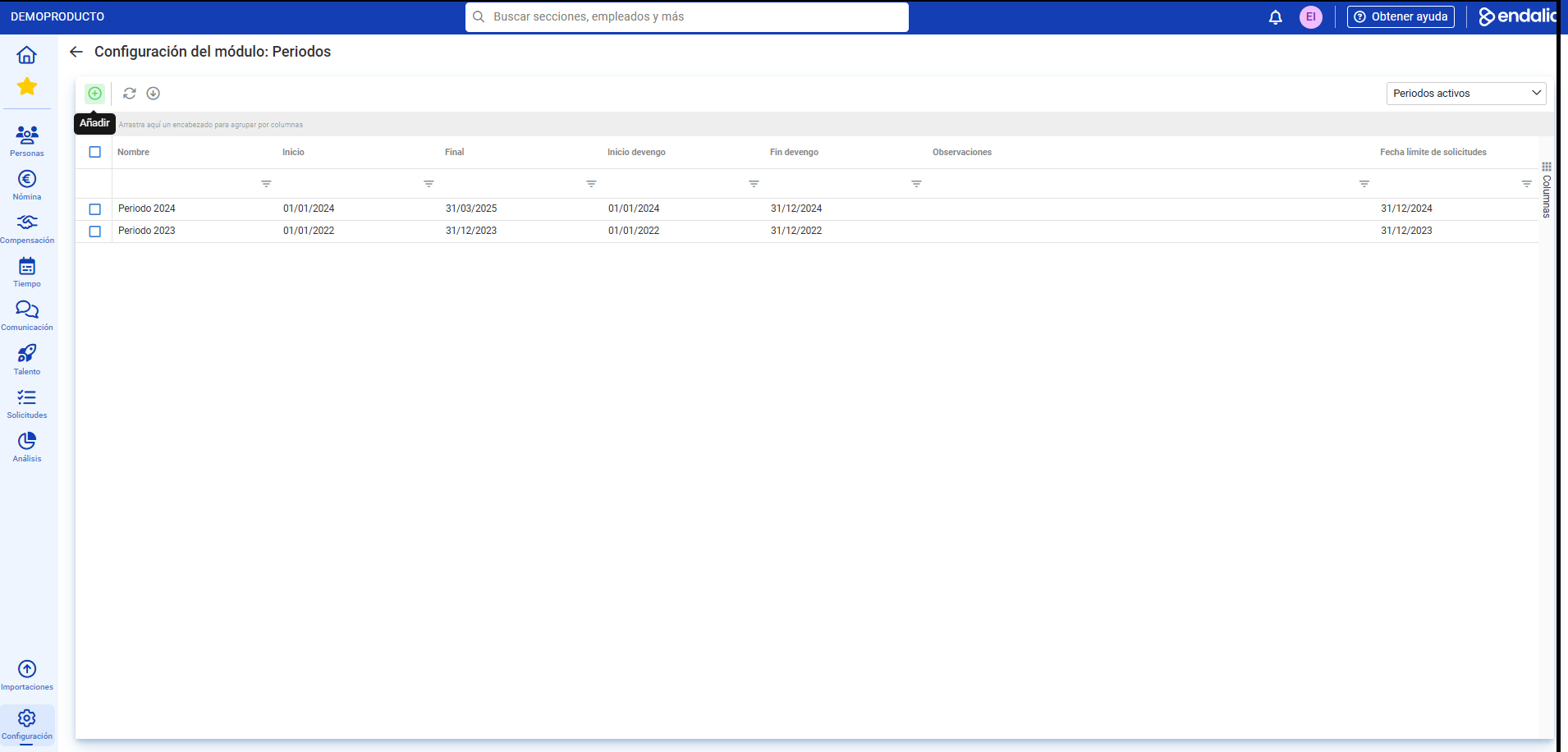
- Inside the hub Configuration, click on the module Holidays and Absences > Periods
- On this first screen, all existing periods are displayed. To create a new one, click on the Add button, which you'll find on the toolbar.
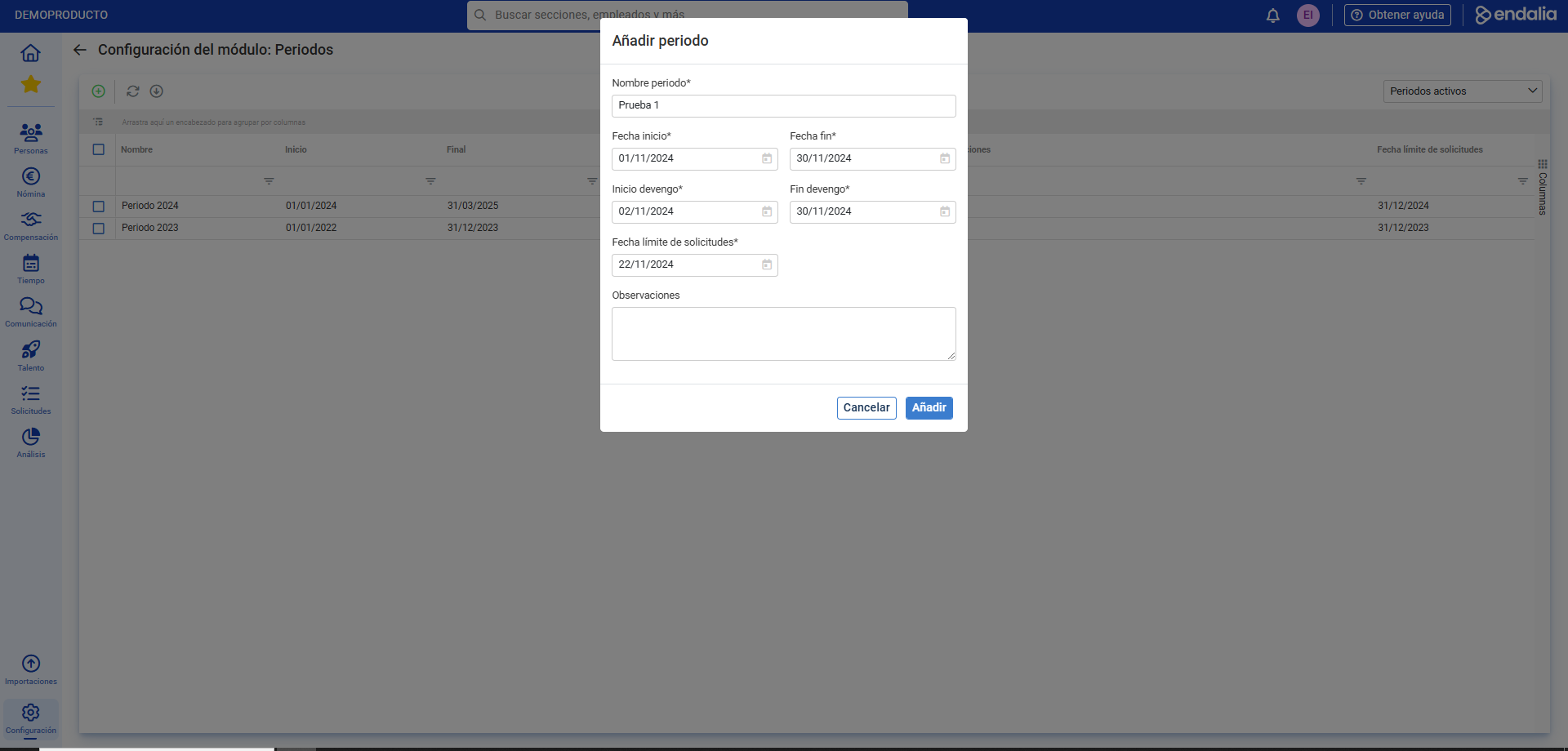
- In the next modal window, you need to configure the new period by indicating its start and end, as well as accrual dates. Click again on Add
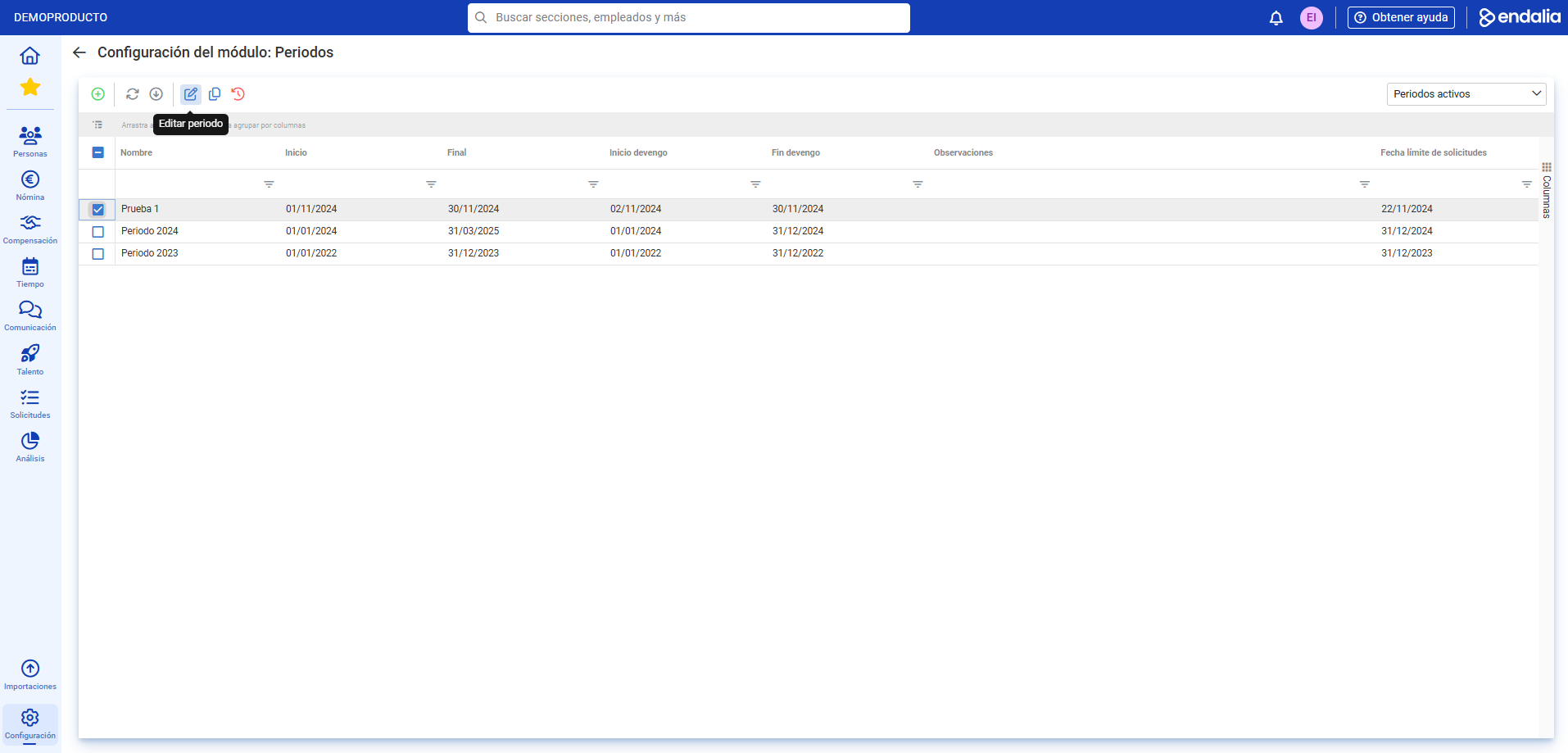
- Now that the period is created, its configuration can be addressed. To do so, double-click the corresponding row for the period or alternatively, check its corresponding box and click on the Edit button located on the toolbar:
- Now you can configure the period from the menu card, composed of the following fields:
- General Data: already previously entered.
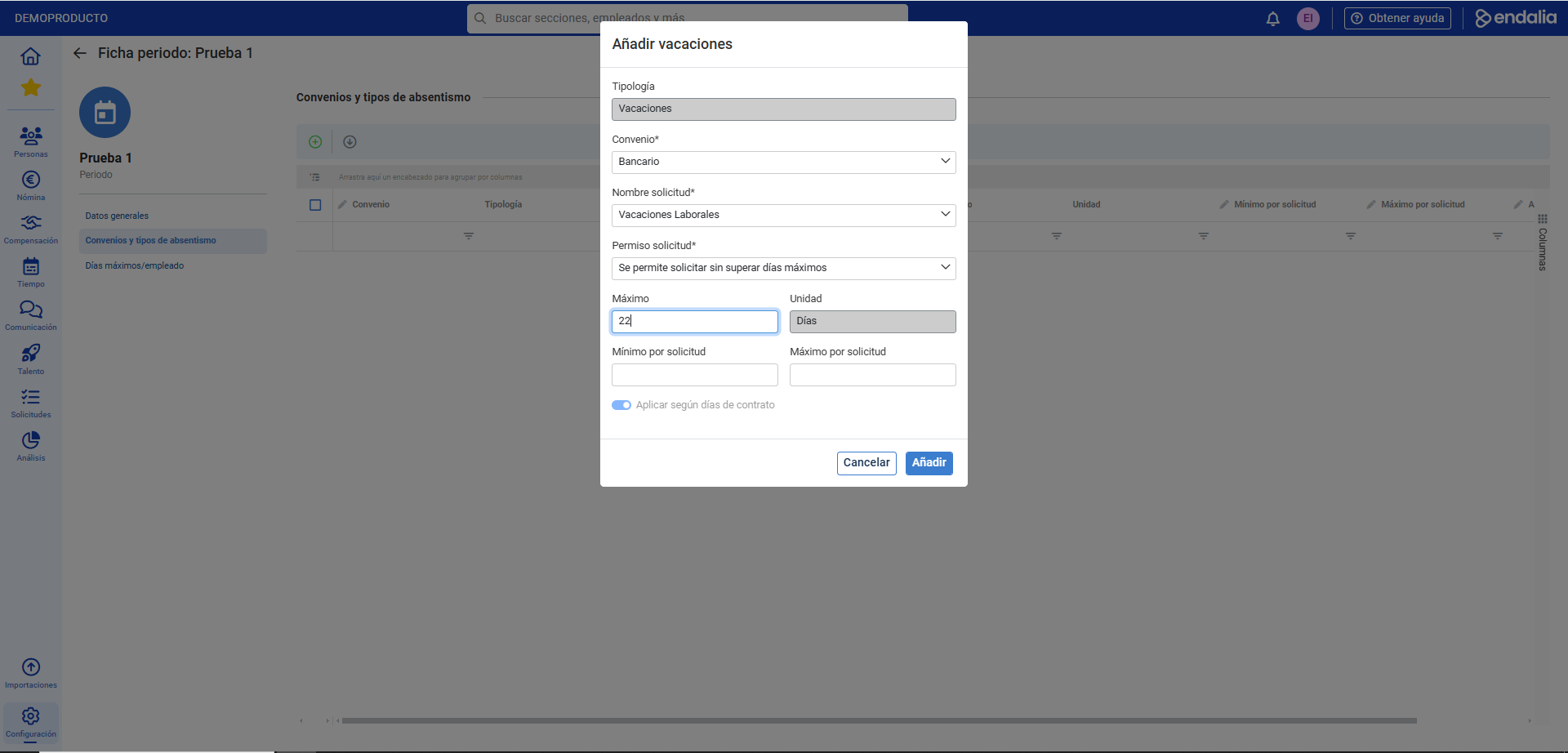
- Agreements and types of absenteeism: using the Add button on the toolbar you can freely configure agreements so that employees can make various requests regarding them. For example, that a banking employee (banking agreement) can request specific vacation days (22 days), with a minimum per request (4 days), that they can make requests exceeding the initially established maximum days, etc:
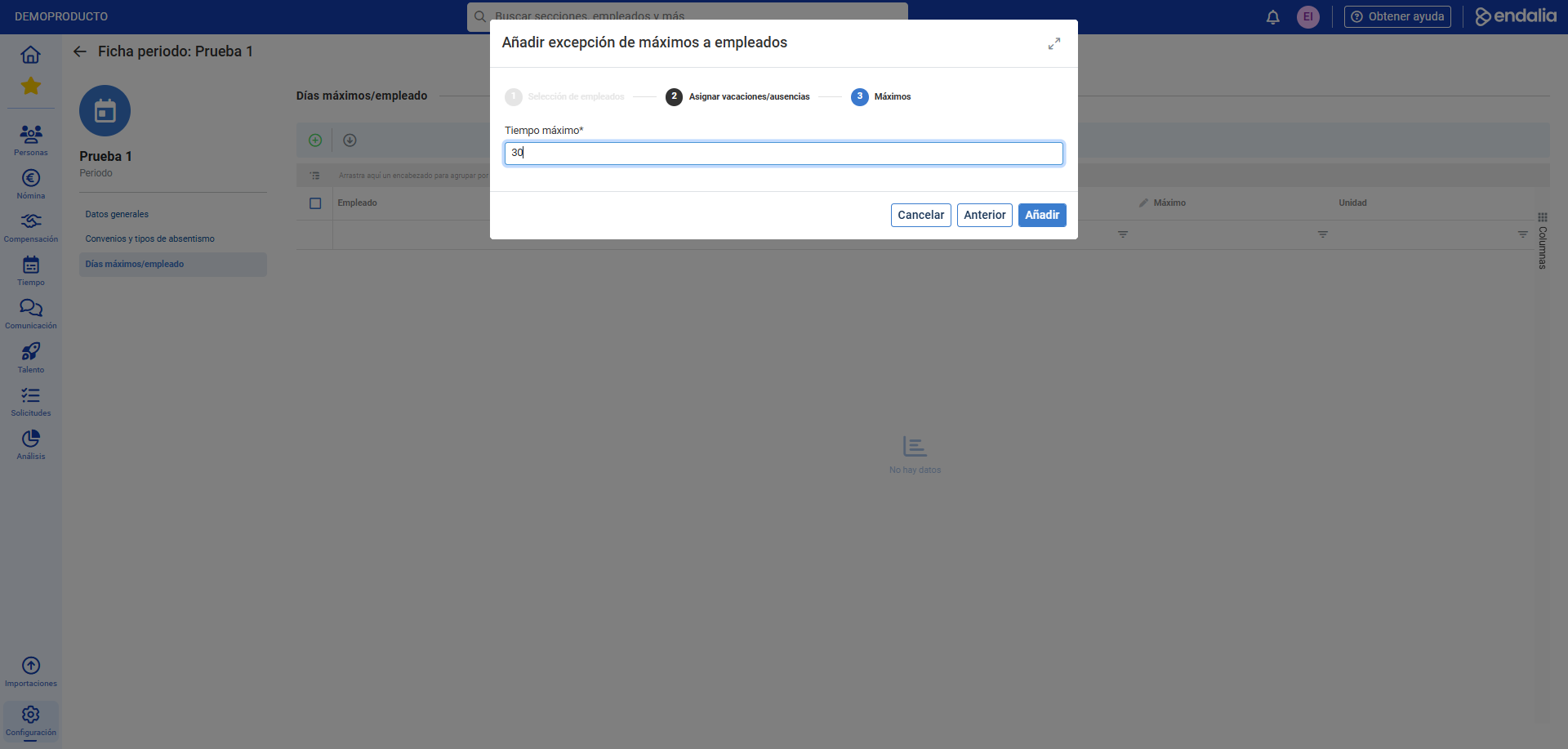
- Maximum days/employee: in three simple steps and again using the Add button, select the employees in the structure tree, their corresponding vacations or absences, and the maximum number of days they will have. As in the previous option, remember to click Add to make the changes effective:
Remember to click on Save changes within the General Data menu to set your preferences for the entire Periods menu item: 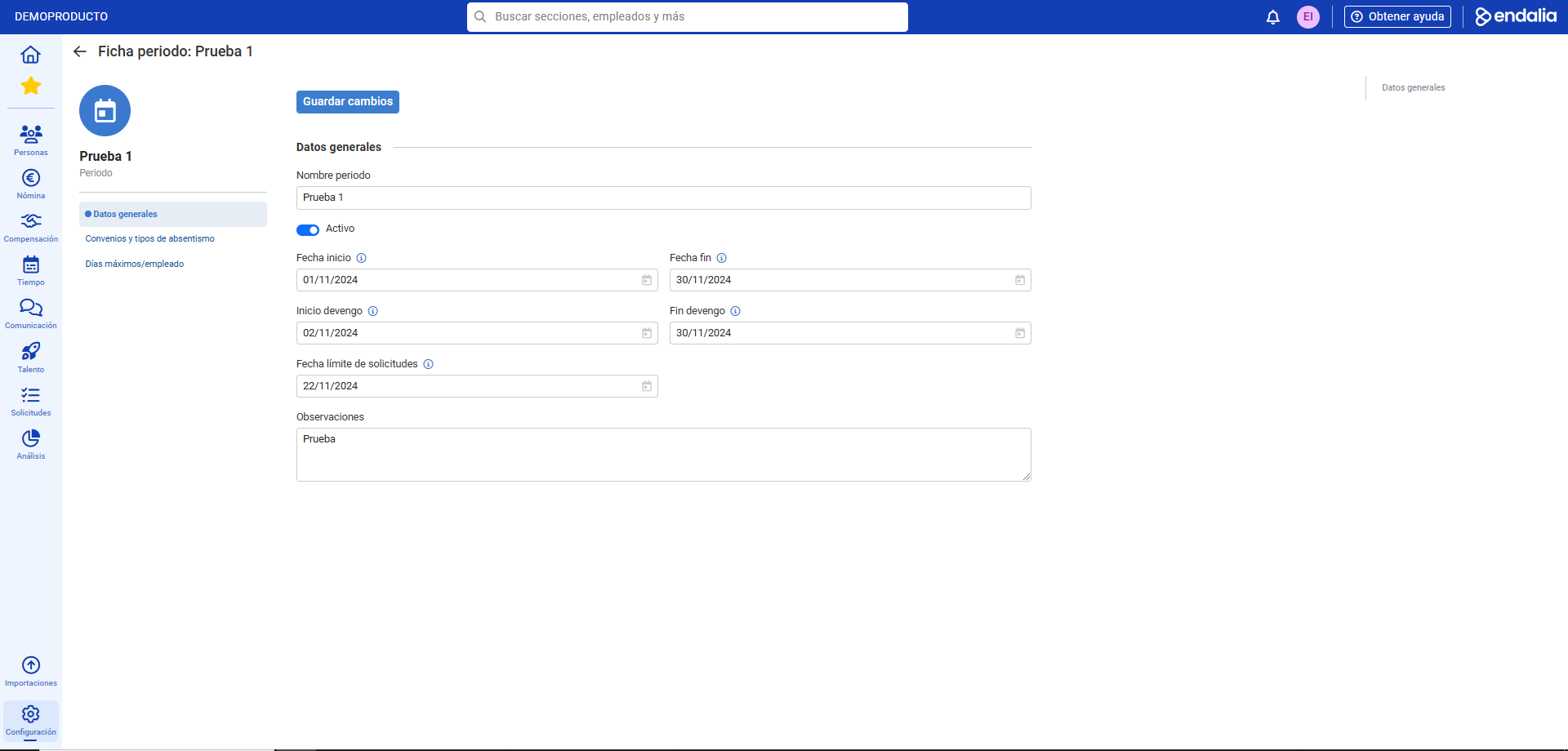
Process video
All steps, in a few informative seconds:
Still have questions? Take a look at the following related articles:
Additionally, you can view our glossary, available at this link.
Was this article helpful?
That’s Great!
Thank you for your feedback
Sorry! We couldn't be helpful
Thank you for your feedback
Feedback sent
We appreciate your effort and will try to fix the article