Important: this article is aimed at Endalia HR users with an Administrator profile.
Part of an employee's record involves maintaining a history of dates and values which can sometimes cause conflicts. Don't overlook the advice in this mini-tutorial to learn more about the topic.
In this article, you will find:
Modify dates in an employee’s variation history
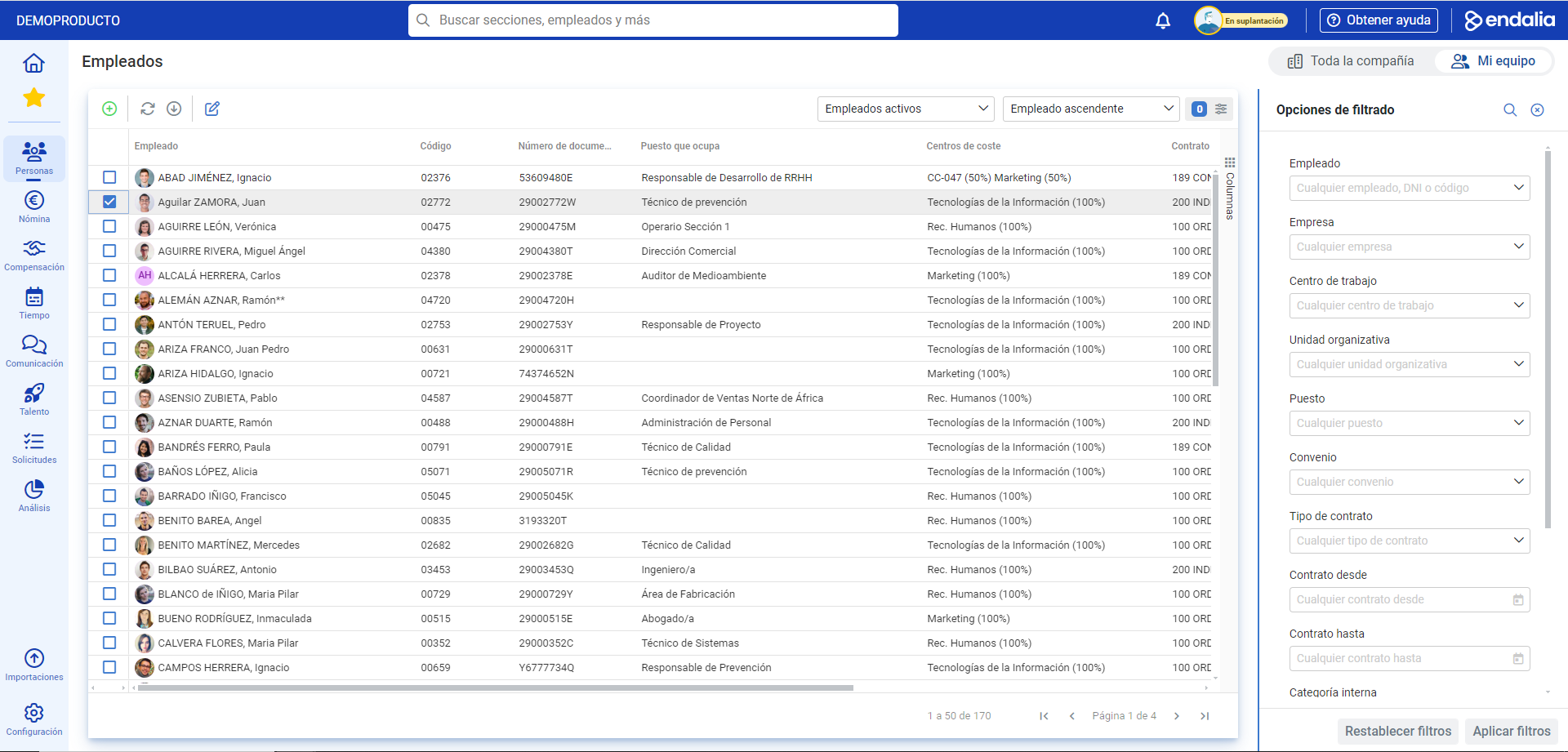
- In the Organization and People hub, navigate to People > Employee Monitoring > Employees
- Double-click on the employee's name. You can select them from the list of names or use the filtering options:
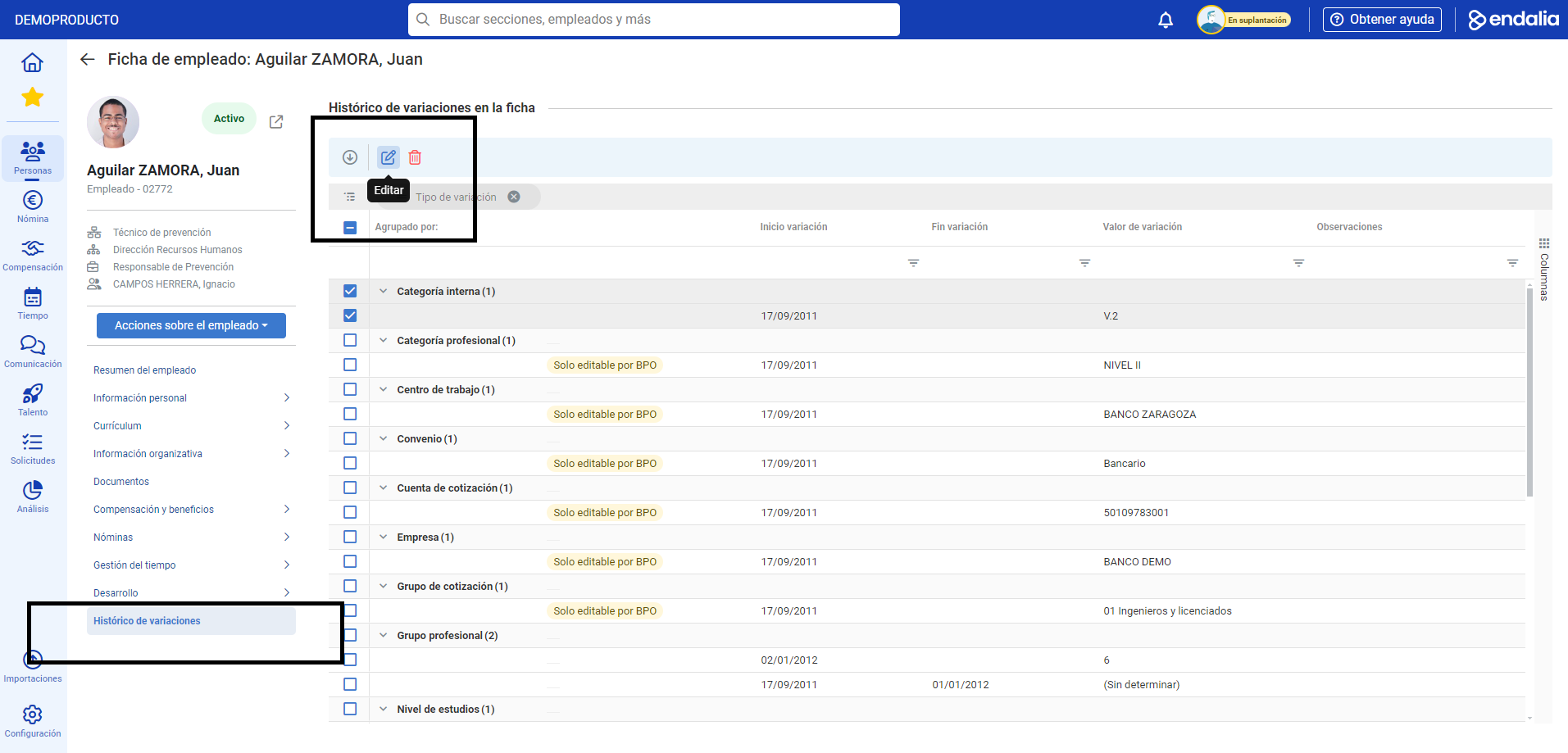
- Once in the employee’s file, go to the menu item titled Variation History
- Now, you can view the variation history in the file and specifically edit values with their corresponding start and end dates. To do this, select a type of variation and click on the Edit button located in the toolbar.
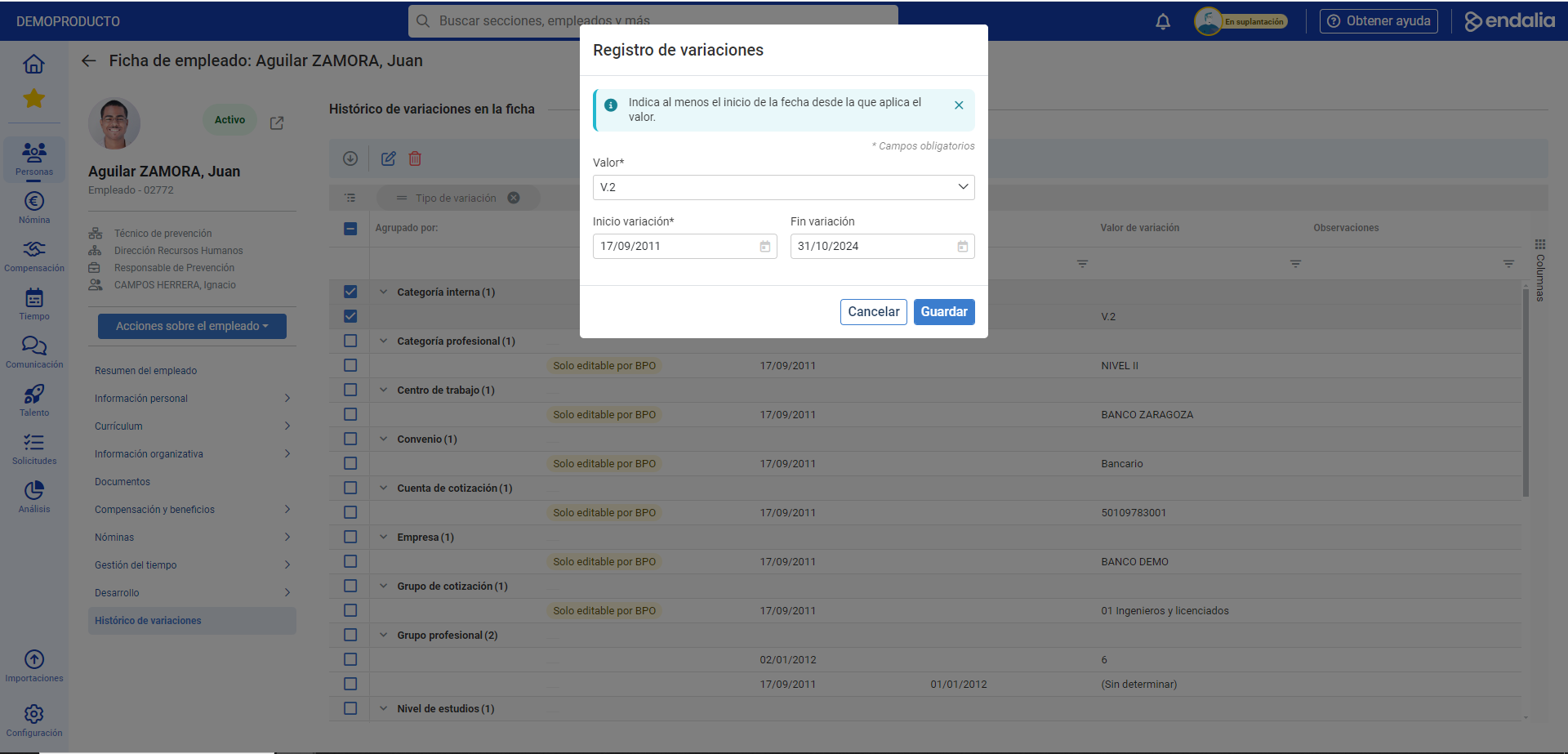
- In the emerging modal window, select the value with its corresponding start and optional end date. Finally, remember to click Save to consolidate this preference.
- When a conflict of values or dates arises, the system will inform you of the impossibility of making the changes, and the new value will be replaced with the old one. Remember to click Continue to register your preferences.
Process video
Here is the complete process video:
Want to learn more? Check out the following related articles:
If you have questions about the terms, check out our glossary at this link.
Was this article helpful?
That’s Great!
Thank you for your feedback
Sorry! We couldn't be helpful
Thank you for your feedback
Feedback sent
We appreciate your effort and will try to fix the article